

Before you start
- You need access to the company. Staff with Read access to Calendar, Meetings or Companies settings for that company can read its notes.
- To see Autotask notes, the company must be linked to an Autotask integration that has synced.
Open a company’s account notes
1
Open Settings > Companies
Select the company you want.
2
Select the Notes tab
The tab lists account notes, QBR log entries and Autotask notes together. Each card shows a badge for its kind, Account note or QBR log.
- A meeting’s QBR Log tab. Open a meeting that has a company set and select QBR Log. It lists the company’s QBR entries. This meeting’s entry is first and carries a This meeting badge.
- The company overview’s Account Notes card. It shows the three most recent entries. Click View all to open the company’s Notes tab. Click a row linked to a meeting to open that meeting.
Search and filter
1
Search
Type in Search account notes. Search matches the title, author, note type, note text, Discussed text, decisions, and commitment descriptions and owners. Click Clear search to empty the box.
2
Filter by kind
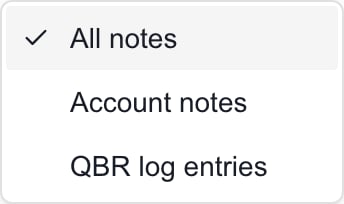
Open Filter by kind and choose All notes, Account notes or QBR log entries. This filter is on the company Notes tab. A meeting’s QBR Log shows QBR entries only.
3
Filter by note type
Open Filter by note type and pick a type such as an Autotask note type. The list is empty and the filter is disabled when no entry has a type.
4
Sort
Open Sort account notes and choose Newest first or Oldest first. The current meeting’s entry always stays first.
5
Reset
Click Clear to remove the search, kind and note type filters. It keeps your sort choice.
Read an entry
- Account notes show a title, a date, the note text and the author. Click Show full note to expand a long note and Show less to collapse it. Neither changes the saved note.
- QBR entries show Discussed, Agreed and Actioned. Each commitment can show an owner and a due date. A count such as 2 of 5 open counts that entry’s commitments only.
- Click Open meeting to jump to the meeting a QBR entry is linked to. An entry made in company settings may not be linked to a meeting.
Understand the labels
Troubleshooting
Frequently asked questions
Can company users read account notes or the QBR Log?
Can company users read account notes or the QBR Log?
No. These are MSP staff views. Company users can read shared meeting information and meeting summaries.
Does the meeting's QBR Log show only that meeting?
Does the meeting's QBR Log show only that meeting?
No. It shows all QBR entries for the company, with this meeting’s entry first.
Does the overview card count every open commitment?
Does the overview card count every open commitment?
No. It shows the latest three entries. Each QBR row shows its own open-commitment count.
Does Clear reset the sort?
Does Clear reset the sort?
No. It clears the search, kind and note type filters and keeps your sort.
Does ticking Done update the meeting action item?
Does ticking Done update the meeting action item?
No. It changes the QBR commitment only.
Why is a note I pushed to Autotask listed once?
Why is a note I pushed to Autotask listed once?
MSPortal hides the synced Autotask copy of a note it pushed, so you see the MSPortal note only.