

Before you start
- Filters work on the Day, Week and Month views. The Year view follows the company selector and the layer toggles, but it does not apply search, staff, status or the other filters.
- The company selector at the top of the app sets which companies the Calendar loads. See Find events in Calendar.
Search and filter events
1
Open Calendar
Go to Calendar and pick Day, Week or Month.
2
Search
Type in Search events…. It matches the title, notes, location and company name of events in the dates you are viewing. It does not search other dates.
3
Pick staff
Open Staff in the toolbar and tick one or more people. Events show when any ticked person is assigned. The list comes from the people on the events and blocks that are loaded, so it can be short.
4
Open the filter drawer
Click the Filter icon at the right of the toolbar. A number on the icon counts the filter groups that are active.
5
Choose filters
The drawer has Event Types, Companies, Staff and Status sections. In Week view it also has an option to enable Saturday / Sunday, because Week view shows weekdays only by default. When a role list is available, Filter by Role is at the bottom of the drawer.
6
Click Apply Filters
This closes the drawer. Your choices already took effect as you made them, so closing the drawer does not undo them. Click Reset to clear them.
Turn layers on or off
1
Open the layers menu
Click the stacked-layers icon in the toolbar.
2
Tick the layers you want
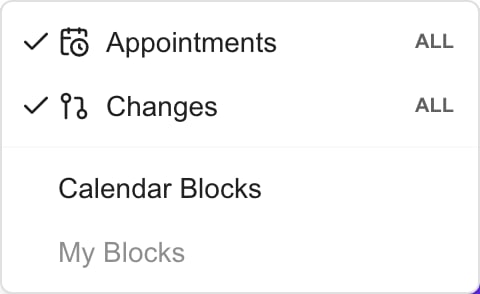
Appointments and Changes each show Mine, Site or All on the right. That label is the access your MSP gave you for the layer. You cannot change it here. A layer you have no access to is not listed. A Site role with no site assigned can show Mine.
Turning a layer off hides it only. It does not delete an appointment, cancel an invitation or change a provider calendar.
- To see freeze windows in the Day, Week and Month grids, tick both Changes and Calendar Blocks. See Manage freeze windows.
- Busy blocks follow Appointments, so keep Appointments on to see them.
- Busy block subjects can be hidden by your MSP’s settings. See Configure Calendar defaults.
- If you pick staff or roles while Calendar Blocks is on, only those people’s blocks show.
Hide repeated titles and all-day events
1
Open Hide items
Click Hide items in the toolbar.
2
Hide all-day events (optional)
Tick Hide all-day events at the top of the list to hide all-day and multi-day all-day events.
3
Pick titles to hide
Tick the event titles you do not want to see. A title match ignores capital letters and spaces around the title. It hides every event with that exact title, on every day and for every company.
Reset the filters
Click Reset in the filter drawer. It clears search, Event Types, Companies, Staff, Status and role filters. It turns Appointments and Changes back on, shows all-day events and returns Week view to weekdays only. It does not clear hidden titles, Calendar Blocks, My Outlook appointments or the company selector.Troubleshooting
Frequently asked questions
Does Apply Filters save anything to the meeting records?
Does Apply Filters save anything to the meeting records?
No. Filters only change your view. Apply Filters closes the drawer.
Does Filter by Role show only meetings that role holder attends?
Does Filter by Role show only meetings that role holder attends?
No. It matches companies where the person holds that role.
Does changing the company selector clear every filter?
Does changing the company selector clear every filter?
No. It clears company chips and closes open event dialogs. Other filters and hidden titles stay.
What do Mine, Site and All mean?
What do Mine, Site and All mean?
They are the access level your MSP assigned for that layer. They are labels, not options.
Does turning Appointments off cancel invitations?
Does turning Appointments off cancel invitations?
No. It only hides them from your view.
Does Hide items hide only one occurrence?
Does Hide items hide only one occurrence?
No. It hides every event with the same title.