Set busy-block labels, default meeting length, week start and full-day or half-day time ranges for your MSP.
Use this page to set the Calendar defaults that apply to everyone at your MSP. It is for MSP administrators. Company users can read and filter the Calendar, but they do not change these settings.
You need Calendar settings access and permission to manage Calendar settings.
These settings apply to your whole MSP, not to one person or company. A viewer’s own filters are separate.
The Company meetings, Freeze Windows and Post-Meeting tabs sit beside General Settings and save separately. Company meetings sets up the recurring meetings you hold with your companies.
Turn Show event details on to show the subject and location of other people’s synced Outlook events instead of Busy. Events marked Private in Outlook still show Busy to everyone else. Your own synced events always show their details. The change applies to every synced event, including ones already on the calendar, the next time the calendar loads.
3
Set the default meeting length
Open Default Meeting Duration and choose 15 minutes, 30 minutes, 45 minutes, 1 hour, 1.5 hours or 2 hours. New meetings start with this length.
4
Choose the start of the week
Set Week Start Day to Sunday or Monday.
5
Click Save
The Save button is in the page header. A Your calendar settings have been updated successfully. message confirms it. The button is disabled until you change something.
Changing these defaults does not change existing meetings, send invitations or change Microsoft 365 or PSA sync settings. Switching tabs does not save your changes, so click Save first.
It sits beside the general settings. Regular Hours and the Half Day Settings ranges are below the card description.
2
Set Regular Hours
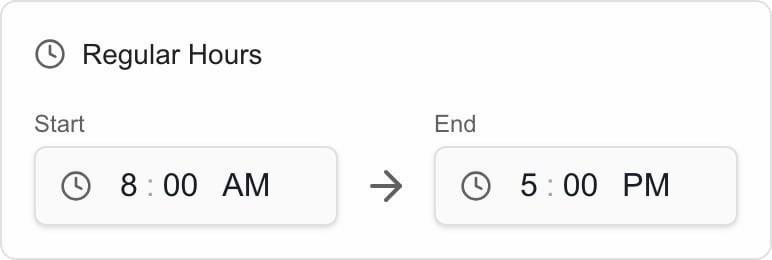
Pick a Start and an End time under Regular Hours.
Regular Hours set to 8 AM to 5 PM. Your MSP can choose different values.
3
Set the half-day ranges
Under Half Day Settings, set a Start and End for Morning and for Afternoon.
4
Click Save
Use the Save button in the page header.
New installs start with Regular Hours 08:00 to 17:00, Morning 08:00 to 12:00 and Afternoon 13:00 to 17:00.
Range
Used by
Regular Hours
The Full-day shortcut in the meeting editor.
Morning
The first click on the Half-day shortcut.
Afternoon
The second click on Half-day, which switches to the afternoon range.
Each range must end after it starts on the same day. An overnight range such as 10 PM to 6 AM is not accepted. For an invalid range the page shows Enter valid start and end times, with the end after the start. and Save stays disabled.Work hours are defaults for the shortcuts. They do not stop anyone from booking a meeting outside those hours.
You have no changes, a save is running, or a Start and End pair is invalid.
Save fails
Viewing settings and managing them are separate permissions. Ask an administrator to check your role.
Busy blocks still say Busy
Check that Show event details is on and saved, then reload the calendar. An event marked Private in Outlook, or one with no subject, always shows Busy to other people.
Existing meetings did not change length
Defaults only apply to new meetings and shortcut clicks.
{"docsConfig":{"theme":"mint","$schema":"https://mintlify.com/docs.json","name":"MSPortal.ai Documentation","colors":{"primary":"#16A34A","light":"#07C983","dark":"#15803D"},"logo":{"light":"https://mintcdn.com/msportal/KnbwIXtZSTlVJTt6/logo/light.svg?fit=max\u0026auto=format\u0026n=KnbwIXtZSTlVJTt6\u0026q=85\u0026s=eb69f6d6bf16b2c401770aef19ade1d2","dark":"https://mintcdn.com/msportal/KnbwIXtZSTlVJTt6/logo/dark.svg?fit=max\u0026auto=format\u0026n=KnbwIXtZSTlVJTt6\u0026q=85\u0026s=03f8df7191e7a8ea7da084df57f6107f"},"favicon":"https://mintcdn.com/msportal/KjsKytvp08K0bejm/favicon-16x16.png?fit=max\u0026auto=format\u0026n=KjsKytvp08K0bejm\u0026q=85\u0026s=378df7f039bbff7885231fec799d29ac","navbar":{"links":[{"href":"https://app.msportal.ai/product-roadmap","label":"Roadmap"},{"href":"mailto:support@msportal.ai","label":"Support"}],"primary":{"type":"button","label":"Dashboard","href":"https://app.msportal.ai"}},"footer":{"socials":{"linkedin":"https://linkedin.com/company/msportal"}},"styling":{"latex":true},"navigation":{"global":{"anchors":[{"anchor":"MSPortal.ai","icon":"globe","href":"https://msportal.ai"},{"anchor":"Support","icon":"life-ring","href":"mailto:support@msportal.ai"},{"anchor":"Status","icon":"signal","href":"https://status.msportal.ai"}]},"pages":[]}},"deployment":{"deploymentMetadataValue":{"subdomain":"msportal","hasAudioNarration":false,"actualSubdomain":"msportal","customDomains":["docs.msportal.ai"],"gitSource":{"type":"github","owner":"msportal-ai","repo":"mintlify-docs","deployBranch":"main","contentDirectory":"","isPrivate":false,"mountPath":"","label":""},"chroma":{"liveDeploymentHistoryId":"6ad8d218182ff03fed6d05cc","collectionId":"09c61d36-c2f4-4933-8f58-3ef63d827cc0","schemaVersion":"v3","latestBuiltDeploymentHistoryId":"6ad8d218182ff03fed6d05cc"},"feedback":{"thumbs":true},"entitlements":{},"buildId":"6ad8d218182ff03fed6d05cc","clientVersion":"0.0.3918","searchFilterCounts":[{"language":"default","tag":"MSP Guides","count":454},{"language":"default","tag":"Service Delivery","count":165},{"language":"default","tag":"API Reference","count":111},{"language":"default","tag":"Overview \u0026 Planning","count":109},{"language":"default","tag":"Connect your tools","count":88},{"language":"default","tag":"Integration setup","count":88},{"language":"default","tag":"Administration","count":38},{"language":"default","tag":"Settings","count":38},{"language":"default","tag":"Getting Started","count":36},{"language":"default","tag":"Budgets","count":36}]},"assistantConfig":{"enableAskAiButton":false,"enableStarterQuestions":false,"enableAskAiSearchBar":true},"hasChatPermissions":false,"hasWebMcpPermissions":false,"toggles":[{"name":"kill-isr","enabled":true,"variant":{"name":"disabled","enabled":false,"feature_enabled":true},"impressionData":false},{"name":"agent-mintlify-slack","enabled":true,"variant":{"name":"disabled","enabled":false,"feature_enabled":true},"impressionData":false},{"name":"editor-v7-file-tree","enabled":true,"variant":{"name":"disabled","enabled":false,"feature_enabled":true},"impressionData":false},{"name":"agent-integrations-settings","enabled":true,"variant":{"name":"disabled","enabled":false,"feature_enabled":true},"impressionData":false},{"name":"automations-pr-grouping","enabled":true,"variant":{"name":"disabled","enabled":false,"feature_enabled":true},"impressionData":false},{"name":"custom-prefix","enabled":true,"variant":{"name":"disabled","enabled":false,"feature_enabled":true},"impressionData":false},{"name":"analytics-v7","enabled":true,"variant":{"name":"disabled","enabled":false,"feature_enabled":true},"impressionData":false},{"name":"user-flows-analytics","enabled":true,"variant":{"name":"disabled","enabled":false,"feature_enabled":true},"impressionData":false},{"name":"no-publish-flow","enabled":true,"variant":{"name":"disabled","enabled":false,"feature_enabled":true},"impressionData":false},{"name":"workos-onboarding","enabled":true,"variant":{"name":"disabled","enabled":false,"feature_enabled":true},"impressionData":false},{"name":"llms-txt-v2","enabled":true,"variant":{"name":"disabled","enabled":false,"feature_enabled":true},"impressionData":false},{"name":"pause-universal-search-reconcile","enabled":true,"variant":{"name":"disabled","enabled":false,"feature_enabled":true},"impressionData":false},{"name":"snapshot-serving-live","enabled":true,"variant":{"name":"disabled","enabled":false,"feature_enabled":true},"impressionData":false},{"name":"stripTemperatureMiddleware","enabled":true,"variant":{"name":"disabled","enabled":false,"feature_enabled":true},"impressionData":false},{"name":"per-site-search-delta","enabled":true,"variant":{"name":"disabled","enabled":false,"feature_enabled":true},"impressionData":false},{"name":"support-platform-pylon-zendesk","enabled":true,"variant":{"name":"disabled","enabled":false,"feature_enabled":true},"impressionData":false},{"name":"editor-branches-v2-autocommit","enabled":true,"variant":{"name":"disabled","enabled":false,"feature_enabled":true},"impressionData":false},{"name":"editor-branches-v2","enabled":true,"variant":{"name":"disabled","enabled":false,"feature_enabled":true},"impressionData":false},{"name":"snapshot-serving","enabled":true,"variant":{"name":"disabled","enabled":false,"feature_enabled":true},"impressionData":false},{"name":"instant-rollback","enabled":true,"variant":{"name":"disabled","enabled":false,"feature_enabled":true},"impressionData":false},{"name":"granular-notifications-server","enabled":true,"variant":{"name":"disabled","enabled":false,"feature_enabled":true},"impressionData":false},{"name":"granular-notifications","enabled":true,"variant":{"name":"disabled","enabled":false,"feature_enabled":true},"impressionData":false},{"name":"editor-private-page-search","enabled":true,"variant":{"name":"disabled","enabled":false,"feature_enabled":true},"impressionData":false},{"name":"automations-fable","enabled":true,"variant":{"name":"disabled","enabled":false,"feature_enabled":true},"impressionData":false},{"name":"fixed-ai-action-pricing","enabled":true,"variant":{"name":"disabled","enabled":false,"feature_enabled":true},"impressionData":false},{"name":"automation-resolve-merge-conflict","enabled":true,"variant":{"name":"disabled","enabled":false,"feature_enabled":true},"impressionData":false},{"name":"scoped-publishing","enabled":true,"variant":{"name":"disabled","enabled":false,"feature_enabled":true},"impressionData":false},{"name":"mintql","enabled":true,"variant":{"name":"disabled","enabled":false,"feature_enabled":true},"impressionData":false},{"name":"page-level-analytics","enabled":true,"variant":{"name":"disabled","enabled":false,"feature_enabled":true},"impressionData":false},{"name":"teamspace","enabled":true,"variant":{"name":"disabled","enabled":false,"feature_enabled":true},"impressionData":false},{"name":"editor-version-history-v2","enabled":true,"variant":{"name":"disabled","enabled":false,"feature_enabled":true},"impressionData":false},{"name":"editor-nav-generations","enabled":true,"variant":{"name":"disabled","enabled":false,"feature_enabled":true},"impressionData":false},{"name":"billing-page-v2","enabled":true,"variant":{"name":"disabled","enabled":false,"feature_enabled":true},"impressionData":false},{"name":"vite-origin","enabled":true,"variant":{"name":"disabled","enabled":false,"feature_enabled":true},"impressionData":false},{"name":"workspace-projects","enabled":true,"variant":{"name":"disabled","enabled":false,"feature_enabled":true},"impressionData":false},{"name":"assistant-v5","enabled":true,"variant":{"name":"disabled","enabled":false,"feature_enabled":true},"impressionData":false},{"name":"byok-sep-25","enabled":true,"variant":{"name":"disabled","enabled":false,"feature_enabled":true},"impressionData":false},{"name":"fork-pr-previews","enabled":true,"variant":{"name":"disabled","enabled":false,"feature_enabled":true},"impressionData":false},{"name":"revalidation-jwt","enabled":true,"variant":{"name":"disabled","enabled":false,"feature_enabled":true},"impressionData":false},{"name":"editor-agent-model-picker","enabled":true,"variant":{"name":"disabled","enabled":false,"feature_enabled":true},"impressionData":false},{"name":"client-snapshot-docs-config","enabled":true,"variant":{"name":"disabled","enabled":false,"feature_enabled":true},"impressionData":false},{"name":"hobby-abuse-scan","enabled":true,"variant":{"name":"disabled","enabled":false,"feature_enabled":true},"impressionData":false},{"name":"dashboard-inbox","enabled":true,"variant":{"name":"disabled","enabled":false,"feature_enabled":true},"impressionData":false}],"isAtlas":false,"googleFontsInlined":false},"customCss":[],"page":{"pagePath":"user-guides/calendar/configure-calendar-defaults","slug":"/user-guides/calendar/configure-calendar-defaults","pageMetadata":{"title":"Configure Calendar defaults and work hours","description":"Set busy-block labels, default meeting length, week start and full-day or half-day time ranges for your MSP.","icon":"calendar-days","href":"/user-guides/calendar/configure-calendar-defaults"},"description":{"compiledSource":"\"use strict\";\nconst {jsx: _jsx} = arguments[0];\nconst {useMDXComponents: _provideComponents} = arguments[0];\nfunction _createMdxContent(props) {\n const _components = {\n p: \"p\",\n ..._provideComponents(),\n ...props.components\n };\n return _jsx(_components.p, {\n children: \"Set busy-block labels, default meeting length, week start and full-day or half-day time ranges for your MSP.\"\n });\n}\nfunction MDXContent(props = {}) {\n const {wrapper: MDXLayout} = {\n ..._provideComponents(),\n ...props.components\n };\n return MDXLayout ? _jsx(MDXLayout, {\n ...props,\n children: _jsx(_createMdxContent, {\n ...props\n })\n }) : _createMdxContent(props);\n}\nreturn {\n default: MDXContent\n};\n","frontmatter":{},"scope":{}},"pageType":"default","mdx":{"mdxSource":{"compiledSource":"\"use strict\";const{Fragment:_Fragment,jsx:_jsx,jsxs:_jsxs}=arguments[0];const{useMDXComponents:_provideComponents}=arguments[0];function _createMdxContent(props){const _components={a:`a`,li:`li`,p:`p`,strong:`strong`,tbody:`tbody`,td:`td`,th:`th`,thead:`thead`,tr:`tr`,ul:`ul`,..._provideComponents(),...props.components},{Accordion,AccordionGroup,Frame,Heading,OptimizedImage,Step,Steps,Table}=_components;if(!Accordion)_missingMdxReference(`Accordion`,true);if(!AccordionGroup)_missingMdxReference(`AccordionGroup`,true);if(!Frame)_missingMdxReference(`Frame`,true);if(!Heading)_missingMdxReference(`Heading`,true);if(!OptimizedImage)_missingMdxReference(`OptimizedImage`,true);if(!Step)_missingMdxReference(`Step`,true);if(!Steps)_missingMdxReference(`Steps`,true);if(!Table)_missingMdxReference(`Table`,true);return _jsxs(_Fragment,{children:[_jsxs(_components.p,{children:[`Use this page to set the Calendar defaults that apply to everyone at your MSP. It is for MSP administrators. Company users can `,_jsx(_components.a,{href:`/user-guides/calendar/filter-calendar-events`,children:`read and filter the Calendar`}),`, but they do not change these settings.`]}),`\n`,_jsx(Heading,{level:`2`,id:`before-you-start`,children:`Before you start`}),`\n`,_jsxs(_components.ul,{children:[`\n`,_jsx(_components.li,{children:`You need Calendar settings access and permission to manage Calendar settings.`}),`\n`,_jsx(_components.li,{children:`These settings apply to your whole MSP, not to one person or company. A viewer’s own filters are separate.`}),`\n`,_jsxs(_components.li,{children:[`The `,_jsx(_components.strong,{children:`Company meetings`}),`, `,_jsx(_components.a,{href:`/user-guides/calendar/manage-freeze-windows`,children:`Freeze Windows`}),` and `,_jsx(_components.a,{href:`/user-guides/calendar/configure-post-meeting`,children:`Post-Meeting`}),` tabs sit beside General Settings and save separately. `,_jsx(_components.strong,{children:`Company meetings`}),` sets up the recurring meetings you hold with your companies.`]}),`\n`]}),`\n`,_jsx(Heading,{level:`2`,id:`change-the-general-defaults`,children:`Change the general defaults`}),`\n`,_jsxs(Steps,{children:[_jsx(Step,{title:`Open Settings > Calendar`,children:_jsxs(_components.p,{children:[`Select the `,_jsx(_components.strong,{children:`General Settings`}),` tab.`]})}),_jsx(Step,{title:`Choose how busy blocks look`,children:_jsxs(_components.p,{children:[`Turn `,_jsx(_components.strong,{children:`Show event details`}),` on to show the subject and location of other people’s synced Outlook events instead of `,_jsx(_components.strong,{children:`Busy`}),`. Events marked `,_jsx(_components.strong,{children:`Private`}),` in Outlook still show `,_jsx(_components.strong,{children:`Busy`}),` to everyone else. Your own synced events always show their details. The change applies to every synced event, including ones already on the calendar, the next time the calendar loads.`]})}),_jsx(Step,{title:`Set the default meeting length`,children:_jsxs(_components.p,{children:[`Open `,_jsx(_components.strong,{children:`Default Meeting Duration`}),` and choose `,_jsx(_components.strong,{children:`15 minutes`}),`, `,_jsx(_components.strong,{children:`30 minutes`}),`, `,_jsx(_components.strong,{children:`45 minutes`}),`, `,_jsx(_components.strong,{children:`1 hour`}),`, `,_jsx(_components.strong,{children:`1.5 hours`}),` or `,_jsx(_components.strong,{children:`2 hours`}),`. New meetings start with this length.`]})}),_jsx(Step,{title:`Choose the start of the week`,children:_jsxs(_components.p,{children:[`Set `,_jsx(_components.strong,{children:`Week Start Day`}),` to `,_jsx(_components.strong,{children:`Sunday`}),` or `,_jsx(_components.strong,{children:`Monday`}),`.`]})}),_jsx(Step,{title:`Click Save`,children:_jsxs(_components.p,{children:[`The `,_jsx(_components.strong,{children:`Save`}),` button is in the page header. A `,_jsx(_components.strong,{children:`Your calendar settings have been updated successfully.`}),` message confirms it. The button is disabled until you change something.`]})})]}),`\n`,_jsxs(_components.p,{children:[`Changing these defaults does not change existing meetings, send invitations or change Microsoft 365 or PSA sync settings. Switching tabs does not save your changes, so click `,_jsx(_components.strong,{children:`Save`}),` first.`]}),`\n`,_jsx(Heading,{level:`2`,id:`set-regular-hours-and-half-day-ranges`,children:`Set Regular Hours and half-day ranges`}),`\n`,_jsxs(Steps,{children:[_jsx(Step,{title:`Find the Work Hours card`,children:_jsxs(_components.p,{children:[`It sits beside the general settings. `,_jsx(_components.strong,{children:`Regular Hours`}),` and the `,_jsx(_components.strong,{children:`Half Day Settings`}),` ranges are below the card description.`]})}),_jsxs(Step,{title:`Set Regular Hours`,children:[_jsxs(_components.p,{children:[`Pick a `,_jsx(_components.strong,{children:`Start`}),` and an `,_jsx(_components.strong,{children:`End`}),` time under `,_jsx(_components.strong,{children:`Regular Hours`}),`.`]}),_jsx(Frame,{caption:`Regular Hours set to 8 AM to 5 PM. Your MSP can choose different values.`,children:_jsx(OptimizedImage,{src:`https://mintcdn.com/msportal/CuJu_16D8ZGdquKW/images/product/calendar-regular-hours.png?fit=max\u0026auto=format\u0026n=CuJu_16D8ZGdquKW\u0026q=85\u0026s=8254bdceeee8d6e8fd12e16689bb2c65`,alt:`Regular Hours showing Start at 8 AM and End at 5 PM`,width:`772`,height:`260`,\"data-og-width\":`772`,\"data-og-height\":`260`,\"data-path\":`images/product/calendar-regular-hours.png`,\"data-optimize\":`true`,\"data-opv\":`3`,srcset:`https://mintcdn.com/msportal/CuJu_16D8ZGdquKW/images/product/calendar-regular-hours.png?w=280\u0026fit=max\u0026auto=format\u0026n=CuJu_16D8ZGdquKW\u0026q=85\u0026s=92a09ea956dd99ca9c50e35ee5331a1c 280w, https://mintcdn.com/msportal/CuJu_16D8ZGdquKW/images/product/calendar-regular-hours.png?w=560\u0026fit=max\u0026auto=format\u0026n=CuJu_16D8ZGdquKW\u0026q=85\u0026s=8549803178ca7150a07294617852c997 560w, https://mintcdn.com/msportal/CuJu_16D8ZGdquKW/images/product/calendar-regular-hours.png?w=840\u0026fit=max\u0026auto=format\u0026n=CuJu_16D8ZGdquKW\u0026q=85\u0026s=742d8f03158fb3be78e9ca3eace1685a 840w, https://mintcdn.com/msportal/CuJu_16D8ZGdquKW/images/product/calendar-regular-hours.png?w=1100\u0026fit=max\u0026auto=format\u0026n=CuJu_16D8ZGdquKW\u0026q=85\u0026s=5fac587433a93508d48e01e3344c4c5e 1100w, https://mintcdn.com/msportal/CuJu_16D8ZGdquKW/images/product/calendar-regular-hours.png?w=1650\u0026fit=max\u0026auto=format\u0026n=CuJu_16D8ZGdquKW\u0026q=85\u0026s=aae098b55986adcaf742f950d589afa4 1650w, https://mintcdn.com/msportal/CuJu_16D8ZGdquKW/images/product/calendar-regular-hours.png?w=2500\u0026fit=max\u0026auto=format\u0026n=CuJu_16D8ZGdquKW\u0026q=85\u0026s=74771a54bf2c4953098943be5e983efc 2500w`})})]}),_jsx(Step,{title:`Set the half-day ranges`,children:_jsxs(_components.p,{children:[`Under `,_jsx(_components.strong,{children:`Half Day Settings`}),`, set a `,_jsx(_components.strong,{children:`Start`}),` and `,_jsx(_components.strong,{children:`End`}),` for `,_jsx(_components.strong,{children:`Morning`}),` and for `,_jsx(_components.strong,{children:`Afternoon`}),`.`]})}),_jsx(Step,{title:`Click Save`,children:_jsxs(_components.p,{children:[`Use the `,_jsx(_components.strong,{children:`Save`}),` button in the page header.`]})})]}),`\n`,_jsx(_components.p,{children:`New installs start with Regular Hours 08:00 to 17:00, Morning 08:00 to 12:00 and Afternoon 13:00 to 17:00.`}),`\n`,_jsxs(Table,{children:[_jsx(_components.thead,{children:_jsxs(_components.tr,{children:[_jsx(_components.th,{children:`Range`}),_jsx(_components.th,{children:`Used by`})]})}),_jsxs(_components.tbody,{children:[_jsxs(_components.tr,{children:[_jsx(_components.td,{children:_jsx(_components.strong,{children:`Regular Hours`})}),_jsxs(_components.td,{children:[`The `,_jsx(_components.strong,{children:`Full-day`}),` shortcut in the meeting editor.`]})]}),_jsxs(_components.tr,{children:[_jsx(_components.td,{children:_jsx(_components.strong,{children:`Morning`})}),_jsxs(_components.td,{children:[`The first click on the `,_jsx(_components.strong,{children:`Half-day`}),` shortcut.`]})]}),_jsxs(_components.tr,{children:[_jsx(_components.td,{children:_jsx(_components.strong,{children:`Afternoon`})}),_jsxs(_components.td,{children:[`The second click on `,_jsx(_components.strong,{children:`Half-day`}),`, which switches to the afternoon range.`]})]})]})]}),`\n`,_jsxs(_components.p,{children:[`Each range must end after it starts on the same day. An overnight range such as 10 PM to 6 AM is not accepted. For an invalid range the page shows `,_jsx(_components.strong,{children:`Enter valid start and end times, with the end after the start.`}),` and `,_jsx(_components.strong,{children:`Save`}),` stays disabled.`]}),`\n`,_jsx(_components.p,{children:`Work hours are defaults for the shortcuts. They do not stop anyone from booking a meeting outside those hours.`}),`\n`,_jsx(Heading,{level:`2`,id:`troubleshooting`,children:`Troubleshooting`}),`\n`,_jsxs(Table,{children:[_jsx(_components.thead,{children:_jsxs(_components.tr,{children:[_jsx(_components.th,{children:`Problem`}),_jsx(_components.th,{children:`What to do`})]})}),_jsxs(_components.tbody,{children:[_jsxs(_components.tr,{children:[_jsxs(_components.td,{children:[_jsx(_components.strong,{children:`Save`}),` is disabled`]}),_jsx(_components.td,{children:`You have no changes, a save is running, or a Start and End pair is invalid.`})]}),_jsxs(_components.tr,{children:[_jsxs(_components.td,{children:[_jsx(_components.strong,{children:`Save`}),` fails`]}),_jsx(_components.td,{children:`Viewing settings and managing them are separate permissions. Ask an administrator to check your role.`})]}),_jsxs(_components.tr,{children:[_jsxs(_components.td,{children:[`Busy blocks still say `,_jsx(_components.strong,{children:`Busy`})]}),_jsxs(_components.td,{children:[`Check that `,_jsx(_components.strong,{children:`Show event details`}),` is on and saved, then reload the calendar. An event marked `,_jsx(_components.strong,{children:`Private`}),` in Outlook, or one with no subject, always shows `,_jsx(_components.strong,{children:`Busy`}),` to other people.`]})]}),_jsxs(_components.tr,{children:[_jsx(_components.td,{children:`Existing meetings did not change length`}),_jsx(_components.td,{children:`Defaults only apply to new meetings and shortcut clicks.`})]}),_jsxs(_components.tr,{children:[_jsx(_components.td,{children:`I need to connect a calendar`}),_jsxs(_components.td,{children:[`General Settings does not connect a calendar. See the `,_jsx(_components.a,{href:`/user-guides/integrations/index`,children:`integrations guides`}),`.`]})]})]})]}),`\n`,_jsx(Heading,{level:`2`,id:`frequently-asked-questions`,children:`Frequently asked questions`}),`\n`,_jsxs(AccordionGroup,{children:[_jsx(Accordion,{title:`Can company administrators change these defaults?`,id:`can-company-administrators-change-these-defaults`,children:_jsx(_components.p,{children:`No. These are MSP settings.`})}),_jsx(Accordion,{title:`Are these personal preferences?`,id:`are-these-personal-preferences`,children:_jsx(_components.p,{children:`No. They apply to everyone at your MSP.`})}),_jsx(Accordion,{title:`Does changing the default duration resize existing meetings?`,id:`does-changing-the-default-duration-resize-existing-meetings`,children:_jsx(_components.p,{children:`No. It sets the starting length of new meetings.`})}),_jsx(Accordion,{title:`Do Work Hours block meetings outside those hours?`,id:`do-work-hours-block-meetings-outside-those-hours`,children:_jsxs(_components.p,{children:[`No. They only fill in times for the `,_jsx(_components.strong,{children:`Full-day`}),` and `,_jsx(_components.strong,{children:`Half-day`}),` shortcuts.`]})}),_jsx(Accordion,{title:`Does Full-day always mean 8 hours?`,id:`does-full-day-always-mean-8-hours`,children:_jsx(_components.p,{children:`No. It uses your Regular Hours range. A 9 AM to 6 PM range gives nine hours.`})}),_jsx(Accordion,{title:`Does switching tabs save my changes?`,id:`does-switching-tabs-save-my-changes`,children:_jsxs(_components.p,{children:[`No. Click `,_jsx(_components.strong,{children:`Save`}),` in the page header before you leave the tab.`]})})]}),`\n`,_jsx(Heading,{level:`2`,id:`related-guides`,children:`Related guides`}),`\n`,_jsxs(_components.ul,{children:[`\n`,_jsx(_components.li,{children:_jsx(_components.a,{href:`/user-guides/calendar/find-calendar-events`,children:`Find events in Calendar`})}),`\n`,_jsx(_components.li,{children:_jsx(_components.a,{href:`/user-guides/calendar/filter-calendar-events`,children:`Filter Calendar events and layers`})}),`\n`,_jsx(_components.li,{children:_jsx(_components.a,{href:`/user-guides/calendar/manage-freeze-windows`,children:`Manage freeze windows`})}),`\n`,_jsx(_components.li,{children:_jsx(_components.a,{href:`/user-guides/calendar/configure-post-meeting`,children:`Configure post-meeting workflow`})}),`\n`]})]})}function MDXContent(props={}){const{wrapper:MDXLayout}={..._provideComponents(),...props.components};return MDXLayout?_jsx(MDXLayout,{...props,children:_jsx(_createMdxContent,{...props})}):_createMdxContent(props)}return{default:MDXContent};function _missingMdxReference(id,component){throw new Error(`Expected `+(component?`component`:`object`)+\" `\"+id+\"` to be defined: you likely forgot to import, pass, or provide it.\")}","frontmatter":{},"scope":{"config":{},"pageMetadata":{"title":"Configure Calendar defaults and work hours","description":"Set busy-block labels, default meeting length, week start and full-day or half-day time ranges for your MSP.","icon":"calendar-days","href":"/user-guides/calendar/configure-calendar-defaults"}}},"mdxSourceWithNoJs":null},"mdxExtracts":{"tableOfContents":[{"title":"Before you start","slug":"before-you-start","depth":2,"children":[]},{"title":"Change the general defaults","slug":"change-the-general-defaults","depth":2,"children":[]},{"title":"Set Regular Hours and half-day ranges","slug":"set-regular-hours-and-half-day-ranges","depth":2,"children":[]},{"title":"Troubleshooting","slug":"troubleshooting","depth":2,"children":[]},{"title":"Frequently asked questions","slug":"frequently-asked-questions","depth":2,"children":[]},{"title":"Related guides","slug":"related-guides","depth":2,"children":[]}],"codeExamples":{}},"jsLinks":[],"subdomain":"msportal","siteName":"MSPortal.ai Documentation","title":"Configure Calendar defaults and work hours - MSPortal.ai Documentation","navMaps":{"firstHrefInVersion":{},"firstHrefInLanguage":{}},"lastModified":"2026-10-21T14:54:24.671Z","originalFileLocation":"user-guides/calendar/configure-calendar-defaults.mdx"},"headHtml":"\u003cscript data-mint-head>(function(){var d=document.documentElement,p=null;if(!p){try{p=localStorage.getItem(\"isDarkMode\")}catch(e){}if(p==='true')p='dark';else if(p==='false')p='light';if(p!=='light'\u0026\u0026p!=='dark'\u0026\u0026p!=='system')p=\"system\"}var r=p==='system'?(matchMedia(\"(prefers-color-scheme: dark)\").matches?'dark':'light'):p;d.classList.remove(r==='dark'?'light':'dark');d.classList.add(r);d.setAttribute(\"data-theme-preference\",p)})();\u003c/script>\u003cmeta data-mint-head name=\"description\" content=\"Set busy-block labels, default meeting length, week start and full-day or half-day time ranges for your MSP.\">\u003cmeta data-mint-head name=\"application-name\" content=\"MSPortal.ai Documentation\">\u003cmeta data-mint-head name=\"generator\" content=\"Mintlify\">\u003clink data-mint-head rel=\"icon\" type=\"image/png\" sizes=\"192x192\" href=\"/mintlify-assets/_mintlify/favicons/msportal/MdEo74vho503Sp8Y/_generated/favicon/android-chrome-192x192.png\" media=\"(prefers-color-scheme: light)\">\u003clink data-mint-head rel=\"apple-touch-icon\" type=\"image/png\" sizes=\"180x180\" href=\"/mintlify-assets/_mintlify/favicons/msportal/MdEo74vho503Sp8Y/_generated/favicon/apple-touch-icon.png\">\u003clink data-mint-head rel=\"icon\" type=\"image/png\" sizes=\"16x16\" href=\"/mintlify-assets/_mintlify/favicons/msportal/MdEo74vho503Sp8Y/_generated/favicon/favicon-16x16.png\" media=\"(prefers-color-scheme: light)\">\u003clink data-mint-head rel=\"icon\" type=\"image/png\" sizes=\"32x32\" href=\"/mintlify-assets/_mintlify/favicons/msportal/MdEo74vho503Sp8Y/_generated/favicon/favicon-32x32.png\" media=\"(prefers-color-scheme: light)\">\u003clink data-mint-head rel=\"shortcut icon\" type=\"image/x-icon\" href=\"/mintlify-assets/_mintlify/favicons/msportal/MdEo74vho503Sp8Y/_generated/favicon/favicon.ico\" media=\"(prefers-color-scheme: light)\">\u003clink data-mint-head rel=\"icon\" type=\"image/png\" sizes=\"192x192\" href=\"/mintlify-assets/_mintlify/favicons/msportal/MdEo74vho503Sp8Y/_generated/favicon-dark/android-chrome-192x192.png\" media=\"(prefers-color-scheme: dark)\">\u003clink data-mint-head rel=\"icon\" type=\"image/png\" sizes=\"16x16\" href=\"/mintlify-assets/_mintlify/favicons/msportal/MdEo74vho503Sp8Y/_generated/favicon-dark/favicon-16x16.png\" media=\"(prefers-color-scheme: dark)\">\u003clink data-mint-head rel=\"icon\" type=\"image/png\" sizes=\"32x32\" href=\"/mintlify-assets/_mintlify/favicons/msportal/MdEo74vho503Sp8Y/_generated/favicon-dark/favicon-32x32.png\" media=\"(prefers-color-scheme: dark)\">\u003clink data-mint-head rel=\"shortcut icon\" type=\"image/x-icon\" href=\"/mintlify-assets/_mintlify/favicons/msportal/MdEo74vho503Sp8Y/_generated/favicon-dark/favicon.ico\" media=\"(prefers-color-scheme: dark)\">\u003cmeta data-mint-head property=\"og:title\" content=\"Configure Calendar defaults and work hours - MSPortal.ai Documentation\">\u003cmeta data-mint-head property=\"og:description\" content=\"Set busy-block labels, default meeting length, week start and full-day or half-day time ranges for your MSP.\">\u003cmeta data-mint-head property=\"og:site_name\" content=\"MSPortal.ai Documentation\">\u003cmeta data-mint-head property=\"og:url\" content=\"https://docs.msportal.ai/user-guides/calendar/configure-calendar-defaults\">\u003cmeta data-mint-head property=\"og:type\" content=\"website\">\u003cmeta data-mint-head property=\"og:image\" content=\"https://msportal.mintlify.app/_mintlify/api/og/v2?division=Calendar\u0026amp;title=Configure+Calendar+defaults+and+work+hours\u0026amp;description=Set+busy-block+labels%2C+default+meeting+length%2C+week+start+and+full-day+or+half-day+time+ranges+for+your+MSP.\u0026amp;theme=a9863c8e707b27ce58f91621\u0026amp;signature=1ee7a71288f18a31c6563978ac876fd8ca5834fd20d204dfda9cd660315bbe76\">\u003cmeta data-mint-head property=\"og:image:width\" content=\"1200\">\u003cmeta data-mint-head property=\"og:image:height\" content=\"630\">\u003cmeta data-mint-head name=\"twitter:card\" content=\"summary_large_image\">\u003cmeta data-mint-head name=\"twitter:title\" content=\"Configure Calendar defaults and work hours - MSPortal.ai Documentation\">\u003cmeta data-mint-head name=\"twitter:description\" content=\"Set busy-block labels, default meeting length, week start and full-day or half-day time ranges for your MSP.\">\u003cmeta data-mint-head name=\"twitter:image\" content=\"https://msportal.mintlify.app/_mintlify/api/og/v2?division=Calendar\u0026amp;title=Configure+Calendar+defaults+and+work+hours\u0026amp;description=Set+busy-block+labels%2C+default+meeting+length%2C+week+start+and+full-day+or+half-day+time+ranges+for+your+MSP.\u0026amp;theme=a9863c8e707b27ce58f91621\u0026amp;signature=1ee7a71288f18a31c6563978ac876fd8ca5834fd20d204dfda9cd660315bbe76\">\u003cmeta data-mint-head name=\"twitter:image:width\" content=\"1200\">\u003cmeta data-mint-head name=\"twitter:image:height\" content=\"630\">\u003cmeta data-mint-head name=\"msapplication-config\" content=\"/mintlify-assets/_mintlify/favicons/msportal/MdEo74vho503Sp8Y/_generated/favicon/browserconfig.xml\">\u003cmeta data-mint-head name=\"apple-mobile-web-app-title\" content=\"MSPortal.ai Documentation\">\u003cmeta data-mint-head name=\"msapplication-TileColor\" content=\"#16A34A\">\u003clink data-mint-head rel=\"canonical\" href=\"https://docs.msportal.ai/user-guides/calendar/configure-calendar-defaults\">\u003clink data-mint-head rel=\"alternate\" type=\"application/xml\" href=\"/sitemap.xml\">\u003clink data-mint-head rel=\"alternate\" type=\"text/markdown\" href=\"/user-guides/calendar/configure-calendar-defaults.md\">\u003cscript data-mint-head type=\"application/ld+json\">{\"@context\":\"https://schema.org\",\"@graph\":[{\"@type\":\"Organization\",\"@id\":\"https://docs.msportal.ai/#organization\",\"name\":\"MSPortal.ai Documentation\",\"url\":\"https://docs.msportal.ai\",\"logo\":{\"@type\":\"ImageObject\",\"url\":\"https://mintcdn.com/msportal/KnbwIXtZSTlVJTt6/logo/light.svg?fit=max\u0026auto=format\u0026n=KnbwIXtZSTlVJTt6\u0026q=85\u0026s=eb69f6d6bf16b2c401770aef19ade1d2\"}},{\"@type\":\"WebSite\",\"@id\":\"https://docs.msportal.ai#website\",\"name\":\"MSPortal.ai Documentation\",\"url\":\"https://docs.msportal.ai\",\"publisher\":{\"@id\":\"https://docs.msportal.ai/#organization\"}},{\"@type\":\"WebPage\",\"@id\":\"https://docs.msportal.ai/user-guides/calendar/configure-calendar-defaults#webpage\",\"url\":\"https://docs.msportal.ai/user-guides/calendar/configure-calendar-defaults\",\"name\":\"Configure Calendar defaults and work hours\",\"description\":\"Set busy-block labels, default meeting length, week start and full-day or half-day time ranges for your MSP.\",\"dateModified\":\"2026-10-21T14:54:24.671Z\",\"isPartOf\":{\"@id\":\"https://docs.msportal.ai#website\"},\"breadcrumb\":{\"@id\":\"https://docs.msportal.ai/user-guides/calendar/configure-calendar-defaults#breadcrumb\"}},{\"@type\":\"BreadcrumbList\",\"@id\":\"https://docs.msportal.ai/user-guides/calendar/configure-calendar-defaults#breadcrumb\",\"itemListElement\":[{\"@type\":\"ListItem\",\"position\":1,\"name\":\"Overview \u0026 Planning\",\"item\":\"https://docs.msportal.ai/user-guides/company-overview/index\"},{\"@type\":\"ListItem\",\"position\":2,\"name\":\"Calendar\",\"item\":\"https://docs.msportal.ai/user-guides/calendar/index\"},{\"@type\":\"ListItem\",\"position\":3,\"name\":\"Configure Calendar defaults and work hours\",\"item\":\"https://docs.msportal.ai/user-guides/calendar/configure-calendar-defaults\"}]},{\"@type\":[\"Article\",\"TechArticle\"],\"@id\":\"https://docs.msportal.ai/user-guides/calendar/configure-calendar-defaults#article\",\"headline\":\"Configure Calendar defaults and work hours\",\"name\":\"Configure Calendar defaults and work hours\",\"description\":\"Set busy-block labels, default meeting length, week start and full-day or half-day time ranges for your MSP.\",\"url\":\"https://docs.msportal.ai/user-guides/calendar/configure-calendar-defaults\",\"mainEntityOfPage\":{\"@id\":\"https://docs.msportal.ai/user-guides/calendar/configure-calendar-defaults#webpage\"},\"dateModified\":\"2026-10-21T14:54:24.671Z\",\"publisher\":{\"@id\":\"https://docs.msportal.ai/#organization\"},\"isPartOf\":{\"@id\":\"https://docs.msportal.ai#website\"}}]}\u003c/script>\u003cscript data-mint-head type=\"application/ld+json\">{\"@context\":\"https://schema.org\",\"@type\":\"WebSite\",\"name\":\"MSPortal.ai Documentation\",\"creator\":{\"@type\":\"Organization\",\"name\":\"Mintlify\",\"url\":\"https://mintlify.com\"}}\u003c/script>","siteName":"MSPortal.ai Documentation","nav":{"global":{"anchors":[{"anchor":"MSPortal.ai","icon":"globe","href":"https://msportal.ai"},{"anchor":"Support","icon":"life-ring","href":"mailto:support@msportal.ai"},{"anchor":"Status","icon":"signal","href":"https://status.msportal.ai"}]},"tabs":[{"tab":"Company Guides","pages":[{"title":"Company Guides","href":"/user-guides/account/manage-your-profile"}]},{"tab":"MSP Guides","groups":[{"group":"Getting Started","pages":[{"title":"MSP guides","icon":"book-open","href":"/user-guides/getting-started"},{"title":"Quick start for MSP staff","icon":"book-open","href":"/user-guides/getting-started/quick-start"},{"title":"Work through your portal launch plan","icon":"rocket","href":"/user-guides/getting-started/launch-center"},{"group":"Navigation and access","expanded":false,"pages":[{"title":"How data moves through MSPortal","icon":"diagram-project","href":"/user-guides/getting-started/data-flow"},{"title":"Find pages and records with Search","icon":"magnifying-glass","href":"/user-guides/getting-started/universal-search"},{"title":"Customize the sidebar","icon":"book-open","href":"/user-guides/getting-started/customizing-the-sidebar"},{"title":"Use keyboard shortcuts","icon":"keyboard","href":"/user-guides/getting-started/keyboard-shortcuts"},{"title":"How to Create a New User Role","icon":"shield-halved","href":"/user-guides/getting-started/how-to-create-a-new-user-role"},{"title":"Control what Company users can see","icon":"eye-slash","href":"/user-guides/getting-started/hiding-items-from-clients"}]},{"group":"MSP Setup Playbook","expanded":false,"pages":[{"title":"MSP setup playbook","sidebarTitle":"MSP setup playbook","icon":"rocket","href":"/user-guides/getting-started/onboarding/index"},{"title":"Tenant details","sidebarTitle":"Tenant details","icon":"building","href":"/user-guides/getting-started/onboarding/tenant-details"},{"title":"Support identity and AI settings","sidebarTitle":"Support identity and AI settings","icon":"sparkles","href":"/user-guides/getting-started/onboarding/ai-settings"},{"title":"Portal branding","sidebarTitle":"Portal branding","icon":"palette","href":"/user-guides/getting-started/onboarding/branding"},{"title":"Staff access groups","sidebarTitle":"Staff access groups","icon":"users","href":"/user-guides/getting-started/onboarding/tenant-roles"},{"title":"Company access groups","sidebarTitle":"Company access groups","icon":"shield","href":"/user-guides/getting-started/onboarding/company-permission-groups"},{"title":"Account teams and Team Roles","sidebarTitle":"Account teams and Team Roles","icon":"user-cog","href":"/user-guides/getting-started/onboarding/company-roles"},{"title":"Choose launch integrations","sidebarTitle":"Choose launch integrations","icon":"puzzle-piece","href":"/user-guides/getting-started/onboarding/integration-selection"},{"title":"PSA connection","sidebarTitle":"PSA connection","icon":"ticket","href":"/user-guides/getting-started/onboarding/psa-setup"},{"title":"Prepare client ticketing","sidebarTitle":"Prepare client ticketing","icon":"sliders","href":"/user-guides/getting-started/onboarding/ticket-settings"},{"title":"RMM connection","sidebarTitle":"RMM connection","icon":"desktop","href":"/user-guides/getting-started/onboarding/rmm-setup"},{"title":"Import rollout devices","sidebarTitle":"Import rollout devices","icon":"server","href":"/user-guides/getting-started/onboarding/device-import"},{"title":"Set up a sending domain","sidebarTitle":"Set up a sending domain","icon":"envelope","href":"/user-guides/getting-started/onboarding/email-domain"},{"title":"Prepare training for launch","sidebarTitle":"Prepare training for launch","icon":"graduation-cap","href":"/user-guides/getting-started/onboarding/training"},{"title":"Review billing before launch","sidebarTitle":"Review billing before launch","icon":"credit-card","href":"/user-guides/getting-started/onboarding/billing"},{"title":"Connect rollout companies to Microsoft 365","sidebarTitle":"Connect rollout companies to Microsoft 365","icon":"cloud","href":"/user-guides/getting-started/onboarding/company-m365"},{"title":"Prepare Company users","sidebarTitle":"Prepare Company users","icon":"users","href":"/user-guides/getting-started/onboarding/company-users"}]},{"group":"Your account","expanded":false,"pages":[{"title":"Manage your profile and email preferences","icon":"user-gear","href":"/msp-guides/account/manage-your-profile"},{"title":"Understand your role and company access","icon":"shield-halved","href":"/msp-guides/account/understand-your-access"},{"title":"Arrange your personal sidebar","icon":"table-columns","href":"/msp-guides/account/arrange-your-sidebar"},{"title":"Tasks and notes","icon":"list-check","href":"/user-guides/tasks/index"},{"title":"Import and add linked tasks","icon":"file-import","href":"/user-guides/tasks/import-tasks"},{"title":"Notes and AI task suggestions","icon":"notebook-pen","href":"/user-guides/tasks/notes"}]},{"group":"AI and MCP","expanded":false,"pages":[{"title":"AI Assistant","icon":"sparkles","href":"/user-guides/ai-assistant/index"},{"title":"Use the Home AI Assistant","icon":"sparkles","href":"/msp-guides/ai-assistant/use-home-assistant"},{"title":"MCP Server","icon":"plug","href":"/user-guides/mcp-server/index"},{"title":"Connect GitHub Copilot","icon":"github","href":"/user-guides/mcp-server/github-copilot"},{"title":"MCP Tools Reference","icon":"screwdriver-wrench","href":"/user-guides/mcp-server/tools-reference"}]}]},{"group":"Service Delivery","pages":[{"group":"Client Onboarding","expanded":false,"pages":[{"title":"Client Onboarding","icon":"clipboard-check","href":"/user-guides/client-onboarding/index"},{"title":"Open your onboarding portal","icon":"door-open","href":"/user-guides/client-onboarding/open-your-onboarding"},{"title":"Complete onboarding tasks and forms","icon":"list-check","href":"/user-guides/client-onboarding/complete-tasks-and-forms"},{"title":"Upload onboarding documents and secure files","icon":"file-arrow-up","href":"/user-guides/client-onboarding/upload-files"},{"title":"Hand over credentials during onboarding","icon":"key","href":"/user-guides/client-onboarding/hand-over-credentials"},{"title":"Review onboarding approvals and sign documents","icon":"signature","href":"/user-guides/client-onboarding/review-and-sign"},{"title":"Use onboarding meetings, training, surveys, and reference pages","icon":"clipboard-list","href":"/user-guides/client-onboarding/meetings-training-and-surveys"},{"title":"Quick Start","icon":"rocket","href":"/user-guides/client-onboarding/quick-start"},{"title":"Onboarding Templates","icon":"copy","href":"/user-guides/client-onboarding/templates"},{"title":"Client Pages","icon":"book-open","href":"/user-guides/client-onboarding/pages"},{"title":"Onboarding Forms","icon":"clipboard-list","href":"/user-guides/client-onboarding/forms"},{"title":"Managing Portals","icon":"bars-progress","href":"/user-guides/client-onboarding/managing-portals"},{"title":"Link an onboarding template task to a Standard","icon":"link","href":"/user-guides/client-onboarding/link-task-to-standard"},{"title":"Retrieve onboarding credentials and secure files","icon":"shield-halved","href":"/user-guides/client-onboarding/retrieve-secure-submissions"},{"title":"Custom Dates and Countdowns","icon":"stopwatch","href":"/user-guides/client-onboarding/custom-dates"},{"title":"Understand the client onboarding portal","icon":"browser","href":"/user-guides/client-onboarding/client-portal"}]},{"group":"Training","expanded":false,"pages":[{"title":"Training","icon":"graduation-cap","href":"/user-guides/training/index"},{"title":"Find and enroll in a training course","icon":"book-open","href":"/user-guides/training/find-and-enroll"},{"title":"Take a course and track progress","icon":"graduation-cap","href":"/user-guides/training/take-a-course"},{"title":"View and share a training certificate","icon":"award","href":"/user-guides/training/certificates"},{"title":"Enable training for companies and users","icon":"graduation-cap","href":"/user-guides/training/enabling-training"},{"title":"Manage learning paths","icon":"route","href":"/user-guides/training/learning-paths"},{"title":"Security awareness training","icon":"shield-check","href":"/user-guides/training/security-awareness"},{"title":"Read security awareness learner status","icon":"user-shield","href":"/user-guides/training/read-awareness-status"},{"title":"Read a Breach Secure Now learner's risk details","icon":"user-shield","href":"/user-guides/training/read-bsn-risk"},{"title":"Open your Huntress training","icon":"shield-check","href":"/user-guides/training/open-huntress-training"},{"title":"Find Huntress training assignments","icon":"graduation-cap","href":"/user-guides/training/read-huntress-assignments"},{"title":"Read a Huntress curriculum and preview episodes","icon":"book-open","href":"/user-guides/training/read-huntress-curriculum"}]},{"group":"Cloud","expanded":false,"pages":[{"title":"Cloud overview","icon":"cloud","href":"/user-guides/cloud/index"},{"title":"Read cloud security posture","icon":"shield-check","href":"/user-guides/cloud/posture"},{"title":"Find and filter posture snapshots","icon":"filter","href":"/user-guides/cloud/find-posture"},{"title":"Understand Google posture checks","icon":"calculator","href":"/user-guides/cloud/google-posture-checks"},{"title":"Read cloud user accounts","icon":"users","href":"/user-guides/cloud/users"},{"title":"Find and filter cloud users","icon":"filter","href":"/user-guides/cloud/find-users"},{"title":"Export cloud users","icon":"file-csv","href":"/user-guides/cloud/export-users"},{"title":"Read cloud groups and members","icon":"user-group","href":"/user-guides/cloud/groups"},{"title":"Find and filter cloud groups","icon":"filter","href":"/user-guides/cloud/find-groups"},{"title":"Manage client group visibility","icon":"eye-slash","href":"/user-guides/cloud/manage-group-visibility"},{"title":"Read cloud license usage","icon":"id-card","href":"/user-guides/cloud/licenses"},{"title":"Find, filter, and export licenses","icon":"filter","href":"/user-guides/cloud/filter-licenses"},{"title":"View license assignments and combinations","icon":"users","href":"/user-guides/cloud/view-license-assignments"},{"title":"Read cloud and registrar domains","icon":"globe","href":"/user-guides/cloud/domains"},{"title":"Find and export domains","icon":"filter","href":"/user-guides/cloud/filter-domains"},{"title":"Review domain renewal information","icon":"calendar","href":"/user-guides/cloud/review-domain-renewals"}]},{"group":"Microsoft 365","expanded":false,"pages":[{"title":"Read Microsoft Secure Score","icon":"shield-check","href":"/user-guides/microsoft-365/index"},{"title":"Find and filter Secure Score controls","icon":"shield-check","href":"/user-guides/microsoft-365/find-secure-score-controls"},{"title":"Read a Secure Score control","icon":"shield-check","href":"/user-guides/microsoft-365/read-secure-score-control"},{"title":"Export Secure Score controls","icon":"shield-check","href":"/user-guides/microsoft-365/export-secure-score"},{"title":"Plan work from Secure Score","icon":"list-check","href":"/user-guides/microsoft-365/plan-secure-score-work"},{"title":"Read Microsoft Current Posture","icon":"radar","href":"/user-guides/microsoft-365/posture"},{"title":"Find and read Current Posture findings","icon":"radar","href":"/user-guides/microsoft-365/find-posture-findings"},{"title":"Review and reopen Current Posture findings","icon":"radar","href":"/user-guides/microsoft-365/review-posture-findings"},{"title":"Connecting Companies to Microsoft 365","icon":"plug","href":"/user-guides/microsoft-365/connecting-companies"},{"title":"Microsoft 365 users","icon":"users","href":"/user-guides/microsoft-365/users"},{"title":"Microsoft 365 licenses","icon":"id-card","href":"/user-guides/microsoft-365/licenses"},{"title":"Microsoft 365 domains","icon":"globe","href":"/user-guides/microsoft-365/domains"}]},{"group":"Ticketing","expanded":false,"pages":[{"title":"Tickets","icon":"ticket","href":"/user-guides/ticketing/index"},{"title":"How to open a ticket","icon":"ticket","href":"/msp-guides/ticketing/open-a-ticket"},{"title":"Find and follow up on a ticket","icon":"comments","href":"/msp-guides/ticketing/follow-up-on-a-ticket"},{"title":"Time ticket work with a timer","icon":"stopwatch","href":"/user-guides/ticketing/time-work-with-timers"},{"title":"How to Create a Ticket Template","icon":"file-lines","href":"/user-guides/ticketing/how-to-create-a-ticket-template"},{"title":"Create a ticket with AI assistance","icon":"wand-magic-sparkles","href":"/msp-guides/ticketing/open-a-ticket-with-ai"},{"title":"Change Management","icon":"shield-check","href":"/user-guides/ticketing/change-management"},{"title":"Ticket approval chains","icon":"list-check","href":"/user-guides/ticketing/ticket-approval-chains"},{"title":"Flow Webhook Recipient","icon":"webhook","href":"/user-guides/ticketing/flow-webhook-recipient"},{"title":"Understand your available request templates","icon":"file-lines","href":"/msp-guides/ticketing/understand-request-templates"},{"title":"Create and preview a ticket template","icon":"file-lines","href":"/user-guides/ticketing/create-and-preview-ticket-template"}]},{"group":"Compliance","expanded":false,"pages":[{"title":"Compliance","icon":"shield-halved","href":"/user-guides/compliance/index"},{"title":"Find compliance checks and understand results","icon":"shield-halved","href":"/user-guides/compliance/find-and-read-checks"},{"title":"Read compliance guidance, evidence, and history","icon":"shield-halved","href":"/user-guides/compliance/read-evidence-and-history"},{"title":"Export the compliance check list","icon":"shield-halved","href":"/user-guides/compliance/export-checks"},{"title":"Compliance AI","icon":"sparkles","href":"/user-guides/compliance/compliance-ai"},{"title":"Risk Management","icon":"shield-halved","href":"/user-guides/compliance/risk-management"},{"title":"Liongard Compliance Metrics","icon":"gauge-high","href":"/user-guides/compliance/liongard-metrics"},{"title":"Adding CIS Benchmarks","icon":"book","href":"/user-guides/compliance/adding-cis-benchmarks"},{"title":"Add NIS2 playbooks","icon":"book","href":"/user-guides/compliance/adding-nis2-playbooks"},{"title":"Review completed compliance assessments","icon":"clock-rotate-left","href":"/user-guides/compliance/view-check-history"}]},{"group":"Playbooks","expanded":false,"pages":[{"title":"Use playbooks to prepare compliance reviews","icon":"book","href":"/user-guides/playbooks/index"}]},{"group":"Projects","expanded":false,"pages":[{"title":"Projects","icon":"folder-open","href":"/user-guides/projects/index"},{"title":"Projects and Onboarding are coming together","icon":"diagram-project","href":"/user-guides/projects/upcoming-onboarding-changes"},{"title":"Find and open a project","icon":"folder-open","href":"/user-guides/projects/find-projects"},{"title":"Filter and sort projects","icon":"filter","href":"/user-guides/projects/filter-projects"},{"title":"Native Projects: Start to Finish","icon":"folder-open","href":"/user-guides/projects/native-projects"},{"title":"Project Templates","icon":"layer-group","href":"/user-guides/projects/templates"},{"title":"Project AI, MCP, and Client Reviews","icon":"sparkles","href":"/user-guides/projects/ai-and-client-reviews"},{"title":"Project Workspace","icon":"list-check","href":"/user-guides/projects/workspace"},{"title":"Read and filter project ticket Kanban","icon":"table-columns","href":"/user-guides/projects/read-ticket-kanban"},{"title":"Read a project schedule","icon":"calendar-days","href":"/user-guides/projects/read-project-schedule"},{"title":"Filter the project schedule","icon":"filter","href":"/user-guides/projects/filter-project-schedule"},{"title":"Dispatch project work","icon":"calendar-clock","href":"/user-guides/projects/dispatch-board"},{"title":"Read the project overview","icon":"file-lines","href":"/user-guides/projects/read-project-overview"},{"title":"Read project phases and tickets","icon":"layer-group","href":"/user-guides/projects/read-project-phases"},{"title":"Use phase and ticket action menus","icon":"ellipsis","href":"/user-guides/projects/use-phase-ticket-actions"},{"title":"Project Team and Onboarding Contacts","icon":"users","href":"/user-guides/projects/read-project-team"},{"title":"Edit the project goal and description","icon":"pen-to-square","href":"/user-guides/projects/edit-project-details"},{"title":"Manage project contacts and the client sponsor","icon":"address-book","href":"/user-guides/projects/manage-project-contacts"},{"title":"Read project updates","icon":"message","href":"/user-guides/projects/read-project-updates"},{"title":"Read project milestones","icon":"calendar","href":"/user-guides/projects/read-project-timeline"},{"title":"Read deliverables and download project files","icon":"file-arrow-down","href":"/user-guides/projects/read-project-deliverables"},{"title":"Create and manage project deliverables","icon":"list-check","href":"/user-guides/projects/manage-project-deliverables"},{"title":"Upload and share deliverable documents","icon":"file-arrow-up","href":"/user-guides/projects/manage-deliverable-documents"},{"title":"Write and share project updates","icon":"pen-to-square","href":"/user-guides/projects/write-project-updates"},{"title":"Create and manage project milestones","icon":"flag-checkered","href":"/user-guides/projects/manage-project-milestones"},{"title":"Project Calendar","icon":"calendar","href":"/user-guides/projects/calendar"},{"title":"Respond to project decisions and action items","icon":"list-check","href":"/user-guides/projects/respond-to-project-actions"},{"title":"Create and manage project decisions and action items","icon":"clipboard-list","href":"/user-guides/projects/manage-project-actions"},{"title":"Export a project to Excel","icon":"file-spreadsheet","href":"/user-guides/projects/export-project-to-excel"}]},{"group":"Dashboards","expanded":false,"pages":[{"title":"Dashboards","icon":"chart-mixed","href":"/user-guides/dashboards/index"},{"title":"Read and filter a dashboard","icon":"chart-mixed","href":"/user-guides/dashboards/read-a-dashboard"},{"title":"Understand dashboard exclusions","icon":"filter","href":"/user-guides/dashboards/understand-dashboard-exclusions"},{"title":"Open an external dashboard","icon":"chart-mixed","href":"/user-guides/dashboards/open-external-dashboard"},{"title":"Inspect tickets behind dashboard metrics","icon":"chart-mixed","href":"/user-guides/dashboards/inspect-dashboard-tickets"},{"title":"Export a dashboard to PDF","icon":"chart-mixed","href":"/user-guides/dashboards/export-dashboard"},{"title":"Create and edit a dashboard","icon":"chart-mixed","href":"/user-guides/dashboards/create-and-edit-dashboard"},{"title":"Manage dashboard settings and access","icon":"sliders","href":"/user-guides/dashboards/manage-dashboard-settings"},{"title":"Configure external dashboards","icon":"chart-mixed","href":"/user-guides/dashboards/configure-external-dashboards"},{"title":"Assign external dashboard URLs to companies","icon":"chart-mixed","href":"/user-guides/dashboards/assign-external-dashboard-company-urls"},{"title":"Configure dashboard exclusions","icon":"filter","href":"/user-guides/dashboards/configure-dashboard-exclusions"}]},{"group":"Documentation","expanded":false,"pages":[{"title":"Documentation","icon":"book","href":"/user-guides/documentation/index"},{"title":"Find and read shared documents","icon":"file-lines","href":"/user-guides/documentation/find-shared-documents"},{"title":"Use the Documentation Hub","icon":"grid-2","href":"/user-guides/documentation/resource-hub"},{"title":"Use shared passwords","icon":"key","href":"/user-guides/documentation/shared-passwords"},{"title":"View shared IT records and procedures","icon":"server","href":"/user-guides/documentation/view-it-records"},{"title":"Create and maintain portal documents","icon":"file-pen","href":"/user-guides/documentation/create-portal-documents"},{"title":"Add files and links to the Documentation Hub","icon":"grid-2","href":"/user-guides/documentation/add-files-and-links-to-hub"},{"title":"Suggest related guides on new tickets","icon":"book-open","href":"/user-guides/documentation/related-guides"}]},{"group":"Devices","expanded":false,"pages":[{"title":"Devices","icon":"computer","href":"/user-guides/devices/index"},{"title":"Find and export your devices","icon":"laptop","href":"/user-guides/devices/find-devices"},{"title":"Understand device details","icon":"computer","href":"/user-guides/devices/understand-device-details"},{"title":"Add and edit device records","icon":"laptop-medical","href":"/user-guides/devices/add-and-edit-devices"},{"title":"View networks and configurations","icon":"network-wired","href":"/user-guides/devices/view-networks-and-configurations"},{"title":"Track installed software","icon":"box-open","href":"/user-guides/devices/track-software"},{"title":"Find a Device by Its Approximate IP Location","icon":"location-dot","href":"/user-guides/devices/ip-location"},{"title":"Understand Device IP Location Results","icon":"map-location-dot","href":"/user-guides/devices/ip-location-accuracy-and-privacy"}]},{"group":"Backup","expanded":false,"pages":[{"title":"Backup","icon":"shield-halved","href":"/user-guides/backup/index"},{"title":"Read the Backup Dashboard","icon":"shield-halved","href":"/user-guides/backup/read-dashboard"},{"title":"Find device backups","icon":"shield-halved","href":"/user-guides/backup/find-device-backups"},{"title":"Read Microsoft 365 backups","icon":"shield-halved","href":"/user-guides/backup/read-microsoft-365-backups"},{"title":"Read Kaseya and Spanning backup health","icon":"shield-halved","href":"/user-guides/backup/read-saas-backup-health"},{"title":"Read backup activity and device details","icon":"shield-halved","href":"/user-guides/backup/read-backup-details"},{"title":"Review backup alerts","icon":"shield-halved","href":"/user-guides/backup/review-alerts"}]},{"group":"Security","expanded":false,"pages":[{"title":"Security","icon":"shield-halved","href":"/user-guides/security/index"},{"title":"Read the Security Dashboard","icon":"shield-halved","href":"/user-guides/security/read-dashboard"},{"title":"Read Cork security compliance events","icon":"shield-halved","href":"/user-guides/security/read-cork-events"},{"title":"Find and read vulnerabilities","icon":"shield-halved","href":"/user-guides/security/read-vulnerabilities"},{"title":"Add security findings to Planner","icon":"shield-halved","href":"/user-guides/security/add-to-planner"},{"title":"Add Cork findings to a meeting agenda","icon":"shield-halved","href":"/user-guides/security/add-to-meeting"},{"title":"Read Huntress security items","icon":"shield-halved","href":"/user-guides/security/read-huntress"},{"title":"Find security endpoints","icon":"shield-halved","href":"/user-guides/security/find-endpoints"},{"title":"Read security endpoint details","icon":"shield-halved","href":"/user-guides/security/read-endpoint-details"},{"title":"Read Acronis EDR incidents","icon":"shield-halved","href":"/user-guides/security/read-edr-incidents"},{"title":"Follow up on EDR incidents","icon":"shield-halved","href":"/user-guides/security/follow-up-edr-incidents"},{"title":"Read CyberHoot company summaries","icon":"shield-check","href":"/user-guides/security/read-cyberhoot-companies"},{"title":"Review HootPhish challenges","icon":"trophy","href":"/user-guides/security/read-hootphish-challenges"},{"title":"Read HootPhish participant results","icon":"users","href":"/user-guides/security/read-hootphish-participants"}]},{"group":"Reporting","expanded":false,"pages":[{"title":"Reporting","icon":"chart-pie","href":"/user-guides/reporting/index"},{"title":"Design reporting blocks with AI","icon":"wand-magic-sparkles","href":"/user-guides/reporting/design-ai-blocks"},{"title":"Present reports as slides","icon":"presentation-screen","href":"/user-guides/reporting/present-reports"},{"title":"Design custom reporting blocks","icon":"chart-column","href":"/user-guides/reporting/custom-blocks"},{"title":"Edit a report presentation","icon":"presentation-screen","href":"/user-guides/reporting/edit-presentation"},{"title":"Reports Imports","icon":"inbox","href":"/user-guides/reporting/email-imports"}]},{"group":"Licensing","expanded":false,"pages":[{"title":"Licensing","icon":"key","href":"/user-guides/licensing/index"},{"title":"Set Up Pax8 for Subscriptions and Storefront","icon":"plug","href":"/user-guides/licensing/setup"}]},{"group":"Storefront","expanded":false,"pages":[{"title":"Storefront","icon":"store","href":"/user-guides/storefront/index"},{"title":"Review your subscriptions","icon":"layer-group","href":"/user-guides/storefront/view-subscriptions"},{"title":"Review Azure usage","icon":"cloud","href":"/user-guides/storefront/view-azure-usage"}]}]},{"group":"Overview \u0026 Planning","pages":[{"group":"Company Overview","expanded":false,"pages":[{"title":"Company overview","icon":"buildings","href":"/user-guides/company-overview/index"},{"title":"Read the Company overview","icon":"chart-simple","href":"/user-guides/company-overview/read-company-overview"}]},{"group":"Calendar","expanded":false,"pages":[{"title":"Calendar","icon":"calendar","href":"/user-guides/calendar/index"},{"title":"Find events in Calendar","icon":"calendar","href":"/user-guides/calendar/find-calendar-events"},{"title":"Filter Calendar events and layers","icon":"calendar","href":"/user-guides/calendar/filter-calendar-events"},{"title":"Find your upcoming and past meetings","icon":"calendar-check","href":"/user-guides/calendar/find-my-meetings"},{"title":"Find meetings in List View","icon":"list","href":"/user-guides/calendar/find-meetings-list"},{"title":"Read a meeting workspace","icon":"calendar-check","href":"/user-guides/calendar/read-meeting-workspace"},{"title":"Read meeting agenda items and linked records","icon":"list-check","href":"/user-guides/calendar/read-meeting-agenda"},{"title":"Recurring Meeting Booking","icon":"calendar-check","href":"/user-guides/calendar/recurring-meeting-booking"},{"title":"Meeting Pages","icon":"calendar-check","href":"/user-guides/calendar/meetings"},{"title":"Present and navigate a meeting agenda","icon":"presentation-screen","href":"/user-guides/calendar/presenting"},{"title":"Meeting summaries and wrap-up","description":"Wrap up a meeting with an internal survey, transcript notes and a client summary email, or send just the summary.","icon":"envelope","href":"/user-guides/calendar/meeting-summaries"},{"title":"Configure Calendar defaults and work hours","icon":"calendar-days","href":"/user-guides/calendar/configure-calendar-defaults"},{"title":"Create and manage Calendar freeze windows","description":"Set tenant, company or site change-freeze periods, repeat them, switch them on or off, and check them in the Calendar.","icon":"snowflake","href":"/user-guides/calendar/manage-freeze-windows"},{"title":"Understand Calendar freeze windows","icon":"snowflake","href":"/user-guides/calendar/understand-change-freezes"},{"title":"Configure the post-meeting workflow","icon":"sliders","href":"/user-guides/calendar/configure-post-meeting"},{"title":"Manage internal meeting survey questions","icon":"clipboard-question","href":"/user-guides/calendar/manage-meeting-survey-questions"},{"title":"Draft and send a meeting summary","icon":"envelope","href":"/user-guides/calendar/send-meeting-summary"},{"title":"Complete the internal meeting survey","icon":"clipboard-question","href":"/user-guides/calendar/complete-meeting-survey"},{"title":"Add and manage a meeting transcript","icon":"file-lines","href":"/user-guides/calendar/add-meeting-transcript"},{"title":"Account Notes and QBR Log","icon":"clipboard-list","href":"/user-guides/calendar/account-notes"},{"title":"Find and read account notes","icon":"clipboard-list","href":"/user-guides/calendar/read-account-notes"},{"title":"Create and update account notes","icon":"pen-to-square","href":"/user-guides/calendar/write-account-notes"}]},{"group":"Surveys","expanded":false,"pages":[{"title":"Surveys","icon":"chart-bar","href":"/user-guides/surveys/index"},{"title":"Complete a questionnaire","icon":"clipboard-question","href":"/user-guides/surveys/complete-a-survey"},{"title":"Respond to an NPS survey","icon":"star","href":"/user-guides/surveys/respond-to-nps"},{"title":"Rate a support experience","icon":"comment-smile","href":"/user-guides/surveys/rate-your-support"},{"title":"Find surveys and read questionnaire results","icon":"clipboard-list","href":"/user-guides/surveys/view-survey-results"},{"title":"Share a survey link","icon":"link","href":"/user-guides/surveys/share-a-survey-link"},{"title":"Read NPS analytics","icon":"chart-column","href":"/user-guides/surveys/read-nps-analytics"},{"title":"Read and export support satisfaction feedback","icon":"face-smile","href":"/user-guides/surveys/read-csat-feedback"},{"title":"Review low CSAT ratings","icon":"list-check","href":"/user-guides/surveys/review-low-csat-ratings"}]},{"group":"Goals","expanded":false,"pages":[{"title":"Goals and objectives","icon":"bullseye","href":"/user-guides/goals/index"},{"title":"Find and read goals","icon":"bullseye","href":"/user-guides/goals/read-goals"},{"title":"Create or update a goal","icon":"bullseye","href":"/user-guides/goals/create-and-update-goals"},{"title":"Update several goals or delete a goal","icon":"bullseye","href":"/user-guides/goals/bulk-update-and-delete"},{"title":"Connect goals to Planner and meetings","icon":"bullseye","href":"/user-guides/goals/link-to-planner-and-meetings"}]},{"group":"Notifications","expanded":false,"pages":[{"title":"Notifications","icon":"bell","href":"/user-guides/notifications/index"},{"title":"Read and manage notifications","icon":"bell","href":"/user-guides/notifications/read-notifications"},{"title":"Review automation approvals","icon":"check-to-slot","href":"/user-guides/notifications/review-approvals"}]},{"group":"Broadcasts","expanded":false,"pages":[{"title":"Broadcasts","icon":"tower-broadcast","href":"/user-guides/broadcasts/index"}]},{"group":"Planner","expanded":false,"pages":[{"title":"Planner","icon":"calendar-days","href":"/user-guides/planner/index"},{"title":"Read the Planner timeline","icon":"calendar-days","href":"/user-guides/planner/read-timeline"},{"title":"Filter the Planner timeline","icon":"filter","href":"/user-guides/planner/filter-timeline"},{"title":"Find Planner items in List View","icon":"list","href":"/user-guides/planner/find-planner-items"},{"title":"Find archived Planner work","icon":"box-archive","href":"/user-guides/planner/find-archived-items"},{"title":"Archive, restore or delete Planner items","icon":"box-archive","href":"/user-guides/planner/archive-restore-delete"},{"title":"Update several Planner items","icon":"box-archive","href":"/user-guides/planner/update-multiple-items"},{"title":"Read a Planner item","icon":"clipboard-list","href":"/user-guides/planner/read-item-details"},{"title":"Understand Planner types and budget categories","icon":"layer-group","href":"/user-guides/planner/understand-types"},{"title":"Manage Planner types and defaults","icon":"layer-group","href":"/user-guides/planner/manage-types"},{"title":"Delete or reassign Planner types","icon":"trash-can","href":"/user-guides/planner/retire-types"},{"title":"Open records linked to Planner work","icon":"link","href":"/user-guides/planner/read-linked-records"},{"title":"Ask Planner AI about planned work","icon":"sparkles","href":"/user-guides/planner/ask-planner-ai"},{"title":"Draft or change Planner items with AI","icon":"sparkles","href":"/user-guides/planner/draft-item-with-ai"},{"title":"Import PSA opportunities into Planner","icon":"file-import","href":"/user-guides/planner/import-opportunities"},{"title":"Understand PSA-linked Planner work","icon":"file-import","href":"/user-guides/planner/understand-psa-linked-items"},{"title":"Understand Standards work in Planner","icon":"list-check","href":"/user-guides/planner/understand-standards-items"},{"title":"Read and manage Planner files","icon":"paperclip","href":"/user-guides/planner/manage-files"},{"title":"Plan costs and hours","icon":"calculator","href":"/user-guides/planner/plan-costs-and-hours"},{"title":"Create and edit Planner items","icon":"pen-to-square","href":"/user-guides/planner/create-and-edit-items"},{"title":"Link supporting records to Planner items","icon":"link","href":"/user-guides/planner/link-supporting-records"},{"title":"Create and manage Planner templates","icon":"clone","href":"/user-guides/planner/manage-templates"},{"title":"Apply a template to a Planner item","icon":"list-check","href":"/user-guides/planner/apply-template-to-item"},{"title":"Create Planner items for multiple companies","icon":"buildings","href":"/user-guides/planner/apply-templates-to-companies"},{"title":"Read and export Planner Analytics","icon":"chart-simple","href":"/user-guides/planner/read-analytics"},{"title":"Understand Planner Analytics charts","icon":"chart-pie","href":"/user-guides/planner/understand-analytics-charts"}]},{"group":"Budgets","expanded":false,"pages":[{"title":"Budgets","icon":"calculator","href":"/user-guides/budgets/index"},{"title":"Create and edit a company budget","icon":"calculator","href":"/user-guides/budgets/create-and-edit-budgets"},{"title":"Duplicate a budget","icon":"copy","href":"/user-guides/budgets/duplicate-budget"},{"title":"Delete unwanted draft budgets","icon":"trash-can","href":"/user-guides/budgets/delete-budgets"},{"title":"Add and edit budget line items","icon":"list","href":"/user-guides/budgets/edit-line-items"},{"title":"Import budget line items from Excel","icon":"file-excel","href":"/user-guides/budgets/import-excel"},{"title":"Copy recurring costs from an earlier budget","icon":"clock-rotate-left","href":"/user-guides/budgets/import-previous-year"},{"title":"Add Planner, goal and product costs to a budget","icon":"list-check","href":"/user-guides/budgets/import-planning-and-products"},{"title":"Add Microsoft 365 licensing costs to a budget","icon":"key","href":"/user-guides/budgets/import-microsoft-365-licensing"},{"title":"Read and adjust a company budget forecast","icon":"chart-line","href":"/user-guides/budgets/read-budget-forecast"},{"title":"Sync a forecast from budgets or Planner","icon":"arrows-rotate","href":"/user-guides/budgets/sync-budget-forecast"},{"title":"Find and open a budget","icon":"magnifying-glass","href":"/user-guides/budgets/find-budgets"},{"title":"Read a budget overview","icon":"calculator","href":"/user-guides/budgets/read-budget"},{"title":"Arrange budget sections","icon":"arrow-down-wide-short","href":"/user-guides/budgets/arrange-budget-sections"},{"title":"Download or print a budget","icon":"file-export","href":"/user-guides/budgets/export-and-print-budgets"},{"title":"Read a budget monthly breakdown","icon":"calendar-days","href":"/user-guides/budgets/read-monthly-breakdown"},{"title":"Adjust a budget amount for one month","icon":"calendar-pen","href":"/user-guides/budgets/edit-monthly-overrides"},{"title":"Approve and Lock a Budget","icon":"lock","href":"/user-guides/budgets/approving-and-locking-budgets"},{"title":"Track Budget Actuals","icon":"chart-line","href":"/user-guides/budgets/tracking-budget-actuals"},{"title":"Resolve Actuals Exceptions","icon":"list-check","href":"/user-guides/budgets/resolving-actuals-exceptions"},{"title":"Find and understand budget products","icon":"box","href":"/user-guides/budgets/read-product-catalog"},{"title":"Create and edit budget products","icon":"box","href":"/user-guides/budgets/manage-products"},{"title":"Bulk edit and delete budget products","icon":"box","href":"/user-guides/budgets/bulk-edit-products"},{"title":"Create budget products from Planner","icon":"box","href":"/user-guides/budgets/import-products-from-planner"},{"title":"Import and link budget products from integrations","icon":"box","href":"/user-guides/budgets/import-products-from-integrations"}]},{"group":"Invoices","expanded":false,"pages":[{"title":"Invoices","icon":"file-invoice-dollar","href":"/user-guides/invoices/index"},{"title":"Find and review invoices","icon":"file-invoice","href":"/user-guides/invoices/view-invoices"},{"title":"Where invoice data comes from","icon":"file-invoice-dollar","href":"/msp-guides/invoices/invoice-data-sources"},{"title":"Download and export invoices","icon":"download","href":"/user-guides/invoices/download-invoices"},{"title":"Use an invoice payment link","icon":"credit-card","href":"/user-guides/invoices/pay-an-invoice"},{"title":"MSP: review Pax8 invoice charges","icon":"receipt","href":"/user-guides/invoices/view-pax8-invoices"}]},{"group":"Quotes","expanded":false,"pages":[{"title":"Quotes","icon":"file-contract","href":"/user-guides/quotes/index"},{"title":"Connect and manage Quoter","icon":"plug","href":"/user-guides/quotes/setup"},{"title":"Find and open a quote","icon":"file-contract","href":"/user-guides/quotes/view-quotes"},{"title":"Read a quote’s details","icon":"file-invoice-dollar","href":"/user-guides/quotes/read-quote-details"},{"title":"Download quote documents and export the list","icon":"file-arrow-down","href":"/user-guides/quotes/download-quotes"},{"title":"Control company quote access","icon":"user-shield","href":"/user-guides/quotes/manage-company-access"},{"title":"Troubleshoot missing Quoter quotes and company links","icon":"magnifying-glass","href":"/user-guides/quotes/troubleshoot-quoter-quotes"},{"title":"Troubleshoot QuoteWerks quotes and QuoteValet links","icon":"file-invoice-dollar","href":"/user-guides/quotes/troubleshoot-quotewerks-quotes"},{"title":"Troubleshoot Salesbuildr quotes and PDFs","icon":"file-invoice-dollar","href":"/user-guides/quotes/troubleshoot-salesbuildr-quotes"}]},{"group":"Agreements and contracts","expanded":false,"pages":[{"title":"Agreements and contracts","icon":"file-signature","href":"/user-guides/agreements/index"},{"title":"Find and review an agreement","icon":"file-contract","href":"/user-guides/agreements/view-agreements"},{"title":"Understand agreement balances","icon":"clock","href":"/user-guides/agreements/read-balances"},{"title":"Open an agreement PDF","icon":"file-pdf","href":"/user-guides/agreements/download-documents"},{"title":"Upload and manage agreement PDFs","icon":"file-arrow-up","href":"/user-guides/agreements/manage-documents"}]}]},{"group":"MSP Tools","pages":[{"title":"MSP Tools","icon":"toolbox","href":"/user-guides/msp-tools/index"},{"title":"Plan vCIO workload and pricing","href":"/user-guides/msp-tools/calculators"},{"group":"Client Success","expanded":false,"pages":[{"title":"Client Health","icon":"heart-pulse","href":"/user-guides/msp-tools/client-health"},{"title":"Find companies in Client Health","icon":"heart-pulse","href":"/user-guides/msp-tools/find-client-health"},{"title":"Read a company's health details","icon":"chart-line","href":"/user-guides/msp-tools/read-client-health-details"},{"title":"Understand Client Health scoring and evidence","icon":"scale-balanced","href":"/user-guides/msp-tools/understand-health-scoring"},{"title":"Manage manual Client Health risk flags","icon":"flag","href":"/user-guides/msp-tools/manage-client-risk-flags"},{"title":"Run a Traffic Light Review","icon":"traffic-light","href":"/user-guides/msp-tools/traffic-light-review"},{"title":"Refresh Client Health scores","icon":"arrows-rotate","href":"/user-guides/msp-tools/refresh-client-health"},{"title":"Financial Reporting","icon":"dollar-sign","href":"/user-guides/msp-tools/financial-reporting"},{"title":"Where Financial Reporting data comes from","icon":"magnifying-glass-dollar","href":"/msp-guides/msp-tools/financial-reporting-data-sources"},{"title":"Account Readiness","icon":"clipboard-check","href":"/user-guides/company-overview/audit"}]},{"group":"Standards","expanded":false,"pages":[{"title":"Standards","icon":"wrench","href":"/user-guides/msp-tools/standards"},{"title":"Read the Standards matrix","icon":"table-cells","href":"/user-guides/msp-tools/read-standards-matrix"},{"title":"Update a company's Standards deployments","icon":"circle-check","href":"/user-guides/msp-tools/update-standard-deployments"},{"title":"Update Standards in bulk","icon":"table-cells","href":"/user-guides/msp-tools/bulk-update-standards"},{"title":"Exclude or include companies in Standards","icon":"eye-slash","href":"/user-guides/msp-tools/manage-standards-exclusions"}]},{"title":"Ticket Trends","icon":"chart-line","href":"/user-guides/msp-tools/ticket-trends"}]},{"group":"Administration","pages":[{"group":"Settings","expanded":false,"pages":[{"title":"Settings overview","icon":"gear","href":"/user-guides/settings/index"},{"title":"Users \u0026 Roles","icon":"users","href":"/user-guides/settings/users-roles"},{"title":"Global Team Roles","icon":"users","href":"/user-guides/settings/global-team-roles"},{"title":"Change a Company user’s permissions","icon":"user-shield","href":"/user-guides/settings/change-company-user-permissions"},{"title":"Give a parent-company user access to child companies","sidebarTitle":"Parent-company access","icon":"sitemap","href":"/user-guides/settings/parent-company-access"},{"title":"Custom Fields","icon":"table-list","href":"/user-guides/settings/custom-fields"},{"title":"Companies Settings","icon":"building","href":"/user-guides/settings/companies"},{"title":"Project Settings","icon":"gear","href":"/user-guides/settings/projects"},{"title":"Training settings","icon":"graduation-cap","href":"/user-guides/settings/training"},{"title":"Ticket settings","icon":"ticket","href":"/user-guides/settings/tickets"},{"title":"Compliance Settings","icon":"shield-check","href":"/user-guides/settings/compliance"},{"title":"Schedule compliance assessments","icon":"calendar","href":"/user-guides/settings/compliance-schedules"},{"title":"Configure compliance scoring","icon":"sliders","href":"/user-guides/settings/compliance-scoring"},{"title":"Configure risk tracking and categories","icon":"shield-alert","href":"/user-guides/settings/compliance-risk"},{"title":"Playbook settings","icon":"book","href":"/user-guides/settings/playbooks"},{"title":"External Resources Settings","icon":"link","href":"/user-guides/settings/external"},{"title":"Onboarding Settings","icon":"clipboard-check","href":"/user-guides/settings/onboarding"},{"title":"Note templates","icon":"file-lines","href":"/user-guides/settings/templates"},{"title":"Email settings","icon":"envelope","href":"/user-guides/settings/email"},{"title":"Client Health scoring settings","icon":"heart-pulse","href":"/user-guides/settings/scoring"},{"title":"Traffic Light settings","icon":"traffic-light","href":"/user-guides/settings/traffic-light-settings"},{"title":"Manage the Standards catalog","icon":"wrench","href":"/user-guides/settings/standards"},{"title":"Configure Standards tiers and deployment options","icon":"layer-group","href":"/user-guides/settings/standards-tiers"},{"title":"Choose which Standards apply","icon":"filter","href":"/user-guides/settings/standards-applicability"},{"title":"Use PSA billing to answer Standards","icon":"tags","href":"/user-guides/settings/standards-sku-automation"},{"title":"Sync Standards to companies","icon":"arrows-rotate","href":"/user-guides/settings/sync-standards"},{"title":"Retire Standards definitions","icon":"trash-can","href":"/user-guides/settings/retire-standards"},{"title":"Financial Reporting Settings","icon":"dollar-sign","href":"/user-guides/settings/financial-reporting"},{"title":"Integrations Settings","icon":"plug","href":"/user-guides/settings/integrations"},{"title":"Integration Company Mapping","icon":"diagram-project","href":"/user-guides/settings/integration-company-mapping"},{"title":"Liongard Documentation Visibility","icon":"radar","href":"/user-guides/settings/liongard-visibility"},{"group":"Automation","expanded":false,"pages":[{"title":"Automation Rules","icon":"robot","href":"/user-guides/settings/automation/index"},{"title":"Rule Wizard Walkthrough","icon":"list-check","href":"/user-guides/settings/automation/wizard"},{"title":"Bundling Automation Matches","icon":"layer-group","href":"/user-guides/settings/automation/bundling"},{"title":"Example Automation Rules","icon":"book-open","href":"/user-guides/settings/automation/examples"}]},{"title":"Import and export data","icon":"file-import","href":"/user-guides/settings/import-export"},{"title":"Tenant Settings","icon":"building-columns","href":"/user-guides/settings/tenant"},{"title":"Billing settings","icon":"credit-card","href":"/user-guides/settings/billing"}]}]},{"group":"Connect your tools","pages":[{"group":"Integration setup","expanded":false,"pages":[{"group":"Overview, imports and sync","expanded":false,"pages":[{"title":"Integration setup guides","icon":"plug","href":"/user-guides/integrations/index"},{"title":"Integration troubleshooting","icon":"plug","href":"/user-guides/integrations/faq"},{"title":"Sync Schedules","href":"/user-guides/integrations/sync-schedules"},{"title":"Import Users","icon":"plug","href":"/user-guides/integrations/import-users"},{"title":"Import Companies","icon":"plug","href":"/user-guides/integrations/import-companies"},{"title":"Import Devices","icon":"server","href":"/user-guides/integrations/import-devices"},{"title":"Clear and Resync Integrations","icon":"plug","href":"/user-guides/integrations/clear-and-resync-integrations"},{"title":"Warranty Writeback to Hudu and IT Glue Flexible Assets","icon":"shield-halved","href":"/user-guides/integrations/documentation-warranty-writeback"},{"title":"Warranty Writeback to Autotask","icon":"arrows-rotate","href":"/user-guides/integrations/autotask-warranty-writeback"},{"title":"Warranty Writeback to IT Glue Configurations","icon":"arrows-rotate","href":"/user-guides/integrations/itglue-configuration-warranty-writeback"}]},{"group":"PSA and ticketing","expanded":false,"pages":[{"title":"Configure ConnectWise Manage Integration","icon":"plug","href":"/user-guides/integrations/enable-connectwise-integration"},{"title":"Configure ConnectWise Asio Integration","icon":"plug","href":"/user-guides/integrations/enable-connectwise-asio-integration"},{"title":"Resync ConnectWise PSA Settings","icon":"arrows-rotate","href":"/user-guides/integrations/connectwise-resync-psa-settings"},{"title":"Configure Autotask PSA Integration","icon":"plug","href":"/user-guides/integrations/enable-autotask-integration"},{"title":"Configure Halo PSA Integration","icon":"plug","href":"/user-guides/integrations/enable-halo-integration"},{"title":"Create Custom Halo PSA Role and API User","icon":"user-shield","href":"/user-guides/integrations/halo-psa-custom-role-and-user"},{"title":"Configure Syncro Integration","icon":"plug","href":"/user-guides/integrations/enable-syncro-integration"},{"title":"Configure NinjaOne Integration","icon":"plug","href":"/user-guides/integrations/enable-ninjaone-integration"},{"title":"Configure NinjaOne Ticketing Integration","icon":"ticket","href":"/user-guides/integrations/enable-ninjaone-ticketing-integration"}]},{"group":"RMM and networks","expanded":false,"pages":[{"title":"Configure Addigy Integration","icon":"apple","href":"/user-guides/integrations/enable-addigy-integration"},{"title":"Configure Datto RMM Integration","icon":"plug","href":"/user-guides/integrations/enable-datto-rmm-integration"},{"title":"Configure N-able N-central Integration","icon":"server","href":"/user-guides/integrations/enable-ncentral-integration"},{"title":"Configure Action1 Integration","icon":"plug","href":"/user-guides/integrations/enable-action1-integration"},{"title":"Configure Cisco Meraki Integration","icon":"network-wired","href":"/user-guides/integrations/enable-meraki-integration"},{"title":"Configure UniFi Console Integration","icon":"wifi","href":"/user-guides/integrations/enable-unifi-integration"},{"title":"Connect Domotz and Review Network Health","icon":"network-wired","href":"/user-guides/integrations/enable-domotz-integration"},{"title":"Configure Fortinet Integration","icon":"plug","href":"/user-guides/integrations/enable-fortinet-integration"},{"title":"Neo Agent Compatibility","icon":"robot","href":"/user-guides/integrations/neo-agent"},{"title":"Connect Auvik and review network data","icon":"plug","href":"/user-guides/integrations/enable-auvik-integration"},{"title":"Provide LogicMonitor API access","icon":"plug","href":"/user-guides/integrations/enable-logicmonitor-integration"},{"title":"Connect WatchGuard Cloud","icon":"plug","href":"/user-guides/integrations/enable-watchguard-integration"}]},{"group":"Security and training","expanded":false,"pages":[{"title":"Configure Cork Integration","icon":"shield-halved","href":"/user-guides/integrations/enable-cork-integration"},{"title":"Configure Huntress Integration","icon":"shield-dog","href":"/user-guides/integrations/enable-huntress-integration"},{"title":"Configure Wirespeed Integration","icon":"shield-halved","href":"/user-guides/integrations/enable-wirespeed-integration"},{"title":"Configure Petra Security Integration","icon":"plug","href":"/user-guides/integrations/enable-petra-integration"},{"title":"Configure Bitdefender GravityZone Integration","icon":"plug","href":"/user-guides/integrations/enable-bitdefender-integration"},{"title":"Configure RoboShadow Integration","icon":"plug","href":"/user-guides/integrations/enable-roboshadow-integration"},{"title":"Configure Cyrisma Integration","icon":"plug","href":"/user-guides/integrations/enable-cyrisma-integration"},{"title":"Configure ScoutDNS Integration","icon":"plug","href":"/user-guides/integrations/enable-scoutdns-integration"},{"title":"Configure Breach Secure Now Integration","icon":"shield-halved","href":"/user-guides/integrations/enable-breach-secure-now-integration"},{"title":"Configure Phin Security Integration","icon":"shield-halved","href":"/user-guides/integrations/enable-phin-integration"},{"title":"Connect Phished.io","icon":"shield-halved","href":"/user-guides/integrations/enable-phished-integration"},{"title":"Configure CyberHoot Integration","icon":"graduation-cap","href":"/user-guides/integrations/enable-cyberhoot-integration"},{"title":"Connect Avanan and map customer tenants","icon":"plug","href":"/user-guides/integrations/enable-avanan-integration"},{"title":"Provide Blackpoint Cyber API access","icon":"plug","href":"/user-guides/integrations/enable-blackpoint-cyber-integration"},{"title":"Provide Cisco Umbrella API access","icon":"plug","href":"/user-guides/integrations/enable-cisco-umbrella-integration"},{"title":"Connect DNSFilter and map organizations","icon":"plug","href":"/user-guides/integrations/enable-dnsfilter-integration"},{"title":"Provide Mimecast API access","icon":"plug","href":"/user-guides/integrations/enable-mimecast-integration"},{"title":"Connect ThreatMate and map customers","icon":"plug","href":"/user-guides/integrations/enable-threatmate-integration"},{"title":"Provide VulScan API access","icon":"plug","href":"/user-guides/integrations/enable-vulscan-integration"}]},{"group":"Backup","expanded":false,"pages":[{"title":"Configure Cove Backup Integration","icon":"database","href":"/user-guides/integrations/enable-cove-backup-integration"},{"title":"Configure Acronis Cyber Protect Integration","icon":"cloud-arrow-down","href":"/user-guides/integrations/enable-acronis-integration"},{"title":"Configure Spanning Backup Integration","icon":"cloud-arrow-up","href":"/user-guides/integrations/enable-spanning-integration"},{"title":"Configure Kaseya SaaS Protection Integration","icon":"database","href":"/user-guides/integrations/enable-kaseya-saas-protection-integration"},{"title":"Connect Datto Backup","icon":"plug","href":"/user-guides/integrations/enable-datto-backup-integration"},{"title":"Connect NinjaOne SaaS Backup","icon":"plug","href":"/user-guides/integrations/enable-ninjaone-saas-backup-integration"},{"title":"Connect Slide Backup","icon":"plug","href":"/user-guides/integrations/enable-slide-integration"}]},{"group":"Documentation and client portals","expanded":false,"pages":[{"title":"Configure Hudu Integration","icon":"book","href":"/user-guides/integrations/enable-hudu-integration"},{"title":"Configure IT Glue Integration","icon":"book","href":"/user-guides/integrations/enable-itglue-integration"},{"title":"Sync IT Glue Document Folders","icon":"shield-halved","href":"/user-guides/integrations/itglue-sync-folders"},{"title":"Configure Liongard Integration","icon":"magnifying-glass-chart","href":"/user-guides/integrations/enable-liongard-integration"},{"title":"Configure CloudRadial Integration","icon":"cloud","href":"/user-guides/integrations/enable-cloudradial-integration"}]},{"group":"Cloud and domains","expanded":false,"pages":[{"title":"Connect rollout companies to Microsoft 365","sidebarTitle":"Connect rollout companies to Microsoft 365","icon":"cloud","href":"/user-guides/getting-started/onboarding/company-m365"},{"title":"Connect Google Workspace","icon":"google","href":"/user-guides/integrations/enable-google-workspace-integration"},{"title":"Configure CIPP Integration","icon":"cloud","href":"/user-guides/integrations/enable-cipp-integration"},{"title":"Configure Pax8 Integration","icon":"boxes-stacked","href":"/user-guides/integrations/enable-pax8-integration"},{"title":"Set Up Pax8 for Subscriptions and Storefront","icon":"plug","href":"/user-guides/licensing/setup"},{"title":"Configure Sherweb Integration","icon":"cloud","href":"/user-guides/integrations/enable-sherweb-integration"},{"title":"Configure Adobe Enterprise Integration","icon":"file-pdf","href":"/user-guides/integrations/enable-adobe-enterprise-integration"},{"title":"Provide Intermedia Partner API access","icon":"plug","href":"/user-guides/integrations/enable-intermedia-integration"},{"title":"Configure DNSimple Integration","icon":"globe","href":"/user-guides/integrations/enable-dnsimple-integration"},{"title":"Configure Cloudflare Integration","icon":"plug","href":"/user-guides/integrations/enable-cloudflare-integration"},{"title":"Provide Ingram Micro API access","icon":"plug","href":"/user-guides/integrations/enable-ingram-micro-integration"},{"title":"Provide TD SYNNEX API access","icon":"plug","href":"/user-guides/integrations/enable-td-synnex-integration"}]},{"group":"Sales, payments and scheduling","expanded":false,"pages":[{"title":"Connect and manage Quoter","icon":"plug","href":"/user-guides/quotes/setup"},{"title":"Troubleshoot missing Quoter quotes and company links","icon":"magnifying-glass","href":"/user-guides/quotes/troubleshoot-quoter-quotes"},{"title":"Configure QuoteWerks Integration","icon":"file-invoice-dollar","href":"/user-guides/integrations/enable-quotewerks-integration"},{"title":"Map QuoteWerks customers to companies","icon":"file-invoice-dollar","href":"/user-guides/integrations/map-quotewerks-customers"},{"title":"Troubleshoot QuoteWerks quotes and QuoteValet links","icon":"file-invoice-dollar","href":"/user-guides/quotes/troubleshoot-quotewerks-quotes"},{"title":"Configure Salesbuildr Integration","icon":"file-invoice-dollar","href":"/user-guides/integrations/enable-salesbuildr-integration"},{"title":"Map Salesbuildr companies for quote access","icon":"file-invoice-dollar","href":"/user-guides/integrations/map-salesbuildr-companies"},{"title":"Troubleshoot Salesbuildr quotes and PDFs","icon":"file-invoice-dollar","href":"/user-guides/quotes/troubleshoot-salesbuildr-quotes"},{"title":"Configure Benji Pays Integration","icon":"credit-card","href":"/user-guides/integrations/enable-benjipays-integration"},{"title":"Configure TimeZest Integration","icon":"calendar-clock","href":"/user-guides/integrations/enable-timezest-integration"},{"title":"Configure Simplesat Integration","icon":"face-smile","href":"/user-guides/integrations/enable-simplesat-integration"},{"title":"Configure Microsoft Teams Integration","icon":"microsoft","href":"/user-guides/integrations/enable-teams-integration"},{"title":"Provide CrewHu API access","icon":"plug","href":"/user-guides/integrations/enable-crewhu-integration"},{"title":"Connect Fellow meeting notes","icon":"plug","href":"/user-guides/integrations/enable-fellow-integration"}]}]}]}]},{"tab":"API Reference","pages":[{"title":"API Reference","href":"/api-reference/budgets/list-budgets"}]},{"tab":"Release Notes","pages":[{"title":"Release Notes","href":"/release-notes"}]}]},"title":"Configure Calendar defaults and work hours - MSPortal.ai Documentation","buildId":"dpl_22zLaHtK6fmmSqApXTTP5tC7UBZn","deploymentId":"dpl_22zLaHtK6fmmSqApXTTP5tC7UBZn","dynamics":["07c022d89b","a74be98ba7"],"chunks":["Frame-Qhh4ynaL.js","DynamicMarkdown-UgxZIUya.js","zoom-image-lightbox-BxIiCHya.js","PlusIcon-Br4qdG7I.js","lightbox-handle-r17bVUz3.js"]}