

Before you start
- Check the company selector at the top of the app. Global View still shows only the companies you can access.
- List View shows meeting records. It does not show busy blocks, changes or freeze windows. Use the main Calendar for those.
Find a meeting
1
Open List View
Go to Calendar, open Calendar Menu and choose List View. The page is titled Meetings List.
2
Use the filters under the column headings
Type in the Title filter, or open the Date & Time, Company, Participants, Type or Status filter. Filters combine, so each one narrows the list further.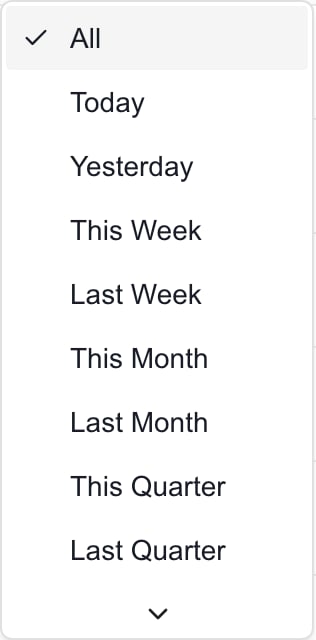
3
Open the meeting
Click a row to open the meeting dialog.
4
Use the row menu for more
Click the … button at the end of the row. Depending on the meeting and your access, it offers Open Meeting Page, Present, Wrap-Up and Edit.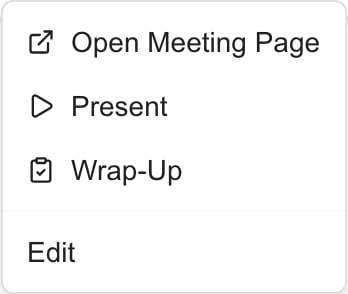
What each filter does
Date & Time has fixed periods only, with no custom date range. Use the Calendar’s Day, Week and Month views to look at a specific date. Filter choices come from the loaded meetings, so an option only appears when a meeting uses it.
Read the rows
- Date & Time shows the start date and the start and end times in your MSP’s calendar time zone. Open the meeting for the end date of a multi-day meeting.
- Each recurring series is one row. The list does not expand every occurrence.
- Participants show as initials, up to three, then + a count. A guest count such as (2 external) follows. A name shows as Unknown when it cannot be resolved. Initials do not mean the person accepted or attended.
- Company shows a dash when the meeting has no company.
- Canceled meetings are included. Pick Canceled in Status to find them.
Troubleshooting
Frequently asked questions
How is List View different from My Meetings?
How is List View different from My Meetings?
List View shows every accessible meeting for the selected company scope. My Meetings shows meetings where you are a participant.
Does Global View show every company's meetings?
Does Global View show every company's meetings?
No. It shows the companies you can access.
Does the date filter include meetings that overlap the period?
Does the date filter include meetings that overlap the period?
No. It filters on the start date.