

Before you start
- Create the standard, and any deployment options you want billing to select, in Manage the Standards catalog and Standards tiers.
- Sync your PSA billing. Matching uses the last three completed calendar months. Charges that exist only in the current month are not counted.
- Check each standard’s applicability rules (device platform and company fields). Billing only answers a standard for companies it applies to. Inactive companies and companies excluded from Standards are skipped.
- On the SKU Mapping tab, you need Financial Reporting settings Manage permission to change revenue categories or standard links. In a standard’s own editor, you need Standards settings Manage permission.
- Re-check billing needs Standards settings Manage permission or Planner Write permission.
- Saving needs an account in good billing standing.
Link a billed product to Standards
Open SKU Mapping
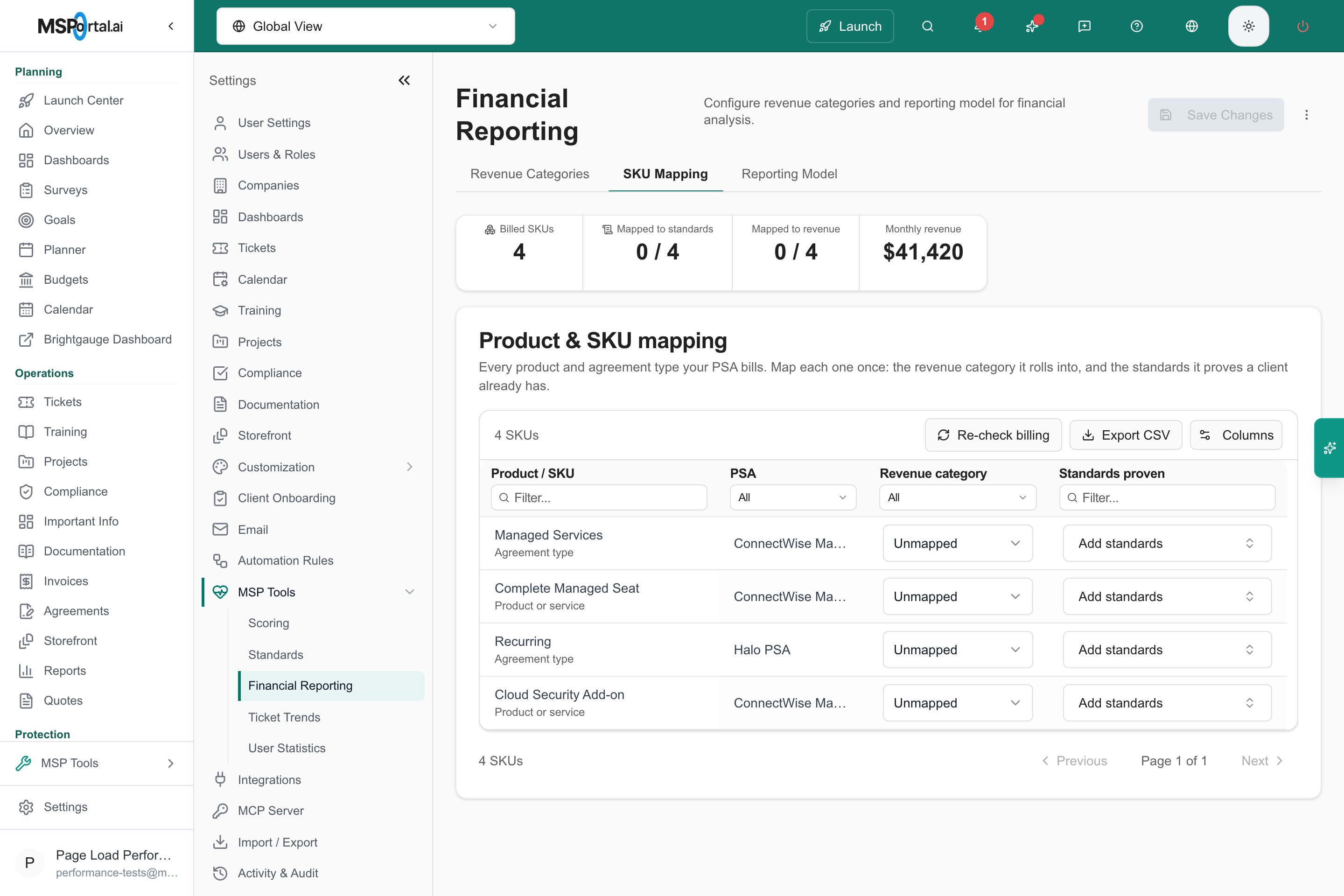
The SKU Mapping grid. Default columns are Product / SKU, PSA, Revenue category and Standards proven.
Find the row
Choose the standards it proves
Set the revenue category if needed
Re-check billing
Review the result
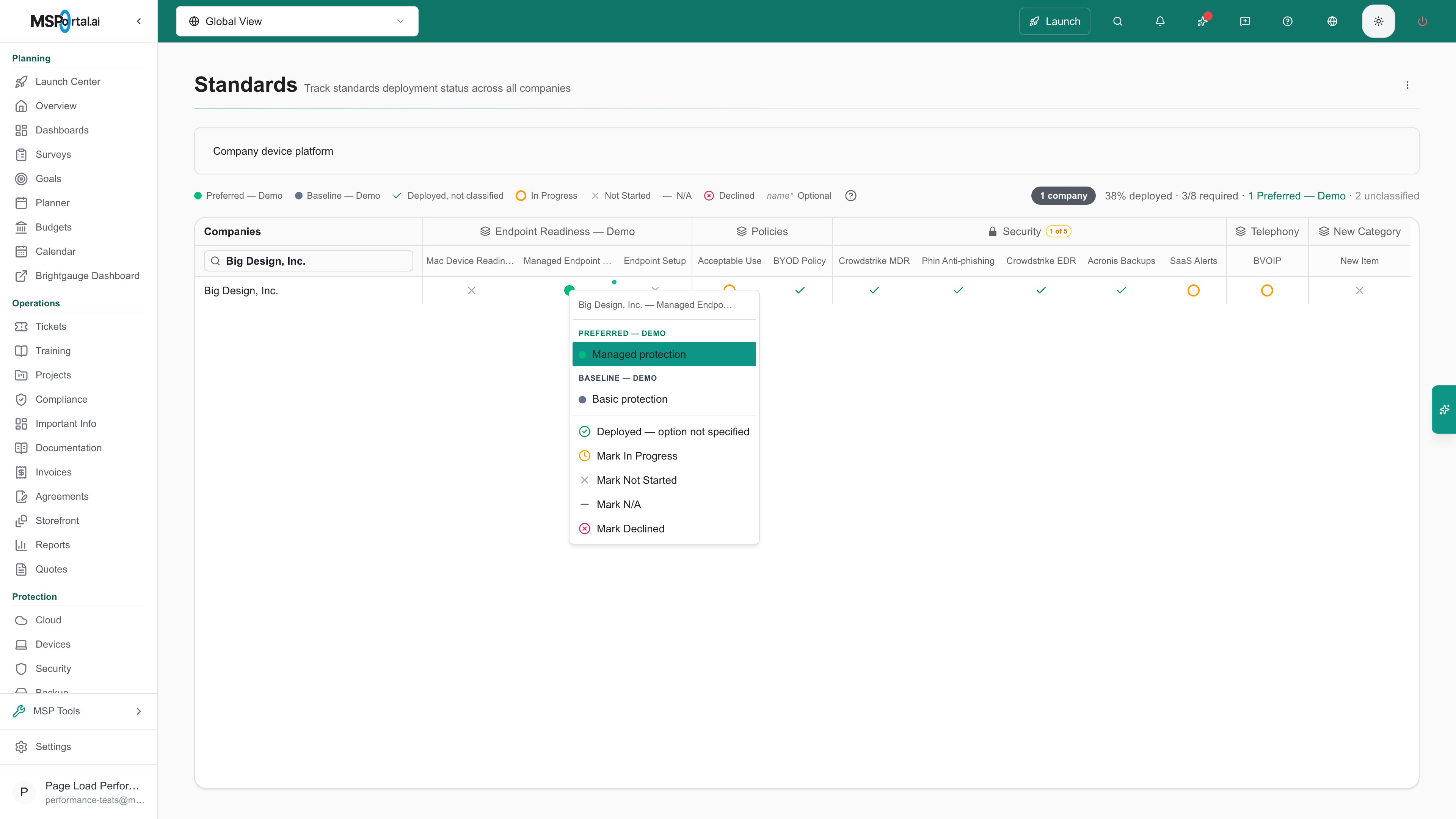
Matching billing answers Managed Endpoint Protection for Big Design.
Link many products at once
Select rows
Open bulk actions
Choose an action
Require alternatives or several products
Use a standard’s own editor when billing must match more than one product, or when a product should select a deployment option.Open the standard
Link the first group
Pick a deployment option
Add another required group
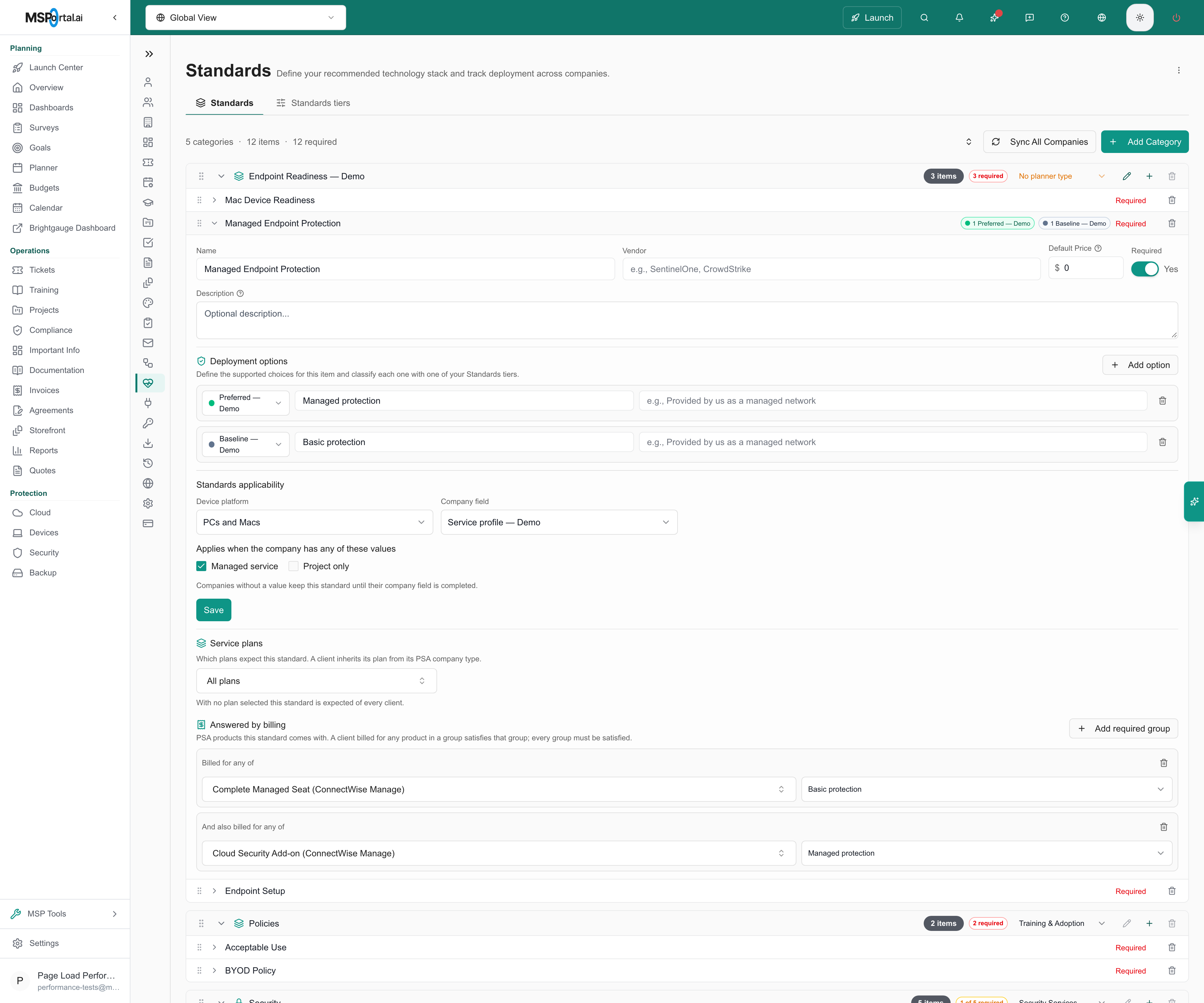
Alternatives within a group. Every required group must match.
Remove a group if needed
How manual decisions are kept
Billing answers only a cell that is Not Started, or a cell it answered itself earlier. It sets the status to Deployed and, if the group names an option, selects that option. If the billing evidence goes away, the cell goes back to Not Started. A decision that someone recorded, such as Declined, In Progress or Deployed, stays as it is on every later check. If you edit a cell that billing answered, the cell becomes a manual decision. A cell you leave at Not Started can be answered by billing, so Not Started is not an opt-out.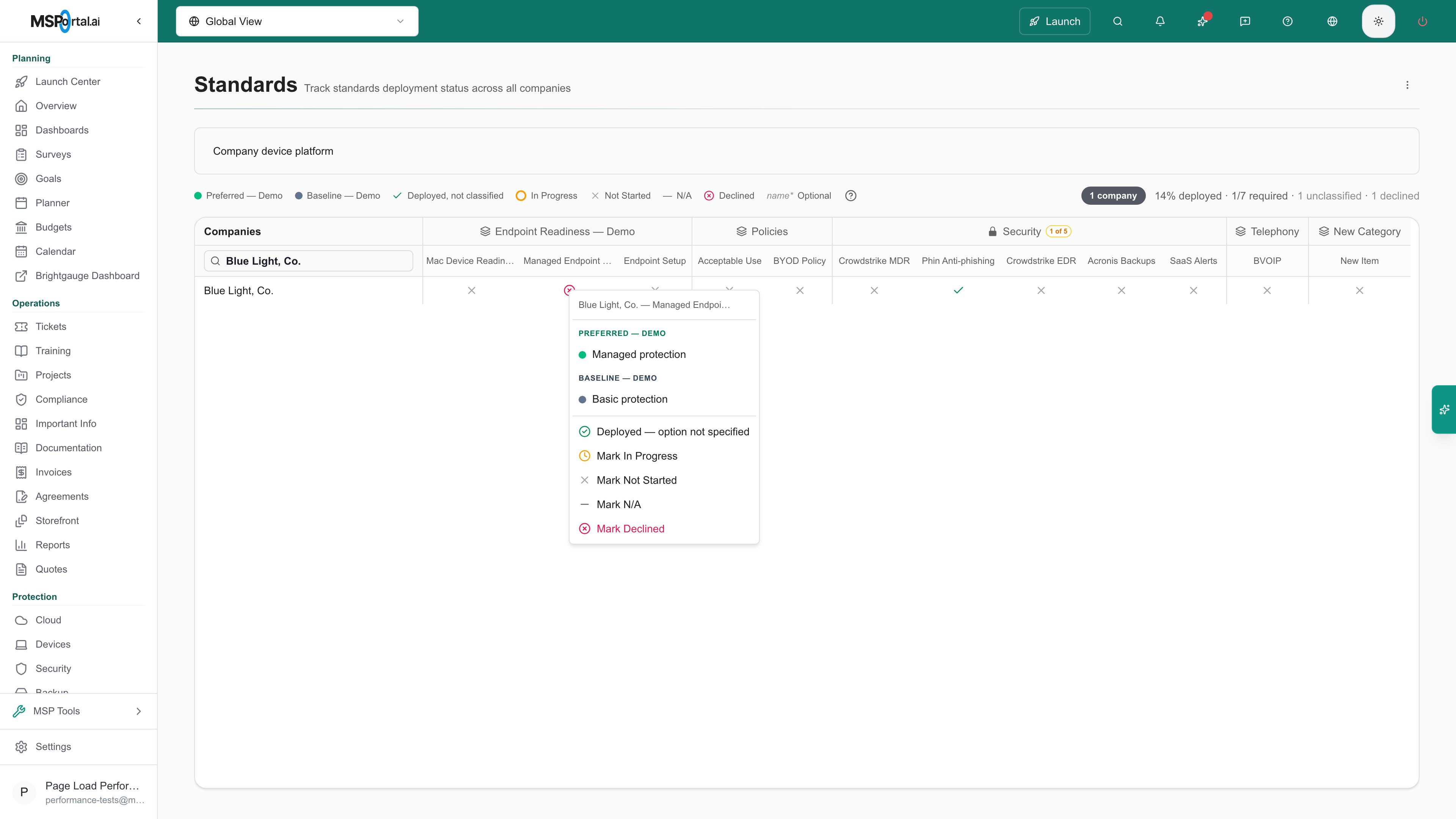
A manual Declined decision stays in place after billing is checked again.
Troubleshooting
Frequently asked questions
Which PSAs does this work with?
Which PSAs does this work with?
Does billing prove the software is installed?
Does billing prove the software is installed?
How far back does matching look?
How far back does matching look?
Will billing overwrite a status I set by hand?
Will billing overwrite a status I set by hand?
Does Re-check billing only update the row I edited?
Does Re-check billing only update the row I edited?
What is the difference between a service and an agreement type?
What is the difference between a service and an agreement type?
How do I require two products together?
How do I require two products together?
Can billing pick the deployment option?
Can billing pick the deployment option?