

Before you start
- The Compliance feature must be available for your account.
- You need write access to Compliance settings to create, edit and pause schedules. Deleting needs manage access.
- Create an active run template first. Go to Settings > Compliance, open the Runs tab and build a template with the groups and checks you want. Only active templates appear in the schedule’s template list. A template is the assessment package. A schedule decides when and for whom to create runs.
Create a schedule
1
Open the Schedule tab
Go to Settings > Compliance and click Schedule.
2
Click Create Schedule
Click Create Schedule in the page header. The Create Schedule dialog opens.
3
Fill in the details
Enter a Schedule Name, an optional description and the Run Template.
4
Choose the targets
Under Targets, pick one option. The form starts on All companies.
For any option except All companies, pick at least one entry. The summary under the picker counts targets selected. In the groups and industries options it counts groups or industries, not companies.
5
Set the cadence
Choose the Frequency and fill in the fields it shows (see the table below). The Preview box shows the dates. Changing the frequency resets its fields to defaults, so set the frequency first.
6
Choose the start date
Choose the Start date. For a one-time schedule, choose the Run date. The first run is created on or after that date. The form has no time-of-day or time-zone setting.
7
Save
Click Create Schedule. A toast says Schedule created successfully. New schedules are active. Cancel closes the form.
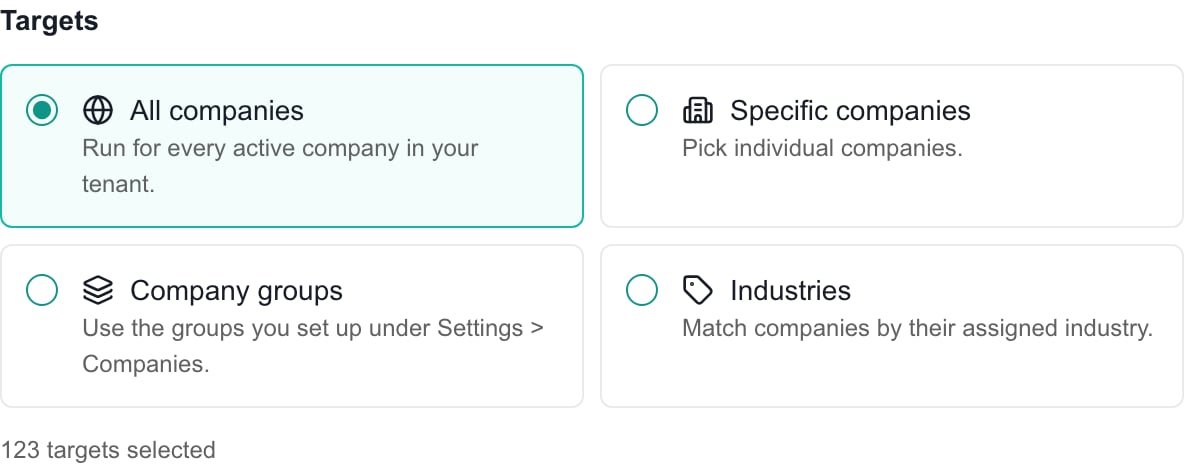
Targets in an unsaved schedule. All companies is selected by default.
Recurrence choices
Day pattern is On a specific day of the month or On a specific weekday. Pick from the day choices the form offers.
Check a schedule
The Schedule table shows each schedule’s Schedule Name, Run Template, Targets, Frequency, Starts, Last Run and Status. Open Edit to check the template, targets and cadence. Runs are created in the background. After a run is created, open Compliance to see the runs and their checks.Edit, pause or delete a schedule
1
Edit
Click Edit on the row, change the form and click Update Schedule. Cancel leaves it unchanged.
2
Pause or resume
Use the Status switch on the row. It saves at once and shows Active or Paused. Pausing stops future runs. It does not remove runs already created.
3
Delete
Click Delete, then Delete Schedule to confirm. Runs that have not executed yet are cancelled. Completed runs and their evidence stay.
Troubleshooting
Frequently asked questions
Does the Company selector restrict my schedule?
Does the Company selector restrict my schedule?
No. Schedules are tenant-wide. Choose the companies in Targets.
What does a new schedule target?
What does a new schedule target?
All active companies in your tenant. Change Targets before saving for a narrower schedule.
Does Pausing need a Save?
Does Pausing need a Save?
No. The Status switch saves at once.
Does Last Run mean all checks are done?
Does Last Run mean all checks are done?
No. It shows when MSPortal last created a run. Checks are finished separately.
Can I pick an exact time or time zone?
Can I pick an exact time or time zone?
No. The form offers dates and recurrence patterns only.
Does deleting a schedule delete past assessments?
Does deleting a schedule delete past assessments?
No. It stops future runs. Completed assessments stay.