Finalize a budget as an immutable baseline and prepare its line items for actual-spend matching
Approving a budget turns it into the fixed baseline MSPortal uses to compare planned costs with customer invoice spend. Approval also gives every line item a unique reference, so projects, purchases, licenses, labor and other costs can be traced back to the approved plan. Locking a budget from the editor needs the manage_budgets permission. Deciding individual lines needs the Approve budget items permission, described in Approve or reject budget lines.Approval is the client’s decision. A typical budget goes through three steps:
Submit for review (optional): colleagues at the MSP check the draft.
Submit for approval: the budget goes to the people at the client who decide it.
Sign off: a client approver approves the budget, line by line or all at once, and signs it with their typed name.
Every step happens on the budget’s approval page. Open the budget, click the ⋯ menu at the top right and choose Approval. Approval emails and notifications open this page directly. Above the line items, the page says where approval stands, such as Not submitted for approval yet., and holds the actions you can take. Details opens the full status and the approval history.
Approval is permanent. You cannot edit an approved budget or return it to Draft. Review the budget carefully before it is approved.
Submit a budget for review
Ask colleagues at the MSP to check a draft before it goes to the client. The budget stays a Draft and you can keep editing it. Clients never see the review.
1
Open the approval page
Open the Draft budget, click ⋯ and choose Approval.
2
Click Submit for review
Click Submit for review above the line items.
3
Choose the reviewers
Under Reviewers, choose one or more MSP staff members. The list shows staff who can see budgets. Optionally add a message saying what they should check.
4
Send the request
Click Send for review. Each reviewer receives an email and an in-app notification. The approval page shows who asked, when, and who the review is waiting on.
Reviewers open the approval page, click Review and choose Looks good or Needs changes, optionally add a note, and click Send answer. The person who asked receives an in-app notification, and each answer appears under Details. A reviewer can click Change your answer until the budget is sent to the client.Click Change reviewers to ask different people (this clears the answers so far), or Cancel review to end the review. Submitting the budget for approval also ends the review; its answers stay in the history.
Submit a budget for approval
Send the budget to the people at the client who decide it. Approvers are always client users: people at the budget’s company, or at a parent company that manages it, whose permission group includes Approve budget items. They do not need to have signed in to MSPortal before: someone imported from your PSA can be asked, and the request email is how they sign in for the first time. People whose sign-in an access rule blocks, or who have no email address, cannot be asked. A parent company admin limited to selected child companies can approve only for those companies. MSP staff are not approvers; ask them for a review instead. MSPortal never sends the request to someone who cannot approve it.
1
Open the approval page
Open the Draft budget, click ⋯ and choose Approval. The page reads Not submitted for approval yet.
2
Click Submit for approval
Click Submit for approval above the line items. The Submit for approval dialog opens.
3
Choose the approvers
In the People at list, which names the client, choose one or more approvers. You can choose people, a role, or both. Under Company role, optionally choose a role: everyone at the client who holds that role and can approve budget items is asked too. Each role shows how many people would be asked; a role nobody can approve with is unavailable. People in the role who cannot approve budget items are not asked.If nobody at the client can approve yet, the dialog says so and links to the client’s users. Add Approve budget items to the permission group of the people who should decide, then choose them here.
4
Add a message
Optionally type a message for the approvers in Message (optional), such as a deadline.
5
Send the request
Click Submit for approval. The budget moves to Pending Approval, lines still in Draft move to Pending, and each approver receives an email linking to the approval page. Approvers who have signed in before also get an in-app notification. The approval page shows who submitted the budget, when, and who it is waiting on.
Decide each line
Approvers open the approval page from the email or notification and click Approve or Reject beside each line, or Approve all pending to approve every pending line at once. Approvers who cannot edit budgets can decide lines only while the budget is Pending Approval.
Change approvers or withdraw
While the budget is Pending Approval, budget editors can:
Click Change approvers to choose different people or a different role. Everyone chosen receives the request again.
Click Withdraw, then Withdraw again in the confirmation, to return the budget to Draft. The approvers receive an in-app notice that the budget no longer needs their review. Submit it again when it is ready.
A budget set to Pending Approval from the budget editor records who submitted it, but no approvers are notified. Click Choose approvers on the approval page to send the request.
Sign off the budget
A client approver signs off the budget to approve and lock it. They can decide each line first, or sign off straight away to approve the whole budget: lines still pending are approved by the sign-off.
1
Review the lines
On the approval page, Details shows how many lines are decided, such as 0 of 3 lines decided. Reject any line the client does not want; lines left pending are approved when you sign off.
2
Click Sign off
Click Sign off on the approval page. The dialog shows the approved and rejected lines with their totals, how many pending lines the sign-off approves, and the budget’s fingerprint.
3
Agree and type your name
Read the statement, tick the box beside it to agree, and type your name in Type your full name to sign. Your typed name is your signature.
4
Sign
Click Sign off budget. The budget becomes Approved and locked. The submitter and the other approvers receive an email and an in-app notification.
Approvers the request was sent to can sign off. If the request named nobody, any client approver can. MSP staff cannot sign off, and you cannot sign off while viewing MSPortal as another user.The sign-off records:
Your typed name, your account name and email
The date and time, your IP address and browser
The statement you agreed to, including how many pending lines it approved
The budget’s fingerprint: a SHA-256 hash of the budget exactly as you approved it
If anyone changes the budget while you are reviewing it, the fingerprint no longer matches and the sign-off is refused. Review the updated budget and sign again.The exported PDF of a signed-off budget ends with a Sign-off certificate page listing these details. The signer’s email and IP address appear only in PDFs exported by MSP staff.
Review the approval history
On the approval page, click Details. Under Approval history you see every step, newest first: internal reviews and their answers (MSP staff only), submission, approval requests, each line approved or rejected, edits that returned a line to Pending, sign-off, approval and archiving. Each entry shows who acted and when. Names stay in the history after a user is deleted.Each approved or rejected line also shows who decided it and when, below its status.
Changing anything that defines an approved or rejected line, such as its quantity, price, recurrence or category, returns it to Pending so it is decided again. Editing only its notes does not.
Before you lock a budget from the editor
The budget is Draft or Pending Approval, and it has no more than 500 lines.
You have the manage_budgets permission. Without it, Approved is missing from the Status list.
The budget has a company, fiscal year, currency and a complete set of lines.
Quantities, prices, recurrence, categories, line statuses and linked projects or products are final.
A supported PSA integration with invoice sync is on, if you plan to track actual spend.
Approve or reject budget lines
Each line has its own status: Pending, Approved, Rejected or Draft. Changing a line’s status needs the Approve budget items permission. In Settings > Users & Roles > Roles, it sits under Budgets in the role editor. Manage access to Budgets includes it. Write access does not, so a role can edit budgets without deciding lines, or decide lines without editing budgets.
Your access
Where you can decide lines
Statuses you can set
Approve budget items without Write
Budgets in Pending Approval
Approved, Rejected, Pending
Approve budget items with Write or Manage
Budgets in Draft or Pending Approval
Approved, Rejected, Pending, Draft
Approved and Archived budgets are locked, so nobody can change their line statuses.
1
Open the budget
In Budgets, click … then View on the budget’s row. Then click ⋯ at the top right and choose Approval.
2
Change a line
Click Approve or Reject beside a line’s status. The button for the line’s current decision shows as pressed. To return a line to Pending or Draft, open the … menu beside the buttons and choose Mark as pending or Mark as draft. You see only the statuses you can set. The change saves at once.
3
Approve every pending line
To approve all Pending lines together, click Approve all pending above the line items. It shows the number of Pending lines, such as Approve all pending (3), and appears only when there are some. The confirmation shows how many lines and what total will be approved. Click Approve N items to confirm. You can still change individual lines until the budget is approved.
4
Check the totals
The summary shows Total, Approved and Pending. Pending includes Draft lines. Total includes rejected lines.
Approving every line does not approve or lock the budget. To lock it, a client approver signs it off, or someone with manage_budgets follows Approve a budget. You can also change line statuses in the budget editor’s Approval column, or for several lines at once with Update Statuses in the Budgets list row menu. See Add and edit budget line items.
Approve a budget
1
Review the budget
Click … then Edit on the budget’s row. Check the company, fiscal year, currency, period type, lines and totals. Rejected lines stay visible after approval. They are left out of the approved amount and cannot receive actual spend. Draft and Pending lines count toward the baseline.
2
Review matching links
For a project cost, open the Planner item and check that it links to the right PSA project under Relationships (Link to Project). For a recurring license or service cost, check the product link. MSPortal records the matching links it finds at the moment of approval.
3
Set the status to Approved
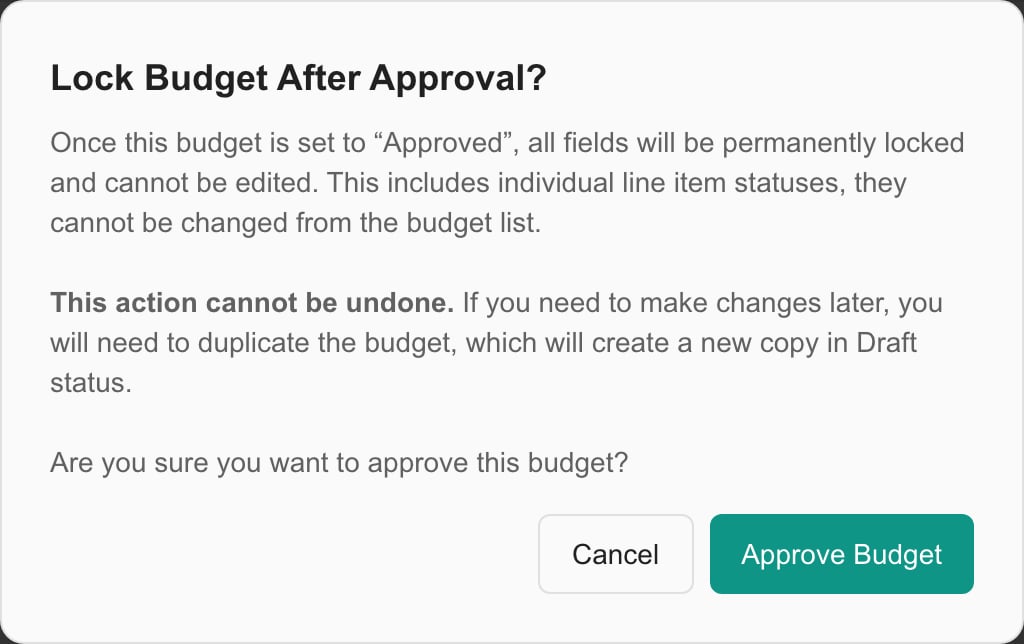
Click Settings at the top right. Change Status to Approved. The Lock Budget After Approval? warning opens.
4
Confirm the lock
Read the warning and click Approve Budget. Click Cancel to back out.
The warning opens before you save. After you confirm it, you still need to click Save.
5
Save the approval
Click Save. The budget locks only when the save succeeds. If Your changes were saved, but the budget could not be approved. Reload the page and try again. appears, reload and approve again.
6
Open Actuals
Open the budget with View and click the Actuals tab. The approved period and the line references are ready.
What approval locks
Budget data
After approval
Title, company, fiscal year, currency and notes
Read-only
Quantities, prices, recurrence and annualized costs
Read-only
Categories and line statuses
Read-only
Linked projects and products used for matching
Captured in the baseline
Line order and which lines exist
Read-only
Delete budget
Not allowed. Archive it instead.
Duplicate, print and export
Allowed
Actuals review and exception resolution
Allowed with the right permissions
The Actuals period is fixed at approval. It runs from January 1 to December 31 of the fiscal year. Choosing Quarterly or Monthly as the period type does not shorten it.
Budgets approved before actuals tracking existed keep their locked plan but have no references or matching links. Use manual allocations for them, or duplicate the budget and approve the copy to get references for future billing.
Use budget references in your PSA
Each approved line gets a short reference such as BR-26-1A2B3C4D5E. MSPortal looks for it in synced invoice, purchase order, project, contract and related details. It is an internal reference. It is not purchase-order approval or three-way matching. Only details your PSA integration imports can be searched. There is no custom-field mapping screen for references, so check that your chosen field reaches the synced invoice.
1
Copy the reference
Open Budget Details > Actuals. In Line outcomes, click the value in the Reference column to copy it.
2
Add it to the PSA
Paste it into the PSA field your team uses for that cost, such as a project PO, customer PO, invoice reference or a custom field that flows to the invoice.
3
Keep it with the billed work
Make the reference part of your project, purchasing or billing routine so it ends up on the synced invoice.
4
Check the result
After the invoice sync finishes, open Actuals and confirm the event matched the right line.
Use one budget reference per invoice event. If one event holds more than one reference, MSPortal cannot pick an exact match.
How automatic matching works
MSPortal records the identifiers on each line when you approve. It then matches actual spend in this order.
Exact budget reference
Linked project
Linked product
Product identity, such as SKU or product name
An exact reference wins over the other methods. If the best method points to more than one line, the event goes to Unmatched exceptions. A reference that does not name an eligible line in this budget also goes there. It does not fall back to a project or product match.
Archive a superseded budget
Archiving retires an approved budget and keeps its baseline and history. Only the planned baseline is frozen. Actuals still change when invoices sync or when authorized users change reconciliation decisions, even on an archived budget.
1
Open the approved budget
Click … then Edit. The budget is read-only and a banner reads Read-only - budget approved.
2
Click Archive
Click Archive in the banner. You need the manage_budgets permission.
3
Confirm
The dialog asks Archive Budget Title? and says the budget becomes read-only and shows as Archived. Click Archive. The status changes to Archived and the Actuals history stays.
Replace an approved budget
1
Duplicate it
Click … then Duplicate on the approved budget’s row. The Draft copy is created right away.
2
Review every line
Copied lines start Pending, including lines that were Rejected in the original. Check each line’s status.
3
Approve the copy
Follow the steps above on the copy.
4
Archive the original
Archive the old budget so both baselines stay for audit.
Prepare a line for matching
Project cost. Open the Planner item, link the correct PSA project under Relationships, and add the item to the budget before approval. After approval, copy the reference into a PSA field your integration imports.
License or service cost. Add it from the product catalog when you can. Check the product link, SKU, name, quantity, price and recurrence before approval. MSPortal uses the product link or identity when the invoice line has no reference.
Troubleshooting
Issue
What to do
Approved is missing from Status
You need manage_budgets, and the budget must be Draft or Pending Approval.
Submit for approval or Submit for review is missing
Open the approval page from the budget’s ⋯ menu. Your role must be able to edit budgets, and the budget must be Draft. Only MSP staff see Submit for review.
A person is missing from the approver list
Only client users who are active, can sign in, hold Approve budget items, and belong to this company or a parent company that manages it are listed. MSP staff are never approvers. Ask them for a review instead.
A colleague is missing from the reviewer list
Only MSP staff who are active, can sign in and can see budgets are listed. You cannot review your own request.
Nobody you chose can approve budget items
Nobody you chose can approve for this company. Grant Approve budget items to the people who should approve.
A company role is unavailable, or Nobody at … who holds this role can approve budget items
Nobody holding that role at this company can approve budget items. Choose another role, or grant Approve budget items to the role’s members.
This budget changed since you opened it
Someone saved the budget after you opened it. The page reloads. Review the change and submit again.
Sign off is unavailable
The budget has no lines, or you are viewing MSPortal as another user.
Sign off is missing
Only client approvers the request was sent to can sign off. MSP staff cannot.
This budget changed while you were reviewing it
The fingerprint changed. Review the updated budget and sign again.
Approval in the ⋯ menu or a line’s Approve and Reject buttons are missing
You need Approve budget items. Without Write access, you can decide lines only while the budget is Pending Approval.
Mark as draft is missing
Only people who can also edit budgets can return a line to Draft.
Approval fails with a validation error
Complete the company, fiscal year, currency, categories and line data, then try again.
The budget cannot be edited after approval
That is expected. Duplicate it for an editable copy.
A line has no reference
An older locked budget has none. Use manual allocation. For a new budget, reload and confirm the save finished.
Your changes were saved, but the budget could not be approved.
Reload, check the saved budget, and approve again. A saved Draft is not a locked baseline.
A project or product link was wrong at approval
Duplicate and correct the copy. The original baseline does not change.
Archive is missing
The budget must be Approved, and you need manage_budgets.
Best practices
Treat approval as the handoff from planning to measuring.
Set line statuses before approval. Only Rejected lines are left out of the baseline.
Link projects and products before approval so MSPortal records stable matching keys.
Add the generated reference to the PSA early in the purchase or project workflow.
Pick one PSA field for budget references and train billing staff to keep it on invoices.
Duplicate and replace approved budgets. Do not delete old baselines.
Frequently asked questions
Where do I approve a budget?
Open the budget with Edit, click Settings, set Status to Approved, click Approve Budget in the warning, then click Save.
Does Approve Budget in the warning save the approval?
No. It only sets the status in the editor. You must click Save.
Can a company administrator approve budgets?
The company administrator label alone does not grant approval. To decide lines or sign off a budget sent to them, their MSP gives their role Approve budget items. To lock the whole budget from the editor, they need manage_budgets.
Is a sign-off legally binding?
A sign-off records the signer’s typed name, account, time, IP address, browser and the exact budget they approved, identified by its fingerprint. Whether that meets the requirements of a particular contract or jurisdiction is for you and your client to decide.
Who receives the approval request?
Everyone at the client chosen by name, plus everyone at the client who holds the chosen company role and can approve budget items. The person who submits the budget is not notified about their own request.
Can MSP staff approve a budget for the client?
Not through a sign-off: approval requests and sign-offs are for client users. Staff who manage budgets can still set a budget to Approved in the editor, for example after the client approved it outside MSPortal. That is recorded as staff approval, not a client sign-off.
Can the client approve the whole budget at once?
Yes. An approver can sign off without deciding each line: every line still pending is approved by the sign-off. Reject any line the client does not want first.
Does the client see our internal review?
No. The review, its answers and its history entries are visible to MSP staff only.
Does approving every line lock the budget?
No. Line statuses and the budget status are separate. Only a client sign-off, or setting the budget’s Status to Approved, locks it.
Can I unlock an approved budget or change a rejected line?
No. Duplicate the budget, fix the Draft copy and approve it.
Does Monthly or Quarterly limit the Actuals dates?
No. Actuals always uses January 1 to December 31 of the fiscal year.
Can I approve a budget with more than 500 lines?
No. Approval allows at most 500 lines. Remove lines or split the plan.
What if someone changed the budget while I was approving it?
Reload, review the latest saved budget, and approve again only after you check it.
Does archiving freeze the Actuals?
No. The planned baseline stays fixed. Invoices and reconciliation decisions can still change Actuals.
Does copying a reference send it to the PSA?
No. It only copies the code to your clipboard. Add it in your PSA yourself.
{"docsConfig":{"theme":"aspen","$schema":"https://mintlify.com/docs.json","name":"MSPortal.ai Documentation","colors":{"primary":"#0C8376","light":"#15B79E","dark":"#107569"},"logo":{"light":"https://mintcdn.com/msportal/KnbwIXtZSTlVJTt6/logo/light.svg?fit=max\u0026auto=format\u0026n=KnbwIXtZSTlVJTt6\u0026q=85\u0026s=eb69f6d6bf16b2c401770aef19ade1d2","dark":"https://mintcdn.com/msportal/KnbwIXtZSTlVJTt6/logo/dark.svg?fit=max\u0026auto=format\u0026n=KnbwIXtZSTlVJTt6\u0026q=85\u0026s=03f8df7191e7a8ea7da084df57f6107f"},"favicon":"https://mintcdn.com/msportal/KjsKytvp08K0bejm/favicon-16x16.png?fit=max\u0026auto=format\u0026n=KjsKytvp08K0bejm\u0026q=85\u0026s=378df7f039bbff7885231fec799d29ac","navbar":{"links":[{"href":"/release-notes/roadmap","label":"Roadmap"},{"href":"mailto:support@msportal.ai","label":"Support"}],"primary":{"type":"button","label":"Dashboard","href":"https://app.msportal.ai"}},"footer":{"socials":{"linkedin":"https://linkedin.com/company/msportal"},"links":[{"header":"Resources","items":[{"label":"MSPortal.ai","href":"https://msportal.ai"},{"label":"Support","href":"mailto:support@msportal.ai"},{"label":"Status","href":"https://status.msportal.ai"}]}]},"fonts":{"family":"Inter"},"styling":{"latex":true},"navigation":{"pages":[]}},"deployment":{"deploymentMetadataValue":{"subdomain":"msportal","hasAudioNarration":false,"actualSubdomain":"msportal","customDomains":["docs.msportal.ai"],"gitSource":{"type":"github","owner":"msportal-ai","repo":"mintlify-docs","deployBranch":"main","contentDirectory":"","isPrivate":false,"mountPath":"","label":""},"feedback":{"thumbs":true},"entitlements":{},"buildId":"6b046a7be4412b22d199b348","clientVersion":"0.0.4271","searchFilterCounts":[{"language":"default","tag":"MSP Guides","count":477},{"language":"default","tag":"API Reference","count":433},{"language":"default","tag":"Company Guides","count":182},{"language":"default","tag":"Operations","count":177},{"language":"default","tag":"Planning","count":163},{"language":"default","tag":"Protection","count":109},{"language":"default","tag":"Integrations","count":96},{"language":"default","tag":"Projects","count":90},{"language":"default","tag":"Budgets","count":66},{"language":"default","tag":"Standards","count":56}]},"assistantConfig":{"enableAskAiButton":false,"enableStarterQuestions":false,"enableAskAiSearchBar":true},"basePath":"","hasChatPermissions":false,"hasWebMcpPermissions":false,"toggles":[{"name":"kill-isr","enabled":true,"variant":{"name":"disabled","enabled":false,"feature_enabled":true},"impressionData":false},{"name":"custom-rbac-roles","enabled":true,"variant":{"name":"disabled","enabled":false,"feature_enabled":true},"impressionData":false},{"name":"agent-mintlify-slack","enabled":true,"variant":{"name":"disabled","enabled":false,"feature_enabled":true},"impressionData":false},{"name":"agent-integrations-settings","enabled":true,"variant":{"name":"disabled","enabled":false,"feature_enabled":true},"impressionData":false},{"name":"rbac-expansion","enabled":true,"variant":{"name":"disabled","enabled":false,"feature_enabled":true},"impressionData":false},{"name":"automations-pr-grouping","enabled":true,"variant":{"name":"disabled","enabled":false,"feature_enabled":true},"impressionData":false},{"name":"custom-prefix","enabled":true,"variant":{"name":"disabled","enabled":false,"feature_enabled":true},"impressionData":false},{"name":"analytics-v7","enabled":true,"variant":{"name":"disabled","enabled":false,"feature_enabled":true},"impressionData":false},{"name":"user-flows-analytics","enabled":true,"variant":{"name":"disabled","enabled":false,"feature_enabled":true},"impressionData":false},{"name":"no-publish-flow","enabled":true,"variant":{"name":"disabled","enabled":false,"feature_enabled":true},"impressionData":false},{"name":"workos-onboarding","enabled":true,"variant":{"name":"disabled","enabled":false,"feature_enabled":true},"impressionData":false},{"name":"snapshot-serving-live","enabled":true,"variant":{"name":"disabled","enabled":false,"feature_enabled":true},"impressionData":false},{"name":"stripTemperatureMiddleware","enabled":true,"variant":{"name":"disabled","enabled":false,"feature_enabled":true},"impressionData":false},{"name":"support-platform-pylon-zendesk","enabled":true,"variant":{"name":"disabled","enabled":false,"feature_enabled":true},"impressionData":false},{"name":"snapshot-serving","enabled":true,"variant":{"name":"disabled","enabled":false,"feature_enabled":true},"impressionData":false},{"name":"instant-rollback","enabled":true,"variant":{"name":"disabled","enabled":false,"feature_enabled":true},"impressionData":false},{"name":"granular-notifications-server","enabled":true,"variant":{"name":"disabled","enabled":false,"feature_enabled":true},"impressionData":false},{"name":"granular-notifications","enabled":true,"variant":{"name":"disabled","enabled":false,"feature_enabled":true},"impressionData":false},{"name":"automations-fable","enabled":true,"variant":{"name":"disabled","enabled":false,"feature_enabled":true},"impressionData":false},{"name":"fixed-ai-action-pricing","enabled":true,"variant":{"name":"disabled","enabled":false,"feature_enabled":true},"impressionData":false},{"name":"site-roles","enabled":true,"variant":{"name":"disabled","enabled":false,"feature_enabled":true},"impressionData":false},{"name":"automation-resolve-merge-conflict","enabled":true,"variant":{"name":"disabled","enabled":false,"feature_enabled":true},"impressionData":false},{"name":"scoped-publishing","enabled":true,"variant":{"name":"disabled","enabled":false,"feature_enabled":true},"impressionData":false},{"name":"mintql","enabled":true,"variant":{"name":"disabled","enabled":false,"feature_enabled":true},"impressionData":false},{"name":"page-level-analytics","enabled":true,"variant":{"name":"disabled","enabled":false,"feature_enabled":true},"impressionData":false},{"name":"editor-version-history-v2","enabled":true,"variant":{"name":"disabled","enabled":false,"feature_enabled":true},"impressionData":false},{"name":"billing-page-v2","enabled":true,"variant":{"name":"disabled","enabled":false,"feature_enabled":true},"impressionData":false},{"name":"full-page-search","enabled":true,"variant":{"name":"disabled","enabled":false,"feature_enabled":true},"impressionData":false},{"name":"workspace-projects","enabled":true,"variant":{"name":"disabled","enabled":false,"feature_enabled":true},"impressionData":false},{"name":"assistant-v5","enabled":true,"variant":{"name":"disabled","enabled":false,"feature_enabled":true},"impressionData":false},{"name":"fork-pr-previews","enabled":true,"variant":{"name":"disabled","enabled":false,"feature_enabled":true},"impressionData":false},{"name":"revalidation-jwt","enabled":true,"variant":{"name":"disabled","enabled":false,"feature_enabled":true},"impressionData":false},{"name":"workos-sso-scim","enabled":true,"variant":{"name":"disabled","enabled":false,"feature_enabled":true},"impressionData":false},{"name":"hobby-abuse-scan","enabled":true,"variant":{"name":"disabled","enabled":false,"feature_enabled":true},"impressionData":false},{"name":"dashboard-inbox","enabled":true,"variant":{"name":"disabled","enabled":false,"feature_enabled":true},"impressionData":false},{"name":"workos-signup","enabled":true,"variant":{"name":"disabled","enabled":false,"feature_enabled":true},"impressionData":false},{"name":"turbopuffer-dual-write","enabled":true,"variant":{"name":"disabled","enabled":false,"feature_enabled":true},"impressionData":false},{"name":"workos-enabled","enabled":true,"variant":{"name":"disabled","enabled":false,"feature_enabled":true},"impressionData":false},{"name":"approve-review-flow","enabled":true,"variant":{"name":"disabled","enabled":false,"feature_enabled":true},"impressionData":false},{"name":"editor-metadata","enabled":true,"variant":{"name":"disabled","enabled":false,"feature_enabled":true},"impressionData":false},{"name":"sso-setup-deadline-banner","enabled":true,"variant":{"name":"disabled","enabled":false,"feature_enabled":true},"impressionData":false},{"name":"turbopuffer-serve","enabled":true,"variant":{"name":"disabled","enabled":false,"feature_enabled":true},"impressionData":false},{"name":"live-agents","enabled":true,"variant":{"name":"disabled","enabled":false,"feature_enabled":true},"impressionData":false},{"name":"starter-pricing","enabled":true,"variant":{"name":"control","enabled":true,"payload":{"type":"string","value":"control"},"feature_enabled":true},"impressionData":false},{"name":"llms-txt-v2","enabled":true,"variant":{"name":"disabled","enabled":false,"feature_enabled":true},"impressionData":false},{"name":"wildcard-email-auth","enabled":true,"variant":{"name":"disabled","enabled":false,"feature_enabled":true},"impressionData":false}],"googleFontsInlined":false},"customCss":[{"filePath":"style.css","content":"#page-title{font-size:1.75rem;line-height:2.125rem}#header .prose.text-lg{font-size:1rem;line-height:1.5rem;color:rgb(var(--gray-500))}#content-area .prose{font-size:0.9375rem;line-height:1.6}#content-area .mdx-content{margin-top:1.5rem}#content-area .mdx-content h2{font-size:1.25rem;line-height:1.75rem;margin-top:2.25rem;margin-bottom:0.75rem}#content-area .mdx-content h3{font-size:1.0625rem;line-height:1.5rem;margin-top:1.75rem;margin-bottom:0.5rem}#content-area .mdx-content li{margin-top:0.25em;margin-bottom:0.25em}#content-area .steps{margin-top:1rem}#content-area .step{padding-bottom:0.75rem}#content-area [data-component-part=\"step-title\"]{margin-top:0.25rem;margin-bottom:0.375rem}#content-area [data-component-part=\"accordion-content\"] td,#content-area [data-component-part=\"accordion-content\"] th{min-width:0}@media (max-width: 639px){#content-area [data-component-part=\"accordion-content\"] td:last-child{min-width:16rem}}#content-area [data-table-wrapper]>[data-component-part=\"scroll-area-viewport\"]{-webkit-mask-image:linear-gradient(\n to right,\n transparent 0,\n black min(var(--scroll-area-fade-size), var(--scroll-area-overflow-x-start, 0px)),\n black calc(100% - min(var(--scroll-area-fade-size), var(--scroll-area-overflow-x-end, 0px))),\n transparent 100%\n );mask-image:linear-gradient(\n to right,\n transparent 0,\n black min(var(--scroll-area-fade-size), var(--scroll-area-overflow-x-start, 0px)),\n black calc(100% - min(var(--scroll-area-fade-size), var(--scroll-area-overflow-x-end, 0px))),\n transparent 100%\n )}#content-area [data-table-wrapper]>[data-component-part=\"scroll-area-scrollbar\"][data-has-overflow-x]{opacity:1;pointer-events:auto}#sidebar-content li>a,#sidebar-content li>button{font-size:0.875rem;line-height:1.25rem;padding-top:0.3125rem;padding-bottom:0.3125rem}#sidebar-content li>a span{hyphens:manual}#sidebar-content a.nav-anchor{margin-bottom:0.25rem;font-size:0.875rem}#sidebar-content ul:has(>li>a.nav-anchor){margin-bottom:1rem;padding-bottom:0.5rem;border-bottom:1px solid rgb(var(--gray-100))}.dark #sidebar-content ul:has(>li>a.nav-anchor){border-bottom-color:rgb(255 255 255 / 0.1)}#table-of-contents{font-size:0.8125rem;line-height:1.25rem}#sidebar-content li>a>div:first-child:has(>svg,>img){display:none}:root{--sidebar-width: 16rem}@media (min-width: 1024px){#navbar .max-w-8xl,#body-content{max-width:none}#content-container{max-width:88rem;margin-left:0;padding-left:2.5rem;padding-right:2rem;column-gap:2.5rem;justify-content:space-between}}@media (min-width: 1280px){#content-area{width:calc(100% - 16.5rem);max-width:52rem;margin-left:0}#navbar.is-wide~#body-content #content-container{max-width:none}#navbar.is-wide~#body-content #content-area{width:100%;max-width:none}#table-of-contents-layout{width:14rem;padding-left:0}#table-of-contents{width:14rem}}.roadmap-embed{display:block;border:0;background:transparent;color-scheme:light}.dark .roadmap-embed{color-scheme:dark}#content-area img[width=\"390\"],#content-area img[width=\"780\"]{width:100%!important;max-width:300px!important;height:auto!important;margin-left:auto;margin-right:auto}"}]}
{"page":{"pagePath":"msp-guides/budgets/approving-and-locking-budgets","slug":"/msp-guides/budgets/approving-and-locking-budgets","pageMetadata":{"title":"Approve and Lock a Budget","description":"Finalize a budget as an immutable baseline and prepare its line items for actual-spend matching","icon":"lock","href":"/msp-guides/budgets/approving-and-locking-budgets"},"description":{"compiledSource":"\"use strict\";\nconst {jsx: _jsx} = arguments[0];\nconst {useMDXComponents: _provideComponents} = arguments[0];\nfunction _createMdxContent(props) {\n const _components = {\n p: \"p\",\n ..._provideComponents(),\n ...props.components\n };\n return _jsx(_components.p, {\n children: \"Finalize a budget as an immutable baseline and prepare its line items for actual-spend matching\"\n });\n}\nfunction MDXContent(props = {}) {\n const {wrapper: MDXLayout} = {\n ..._provideComponents(),\n ...props.components\n };\n return MDXLayout ? _jsx(MDXLayout, {\n ...props,\n children: _jsx(_createMdxContent, {\n ...props\n })\n }) : _createMdxContent(props);\n}\nreturn {\n default: MDXContent\n};\n","frontmatter":{},"scope":{}},"pageType":"default","mdx":{"mdxSource":{"compiledSource":"\"use strict\";const{Fragment:_Fragment,jsx:_jsx,jsxs:_jsxs}=arguments[0];const{useMDXComponents:_provideComponents}=arguments[0];function _createMdxContent(props){const _components={a:`a`,code:`code`,em:`em`,li:`li`,ol:`ol`,p:`p`,strong:`strong`,tbody:`tbody`,td:`td`,th:`th`,thead:`thead`,tr:`tr`,ul:`ul`,..._provideComponents(),...props.components},{Accordion,AccordionGroup,Frame,Heading,Note,OptimizedImage,Step,Steps,Table,Tip,Warning}=_components;if(!Accordion)_missingMdxReference(`Accordion`,true);if(!AccordionGroup)_missingMdxReference(`AccordionGroup`,true);if(!Frame)_missingMdxReference(`Frame`,true);if(!Heading)_missingMdxReference(`Heading`,true);if(!Note)_missingMdxReference(`Note`,true);if(!OptimizedImage)_missingMdxReference(`OptimizedImage`,true);if(!Step)_missingMdxReference(`Step`,true);if(!Steps)_missingMdxReference(`Steps`,true);if(!Table)_missingMdxReference(`Table`,true);if(!Tip)_missingMdxReference(`Tip`,true);if(!Warning)_missingMdxReference(`Warning`,true);return _jsxs(_Fragment,{children:[_jsxs(_components.p,{children:[`Approving a budget turns it into the fixed baseline MSPortal uses to compare planned costs with customer invoice spend. Approval also gives every line item a unique reference, so projects, purchases, licenses, labor and other costs can be traced back to the approved plan. Locking a budget from the editor needs the `,_jsx(_components.strong,{children:`manage_budgets`}),` permission. Deciding individual lines needs the `,_jsx(_components.strong,{children:`Approve budget items`}),` permission, described in `,_jsx(_components.a,{href:`#approve-or-reject-budget-lines`,children:`Approve or reject budget lines`}),`.`]}),`\n`,_jsx(_components.p,{children:`Approval is the client’s decision. A typical budget goes through three steps:`}),`\n`,_jsxs(_components.ol,{children:[`\n`,_jsxs(_components.li,{children:[_jsx(_components.strong,{children:`Submit for review`}),` (optional): colleagues at the MSP check the draft.`]}),`\n`,_jsxs(_components.li,{children:[_jsx(_components.strong,{children:`Submit for approval`}),`: the budget goes to the people at the client who decide it.`]}),`\n`,_jsxs(_components.li,{children:[_jsx(_components.strong,{children:`Sign off`}),`: a client approver approves the budget, line by line or all at once, and signs it with their typed name.`]}),`\n`]}),`\n`,_jsxs(_components.p,{children:[`Every step happens on the budget’s approval page. Open the budget, click the `,_jsx(_components.strong,{children:`⋯`}),` menu at the top right and choose `,_jsx(_components.strong,{children:`Approval`}),`. Approval emails and notifications open this page directly. Above the line items, the page says where approval stands, such as `,_jsx(_components.strong,{children:`Not submitted for approval yet.`}),`, and holds the actions you can take. `,_jsx(_components.strong,{children:`Details`}),` opens the full status and the approval history.`]}),`\n`,_jsx(Warning,{children:_jsx(_components.p,{children:`Approval is permanent. You cannot edit an approved budget or return it to Draft. Review the budget carefully before it is approved.`})}),`\n`,_jsx(Heading,{level:`2`,id:`submit-a-budget-for-review`,children:`Submit a budget for review`}),`\n`,_jsx(_components.p,{children:`Ask colleagues at the MSP to check a draft before it goes to the client. The budget stays a Draft and you can keep editing it. Clients never see the review.`}),`\n`,_jsxs(Steps,{children:[_jsx(Step,{title:`Open the approval page`,children:_jsxs(_components.p,{children:[`Open the Draft budget, click `,_jsx(_components.strong,{children:`⋯`}),` and choose `,_jsx(_components.strong,{children:`Approval`}),`.`]})}),_jsx(Step,{title:`Click Submit for review`,children:_jsxs(_components.p,{children:[`Click `,_jsx(_components.strong,{children:`Submit for review`}),` above the line items.`]})}),_jsx(Step,{title:`Choose the reviewers`,children:_jsxs(_components.p,{children:[`Under `,_jsx(_components.strong,{children:`Reviewers`}),`, choose one or more MSP staff members. The list shows staff who can see budgets. Optionally add a message saying what they should check.`]})}),_jsx(Step,{title:`Send the request`,children:_jsxs(_components.p,{children:[`Click `,_jsx(_components.strong,{children:`Send for review`}),`. Each reviewer receives an email and an in-app notification. The approval page shows who asked, when, and who the review is waiting on.`]})})]}),`\n`,_jsxs(_components.p,{children:[`Reviewers open the approval page, click `,_jsx(_components.strong,{children:`Review`}),` and choose `,_jsx(_components.strong,{children:`Looks good`}),` or `,_jsx(_components.strong,{children:`Needs changes`}),`, optionally add a note, and click `,_jsx(_components.strong,{children:`Send answer`}),`. The person who asked receives an in-app notification, and each answer appears under `,_jsx(_components.strong,{children:`Details`}),`. A reviewer can click `,_jsx(_components.strong,{children:`Change your answer`}),` until the budget is sent to the client.`]}),`\n`,_jsxs(_components.p,{children:[`Click `,_jsx(_components.strong,{children:`Change reviewers`}),` to ask different people (this clears the answers so far), or `,_jsx(_components.strong,{children:`Cancel review`}),` to end the review. Submitting the budget for approval also ends the review; its answers stay in the history.`]}),`\n`,_jsx(Heading,{level:`2`,id:`submit-a-budget-for-approval`,children:`Submit a budget for approval`}),`\n`,_jsxs(_components.p,{children:[`Send the budget to the people at the client who decide it. Approvers are always client users: people at the budget’s company, or at a parent company that manages it, whose permission group includes `,_jsx(_components.strong,{children:`Approve budget items`}),`. They do not need to have signed in to MSPortal before: someone imported from your PSA can be asked, and the request email is how they sign in for the first time. People whose sign-in an access rule blocks, or who have no email address, cannot be asked. A parent company admin limited to selected child companies can approve only for those companies. MSP staff are not approvers; ask them for a review instead. MSPortal never sends the request to someone who cannot approve it.`]}),`\n`,_jsxs(Steps,{children:[_jsx(Step,{title:`Open the approval page`,children:_jsxs(_components.p,{children:[`Open the Draft budget, click `,_jsx(_components.strong,{children:`⋯`}),` and choose `,_jsx(_components.strong,{children:`Approval`}),`. The page reads `,_jsx(_components.strong,{children:`Not submitted for approval yet.`})]})}),_jsxs(Step,{title:`Click Submit for approval`,children:[_jsxs(_components.p,{children:[`Click `,_jsx(_components.strong,{children:`Submit for approval`}),` above the line items. The `,_jsx(_components.strong,{children:`Submit for approval`}),` dialog opens.`]}),_jsx(Frame,{children:_jsx(OptimizedImage,{src:`https://mintcdn.com/msportal/-XPGdUzct4JfSzAz/images/product/budget-approval-submit-dialog.png?fit=max\u0026auto=format\u0026n=-XPGdUzct4JfSzAz\u0026q=85\u0026s=a122ea55861e1623fc0790784685403b`,alt:`Submit for approval dialog with the People at Acme Corporation picker, Company role, an optional message and the Submit for approval button.`,width:`1024`,height:`1088`,\"data-og-width\":`1024`,\"data-og-height\":`1088`,\"data-path\":`images/product/budget-approval-submit-dialog.png`,\"data-optimize\":`true`,\"data-opv\":`3`,srcset:`https://mintcdn.com/msportal/-XPGdUzct4JfSzAz/images/product/budget-approval-submit-dialog.png?w=280\u0026fit=max\u0026auto=format\u0026n=-XPGdUzct4JfSzAz\u0026q=85\u0026s=c83fe1ad31b25509dcfc3c1864009cc1 280w, https://mintcdn.com/msportal/-XPGdUzct4JfSzAz/images/product/budget-approval-submit-dialog.png?w=560\u0026fit=max\u0026auto=format\u0026n=-XPGdUzct4JfSzAz\u0026q=85\u0026s=df9401c02416836f388c39e5bf86d824 560w, https://mintcdn.com/msportal/-XPGdUzct4JfSzAz/images/product/budget-approval-submit-dialog.png?w=840\u0026fit=max\u0026auto=format\u0026n=-XPGdUzct4JfSzAz\u0026q=85\u0026s=bd5835cdadda30ac62083c98774cbe8a 840w, https://mintcdn.com/msportal/-XPGdUzct4JfSzAz/images/product/budget-approval-submit-dialog.png?w=1100\u0026fit=max\u0026auto=format\u0026n=-XPGdUzct4JfSzAz\u0026q=85\u0026s=c25b0e7591947c679577419a3de67208 1100w, https://mintcdn.com/msportal/-XPGdUzct4JfSzAz/images/product/budget-approval-submit-dialog.png?w=1650\u0026fit=max\u0026auto=format\u0026n=-XPGdUzct4JfSzAz\u0026q=85\u0026s=b699561b486525efc55f7f6d74a9007d 1650w, https://mintcdn.com/msportal/-XPGdUzct4JfSzAz/images/product/budget-approval-submit-dialog.png?w=2500\u0026fit=max\u0026auto=format\u0026n=-XPGdUzct4JfSzAz\u0026q=85\u0026s=658bd96b09b81b82816f66f85c1bfd60 2500w`})})]}),_jsxs(Step,{title:`Choose the approvers`,children:[_jsxs(_components.p,{children:[`In the `,_jsx(_components.strong,{children:`People at`}),` list, which names the client, choose one or more approvers. You can choose people, a role, or both. Under `,_jsx(_components.strong,{children:`Company role`}),`, optionally choose a role: everyone at the client who holds that role and can approve budget items is asked too. Each role shows how many people would be asked; a role nobody can approve with is unavailable. People in the role who cannot approve budget items are not asked.`]}),_jsxs(_components.p,{children:[`If nobody at the client can approve yet, the dialog says so and links to the client’s users. Add `,_jsx(_components.strong,{children:`Approve budget items`}),` to the permission group of the people who should decide, then choose them here.`]})]}),_jsx(Step,{title:`Add a message`,children:_jsxs(_components.p,{children:[`Optionally type a message for the approvers in `,_jsx(_components.strong,{children:`Message (optional)`}),`, such as a deadline.`]})}),_jsx(Step,{title:`Send the request`,children:_jsxs(_components.p,{children:[`Click `,_jsx(_components.strong,{children:`Submit for approval`}),`. The budget moves to `,_jsx(_components.strong,{children:`Pending Approval`}),`, lines still in Draft move to Pending, and each approver receives an email linking to the approval page. Approvers who have signed in before also get an in-app notification. The approval page shows who submitted the budget, when, and who it is waiting on.`]})})]}),`\n`,_jsx(Heading,{level:`3`,id:`decide-each-line`,children:`Decide each line`}),`\n`,_jsxs(_components.p,{children:[`Approvers open the approval page from the email or notification and click `,_jsx(_components.strong,{children:`Approve`}),` or `,_jsx(_components.strong,{children:`Reject`}),` beside each line, or `,_jsx(_components.strong,{children:`Approve all pending`}),` to approve every pending line at once. Approvers who cannot edit budgets can decide lines only while the budget is Pending Approval.`]}),`\n`,_jsx(Heading,{level:`3`,id:`change-approvers-or-withdraw`,children:`Change approvers or withdraw`}),`\n`,_jsx(_components.p,{children:`While the budget is Pending Approval, budget editors can:`}),`\n`,_jsxs(_components.ul,{children:[`\n`,_jsxs(_components.li,{children:[`Click `,_jsx(_components.strong,{children:`Change approvers`}),` to choose different people or a different role. Everyone chosen receives the request again.`]}),`\n`,_jsxs(_components.li,{children:[`Click `,_jsx(_components.strong,{children:`Withdraw`}),`, then `,_jsx(_components.strong,{children:`Withdraw`}),` again in the confirmation, to return the budget to Draft. The approvers receive an in-app notice that the budget no longer needs their review. Submit it again when it is ready.`]}),`\n`]}),`\n`,_jsx(Note,{children:_jsxs(_components.p,{children:[`A budget set to Pending Approval from the budget editor records who submitted it, but no approvers are notified. Click `,_jsx(_components.strong,{children:`Choose approvers`}),` on the approval page to send the request.`]})}),`\n`,_jsx(Heading,{level:`3`,id:`sign-off-the-budget`,children:`Sign off the budget`}),`\n`,_jsx(_components.p,{children:`A client approver signs off the budget to approve and lock it. They can decide each line first, or sign off straight away to approve the whole budget: lines still pending are approved by the sign-off.`}),`\n`,_jsxs(Steps,{children:[_jsx(Step,{title:`Review the lines`,children:_jsxs(_components.p,{children:[`On the approval page, `,_jsx(_components.strong,{children:`Details`}),` shows how many lines are decided, such as `,_jsx(_components.strong,{children:`0 of 3 lines decided`}),`. Reject any line the client does not want; lines left pending are approved when you sign off.`]})}),_jsx(Step,{title:`Click Sign off`,children:_jsxs(_components.p,{children:[`Click `,_jsx(_components.strong,{children:`Sign off`}),` on the approval page. The dialog shows the approved and rejected lines with their totals, how many pending lines the sign-off approves, and the budget’s fingerprint.`]})}),_jsx(Step,{title:`Agree and type your name`,children:_jsxs(_components.p,{children:[`Read the statement, tick the box beside it to agree, and type your name in `,_jsx(_components.strong,{children:`Type your full name to sign`}),`. Your typed name is your signature.`]})}),_jsx(Step,{title:`Sign`,children:_jsxs(_components.p,{children:[`Click `,_jsx(_components.strong,{children:`Sign off budget`}),`. The budget becomes `,_jsx(_components.strong,{children:`Approved`}),` and locked. The submitter and the other approvers receive an email and an in-app notification.`]})})]}),`\n`,_jsx(_components.p,{children:`Approvers the request was sent to can sign off. If the request named nobody, any client approver can. MSP staff cannot sign off, and you cannot sign off while viewing MSPortal as another user.`}),`\n`,_jsx(_components.p,{children:`The sign-off records:`}),`\n`,_jsxs(_components.ul,{children:[`\n`,_jsx(_components.li,{children:`Your typed name, your account name and email`}),`\n`,_jsx(_components.li,{children:`The date and time, your IP address and browser`}),`\n`,_jsx(_components.li,{children:`The statement you agreed to, including how many pending lines it approved`}),`\n`,_jsxs(_components.li,{children:[`The budget’s `,_jsx(_components.strong,{children:`fingerprint`}),`: a SHA-256 hash of the budget exactly as you approved it`]}),`\n`]}),`\n`,_jsx(_components.p,{children:`If anyone changes the budget while you are reviewing it, the fingerprint no longer matches and the sign-off is refused. Review the updated budget and sign again.`}),`\n`,_jsxs(_components.p,{children:[`The exported PDF of a signed-off budget ends with a `,_jsx(_components.strong,{children:`Sign-off certificate`}),` page listing these details. The signer’s email and IP address appear only in PDFs exported by MSP staff.`]}),`\n`,_jsx(Heading,{level:`3`,id:`review-the-approval-history`,children:`Review the approval history`}),`\n`,_jsxs(_components.p,{children:[`On the approval page, click `,_jsx(_components.strong,{children:`Details`}),`. Under `,_jsx(_components.strong,{children:`Approval history`}),` you see every step, newest first: internal reviews and their answers (MSP staff only), submission, approval requests, each line approved or rejected, edits that returned a line to Pending, sign-off, approval and archiving. Each entry shows who acted and when. Names stay in the history after a user is deleted.`]}),`\n`,_jsx(_components.p,{children:`Each approved or rejected line also shows who decided it and when, below its status.`}),`\n`,_jsx(Frame,{children:_jsx(OptimizedImage,{src:`https://mintcdn.com/msportal/-XPGdUzct4JfSzAz/images/product/budget-approval-details.png?fit=max\u0026auto=format\u0026n=-XPGdUzct4JfSzAz\u0026q=85\u0026s=067426669d1f98dfe2af96a95d68c6ec`,alt:`Approval Details popover: who submitted the budget, that no approvers are chosen yet, 0 of 3 lines decided, and the approval history.`,width:`898`,height:`434`,\"data-og-width\":`898`,\"data-og-height\":`434`,\"data-path\":`images/product/budget-approval-details.png`,\"data-optimize\":`true`,\"data-opv\":`3`,srcset:`https://mintcdn.com/msportal/-XPGdUzct4JfSzAz/images/product/budget-approval-details.png?w=280\u0026fit=max\u0026auto=format\u0026n=-XPGdUzct4JfSzAz\u0026q=85\u0026s=a48ea506d7a76c33f8bdf4b1ae5d1dbf 280w, https://mintcdn.com/msportal/-XPGdUzct4JfSzAz/images/product/budget-approval-details.png?w=560\u0026fit=max\u0026auto=format\u0026n=-XPGdUzct4JfSzAz\u0026q=85\u0026s=595f75f3084f4c5fa184b6481d8586ba 560w, https://mintcdn.com/msportal/-XPGdUzct4JfSzAz/images/product/budget-approval-details.png?w=840\u0026fit=max\u0026auto=format\u0026n=-XPGdUzct4JfSzAz\u0026q=85\u0026s=5adc228036fc129f71736e5ea53fe9ae 840w, https://mintcdn.com/msportal/-XPGdUzct4JfSzAz/images/product/budget-approval-details.png?w=1100\u0026fit=max\u0026auto=format\u0026n=-XPGdUzct4JfSzAz\u0026q=85\u0026s=b052b65e1df06e3dd21b2215bae86bb0 1100w, https://mintcdn.com/msportal/-XPGdUzct4JfSzAz/images/product/budget-approval-details.png?w=1650\u0026fit=max\u0026auto=format\u0026n=-XPGdUzct4JfSzAz\u0026q=85\u0026s=3872a551e2aea4e7ad8d56efb4f6c259 1650w, https://mintcdn.com/msportal/-XPGdUzct4JfSzAz/images/product/budget-approval-details.png?w=2500\u0026fit=max\u0026auto=format\u0026n=-XPGdUzct4JfSzAz\u0026q=85\u0026s=d0300146e3e4a7e660562b24fd0604f4 2500w`})}),`\n`,_jsx(Note,{children:_jsxs(_components.p,{children:[`Changing anything that defines an approved or rejected line, such as its quantity, price, recurrence or category, returns it to `,_jsx(_components.strong,{children:`Pending`}),` so it is decided again. Editing only its notes does not.`]})}),`\n`,_jsx(Heading,{level:`2`,id:`before-you-lock-a-budget-from-the-editor`,children:`Before you lock a budget from the editor`}),`\n`,_jsxs(_components.ul,{children:[`\n`,_jsxs(_components.li,{children:[`The budget is `,_jsx(_components.strong,{children:`Draft`}),` or `,_jsx(_components.strong,{children:`Pending Approval`}),`, and it has no more than 500 lines.`]}),`\n`,_jsxs(_components.li,{children:[`You have the `,_jsx(_components.strong,{children:`manage_budgets`}),` permission. Without it, `,_jsx(_components.strong,{children:`Approved`}),` is missing from the `,_jsx(_components.strong,{children:`Status`}),` list.`]}),`\n`,_jsx(_components.li,{children:`The budget has a company, fiscal year, currency and a complete set of lines.`}),`\n`,_jsx(_components.li,{children:`Quantities, prices, recurrence, categories, line statuses and linked projects or products are final.`}),`\n`,_jsx(_components.li,{children:`A supported PSA integration with invoice sync is on, if you plan to track actual spend.`}),`\n`]}),`\n`,_jsx(Heading,{level:`2`,id:`approve-or-reject-budget-lines`,children:`Approve or reject budget lines`}),`\n`,_jsxs(_components.p,{children:[`Each line has its own status: `,_jsx(_components.strong,{children:`Pending`}),`, `,_jsx(_components.strong,{children:`Approved`}),`, `,_jsx(_components.strong,{children:`Rejected`}),` or `,_jsx(_components.strong,{children:`Draft`}),`. Changing a line’s status needs the `,_jsx(_components.strong,{children:`Approve budget items`}),` permission. In `,_jsx(_components.strong,{children:`Settings > Users \u0026 Roles > Roles`}),`, it sits under `,_jsx(_components.strong,{children:`Budgets`}),` in the role editor. `,_jsx(_components.strong,{children:`Manage`}),` access to Budgets includes it. `,_jsx(_components.strong,{children:`Write`}),` access does not, so a role can edit budgets without deciding lines, or decide lines without editing budgets.`]}),`\n`,_jsxs(Table,{children:[_jsx(_components.thead,{children:_jsxs(_components.tr,{children:[_jsx(_components.th,{children:`Your access`}),_jsx(_components.th,{children:`Where you can decide lines`}),_jsx(_components.th,{children:`Statuses you can set`})]})}),_jsxs(_components.tbody,{children:[_jsxs(_components.tr,{children:[_jsxs(_components.td,{children:[_jsx(_components.strong,{children:`Approve budget items`}),` without Write`]}),_jsxs(_components.td,{children:[`Budgets in `,_jsx(_components.strong,{children:`Pending Approval`})]}),_jsx(_components.td,{children:`Approved, Rejected, Pending`})]}),_jsxs(_components.tr,{children:[_jsxs(_components.td,{children:[_jsx(_components.strong,{children:`Approve budget items`}),` with Write or Manage`]}),_jsxs(_components.td,{children:[`Budgets in `,_jsx(_components.strong,{children:`Draft`}),` or `,_jsx(_components.strong,{children:`Pending Approval`})]}),_jsx(_components.td,{children:`Approved, Rejected, Pending, Draft`})]})]})]}),`\n`,_jsx(_components.p,{children:`Approved and Archived budgets are locked, so nobody can change their line statuses.`}),`\n`,_jsxs(Steps,{children:[_jsx(Step,{title:`Open the budget`,children:_jsxs(_components.p,{children:[`In `,_jsx(_components.strong,{children:`Budgets`}),`, click `,_jsx(_components.strong,{children:`…`}),` then `,_jsx(_components.strong,{children:`View`}),` on the budget’s row. Then click `,_jsx(_components.strong,{children:`⋯`}),` at the top right and choose `,_jsx(_components.strong,{children:`Approval`}),`.`]})}),_jsx(Step,{title:`Change a line`,children:_jsxs(_components.p,{children:[`Click `,_jsx(_components.strong,{children:`Approve`}),` or `,_jsx(_components.strong,{children:`Reject`}),` beside a line’s status. The button for the line’s current decision shows as pressed. To return a line to `,_jsx(_components.strong,{children:`Pending`}),` or `,_jsx(_components.strong,{children:`Draft`}),`, open the `,_jsx(_components.strong,{children:`…`}),` menu beside the buttons and choose `,_jsx(_components.strong,{children:`Mark as pending`}),` or `,_jsx(_components.strong,{children:`Mark as draft`}),`. You see only the statuses you can set. The change saves at once.`]})}),_jsx(Step,{title:`Approve every pending line`,children:_jsxs(_components.p,{children:[`To approve all Pending lines together, click `,_jsx(_components.strong,{children:`Approve all pending`}),` above the line items. It shows the number of Pending lines, such as `,_jsx(_components.strong,{children:`Approve all pending (3)`}),`, and appears only when there are some. The confirmation shows how many lines and what total will be approved. Click `,_jsxs(_components.strong,{children:[`Approve `,_jsx(_components.em,{children:`N`}),` items`]}),` to confirm. You can still change individual lines until the budget is approved.`]})}),_jsx(Step,{title:`Check the totals`,children:_jsxs(_components.p,{children:[`The summary shows `,_jsx(_components.strong,{children:`Total`}),`, `,_jsx(_components.strong,{children:`Approved`}),` and `,_jsx(_components.strong,{children:`Pending`}),`. `,_jsx(_components.strong,{children:`Pending`}),` includes Draft lines. `,_jsx(_components.strong,{children:`Total`}),` includes rejected lines.`]})})]}),`\n`,_jsxs(_components.p,{children:[`Approving every line does not approve or lock the budget. To lock it, a client approver `,_jsx(_components.a,{href:`#sign-off-the-budget`,children:`signs it off`}),`, or someone with `,_jsx(_components.strong,{children:`manage_budgets`}),` follows `,_jsx(_components.a,{href:`#approve-a-budget`,children:`Approve a budget`}),`. You can also change line statuses in the budget editor’s `,_jsx(_components.strong,{children:`Approval`}),` column, or for several lines at once with `,_jsx(_components.strong,{children:`Update Statuses`}),` in the Budgets list row menu. See `,_jsx(_components.a,{href:`/msp-guides/budgets/edit-line-items#change-a-lines-approval-status`,children:`Add and edit budget line items`}),`.`]}),`\n`,_jsx(Heading,{level:`2`,id:`approve-a-budget`,children:`Approve a budget`}),`\n`,_jsxs(Steps,{children:[_jsx(Step,{title:`Review the budget`,children:_jsxs(_components.p,{children:[`Click `,_jsx(_components.strong,{children:`…`}),` then `,_jsx(_components.strong,{children:`Edit`}),` on the budget’s row. Check the company, fiscal year, currency, period type, lines and totals. Rejected lines stay visible after approval. They are left out of the approved amount and cannot receive actual spend. Draft and Pending lines count toward the baseline.`]})}),_jsx(Step,{title:`Review matching links`,children:_jsxs(_components.p,{children:[`For a project cost, open the Planner item and check that it links to the right PSA project under `,_jsx(_components.strong,{children:`Relationships`}),` (`,_jsx(_components.strong,{children:`Link to Project`}),`). For a recurring license or service cost, check the product link. MSPortal records the matching links it finds at the moment of approval.`]})}),_jsx(Step,{title:`Set the status to Approved`,children:_jsxs(_components.p,{children:[`Click `,_jsx(_components.strong,{children:`Settings`}),` at the top right. Change `,_jsx(_components.strong,{children:`Status`}),` to `,_jsx(_components.strong,{children:`Approved`}),`. The `,_jsx(_components.strong,{children:`Lock Budget After Approval?`}),` warning opens.`]})}),_jsxs(Step,{title:`Confirm the lock`,children:[_jsxs(_components.p,{children:[`Read the warning and click `,_jsx(_components.strong,{children:`Approve Budget`}),`. Click `,_jsx(_components.strong,{children:`Cancel`}),` to back out.`]}),_jsx(Frame,{caption:`The warning opens before you save. After you confirm it, you still need to click Save.`,children:_jsx(OptimizedImage,{src:`https://mintcdn.com/msportal/CuJu_16D8ZGdquKW/images/product/budget-approval-warning.png?fit=max\u0026auto=format\u0026n=CuJu_16D8ZGdquKW\u0026q=85\u0026s=79ef793cc6ac13116af485be7523b304`,alt:`Lock Budget After Approval warning explaining permanent locking, with Cancel and Approve Budget buttons.`,width:`1024`,height:`644`,\"data-og-width\":`1024`,\"data-og-height\":`644`,\"data-path\":`images/product/budget-approval-warning.png`,\"data-optimize\":`true`,\"data-opv\":`3`,srcset:`https://mintcdn.com/msportal/CuJu_16D8ZGdquKW/images/product/budget-approval-warning.png?w=280\u0026fit=max\u0026auto=format\u0026n=CuJu_16D8ZGdquKW\u0026q=85\u0026s=3fccf57e4d9c906bb0aec43495bfb180 280w, https://mintcdn.com/msportal/CuJu_16D8ZGdquKW/images/product/budget-approval-warning.png?w=560\u0026fit=max\u0026auto=format\u0026n=CuJu_16D8ZGdquKW\u0026q=85\u0026s=bf174935112902033981c318dfc98f9c 560w, https://mintcdn.com/msportal/CuJu_16D8ZGdquKW/images/product/budget-approval-warning.png?w=840\u0026fit=max\u0026auto=format\u0026n=CuJu_16D8ZGdquKW\u0026q=85\u0026s=2de092b7c967a7990c9e18dbd7fa0dda 840w, https://mintcdn.com/msportal/CuJu_16D8ZGdquKW/images/product/budget-approval-warning.png?w=1100\u0026fit=max\u0026auto=format\u0026n=CuJu_16D8ZGdquKW\u0026q=85\u0026s=34817120b37b57a73a0f91a2aaba5606 1100w, https://mintcdn.com/msportal/CuJu_16D8ZGdquKW/images/product/budget-approval-warning.png?w=1650\u0026fit=max\u0026auto=format\u0026n=CuJu_16D8ZGdquKW\u0026q=85\u0026s=611bb8b891a2e4f210e503097624ef27 1650w, https://mintcdn.com/msportal/CuJu_16D8ZGdquKW/images/product/budget-approval-warning.png?w=2500\u0026fit=max\u0026auto=format\u0026n=CuJu_16D8ZGdquKW\u0026q=85\u0026s=f52883d092c3806a2d3693c78099835c 2500w`})})]}),_jsx(Step,{title:`Save the approval`,children:_jsxs(_components.p,{children:[`Click `,_jsx(_components.strong,{children:`Save`}),`. The budget locks only when the save succeeds. If `,_jsx(_components.strong,{children:`Your changes were saved, but the budget could not be approved. Reload the page and try again.`}),` appears, reload and approve again.`]})}),_jsx(Step,{title:`Open Actuals`,children:_jsxs(_components.p,{children:[`Open the budget with `,_jsx(_components.strong,{children:`View`}),` and click the `,_jsx(_components.strong,{children:`Actuals`}),` tab. The approved period and the line references are ready.`]})})]}),`\n`,_jsx(Heading,{level:`2`,id:`what-approval-locks`,children:`What approval locks`}),`\n`,_jsxs(Table,{children:[_jsx(_components.thead,{children:_jsxs(_components.tr,{children:[_jsx(_components.th,{children:`Budget data`}),_jsx(_components.th,{children:`After approval`})]})}),_jsxs(_components.tbody,{children:[_jsxs(_components.tr,{children:[_jsx(_components.td,{children:`Title, company, fiscal year, currency and notes`}),_jsx(_components.td,{children:`Read-only`})]}),_jsxs(_components.tr,{children:[_jsx(_components.td,{children:`Quantities, prices, recurrence and annualized costs`}),_jsx(_components.td,{children:`Read-only`})]}),_jsxs(_components.tr,{children:[_jsx(_components.td,{children:`Categories and line statuses`}),_jsx(_components.td,{children:`Read-only`})]}),_jsxs(_components.tr,{children:[_jsx(_components.td,{children:`Linked projects and products used for matching`}),_jsx(_components.td,{children:`Captured in the baseline`})]}),_jsxs(_components.tr,{children:[_jsx(_components.td,{children:`Line order and which lines exist`}),_jsx(_components.td,{children:`Read-only`})]}),_jsxs(_components.tr,{children:[_jsx(_components.td,{children:`Delete budget`}),_jsx(_components.td,{children:`Not allowed. Archive it instead.`})]}),_jsxs(_components.tr,{children:[_jsx(_components.td,{children:`Duplicate, print and export`}),_jsx(_components.td,{children:`Allowed`})]}),_jsxs(_components.tr,{children:[_jsx(_components.td,{children:`Actuals review and exception resolution`}),_jsx(_components.td,{children:`Allowed with the right permissions`})]})]})]}),`\n`,_jsxs(_components.p,{children:[`The Actuals period is fixed at approval. It runs from January 1 to December 31 of the fiscal year. Choosing `,_jsx(_components.strong,{children:`Quarterly`}),` or `,_jsx(_components.strong,{children:`Monthly`}),` as the period type does not shorten it.`]}),`\n`,_jsx(Note,{children:_jsx(_components.p,{children:`Budgets approved before actuals tracking existed keep their locked plan but have no references or matching links. Use manual allocations for them, or duplicate the budget and approve the copy to get references for future billing.`})}),`\n`,_jsx(Heading,{level:`2`,id:`use-budget-references-in-your-psa`,children:`Use budget references in your PSA`}),`\n`,_jsxs(_components.p,{children:[`Each approved line gets a short reference such as `,_jsx(_components.code,{children:`BR-26-1A2B3C4D5E`}),`. MSPortal looks for it in synced invoice, purchase order, project, contract and related details. It is an internal reference. It is not purchase-order approval or three-way matching. Only details your PSA integration imports can be searched. There is no custom-field mapping screen for references, so check that your chosen field reaches the synced invoice.`]}),`\n`,_jsxs(Steps,{children:[_jsx(Step,{title:`Copy the reference`,children:_jsxs(_components.p,{children:[`Open `,_jsx(_components.strong,{children:`Budget Details > Actuals`}),`. In `,_jsx(_components.strong,{children:`Line outcomes`}),`, click the value in the `,_jsx(_components.strong,{children:`Reference`}),` column to copy it.`]})}),_jsx(Step,{title:`Add it to the PSA`,children:_jsx(_components.p,{children:`Paste it into the PSA field your team uses for that cost, such as a project PO, customer PO, invoice reference or a custom field that flows to the invoice.`})}),_jsx(Step,{title:`Keep it with the billed work`,children:_jsx(_components.p,{children:`Make the reference part of your project, purchasing or billing routine so it ends up on the synced invoice.`})}),_jsx(Step,{title:`Check the result`,children:_jsxs(_components.p,{children:[`After the invoice sync finishes, open `,_jsx(_components.strong,{children:`Actuals`}),` and confirm the event matched the right line.`]})})]}),`\n`,_jsx(Tip,{children:_jsx(_components.p,{children:`Use one budget reference per invoice event. If one event holds more than one reference, MSPortal cannot pick an exact match.`})}),`\n`,_jsx(Heading,{level:`2`,id:`how-automatic-matching-works`,children:`How automatic matching works`}),`\n`,_jsx(_components.p,{children:`MSPortal records the identifiers on each line when you approve. It then matches actual spend in this order.`}),`\n`,_jsxs(_components.ol,{children:[`\n`,_jsx(_components.li,{children:`Exact budget reference`}),`\n`,_jsx(_components.li,{children:`Linked project`}),`\n`,_jsx(_components.li,{children:`Linked product`}),`\n`,_jsx(_components.li,{children:`Product identity, such as SKU or product name`}),`\n`]}),`\n`,_jsxs(_components.p,{children:[`An exact reference wins over the other methods. If the best method points to more than one line, the event goes to `,_jsx(_components.strong,{children:`Unmatched exceptions`}),`. A reference that does not name an eligible line in this budget also goes there. It does not fall back to a project or product match.`]}),`\n`,_jsx(Heading,{level:`2`,id:`archive-a-superseded-budget`,children:`Archive a superseded budget`}),`\n`,_jsx(_components.p,{children:`Archiving retires an approved budget and keeps its baseline and history. Only the planned baseline is frozen. Actuals still change when invoices sync or when authorized users change reconciliation decisions, even on an archived budget.`}),`\n`,_jsxs(Steps,{children:[_jsx(Step,{title:`Open the approved budget`,children:_jsxs(_components.p,{children:[`Click `,_jsx(_components.strong,{children:`…`}),` then `,_jsx(_components.strong,{children:`Edit`}),`. The budget is read-only and a banner reads `,_jsx(_components.strong,{children:`Read-only - budget approved`}),`.`]})}),_jsx(Step,{title:`Click Archive`,children:_jsxs(_components.p,{children:[`Click `,_jsx(_components.strong,{children:`Archive`}),` in the banner. You need the `,_jsx(_components.strong,{children:`manage_budgets`}),` permission.`]})}),_jsx(Step,{title:`Confirm`,children:_jsxs(_components.p,{children:[`The dialog asks `,_jsx(_components.strong,{children:`Archive Budget Title?`}),` and says the budget becomes read-only and shows as Archived. Click `,_jsx(_components.strong,{children:`Archive`}),`. The status changes to `,_jsx(_components.strong,{children:`Archived`}),` and the Actuals history stays.`]})})]}),`\n`,_jsx(Heading,{level:`2`,id:`replace-an-approved-budget`,children:`Replace an approved budget`}),`\n`,_jsxs(Steps,{children:[_jsx(Step,{title:`Duplicate it`,children:_jsxs(_components.p,{children:[`Click `,_jsx(_components.strong,{children:`…`}),` then `,_jsx(_components.strong,{children:`Duplicate`}),` on the approved budget’s row. The Draft copy is created right away.`]})}),_jsx(Step,{title:`Review every line`,children:_jsxs(_components.p,{children:[`Copied lines start `,_jsx(_components.strong,{children:`Pending`}),`, including lines that were Rejected in the original. Check each line’s status.`]})}),_jsx(Step,{title:`Approve the copy`,children:_jsx(_components.p,{children:`Follow the steps above on the copy.`})}),_jsx(Step,{title:`Archive the original`,children:_jsx(_components.p,{children:`Archive the old budget so both baselines stay for audit.`})})]}),`\n`,_jsx(Heading,{level:`2`,id:`prepare-a-line-for-matching`,children:`Prepare a line for matching`}),`\n`,_jsxs(_components.ul,{children:[`\n`,_jsxs(_components.li,{children:[_jsx(_components.strong,{children:`Project cost.`}),` Open the Planner item, link the correct PSA project under `,_jsx(_components.strong,{children:`Relationships`}),`, and add the item to the budget before approval. After approval, copy the reference into a PSA field your integration imports.`]}),`\n`,_jsxs(_components.li,{children:[_jsx(_components.strong,{children:`License or service cost.`}),` Add it from the product catalog when you can. Check the product link, SKU, name, quantity, price and recurrence before approval. MSPortal uses the product link or identity when the invoice line has no reference.`]}),`\n`]}),`\n`,_jsx(Heading,{level:`2`,id:`troubleshooting`,children:`Troubleshooting`}),`\n`,_jsxs(Table,{children:[_jsx(_components.thead,{children:_jsxs(_components.tr,{children:[_jsx(_components.th,{children:`Issue`}),_jsx(_components.th,{children:`What to do`})]})}),_jsxs(_components.tbody,{children:[_jsxs(_components.tr,{children:[_jsxs(_components.td,{children:[_jsx(_components.strong,{children:`Approved`}),` is missing from `,_jsx(_components.strong,{children:`Status`})]}),_jsxs(_components.td,{children:[`You need `,_jsx(_components.strong,{children:`manage_budgets`}),`, and the budget must be Draft or Pending Approval.`]})]}),_jsxs(_components.tr,{children:[_jsxs(_components.td,{children:[_jsx(_components.strong,{children:`Submit for approval`}),` or `,_jsx(_components.strong,{children:`Submit for review`}),` is missing`]}),_jsxs(_components.td,{children:[`Open the approval page from the budget’s `,_jsx(_components.strong,{children:`⋯`}),` menu. Your role must be able to edit budgets, and the budget must be Draft. Only MSP staff see `,_jsx(_components.strong,{children:`Submit for review`}),`.`]})]}),_jsxs(_components.tr,{children:[_jsx(_components.td,{children:`A person is missing from the approver list`}),_jsxs(_components.td,{children:[`Only client users who are active, can sign in, hold `,_jsx(_components.strong,{children:`Approve budget items`}),`, and belong to this company or a parent company that manages it are listed. MSP staff are never approvers. Ask them for a review instead.`]})]}),_jsxs(_components.tr,{children:[_jsx(_components.td,{children:`A colleague is missing from the reviewer list`}),_jsx(_components.td,{children:`Only MSP staff who are active, can sign in and can see budgets are listed. You cannot review your own request.`})]}),_jsxs(_components.tr,{children:[_jsx(_components.td,{children:_jsx(_components.strong,{children:`Nobody you chose can approve budget items`})}),_jsxs(_components.td,{children:[`Nobody you chose can approve for this company. Grant `,_jsx(_components.strong,{children:`Approve budget items`}),` to the people who should approve.`]})]}),_jsxs(_components.tr,{children:[_jsxs(_components.td,{children:[`A company role is unavailable, or `,_jsx(_components.strong,{children:`Nobody at … who holds this role can approve budget items`})]}),_jsxs(_components.td,{children:[`Nobody holding that role at this company can approve budget items. Choose another role, or grant `,_jsx(_components.strong,{children:`Approve budget items`}),` to the role’s members.`]})]}),_jsxs(_components.tr,{children:[_jsx(_components.td,{children:_jsx(_components.strong,{children:`This budget changed since you opened it`})}),_jsx(_components.td,{children:`Someone saved the budget after you opened it. The page reloads. Review the change and submit again.`})]}),_jsxs(_components.tr,{children:[_jsxs(_components.td,{children:[_jsx(_components.strong,{children:`Sign off`}),` is unavailable`]}),_jsx(_components.td,{children:`The budget has no lines, or you are viewing MSPortal as another user.`})]}),_jsxs(_components.tr,{children:[_jsxs(_components.td,{children:[_jsx(_components.strong,{children:`Sign off`}),` is missing`]}),_jsx(_components.td,{children:`Only client approvers the request was sent to can sign off. MSP staff cannot.`})]}),_jsxs(_components.tr,{children:[_jsx(_components.td,{children:_jsx(_components.strong,{children:`This budget changed while you were reviewing it`})}),_jsx(_components.td,{children:`The fingerprint changed. Review the updated budget and sign again.`})]}),_jsxs(_components.tr,{children:[_jsxs(_components.td,{children:[_jsx(_components.strong,{children:`Approval`}),` in the `,_jsx(_components.strong,{children:`⋯`}),` menu or a line’s `,_jsx(_components.strong,{children:`Approve`}),` and `,_jsx(_components.strong,{children:`Reject`}),` buttons are missing`]}),_jsxs(_components.td,{children:[`You need `,_jsx(_components.strong,{children:`Approve budget items`}),`. Without Write access, you can decide lines only while the budget is Pending Approval.`]})]}),_jsxs(_components.tr,{children:[_jsxs(_components.td,{children:[_jsx(_components.strong,{children:`Mark as draft`}),` is missing`]}),_jsx(_components.td,{children:`Only people who can also edit budgets can return a line to Draft.`})]}),_jsxs(_components.tr,{children:[_jsx(_components.td,{children:`Approval fails with a validation error`}),_jsx(_components.td,{children:`Complete the company, fiscal year, currency, categories and line data, then try again.`})]}),_jsxs(_components.tr,{children:[_jsx(_components.td,{children:`The budget cannot be edited after approval`}),_jsx(_components.td,{children:`That is expected. Duplicate it for an editable copy.`})]}),_jsxs(_components.tr,{children:[_jsx(_components.td,{children:`A line has no reference`}),_jsx(_components.td,{children:`An older locked budget has none. Use manual allocation. For a new budget, reload and confirm the save finished.`})]}),_jsxs(_components.tr,{children:[_jsx(_components.td,{children:_jsx(_components.strong,{children:`Your changes were saved, but the budget could not be approved.`})}),_jsx(_components.td,{children:`Reload, check the saved budget, and approve again. A saved Draft is not a locked baseline.`})]}),_jsxs(_components.tr,{children:[_jsx(_components.td,{children:`A project or product link was wrong at approval`}),_jsx(_components.td,{children:`Duplicate and correct the copy. The original baseline does not change.`})]}),_jsxs(_components.tr,{children:[_jsxs(_components.td,{children:[_jsx(_components.strong,{children:`Archive`}),` is missing`]}),_jsxs(_components.td,{children:[`The budget must be Approved, and you need `,_jsx(_components.strong,{children:`manage_budgets`}),`.`]})]})]})]}),`\n`,_jsx(Heading,{level:`2`,id:`best-practices`,children:`Best practices`}),`\n`,_jsxs(_components.ul,{children:[`\n`,_jsx(_components.li,{children:`Treat approval as the handoff from planning to measuring.`}),`\n`,_jsx(_components.li,{children:`Set line statuses before approval. Only Rejected lines are left out of the baseline.`}),`\n`,_jsx(_components.li,{children:`Link projects and products before approval so MSPortal records stable matching keys.`}),`\n`,_jsx(_components.li,{children:`Add the generated reference to the PSA early in the purchase or project workflow.`}),`\n`,_jsx(_components.li,{children:`Pick one PSA field for budget references and train billing staff to keep it on invoices.`}),`\n`,_jsx(_components.li,{children:`Duplicate and replace approved budgets. Do not delete old baselines.`}),`\n`]}),`\n`,_jsx(Heading,{level:`2`,id:`frequently-asked-questions`,children:`Frequently asked questions`}),`\n`,_jsxs(AccordionGroup,{children:[_jsx(Accordion,{title:`Where do I approve a budget?`,id:`where-do-i-approve-a-budget`,children:_jsxs(_components.p,{children:[`Open the budget with `,_jsx(_components.strong,{children:`Edit`}),`, click `,_jsx(_components.strong,{children:`Settings`}),`, set `,_jsx(_components.strong,{children:`Status`}),` to `,_jsx(_components.strong,{children:`Approved`}),`, click `,_jsx(_components.strong,{children:`Approve Budget`}),` in the warning, then click `,_jsx(_components.strong,{children:`Save`}),`.`]})}),_jsx(Accordion,{title:`Does Approve Budget in the warning save the approval?`,id:`does-approve-budget-in-the-warning-save-the-approval`,children:_jsxs(_components.p,{children:[`No. It only sets the status in the editor. You must click `,_jsx(_components.strong,{children:`Save`}),`.`]})}),_jsx(Accordion,{title:`Can a company administrator approve budgets?`,id:`can-a-company-administrator-approve-budgets`,children:_jsxs(_components.p,{children:[`The company administrator label alone does not grant approval. To decide lines or sign off a budget sent to them, their MSP gives their role `,_jsx(_components.strong,{children:`Approve budget items`}),`. To lock the whole budget from the editor, they need `,_jsx(_components.strong,{children:`manage_budgets`}),`.`]})}),_jsx(Accordion,{title:`Is a sign-off legally binding?`,id:`is-a-sign-off-legally-binding`,children:_jsx(_components.p,{children:`A sign-off records the signer’s typed name, account, time, IP address, browser and the exact budget they approved, identified by its fingerprint. Whether that meets the requirements of a particular contract or jurisdiction is for you and your client to decide.`})}),_jsx(Accordion,{title:`Who receives the approval request?`,id:`who-receives-the-approval-request`,children:_jsx(_components.p,{children:`Everyone at the client chosen by name, plus everyone at the client who holds the chosen company role and can approve budget items. The person who submits the budget is not notified about their own request.`})}),_jsx(Accordion,{title:`Can MSP staff approve a budget for the client?`,id:`can-msp-staff-approve-a-budget-for-the-client`,children:_jsxs(_components.p,{children:[`Not through a sign-off: approval requests and sign-offs are for client users. Staff who manage budgets can still set a budget to `,_jsx(_components.strong,{children:`Approved`}),` in the editor, for example after the client approved it outside MSPortal. That is recorded as staff approval, not a client sign-off.`]})}),_jsx(Accordion,{title:`Can the client approve the whole budget at once?`,id:`can-the-client-approve-the-whole-budget-at-once`,children:_jsx(_components.p,{children:`Yes. An approver can sign off without deciding each line: every line still pending is approved by the sign-off. Reject any line the client does not want first.`})}),_jsx(Accordion,{title:`Does the client see our internal review?`,id:`does-the-client-see-our-internal-review`,children:_jsx(_components.p,{children:`No. The review, its answers and its history entries are visible to MSP staff only.`})}),_jsx(Accordion,{title:`Does approving every line lock the budget?`,id:`does-approving-every-line-lock-the-budget`,children:_jsxs(_components.p,{children:[`No. Line statuses and the budget status are separate. Only a client sign-off, or setting the budget’s `,_jsx(_components.strong,{children:`Status`}),` to `,_jsx(_components.strong,{children:`Approved`}),`, locks it.`]})}),_jsx(Accordion,{title:`Can I unlock an approved budget or change a rejected line?`,id:`can-i-unlock-an-approved-budget-or-change-a-rejected-line`,children:_jsx(_components.p,{children:`No. Duplicate the budget, fix the Draft copy and approve it.`})}),_jsx(Accordion,{title:`Does Monthly or Quarterly limit the Actuals dates?`,id:`does-monthly-or-quarterly-limit-the-actuals-dates`,children:_jsx(_components.p,{children:`No. Actuals always uses January 1 to December 31 of the fiscal year.`})}),_jsx(Accordion,{title:`Can I approve a budget with more than 500 lines?`,id:`can-i-approve-a-budget-with-more-than-500-lines`,children:_jsx(_components.p,{children:`No. Approval allows at most 500 lines. Remove lines or split the plan.`})}),_jsx(Accordion,{title:`What if someone changed the budget while I was approving it?`,id:`what-if-someone-changed-the-budget-while-i-was-approving-it`,children:_jsx(_components.p,{children:`Reload, review the latest saved budget, and approve again only after you check it.`})}),_jsx(Accordion,{title:`Does archiving freeze the Actuals?`,id:`does-archiving-freeze-the-actuals`,children:_jsx(_components.p,{children:`No. The planned baseline stays fixed. Invoices and reconciliation decisions can still change Actuals.`})}),_jsx(Accordion,{title:`Does copying a reference send it to the PSA?`,id:`does-copying-a-reference-send-it-to-the-psa`,children:_jsx(_components.p,{children:`No. It only copies the code to your clipboard. Add it in your PSA yourself.`})})]}),`\n`,_jsx(Heading,{level:`2`,id:`related-guides`,children:`Related guides`}),`\n`,_jsxs(_components.ul,{children:[`\n`,_jsx(_components.li,{children:_jsx(_components.a,{href:`/user-guides/budgets/index`,children:`Budgets overview`})}),`\n`,_jsx(_components.li,{children:_jsx(_components.a,{href:`/msp-guides/budgets/tracking-budget-actuals`,children:`Track budget actuals`})}),`\n`,_jsx(_components.li,{children:_jsx(_components.a,{href:`/msp-guides/budgets/resolving-actuals-exceptions`,children:`Resolve actuals exceptions`})}),`\n`,_jsx(_components.li,{children:_jsx(_components.a,{href:`/msp-guides/budgets/duplicate-budget`,children:`Duplicate a budget`})}),`\n`,_jsx(_components.li,{children:_jsx(_components.a,{href:`/msp-guides/budgets/delete-budgets`,children:`Delete unwanted draft budgets`})}),`\n`,_jsx(_components.li,{children:_jsx(_components.a,{href:`/msp-guides/invoices/index`,children:`Invoices`})}),`\n`]})]})}function MDXContent(props={}){const{wrapper:MDXLayout}={..._provideComponents(),...props.components};return MDXLayout?_jsx(MDXLayout,{...props,children:_jsx(_createMdxContent,{...props})}):_createMdxContent(props)}return{default:MDXContent};function _missingMdxReference(id,component){throw new Error(`Expected `+(component?`component`:`object`)+\" `\"+id+\"` to be defined: you likely forgot to import, pass, or provide it.\")}","frontmatter":{},"scope":{"config":{},"pageMetadata":{"title":"Approve and Lock a Budget","description":"Finalize a budget as an immutable baseline and prepare its line items for actual-spend matching","icon":"lock","href":"/msp-guides/budgets/approving-and-locking-budgets"}}},"mdxSourceWithNoJs":null},"mdxExtracts":{"tableOfContents":[{"title":"Submit a budget for review","slug":"submit-a-budget-for-review","depth":2,"children":[]},{"title":"Submit a budget for approval","slug":"submit-a-budget-for-approval","depth":2,"children":[{"title":"Decide each line","slug":"decide-each-line","depth":3,"children":[]},{"title":"Change approvers or withdraw","slug":"change-approvers-or-withdraw","depth":3,"children":[]},{"title":"Sign off the budget","slug":"sign-off-the-budget","depth":3,"children":[]},{"title":"Review the approval history","slug":"review-the-approval-history","depth":3,"children":[]}]},{"title":"Before you lock a budget from the editor","slug":"before-you-lock-a-budget-from-the-editor","depth":2,"children":[]},{"title":"Approve or reject budget lines","slug":"approve-or-reject-budget-lines","depth":2,"children":[]},{"title":"Approve a budget","slug":"approve-a-budget","depth":2,"children":[]},{"title":"What approval locks","slug":"what-approval-locks","depth":2,"children":[]},{"title":"Use budget references in your PSA","slug":"use-budget-references-in-your-psa","depth":2,"children":[]},{"title":"How automatic matching works","slug":"how-automatic-matching-works","depth":2,"children":[]},{"title":"Archive a superseded budget","slug":"archive-a-superseded-budget","depth":2,"children":[]},{"title":"Replace an approved budget","slug":"replace-an-approved-budget","depth":2,"children":[]},{"title":"Prepare a line for matching","slug":"prepare-a-line-for-matching","depth":2,"children":[]},{"title":"Troubleshooting","slug":"troubleshooting","depth":2,"children":[]},{"title":"Best practices","slug":"best-practices","depth":2,"children":[]},{"title":"Frequently asked questions","slug":"frequently-asked-questions","depth":2,"children":[]},{"title":"Related guides","slug":"related-guides","depth":2,"children":[]}],"codeExamples":{}},"jsLinks":["/_mintlify/custom/msportal/d65dc731b8cde0aa/roadmap-embed.js"],"subdomain":"msportal","siteName":"MSPortal.ai Documentation","title":"Approve and Lock a Budget - MSPortal.ai Documentation","navMaps":{"firstHrefInVersion":{},"firstHrefInLanguage":{}},"lastModified":"2026-11-23T16:24:58.621Z","originalFileLocation":"msp-guides/budgets/approving-and-locking-budgets.mdx"},"headHtml":"\u003cscript data-mint-head>(function(){var d=document.documentElement,p=null;if(!p){try{p=localStorage.getItem(\"isDarkMode\")}catch(e){}if(p==='true')p='dark';else if(p==='false')p='light';if(p!=='light'\u0026\u0026p!=='dark'\u0026\u0026p!=='system')p=\"system\"}var r=p==='system'?(matchMedia(\"(prefers-color-scheme: dark)\").matches?'dark':'light'):p;d.classList.remove(r==='dark'?'light':'dark');d.classList.add(r);d.setAttribute(\"data-theme-preference\",p)})();\u003c/script>\u003cmeta data-mint-head name=\"description\" content=\"Finalize a budget as an immutable baseline and prepare its line items for actual-spend matching\">\u003cmeta data-mint-head name=\"application-name\" content=\"MSPortal.ai Documentation\">\u003cmeta data-mint-head name=\"generator\" content=\"Mintlify\">\u003clink data-mint-head rel=\"icon\" type=\"image/png\" sizes=\"192x192\" href=\"/mintlify-assets/_mintlify/favicons/msportal/MdEo74vho503Sp8Y/_generated/favicon/android-chrome-192x192.png\" media=\"(prefers-color-scheme: light)\">\u003clink data-mint-head rel=\"apple-touch-icon\" type=\"image/png\" sizes=\"180x180\" href=\"/mintlify-assets/_mintlify/favicons/msportal/MdEo74vho503Sp8Y/_generated/favicon/apple-touch-icon.png\">\u003clink data-mint-head rel=\"icon\" type=\"image/png\" sizes=\"16x16\" href=\"/mintlify-assets/_mintlify/favicons/msportal/MdEo74vho503Sp8Y/_generated/favicon/favicon-16x16.png\" media=\"(prefers-color-scheme: light)\">\u003clink data-mint-head rel=\"icon\" type=\"image/png\" sizes=\"32x32\" href=\"/mintlify-assets/_mintlify/favicons/msportal/MdEo74vho503Sp8Y/_generated/favicon/favicon-32x32.png\" media=\"(prefers-color-scheme: light)\">\u003clink data-mint-head rel=\"shortcut icon\" type=\"image/x-icon\" href=\"/mintlify-assets/_mintlify/favicons/msportal/MdEo74vho503Sp8Y/_generated/favicon/favicon.ico\" media=\"(prefers-color-scheme: light)\">\u003clink data-mint-head rel=\"icon\" type=\"image/png\" sizes=\"192x192\" href=\"/mintlify-assets/_mintlify/favicons/msportal/MdEo74vho503Sp8Y/_generated/favicon-dark/android-chrome-192x192.png\" media=\"(prefers-color-scheme: dark)\">\u003clink data-mint-head rel=\"icon\" type=\"image/png\" sizes=\"16x16\" href=\"/mintlify-assets/_mintlify/favicons/msportal/MdEo74vho503Sp8Y/_generated/favicon-dark/favicon-16x16.png\" media=\"(prefers-color-scheme: dark)\">\u003clink data-mint-head rel=\"icon\" type=\"image/png\" sizes=\"32x32\" href=\"/mintlify-assets/_mintlify/favicons/msportal/MdEo74vho503Sp8Y/_generated/favicon-dark/favicon-32x32.png\" media=\"(prefers-color-scheme: dark)\">\u003clink data-mint-head rel=\"shortcut icon\" type=\"image/x-icon\" href=\"/mintlify-assets/_mintlify/favicons/msportal/MdEo74vho503Sp8Y/_generated/favicon-dark/favicon.ico\" media=\"(prefers-color-scheme: dark)\">\u003cmeta data-mint-head property=\"og:title\" content=\"Approve and Lock a Budget - MSPortal.ai Documentation\">\u003cmeta data-mint-head property=\"og:description\" content=\"Finalize a budget as an immutable baseline and prepare its line items for actual-spend matching\">\u003cmeta data-mint-head property=\"og:site_name\" content=\"MSPortal.ai Documentation\">\u003cmeta data-mint-head property=\"og:url\" content=\"https://docs.msportal.ai/msp-guides/budgets/approving-and-locking-budgets\">\u003cmeta data-mint-head property=\"og:type\" content=\"website\">\u003cmeta data-mint-head property=\"og:image\" content=\"https://msportal.mintlify.site/_mintlify/api/og/v2?division=Budgets\u0026amp;title=Approve+and+Lock+a+Budget\u0026amp;description=Finalize+a+budget+as+an+immutable+baseline+and+prepare+its+line+items+for+actual-spend+matching\u0026amp;theme=88706d4dcbb07b7aeafbf701\u0026amp;signature=36f3af5ffe704797342529aa6b0c97c1a4e54acc49f8f98f87bbd602b33168b5\">\u003cmeta data-mint-head property=\"og:image:width\" content=\"1200\">\u003cmeta data-mint-head property=\"og:image:height\" content=\"630\">\u003cmeta data-mint-head name=\"twitter:card\" content=\"summary_large_image\">\u003cmeta data-mint-head name=\"twitter:title\" content=\"Approve and Lock a Budget - MSPortal.ai Documentation\">\u003cmeta data-mint-head name=\"twitter:description\" content=\"Finalize a budget as an immutable baseline and prepare its line items for actual-spend matching\">\u003cmeta data-mint-head name=\"twitter:image\" content=\"https://msportal.mintlify.site/_mintlify/api/og/v2?division=Budgets\u0026amp;title=Approve+and+Lock+a+Budget\u0026amp;description=Finalize+a+budget+as+an+immutable+baseline+and+prepare+its+line+items+for+actual-spend+matching\u0026amp;theme=88706d4dcbb07b7aeafbf701\u0026amp;signature=36f3af5ffe704797342529aa6b0c97c1a4e54acc49f8f98f87bbd602b33168b5\">\u003cmeta data-mint-head name=\"twitter:image:width\" content=\"1200\">\u003cmeta data-mint-head name=\"twitter:image:height\" content=\"630\">\u003cmeta data-mint-head name=\"msapplication-config\" content=\"/mintlify-assets/_mintlify/favicons/msportal/MdEo74vho503Sp8Y/_generated/favicon/browserconfig.xml\">\u003cmeta data-mint-head name=\"apple-mobile-web-app-title\" content=\"MSPortal.ai Documentation\">\u003cmeta data-mint-head name=\"msapplication-TileColor\" content=\"#0C8376\">\u003clink data-mint-head rel=\"canonical\" href=\"https://docs.msportal.ai/msp-guides/budgets/approving-and-locking-budgets\">\u003clink data-mint-head rel=\"alternate\" type=\"application/xml\" href=\"/sitemap.xml\">\u003clink data-mint-head rel=\"alternate\" type=\"text/markdown\" href=\"/msp-guides/budgets/approving-and-locking-budgets.md\">\u003cscript data-mint-head type=\"application/ld+json\">{\"@context\":\"https://schema.org\",\"@graph\":[{\"@type\":\"Organization\",\"@id\":\"https://docs.msportal.ai/#organization\",\"name\":\"MSPortal.ai Documentation\",\"url\":\"https://docs.msportal.ai\",\"logo\":{\"@type\":\"ImageObject\",\"url\":\"https://mintcdn.com/msportal/KnbwIXtZSTlVJTt6/logo/light.svg?fit=max\u0026auto=format\u0026n=KnbwIXtZSTlVJTt6\u0026q=85\u0026s=eb69f6d6bf16b2c401770aef19ade1d2\"}},{\"@type\":\"WebSite\",\"@id\":\"https://docs.msportal.ai#website\",\"name\":\"MSPortal.ai Documentation\",\"url\":\"https://docs.msportal.ai\",\"publisher\":{\"@id\":\"https://docs.msportal.ai/#organization\"}},{\"@type\":\"WebPage\",\"@id\":\"https://docs.msportal.ai/msp-guides/budgets/approving-and-locking-budgets#webpage\",\"url\":\"https://docs.msportal.ai/msp-guides/budgets/approving-and-locking-budgets\",\"name\":\"Approve and Lock a Budget\",\"description\":\"Finalize a budget as an immutable baseline and prepare its line items for actual-spend matching\",\"dateModified\":\"2026-11-23T16:24:58.621Z\",\"isPartOf\":{\"@id\":\"https://docs.msportal.ai#website\"},\"breadcrumb\":{\"@id\":\"https://docs.msportal.ai/msp-guides/budgets/approving-and-locking-budgets#breadcrumb\"}},{\"@type\":\"BreadcrumbList\",\"@id\":\"https://docs.msportal.ai/msp-guides/budgets/approving-and-locking-budgets#breadcrumb\",\"itemListElement\":[{\"@type\":\"ListItem\",\"position\":1,\"name\":\"Budgets\",\"item\":\"https://docs.msportal.ai/user-guides/budgets\"},{\"@type\":\"ListItem\",\"position\":2,\"name\":\"Approve and Lock a Budget\",\"item\":\"https://docs.msportal.ai/msp-guides/budgets/approving-and-locking-budgets\"}]},{\"@type\":[\"Article\",\"TechArticle\"],\"@id\":\"https://docs.msportal.ai/msp-guides/budgets/approving-and-locking-budgets#article\",\"headline\":\"Approve and Lock a Budget\",\"name\":\"Approve and Lock a Budget\",\"description\":\"Finalize a budget as an immutable baseline and prepare its line items for actual-spend matching\",\"url\":\"https://docs.msportal.ai/msp-guides/budgets/approving-and-locking-budgets\",\"mainEntityOfPage\":{\"@id\":\"https://docs.msportal.ai/msp-guides/budgets/approving-and-locking-budgets#webpage\"},\"dateModified\":\"2026-11-23T16:24:58.621Z\",\"publisher\":{\"@id\":\"https://docs.msportal.ai/#organization\"},\"isPartOf\":{\"@id\":\"https://docs.msportal.ai#website\"}}]}\u003c/script>\u003cscript data-mint-head type=\"application/ld+json\">{\"@context\":\"https://schema.org\",\"@type\":\"WebSite\",\"name\":\"MSPortal.ai Documentation\",\"publisher\":{\"@type\":\"Organization\",\"name\":\"MSPortal.ai Documentation\"},\"provider\":{\"@type\":\"Organization\",\"name\":\"Mintlify\",\"url\":\"https://mintlify.com\"}}\u003c/script>","agentPointerHref":"/msp-guides/budgets/approving-and-locking-budgets.md","siteName":"MSPortal.ai Documentation","nav":{"global":null,"tabs":[{"tab":"Company Guides","pages":[{"title":"Company Guides","href":"/user-guides/account/manage-your-profile"}]},{"tab":"MSP Guides","anchors":[{"anchor":"Getting started","icon":"rocket","pages":[{"title":"Getting started","href":"/user-guides/getting-started"}]},{"anchor":"Planning","icon":"compass","groups":[{"group":"Company Overview","pages":[{"title":"Company overview","icon":"buildings","href":"/msp-guides/company-overview"},{"title":"Read the Company overview","icon":"chart-simple","href":"/msp-guides/company-overview/read-company-overview"}]},{"group":"Dashboards","pages":[{"title":"Dashboards","icon":"chart-mixed","href":"/user-guides/dashboards/index"},{"title":"Read and filter a dashboard","icon":"chart-mixed","href":"/msp-guides/dashboards/read-a-dashboard"},{"title":"Understand dashboard exclusions","icon":"filter","href":"/msp-guides/dashboards/understand-dashboard-exclusions"},{"title":"Open an external dashboard","icon":"chart-mixed","href":"/msp-guides/dashboards/open-external-dashboard"},{"title":"Inspect tickets behind dashboard metrics","icon":"chart-mixed","href":"/msp-guides/dashboards/inspect-dashboard-tickets"},{"title":"Export a dashboard to PDF","icon":"chart-mixed","href":"/msp-guides/dashboards/export-dashboard"},{"title":"Create and edit a dashboard","icon":"chart-mixed","href":"/user-guides/dashboards/create-and-edit-dashboard"},{"title":"Manage dashboard settings and access","icon":"sliders","href":"/user-guides/dashboards/manage-dashboard-settings"},{"title":"Configure external dashboards","icon":"chart-mixed","href":"/user-guides/dashboards/configure-external-dashboards"},{"title":"Assign external dashboard URLs to companies","icon":"chart-mixed","href":"/user-guides/dashboards/assign-external-dashboard-company-urls"},{"title":"Configure dashboard exclusions","icon":"filter","href":"/user-guides/dashboards/configure-dashboard-exclusions"}]},{"group":"Surveys","pages":[{"title":"Surveys","icon":"chart-bar","href":"/user-guides/surveys/index"},{"title":"Complete a questionnaire","icon":"clipboard-question","href":"/msp-guides/surveys/complete-a-survey"},{"title":"Respond to an NPS survey","icon":"star","href":"/msp-guides/surveys/respond-to-nps"},{"title":"Rate a support experience","icon":"comment-smile","href":"/msp-guides/surveys/rate-your-support"},{"title":"Find surveys and read questionnaire results","icon":"clipboard-list","href":"/msp-guides/surveys/view-survey-results"},{"title":"Share a survey link","icon":"link","href":"/user-guides/surveys/share-a-survey-link"},{"title":"Read NPS analytics","icon":"chart-column","href":"/msp-guides/surveys/read-nps-analytics"},{"title":"Read and export support satisfaction feedback","icon":"face-smile","href":"/msp-guides/surveys/read-csat-feedback"},{"title":"Review low CSAT ratings","icon":"list-check","href":"/user-guides/surveys/review-low-csat-ratings"}]},{"group":"Goals","pages":[{"title":"Goals and objectives","icon":"bullseye","href":"/msp-guides/goals/index"},{"title":"Find and read goals","icon":"bullseye","href":"/msp-guides/goals/read-goals"},{"title":"Create or update a goal","icon":"bullseye","href":"/msp-guides/goals/create-and-update-goals"},{"title":"Update several goals or delete a goal","icon":"bullseye","href":"/msp-guides/goals/bulk-update-and-delete"},{"title":"Connect goals to Planner and meetings","icon":"bullseye","href":"/msp-guides/goals/link-to-planner-and-meetings"}]},{"group":"Planner","pages":[{"title":"Planner","icon":"calendar-days","href":"/user-guides/planner/index"},{"title":"Read the Planner timeline","icon":"calendar-days","href":"/msp-guides/planner/read-timeline"},{"title":"Filter the Planner timeline","icon":"filter","href":"/msp-guides/planner/filter-timeline"},{"title":"Find Planner items in List View","icon":"list","href":"/msp-guides/planner/find-planner-items"},{"title":"Find archived Planner work","icon":"box-archive","href":"/msp-guides/planner/find-archived-items"},{"title":"Archive, restore or delete Planner items","icon":"box-archive","href":"/user-guides/planner/archive-restore-delete"},{"title":"Update several Planner items","icon":"box-archive","href":"/user-guides/planner/update-multiple-items"},{"title":"Read a Planner item","icon":"clipboard-list","href":"/msp-guides/planner/read-item-details"},{"title":"Understand Planner types and budget categories","icon":"layer-group","href":"/msp-guides/planner/understand-types"},{"title":"Manage Planner types and defaults","icon":"layer-group","href":"/user-guides/planner/manage-types"},{"title":"Delete or reassign Planner types","icon":"trash-can","href":"/user-guides/planner/retire-types"},{"title":"Open records linked to Planner work","icon":"link","href":"/msp-guides/planner/read-linked-records"},{"title":"Ask Planner AI about planned work","icon":"sparkles","href":"/user-guides/planner/ask-planner-ai"},{"title":"Draft or change Planner items with AI","icon":"sparkles","href":"/user-guides/planner/draft-item-with-ai"},{"title":"Import PSA opportunities into Planner","icon":"file-import","href":"/user-guides/planner/import-opportunities"},{"title":"Understand PSA-linked Planner work","icon":"file-import","href":"/msp-guides/planner/understand-psa-linked-items"},{"title":"Understand Standards work in Planner","icon":"list-check","href":"/msp-guides/planner/understand-standards-items"},{"title":"Read and manage Planner files","icon":"paperclip","href":"/msp-guides/planner/manage-files"},{"title":"Plan costs and hours","icon":"calculator","href":"/msp-guides/planner/plan-costs-and-hours"},{"title":"Create and edit Planner items","icon":"pen-to-square","href":"/user-guides/planner/create-and-edit-items"},{"title":"Link supporting records to Planner items","icon":"link","href":"/user-guides/planner/link-supporting-records"},{"title":"Create and manage Planner templates","icon":"clone","href":"/user-guides/planner/manage-templates"},{"title":"Apply a template to a Planner item","icon":"list-check","href":"/user-guides/planner/apply-template-to-item"},{"title":"Create Planner items for multiple companies","icon":"buildings","href":"/user-guides/planner/apply-templates-to-companies"},{"title":"Read and export Planner Analytics","icon":"chart-simple","href":"/msp-guides/planner/read-analytics"},{"title":"Planner Analytics charts and client coverage","icon":"chart-column","href":"/msp-guides/planner/understand-analytics-charts"}]},{"group":"Budgets","pages":[{"title":"Budgets","icon":"calculator","href":"/user-guides/budgets/index"},{"title":"Create and edit a company budget","icon":"calculator","href":"/msp-guides/budgets/create-and-edit-budgets"},{"title":"Duplicate a budget","icon":"copy","href":"/msp-guides/budgets/duplicate-budget"},{"title":"Delete unwanted draft budgets","icon":"trash-can","href":"/msp-guides/budgets/delete-budgets"},{"title":"Add and edit budget line items","icon":"list","href":"/msp-guides/budgets/edit-line-items"},{"title":"Import budget line items from Excel","icon":"file-excel","href":"/msp-guides/budgets/import-excel"},{"title":"Copy recurring costs from an earlier budget","icon":"clock-rotate-left","href":"/msp-guides/budgets/import-previous-year"},{"title":"Add Planner, goal and product costs to a budget","icon":"list-check","href":"/msp-guides/budgets/import-planning-and-products"},{"title":"Add Microsoft 365 licensing costs to a budget","icon":"key","href":"/msp-guides/budgets/import-microsoft-365-licensing"},{"title":"Read and adjust a company budget forecast","icon":"chart-line","href":"/msp-guides/budgets/read-budget-forecast"},{"title":"Sync a forecast from budgets or Planner","icon":"arrows-rotate","href":"/msp-guides/budgets/sync-budget-forecast"},{"title":"Find and open a budget","icon":"magnifying-glass","href":"/msp-guides/budgets/find-budgets"},{"title":"Read a budget overview","icon":"calculator","href":"/msp-guides/budgets/read-budget"},{"title":"Arrange budget sections","icon":"arrow-down-wide-short","href":"/msp-guides/budgets/arrange-budget-sections"},{"title":"Download or print a budget","icon":"file-export","href":"/msp-guides/budgets/export-and-print-budgets"},{"title":"Read a budget monthly breakdown","icon":"calendar-days","href":"/msp-guides/budgets/read-monthly-breakdown"},{"title":"Adjust a budget amount for one month","description":"Set, review or clear individual monthly overrides without changing the line’s price or recurrence.","icon":"calendar-pen","href":"/msp-guides/budgets/edit-monthly-overrides"},{"title":"Approve and Lock a Budget","icon":"lock","href":"/msp-guides/budgets/approving-and-locking-budgets"},{"title":"Track Budget Actuals","description":"Compare an approved budget with synchronized customer invoice spend and review how each line performed","icon":"chart-line","href":"/msp-guides/budgets/tracking-budget-actuals"},{"title":"Resolve Actuals Exceptions","icon":"list-check","href":"/msp-guides/budgets/resolving-actuals-exceptions"},{"title":"Find and understand budget products","icon":"box","href":"/msp-guides/budgets/read-product-catalog"},{"title":"Create and edit budget products","icon":"box","href":"/msp-guides/budgets/manage-products"},{"title":"Bulk edit and delete budget products","icon":"box","href":"/msp-guides/budgets/bulk-edit-products"},{"title":"Create budget products from Planner","icon":"box","href":"/msp-guides/budgets/import-products-from-planner"},{"title":"Import and link budget products from integrations","icon":"box","href":"/user-guides/budgets/import-products-from-integrations"}]},{"group":"Calendar","pages":[{"title":"Calendar","icon":"calendar","href":"/user-guides/calendar/index"},{"title":"Find events in Calendar","icon":"calendar","href":"/msp-guides/calendar/find-calendar-events"},{"title":"Filter Calendar events and layers","icon":"calendar","href":"/msp-guides/calendar/filter-calendar-events"},{"title":"Find your upcoming and past meetings","icon":"calendar-check","href":"/msp-guides/calendar/find-my-meetings"},{"title":"Find meetings in List View","icon":"list","href":"/msp-guides/calendar/find-meetings-list"},{"title":"Read a meeting workspace","icon":"calendar-check","href":"/msp-guides/calendar/read-meeting-workspace"},{"title":"Read meeting agenda items and linked records","icon":"list-check","href":"/msp-guides/calendar/read-meeting-agenda"},{"title":"Recurring Meeting Booking","icon":"calendar-check","href":"/user-guides/calendar/recurring-meeting-booking"},{"title":"Meeting Pages","icon":"calendar-check","href":"/user-guides/calendar/meetings"},{"title":"Present and navigate a meeting agenda","icon":"presentation-screen","href":"/msp-guides/calendar/presenting"},{"title":"Meeting summaries and wrap-up","icon":"envelope","href":"/user-guides/calendar/meeting-summaries"},{"title":"Configure Calendar defaults and work hours","icon":"calendar-days","href":"/user-guides/calendar/configure-calendar-defaults"},{"title":"Create and manage Calendar freeze windows","icon":"snowflake","href":"/user-guides/calendar/manage-freeze-windows"},{"title":"Understand Calendar freeze windows","icon":"snowflake","href":"/msp-guides/calendar/understand-change-freezes"},{"title":"Configure the post-meeting workflow","icon":"sliders","href":"/user-guides/calendar/configure-post-meeting"},{"title":"Manage internal meeting survey questions","icon":"clipboard-question","href":"/user-guides/calendar/manage-meeting-survey-questions"},{"title":"Draft and send a meeting summary","icon":"envelope","href":"/user-guides/calendar/send-meeting-summary"},{"title":"Complete the internal meeting survey","icon":"clipboard-question","href":"/user-guides/calendar/complete-meeting-survey"},{"title":"Add and manage a meeting transcript","icon":"file-lines","href":"/user-guides/calendar/add-meeting-transcript"},{"title":"Account Notes and QBR Log","icon":"clipboard-list","href":"/user-guides/calendar/account-notes"},{"title":"Find and read account notes","icon":"clipboard-list","href":"/user-guides/calendar/read-account-notes"},{"title":"Create and update account notes","icon":"pen-to-square","href":"/user-guides/calendar/write-account-notes"}]}]},{"anchor":"Operations","icon":"briefcase","pages":[{"title":"Operations","href":"/user-guides/client-onboarding"}]},{"anchor":"Protection","icon":"shield-halved","pages":[{"title":"Protection","href":"/user-guides/cloud"}]},{"anchor":"MSP Tools","icon":"toolbox","pages":[{"title":"MSP Tools","href":"/user-guides/msp-tools"}]},{"anchor":"Administration","icon":"gear","pages":[{"title":"Administration","href":"/user-guides/settings"}]},{"anchor":"Integrations","icon":"plug","pages":[{"title":"Integrations","href":"/user-guides/integrations"}]}]},{"tab":"API Reference","pages":[{"title":"API Reference","href":"/api-reference/budgets/list-budgets"}]},{"tab":"Release Notes","pages":[{"title":"Release Notes","href":"/release-notes"}]}]},"basePath":"","title":"Approve and Lock a Budget - MSPortal.ai Documentation","deploymentId":"dpl_Em2U4NQQ2N2DE3HPbPUJVZLnAtvc","buildId":"dpl_Em2U4NQQ2N2DE3HPbPUJVZLnAtvc","dynamics":["07c022d89b","a74be98ba7"],"chunks":["Frame-DMn5ZJp6.js","DynamicMarkdown-5yMTCLas.js","zoom-image-lightbox-BUkqX3JF.js","lightbox-handle-r17bVUz3.js"]}