

Branch preview: creating and editing goals with Write access is planned
for the upcoming app release.
Before you start
- You need Write access to Goals to create or edit a goal. With only Read, Add Goal and the row menu’s Edit Goal action are hidden, and the goal dialog has no save button. Deleting goals, bulk operations and linking actions still need Manage access.
- Write access also lets you choose or reassign the goal’s Owner.
- Hide from company users is shown to MSP staff only.
- Check the company selector first. In a single-company view the new goal belongs to that company.
Create a goal
1
Open the form
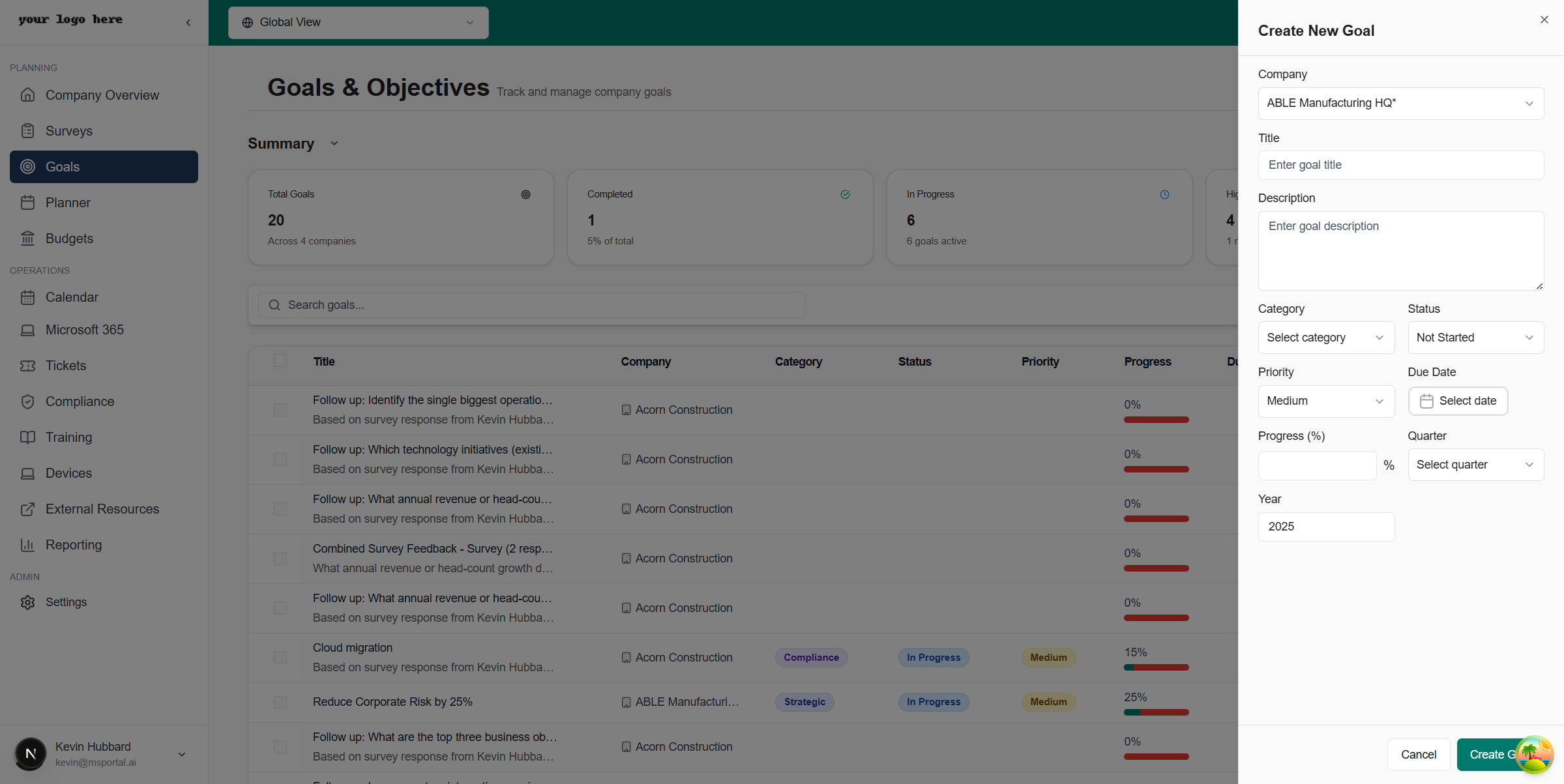
Open Goals and click Add Goal in the page header. The Create New
Goal dialog opens.
2
Choose the company
In Global View or with several companies selected, pick a Company.
You can also pick Organization goal (no company) for an internal goal.
In a single-company view the form uses the selected company.
3
Describe the objective
Enter a Title (required, up to 255 characters) and an optional
Description. Say what result you want and how you will measure it.
4
Choose the owner
Owner defaults to you. Keep yourself, choose another person, or use
Clear all to leave the goal Unassigned. You can choose MSP staff and
Company users in the goal’s company.
5
Set category, status and priority
Choose a Category, Status and Priority. The choices come from
your MSP’s setup. Category can be left as None.
6
Set the dates and progress
Pick a Due Date. Enter Progress (%) from 0 to 100. Optionally choose
a Quarter (Q1 to Q4) and a Year (2000 to 2100).
7
Fill in custom fields
Complete any custom fields your MSP added, including required ones. Wait
until the form has finished loading.
8
Set visibility (MSP staff)
Tick Hide from company users to keep the goal internal. Leave it clear
to let Company users who have access see it.
9
Click Create Goal
Wait for Goal created successfully. The dialog closes and the goal
appears in the list.
Update a goal
1
Open the goal
Click its title, or open the row’s … menu and choose Edit Goal.
2
Change the fields
Edit what you need. Use Owner to reassign the goal, or Clear all to
remove the owner. The goal’s creator stays the same. Status and progress are
separate fields, so update both when both changed.
3
Check custom fields and visibility
Review any required custom fields. MSP staff can change Hide from company
users.
4
Click Update Goal
Wait for Goal updated successfully.
If saving fails
If Failed to save goal appears, the form keeps what you typed. Check the title, the number ranges, any required custom fields and the options you chose. If the save button stays disabled, wait for the custom fields to load. If the save button is missing, ask your MSP to check your Write access. The goal and its custom fields are saved together, so do not assume the main fields saved after an error.Troubleshooting
Frequently asked questions
Can I change the status without changing progress?
Can I change the status without changing progress?
Yes. They are independent. Set both if you want them to agree.
Are category, status and priority choices the same for everyone?
Are category, status and priority choices the same for everyone?
No. They come from your MSP’s setup.
Does hiding a goal change its company?
Does hiding a goal change its company?
No. Hide from company users only controls whether Company users can see
it.
Does choosing a quarter set the due date?
Does choosing a quarter set the due date?
No. Quarter, year and due date are separate fields.