Choose a company, enter budget details, add planned costs, and save an editable budget.
Use this guide to create a budget for one company, or to change a Draft or Pending Approval budget. It is for MSP staff and for company users whose MSP has given them budget write access. Company users with read access can read the budget and ask their MSP to make changes.
Before you start
You need the write_budgets or manage_budgets permission. Approving a budget, and deleting saved lines or budgets, need manage_budgets. Changing a line’s Approval status needs Approve budget items, which Manage includes and Write does not.
A budget belongs to one company.
Only Draft and Pending Approval budgets can be edited. Approved and Archived budgets are locked. To change one, duplicate it.
Choose the currency before you add costs. Changing it later does not convert any prices.
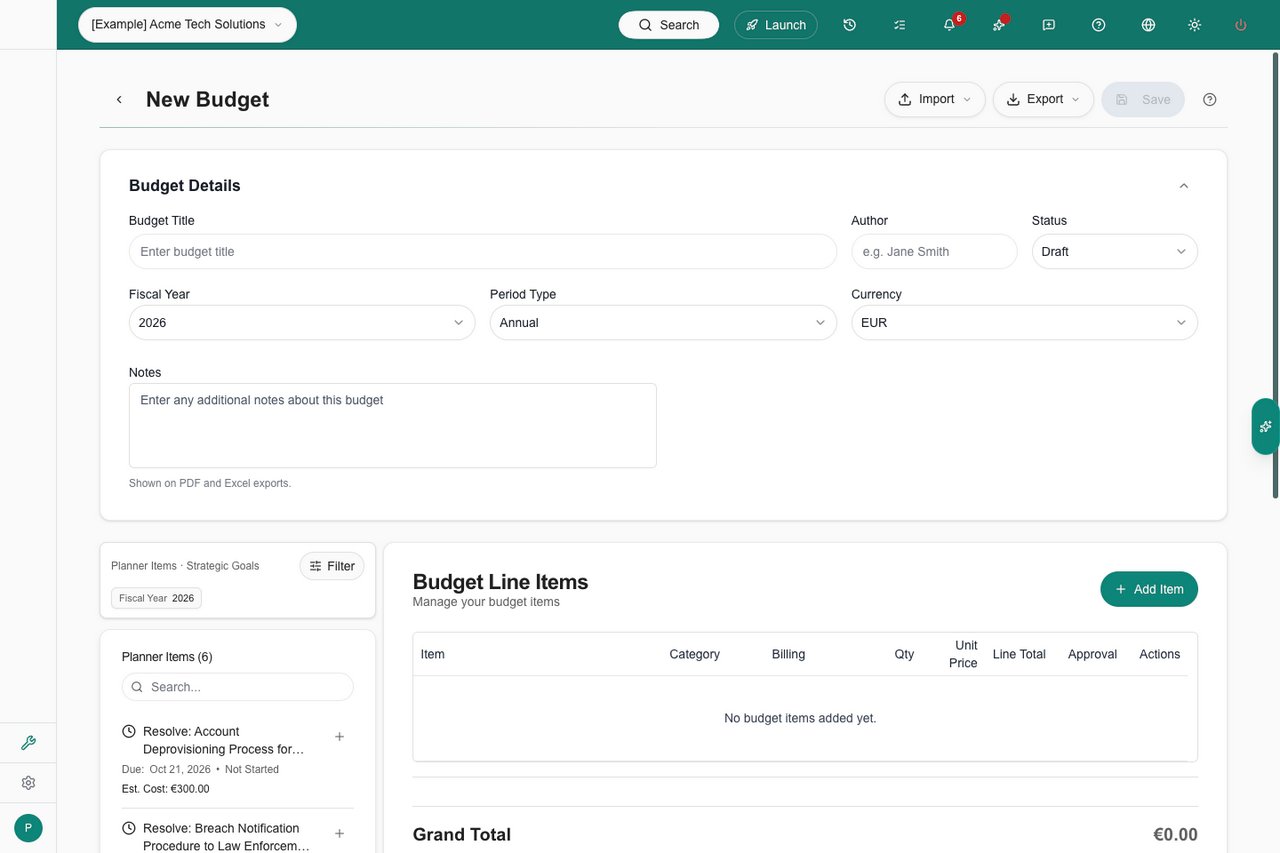
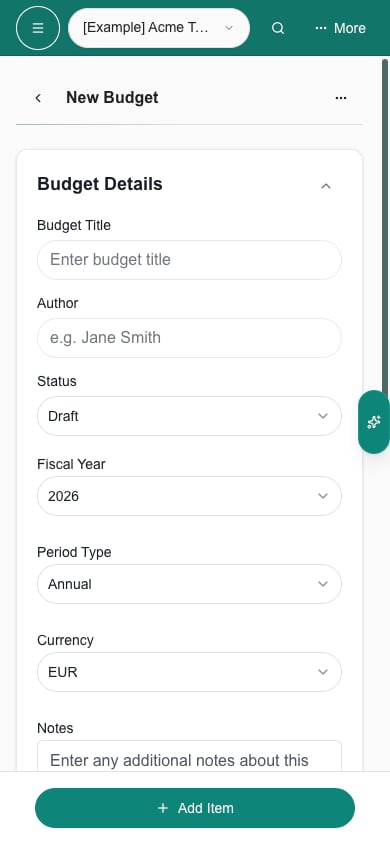
The editor uses the standard back arrow beside its title. On a phone, open Actions for Import, Export and Save. The arrow returns to the Budgets list.
Desktop
Phone
Budget editor with the standard back arrow and responsive header actions.
Budget editor with the standard back arrow and responsive header actions.
Create a budget
1
Open Budgets
Pick the company in the top bar if you want, then click Budgets in the sidebar.
2
Click Create New Budget
Click Create New Budget at the top right. If you are in Global View or have several companies selected, the page asks you to choose the company. Pick it in the Company list. This does not change the company selected in the top bar.
3
Fill in the budget settings
The new budget opens the Budget settings panel, ready for you to type the title. Click Done when you finish, or click Save in the panel to save the budget now. The settings stay with the budget until you save it.
Budget Title: 2 to 120 characters.
Author: starts with your name. Type a name and press Enter, Tab or a comma to add it as a tag. Click × on a tag to remove it. MSP staff see matching people from their MSP while typing; you can also type any other name. A budget takes up to 5 authors of up to 48 characters each. The Budgets list, the budget page and exports show the authors as one list separated by commas.
Status: leave it on Draft while you build the plan.
Fiscal Year: starts on the current year. The list runs from two years back to seven years ahead.
Period Type: Annual, Quarterly or Monthly.
Currency: starts from the company’s or your MSP’s country, and falls back to USD.
Notes: up to 2,000 characters. Notes appear on the budget page and in PDF and Excel exports, and the helper text under the box says so. Write them for every reader.
Branch preview on the Demo tenant: a new budget's settings, with the signed-in person already added as the author.
4
Add the costs
Click Add Item to type a cost, or add costs from the panels and the Import menu. See Add and edit budget line items.Budget Line Items fills the rest of the window and scrolls inside its own area. On a screen 1280 pixels or wider, the column beside it has Planner, Goals and Products tabs, and the open tab fills the column. See Add Planner, goal and product costs.
5
Save
Click Save at the top right, or press Ctrl+S (Cmd+S on Mac). Budget saved successfully. appears and the new budget’s editor opens, with the settings panel closed. Later saves update this budget.
6
Check the monthly plan
Open the budget with View and read Monthly Breakdown. A line’s Line Total is quantity times unit price for one charge. It is not the yearly cost of a recurring line.
Typing a title, adding a row, or clicking a row’s check mark does not save the budget. Click Save before you leave the page.
Edit a saved budget
1
Open the editor
Click the budget’s title in the Budgets list, or click … then Edit. The page shows the budget’s title, with its fiscal year, period type, currency and status.
2
Open the settings
Click Settings at the top right to change the title, author, status, fiscal year, period type, currency or notes. On a phone, Settings is in the … menu at the top right.
3
Change what you need
Edit the settings, or edit lines with the pencil menu and Edit.
Branch preview on the Demo tenant: a saved budget with two authors.
4
Save
Click Save. You stay on the page and a Last saved time appears. If you click Save in the Budget settings panel, the panel closes once the budget saves. If the save fails, the panel stays open and shows the error.
If someone else changed the budget while you were editing, the save is refused and an error appears. Reload the budget, compare it with your changes, and enter again the ones you still need.
What saves when
Action
When it saves
Title, author, fiscal year, period type, currency, notes
When you click Save
Add, edit, move or remove a line
When you click Save. Deleting a saved line needs manage_budgets.
Click the row check mark
It only closes the row editor. Click Save to store the row.
{"docsConfig":{"theme":"aspen","$schema":"https://mintlify.com/docs.json","name":"MSPortal.ai Documentation","colors":{"primary":"#0C8376","light":"#15B79E","dark":"#107569"},"logo":{"light":"https://mintcdn.com/msportal/KnbwIXtZSTlVJTt6/logo/light.svg?fit=max\u0026auto=format\u0026n=KnbwIXtZSTlVJTt6\u0026q=85\u0026s=eb69f6d6bf16b2c401770aef19ade1d2","dark":"https://mintcdn.com/msportal/KnbwIXtZSTlVJTt6/logo/dark.svg?fit=max\u0026auto=format\u0026n=KnbwIXtZSTlVJTt6\u0026q=85\u0026s=03f8df7191e7a8ea7da084df57f6107f"},"favicon":"https://mintcdn.com/msportal/KjsKytvp08K0bejm/favicon-16x16.png?fit=max\u0026auto=format\u0026n=KjsKytvp08K0bejm\u0026q=85\u0026s=378df7f039bbff7885231fec799d29ac","navbar":{"links":[{"href":"/release-notes/roadmap","label":"Roadmap"},{"href":"mailto:support@msportal.ai","label":"Support"}],"primary":{"type":"button","label":"Dashboard","href":"https://app.msportal.ai"}},"footer":{"socials":{"linkedin":"https://linkedin.com/company/msportal"},"links":[{"header":"Resources","items":[{"label":"MSPortal.ai","href":"https://msportal.ai"},{"label":"Support","href":"mailto:support@msportal.ai"},{"label":"Status","href":"https://status.msportal.ai"}]}]},"fonts":{"family":"Inter"},"styling":{"latex":true},"navigation":{"pages":[]}},"deployment":{"deploymentMetadataValue":{"subdomain":"msportal","hasAudioNarration":false,"actualSubdomain":"msportal","customDomains":["docs.msportal.ai"],"gitSource":{"type":"github","owner":"msportal-ai","repo":"mintlify-docs","deployBranch":"main","contentDirectory":"","isPrivate":false,"mountPath":"","label":""},"feedback":{"thumbs":true},"entitlements":{},"buildId":"6b046a7be4412b22d199b348","clientVersion":"0.0.4271","searchFilterCounts":[{"language":"default","tag":"MSP Guides","count":477},{"language":"default","tag":"API Reference","count":433},{"language":"default","tag":"Company Guides","count":182},{"language":"default","tag":"Operations","count":177},{"language":"default","tag":"Planning","count":163},{"language":"default","tag":"Protection","count":109},{"language":"default","tag":"Integrations","count":96},{"language":"default","tag":"Projects","count":90},{"language":"default","tag":"Budgets","count":66},{"language":"default","tag":"Standards","count":56}]},"assistantConfig":{"enableAskAiButton":false,"enableStarterQuestions":false,"enableAskAiSearchBar":true},"basePath":"","hasChatPermissions":false,"hasWebMcpPermissions":false,"toggles":[{"name":"kill-isr","enabled":true,"variant":{"name":"disabled","enabled":false,"feature_enabled":true},"impressionData":false},{"name":"custom-rbac-roles","enabled":true,"variant":{"name":"disabled","enabled":false,"feature_enabled":true},"impressionData":false},{"name":"agent-mintlify-slack","enabled":true,"variant":{"name":"disabled","enabled":false,"feature_enabled":true},"impressionData":false},{"name":"agent-integrations-settings","enabled":true,"variant":{"name":"disabled","enabled":false,"feature_enabled":true},"impressionData":false},{"name":"rbac-expansion","enabled":true,"variant":{"name":"disabled","enabled":false,"feature_enabled":true},"impressionData":false},{"name":"automations-pr-grouping","enabled":true,"variant":{"name":"disabled","enabled":false,"feature_enabled":true},"impressionData":false},{"name":"custom-prefix","enabled":true,"variant":{"name":"disabled","enabled":false,"feature_enabled":true},"impressionData":false},{"name":"analytics-v7","enabled":true,"variant":{"name":"disabled","enabled":false,"feature_enabled":true},"impressionData":false},{"name":"user-flows-analytics","enabled":true,"variant":{"name":"disabled","enabled":false,"feature_enabled":true},"impressionData":false},{"name":"no-publish-flow","enabled":true,"variant":{"name":"disabled","enabled":false,"feature_enabled":true},"impressionData":false},{"name":"workos-onboarding","enabled":true,"variant":{"name":"disabled","enabled":false,"feature_enabled":true},"impressionData":false},{"name":"snapshot-serving-live","enabled":true,"variant":{"name":"disabled","enabled":false,"feature_enabled":true},"impressionData":false},{"name":"stripTemperatureMiddleware","enabled":true,"variant":{"name":"disabled","enabled":false,"feature_enabled":true},"impressionData":false},{"name":"support-platform-pylon-zendesk","enabled":true,"variant":{"name":"disabled","enabled":false,"feature_enabled":true},"impressionData":false},{"name":"snapshot-serving","enabled":true,"variant":{"name":"disabled","enabled":false,"feature_enabled":true},"impressionData":false},{"name":"instant-rollback","enabled":true,"variant":{"name":"disabled","enabled":false,"feature_enabled":true},"impressionData":false},{"name":"granular-notifications-server","enabled":true,"variant":{"name":"disabled","enabled":false,"feature_enabled":true},"impressionData":false},{"name":"granular-notifications","enabled":true,"variant":{"name":"disabled","enabled":false,"feature_enabled":true},"impressionData":false},{"name":"automations-fable","enabled":true,"variant":{"name":"disabled","enabled":false,"feature_enabled":true},"impressionData":false},{"name":"fixed-ai-action-pricing","enabled":true,"variant":{"name":"disabled","enabled":false,"feature_enabled":true},"impressionData":false},{"name":"site-roles","enabled":true,"variant":{"name":"disabled","enabled":false,"feature_enabled":true},"impressionData":false},{"name":"automation-resolve-merge-conflict","enabled":true,"variant":{"name":"disabled","enabled":false,"feature_enabled":true},"impressionData":false},{"name":"scoped-publishing","enabled":true,"variant":{"name":"disabled","enabled":false,"feature_enabled":true},"impressionData":false},{"name":"mintql","enabled":true,"variant":{"name":"disabled","enabled":false,"feature_enabled":true},"impressionData":false},{"name":"page-level-analytics","enabled":true,"variant":{"name":"disabled","enabled":false,"feature_enabled":true},"impressionData":false},{"name":"editor-version-history-v2","enabled":true,"variant":{"name":"disabled","enabled":false,"feature_enabled":true},"impressionData":false},{"name":"billing-page-v2","enabled":true,"variant":{"name":"disabled","enabled":false,"feature_enabled":true},"impressionData":false},{"name":"full-page-search","enabled":true,"variant":{"name":"disabled","enabled":false,"feature_enabled":true},"impressionData":false},{"name":"workspace-projects","enabled":true,"variant":{"name":"disabled","enabled":false,"feature_enabled":true},"impressionData":false},{"name":"assistant-v5","enabled":true,"variant":{"name":"disabled","enabled":false,"feature_enabled":true},"impressionData":false},{"name":"fork-pr-previews","enabled":true,"variant":{"name":"disabled","enabled":false,"feature_enabled":true},"impressionData":false},{"name":"revalidation-jwt","enabled":true,"variant":{"name":"disabled","enabled":false,"feature_enabled":true},"impressionData":false},{"name":"workos-sso-scim","enabled":true,"variant":{"name":"disabled","enabled":false,"feature_enabled":true},"impressionData":false},{"name":"hobby-abuse-scan","enabled":true,"variant":{"name":"disabled","enabled":false,"feature_enabled":true},"impressionData":false},{"name":"dashboard-inbox","enabled":true,"variant":{"name":"disabled","enabled":false,"feature_enabled":true},"impressionData":false},{"name":"workos-signup","enabled":true,"variant":{"name":"disabled","enabled":false,"feature_enabled":true},"impressionData":false},{"name":"turbopuffer-dual-write","enabled":true,"variant":{"name":"disabled","enabled":false,"feature_enabled":true},"impressionData":false},{"name":"workos-enabled","enabled":true,"variant":{"name":"disabled","enabled":false,"feature_enabled":true},"impressionData":false},{"name":"approve-review-flow","enabled":true,"variant":{"name":"disabled","enabled":false,"feature_enabled":true},"impressionData":false},{"name":"editor-metadata","enabled":true,"variant":{"name":"disabled","enabled":false,"feature_enabled":true},"impressionData":false},{"name":"sso-setup-deadline-banner","enabled":true,"variant":{"name":"disabled","enabled":false,"feature_enabled":true},"impressionData":false},{"name":"turbopuffer-serve","enabled":true,"variant":{"name":"disabled","enabled":false,"feature_enabled":true},"impressionData":false},{"name":"live-agents","enabled":true,"variant":{"name":"disabled","enabled":false,"feature_enabled":true},"impressionData":false},{"name":"starter-pricing","enabled":true,"variant":{"name":"control","enabled":true,"payload":{"type":"string","value":"control"},"feature_enabled":true},"impressionData":false},{"name":"llms-txt-v2","enabled":true,"variant":{"name":"disabled","enabled":false,"feature_enabled":true},"impressionData":false},{"name":"wildcard-email-auth","enabled":true,"variant":{"name":"disabled","enabled":false,"feature_enabled":true},"impressionData":false}],"googleFontsInlined":false},"customCss":[{"filePath":"style.css","content":"#page-title{font-size:1.75rem;line-height:2.125rem}#header .prose.text-lg{font-size:1rem;line-height:1.5rem;color:rgb(var(--gray-500))}#content-area .prose{font-size:0.9375rem;line-height:1.6}#content-area .mdx-content{margin-top:1.5rem}#content-area .mdx-content h2{font-size:1.25rem;line-height:1.75rem;margin-top:2.25rem;margin-bottom:0.75rem}#content-area .mdx-content h3{font-size:1.0625rem;line-height:1.5rem;margin-top:1.75rem;margin-bottom:0.5rem}#content-area .mdx-content li{margin-top:0.25em;margin-bottom:0.25em}#content-area .steps{margin-top:1rem}#content-area .step{padding-bottom:0.75rem}#content-area [data-component-part=\"step-title\"]{margin-top:0.25rem;margin-bottom:0.375rem}#content-area [data-component-part=\"accordion-content\"] td,#content-area [data-component-part=\"accordion-content\"] th{min-width:0}@media (max-width: 639px){#content-area [data-component-part=\"accordion-content\"] td:last-child{min-width:16rem}}#content-area [data-table-wrapper]>[data-component-part=\"scroll-area-viewport\"]{-webkit-mask-image:linear-gradient(\n to right,\n transparent 0,\n black min(var(--scroll-area-fade-size), var(--scroll-area-overflow-x-start, 0px)),\n black calc(100% - min(var(--scroll-area-fade-size), var(--scroll-area-overflow-x-end, 0px))),\n transparent 100%\n );mask-image:linear-gradient(\n to right,\n transparent 0,\n black min(var(--scroll-area-fade-size), var(--scroll-area-overflow-x-start, 0px)),\n black calc(100% - min(var(--scroll-area-fade-size), var(--scroll-area-overflow-x-end, 0px))),\n transparent 100%\n )}#content-area [data-table-wrapper]>[data-component-part=\"scroll-area-scrollbar\"][data-has-overflow-x]{opacity:1;pointer-events:auto}#sidebar-content li>a,#sidebar-content li>button{font-size:0.875rem;line-height:1.25rem;padding-top:0.3125rem;padding-bottom:0.3125rem}#sidebar-content li>a span{hyphens:manual}#sidebar-content a.nav-anchor{margin-bottom:0.25rem;font-size:0.875rem}#sidebar-content ul:has(>li>a.nav-anchor){margin-bottom:1rem;padding-bottom:0.5rem;border-bottom:1px solid rgb(var(--gray-100))}.dark #sidebar-content ul:has(>li>a.nav-anchor){border-bottom-color:rgb(255 255 255 / 0.1)}#table-of-contents{font-size:0.8125rem;line-height:1.25rem}#sidebar-content li>a>div:first-child:has(>svg,>img){display:none}:root{--sidebar-width: 16rem}@media (min-width: 1024px){#navbar .max-w-8xl,#body-content{max-width:none}#content-container{max-width:88rem;margin-left:0;padding-left:2.5rem;padding-right:2rem;column-gap:2.5rem;justify-content:space-between}}@media (min-width: 1280px){#content-area{width:calc(100% - 16.5rem);max-width:52rem;margin-left:0}#navbar.is-wide~#body-content #content-container{max-width:none}#navbar.is-wide~#body-content #content-area{width:100%;max-width:none}#table-of-contents-layout{width:14rem;padding-left:0}#table-of-contents{width:14rem}}.roadmap-embed{display:block;border:0;background:transparent;color-scheme:light}.dark .roadmap-embed{color-scheme:dark}#content-area img[width=\"390\"],#content-area img[width=\"780\"]{width:100%!important;max-width:300px!important;height:auto!important;margin-left:auto;margin-right:auto}"}]}
{"page":{"pagePath":"msp-guides/budgets/create-and-edit-budgets","slug":"/msp-guides/budgets/create-and-edit-budgets","pageMetadata":{"title":"Create and edit a company budget","description":"Choose a company, enter budget details, add planned costs, and save an editable budget.","icon":"calculator","href":"/msp-guides/budgets/create-and-edit-budgets"},"description":{"compiledSource":"\"use strict\";\nconst {jsx: _jsx} = arguments[0];\nconst {useMDXComponents: _provideComponents} = arguments[0];\nfunction _createMdxContent(props) {\n const _components = {\n p: \"p\",\n ..._provideComponents(),\n ...props.components\n };\n return _jsx(_components.p, {\n children: \"Choose a company, enter budget details, add planned costs, and save an editable budget.\"\n });\n}\nfunction MDXContent(props = {}) {\n const {wrapper: MDXLayout} = {\n ..._provideComponents(),\n ...props.components\n };\n return MDXLayout ? _jsx(MDXLayout, {\n ...props,\n children: _jsx(_createMdxContent, {\n ...props\n })\n }) : _createMdxContent(props);\n}\nreturn {\n default: MDXContent\n};\n","frontmatter":{},"scope":{}},"pageType":"default","mdx":{"mdxSource":{"compiledSource":"\"use strict\";const{Fragment:_Fragment,jsx:_jsx,jsxs:_jsxs}=arguments[0];const{useMDXComponents:_provideComponents}=arguments[0];function _createMdxContent(props){const _components={a:`a`,li:`li`,p:`p`,strong:`strong`,tbody:`tbody`,td:`td`,th:`th`,thead:`thead`,tr:`tr`,ul:`ul`,..._provideComponents(),...props.components},{Accordion,AccordionGroup,Frame,Heading,Note,OptimizedImage,Step,Steps,Tab,Table,Tabs}=_components;if(!Accordion)_missingMdxReference(`Accordion`,true);if(!AccordionGroup)_missingMdxReference(`AccordionGroup`,true);if(!Frame)_missingMdxReference(`Frame`,true);if(!Heading)_missingMdxReference(`Heading`,true);if(!Note)_missingMdxReference(`Note`,true);if(!OptimizedImage)_missingMdxReference(`OptimizedImage`,true);if(!Step)_missingMdxReference(`Step`,true);if(!Steps)_missingMdxReference(`Steps`,true);if(!Tab)_missingMdxReference(`Tab`,true);if(!Table)_missingMdxReference(`Table`,true);if(!Tabs)_missingMdxReference(`Tabs`,true);return _jsxs(_Fragment,{children:[_jsxs(_components.p,{children:[`Use this guide to create a budget for one company, or to change a Draft or Pending Approval budget. It is for MSP staff and for company users whose MSP has given them budget write access. Company users with read access can `,_jsx(_components.a,{href:`/msp-guides/budgets/read-budget`,children:`read the budget`}),` and ask their MSP to make changes.`]}),`\n`,_jsx(Heading,{level:`2`,id:`before-you-start`,children:`Before you start`}),`\n`,_jsxs(_components.ul,{children:[`\n`,_jsxs(_components.li,{children:[`You need the `,_jsx(_components.strong,{children:`write_budgets`}),` or `,_jsx(_components.strong,{children:`manage_budgets`}),` permission. Approving a budget, and deleting saved lines or budgets, need `,_jsx(_components.strong,{children:`manage_budgets`}),`. Changing a line’s `,_jsx(_components.strong,{children:`Approval`}),` status needs `,_jsx(_components.strong,{children:`Approve budget items`}),`, which `,_jsx(_components.strong,{children:`Manage`}),` includes and `,_jsx(_components.strong,{children:`Write`}),` does not.`]}),`\n`,_jsx(_components.li,{children:`A budget belongs to one company.`}),`\n`,_jsxs(_components.li,{children:[`Only Draft and Pending Approval budgets can be edited. Approved and Archived budgets are locked. To change one, `,_jsx(_components.a,{href:`/msp-guides/budgets/duplicate-budget`,children:`duplicate it`}),`.`]}),`\n`,_jsx(_components.li,{children:`Choose the currency before you add costs. Changing it later does not convert any prices.`}),`\n`]}),`\n`,_jsxs(Note,{children:[`The editor uses the standard back arrow beside its title. On a phone, open `,_jsx(_components.strong,{children:`Actions`}),` for Import, Export and Save. The arrow returns to the Budgets list.`]}),`\n`,_jsxs(Tabs,{children:[_jsx(Tab,{title:`Desktop`,id:`desktop`,children:_jsx(Frame,{caption:`Budget editor with the standard back arrow and responsive header actions.`,children:_jsx(OptimizedImage,{src:`https://mintcdn.com/msportal/ItiKPfs7UzpJwIDO/images/product/back-nav-budgetdesktop-preview.png?fit=max\u0026auto=format\u0026n=ItiKPfs7UzpJwIDO\u0026q=85\u0026s=36f5a2640198d45e1fc54ffa7f8b0dd6`,alt:`Budget editor with the standard back arrow and responsive header actions on desktop`,width:1280,height:853,\"data-og-width\":`1280`,\"data-og-height\":`853`,\"data-path\":`images/product/back-nav-budgetdesktop-preview.png`,\"data-optimize\":`true`,\"data-opv\":`3`,srcset:`https://mintcdn.com/msportal/ItiKPfs7UzpJwIDO/images/product/back-nav-budgetdesktop-preview.png?w=280\u0026fit=max\u0026auto=format\u0026n=ItiKPfs7UzpJwIDO\u0026q=85\u0026s=588cdd009a7e540c890287a7fd52ee26 280w, https://mintcdn.com/msportal/ItiKPfs7UzpJwIDO/images/product/back-nav-budgetdesktop-preview.png?w=560\u0026fit=max\u0026auto=format\u0026n=ItiKPfs7UzpJwIDO\u0026q=85\u0026s=39b3168f16f3f3d38a23d4c1b29e5f49 560w, https://mintcdn.com/msportal/ItiKPfs7UzpJwIDO/images/product/back-nav-budgetdesktop-preview.png?w=840\u0026fit=max\u0026auto=format\u0026n=ItiKPfs7UzpJwIDO\u0026q=85\u0026s=b00237272583cf34d67c855604d2724a 840w, https://mintcdn.com/msportal/ItiKPfs7UzpJwIDO/images/product/back-nav-budgetdesktop-preview.png?w=1100\u0026fit=max\u0026auto=format\u0026n=ItiKPfs7UzpJwIDO\u0026q=85\u0026s=0269bbe1492f0b22b8a867514a02e957 1100w, https://mintcdn.com/msportal/ItiKPfs7UzpJwIDO/images/product/back-nav-budgetdesktop-preview.png?w=1650\u0026fit=max\u0026auto=format\u0026n=ItiKPfs7UzpJwIDO\u0026q=85\u0026s=204e915ab6c041baff86ef091adf385a 1650w, https://mintcdn.com/msportal/ItiKPfs7UzpJwIDO/images/product/back-nav-budgetdesktop-preview.png?w=2500\u0026fit=max\u0026auto=format\u0026n=ItiKPfs7UzpJwIDO\u0026q=85\u0026s=10f0638d2136d8e20ba109e551cde522 2500w`})})}),_jsx(Tab,{title:`Phone`,id:`phone`,children:_jsx(Frame,{caption:`Budget editor with the standard back arrow and responsive header actions.`,children:_jsx(OptimizedImage,{src:`https://mintcdn.com/msportal/ItiKPfs7UzpJwIDO/images/product/back-nav-budgetmobile-preview.png?fit=max\u0026auto=format\u0026n=ItiKPfs7UzpJwIDO\u0026q=85\u0026s=b0db0a7ee78b725caa66e58fa42c5db7`,alt:`Budget editor with the standard back arrow and responsive header actions on phone`,width:390,height:844,\"data-og-width\":`390`,\"data-og-height\":`844`,\"data-path\":`images/product/back-nav-budgetmobile-preview.png`,\"data-optimize\":`true`,\"data-opv\":`3`,srcset:`https://mintcdn.com/msportal/ItiKPfs7UzpJwIDO/images/product/back-nav-budgetmobile-preview.png?w=280\u0026fit=max\u0026auto=format\u0026n=ItiKPfs7UzpJwIDO\u0026q=85\u0026s=074bfdabd9c3e2581bae970aee521d80 280w, https://mintcdn.com/msportal/ItiKPfs7UzpJwIDO/images/product/back-nav-budgetmobile-preview.png?w=560\u0026fit=max\u0026auto=format\u0026n=ItiKPfs7UzpJwIDO\u0026q=85\u0026s=1eae4fb0bf561940799b8d5a0df7139a 560w, https://mintcdn.com/msportal/ItiKPfs7UzpJwIDO/images/product/back-nav-budgetmobile-preview.png?w=840\u0026fit=max\u0026auto=format\u0026n=ItiKPfs7UzpJwIDO\u0026q=85\u0026s=edff289b4d627f06d66e6bb99ca81b12 840w, https://mintcdn.com/msportal/ItiKPfs7UzpJwIDO/images/product/back-nav-budgetmobile-preview.png?w=1100\u0026fit=max\u0026auto=format\u0026n=ItiKPfs7UzpJwIDO\u0026q=85\u0026s=ef56c3cee40c1592437846fe6fd66b77 1100w, https://mintcdn.com/msportal/ItiKPfs7UzpJwIDO/images/product/back-nav-budgetmobile-preview.png?w=1650\u0026fit=max\u0026auto=format\u0026n=ItiKPfs7UzpJwIDO\u0026q=85\u0026s=964932367f5bcbc31de174ccde568201 1650w, https://mintcdn.com/msportal/ItiKPfs7UzpJwIDO/images/product/back-nav-budgetmobile-preview.png?w=2500\u0026fit=max\u0026auto=format\u0026n=ItiKPfs7UzpJwIDO\u0026q=85\u0026s=fe414b851d33ff025f1df45e36557a04 2500w`})})})]}),`\n`,_jsx(Heading,{level:`2`,id:`create-a-budget`,children:`Create a budget`}),`\n`,_jsxs(Steps,{children:[_jsx(Step,{title:`Open Budgets`,children:_jsxs(_components.p,{children:[`Pick the company in the top bar if you want, then click `,_jsx(_components.strong,{children:`Budgets`}),` in the sidebar.`]})}),_jsx(Step,{title:`Click Create New Budget`,children:_jsxs(_components.p,{children:[`Click `,_jsx(_components.strong,{children:`Create New Budget`}),` at the top right. If you are in Global View or have several companies selected, the page asks you to choose the company. Pick it in the `,_jsx(_components.strong,{children:`Company`}),` list. This does not change the company selected in the top bar.`]})}),_jsxs(Step,{title:`Fill in the budget settings`,children:[_jsxs(_components.p,{children:[`The new budget opens the `,_jsx(_components.strong,{children:`Budget settings`}),` panel, ready for you to type the title. Click `,_jsx(_components.strong,{children:`Done`}),` when you finish, or click `,_jsx(_components.strong,{children:`Save`}),` in the panel to save the budget now. The settings stay with the budget until you save it.`]}),_jsxs(_components.ul,{children:[`\n`,_jsxs(_components.li,{children:[_jsx(_components.strong,{children:`Budget Title`}),`: 2 to 120 characters.`]}),`\n`,_jsxs(_components.li,{children:[_jsx(_components.strong,{children:`Author`}),`: starts with your name. Type a name and press Enter, Tab or a comma to add it as a tag. Click `,_jsx(_components.strong,{children:`×`}),` on a tag to remove it. MSP staff see matching people from their MSP while typing; you can also type any other name. A budget takes up to 5 authors of up to 48 characters each. The Budgets list, the budget page and exports show the authors as one list separated by commas.`]}),`\n`,_jsxs(_components.li,{children:[_jsx(_components.strong,{children:`Status`}),`: leave it on `,_jsx(_components.strong,{children:`Draft`}),` while you build the plan.`]}),`\n`,_jsxs(_components.li,{children:[_jsx(_components.strong,{children:`Fiscal Year`}),`: starts on the current year. The list runs from two years back to seven years ahead.`]}),`\n`,_jsxs(_components.li,{children:[_jsx(_components.strong,{children:`Period Type`}),`: `,_jsx(_components.strong,{children:`Annual`}),`, `,_jsx(_components.strong,{children:`Quarterly`}),` or `,_jsx(_components.strong,{children:`Monthly`}),`.`]}),`\n`,_jsxs(_components.li,{children:[_jsx(_components.strong,{children:`Currency`}),`: starts from the company’s or your MSP’s country, and falls back to USD.`]}),`\n`,_jsxs(_components.li,{children:[_jsx(_components.strong,{children:`Notes`}),`: up to 2,000 characters. Notes appear on the budget page and in PDF and Excel exports, and the helper text under the box says so. Write them for every reader.`]}),`\n`]}),_jsx(Frame,{caption:`Branch preview on the Demo tenant: a new budget's settings, with the signed-in person already added as the author.`,children:_jsx(OptimizedImage,{src:`https://mintcdn.com/msportal/tlzw2FztIMWnnO3m/images/product/budget-builder-details.png?fit=max\u0026auto=format\u0026n=tlzw2FztIMWnnO3m\u0026q=85\u0026s=6d21e8aa63cfdd13a5eaa4317d967f6f`,alt:`Budget settings panel with an empty Budget Title, an Author tag for the signed-in person, and Draft status.`,width:`461`,height:`242`,\"data-og-width\":`922`,\"data-og-height\":`483`,\"data-path\":`images/product/budget-builder-details.png`,\"data-optimize\":`true`,\"data-opv\":`3`,srcset:`https://mintcdn.com/msportal/tlzw2FztIMWnnO3m/images/product/budget-builder-details.png?w=280\u0026fit=max\u0026auto=format\u0026n=tlzw2FztIMWnnO3m\u0026q=85\u0026s=21dfb5bca8259a54552f488ba54a449b 280w, https://mintcdn.com/msportal/tlzw2FztIMWnnO3m/images/product/budget-builder-details.png?w=560\u0026fit=max\u0026auto=format\u0026n=tlzw2FztIMWnnO3m\u0026q=85\u0026s=de88b230e5c95832db8b041447ea5744 560w, https://mintcdn.com/msportal/tlzw2FztIMWnnO3m/images/product/budget-builder-details.png?w=840\u0026fit=max\u0026auto=format\u0026n=tlzw2FztIMWnnO3m\u0026q=85\u0026s=288846dbd52eb4116e925c9c66d669bf 840w, https://mintcdn.com/msportal/tlzw2FztIMWnnO3m/images/product/budget-builder-details.png?w=1100\u0026fit=max\u0026auto=format\u0026n=tlzw2FztIMWnnO3m\u0026q=85\u0026s=55855fdea672b615c5a37109b21d23b6 1100w, https://mintcdn.com/msportal/tlzw2FztIMWnnO3m/images/product/budget-builder-details.png?w=1650\u0026fit=max\u0026auto=format\u0026n=tlzw2FztIMWnnO3m\u0026q=85\u0026s=fb5b9af11dde09c7ff899b1120b55e98 1650w, https://mintcdn.com/msportal/tlzw2FztIMWnnO3m/images/product/budget-builder-details.png?w=2500\u0026fit=max\u0026auto=format\u0026n=tlzw2FztIMWnnO3m\u0026q=85\u0026s=aa1c9439012dd309afa2604599774fc2 2500w`})})]}),_jsxs(Step,{title:`Add the costs`,children:[_jsxs(_components.p,{children:[`Click `,_jsx(_components.strong,{children:`Add Item`}),` to type a cost, or add costs from the panels and the `,_jsx(_components.strong,{children:`Import`}),` menu. See `,_jsx(_components.a,{href:`/msp-guides/budgets/edit-line-items`,children:`Add and edit budget line items`}),`.`]}),_jsxs(_components.p,{children:[_jsx(_components.strong,{children:`Budget Line Items`}),` fills the rest of the window and scrolls inside its own area. On a screen 1280 pixels or wider, the column beside it has `,_jsx(_components.strong,{children:`Planner`}),`, `,_jsx(_components.strong,{children:`Goals`}),` and `,_jsx(_components.strong,{children:`Products`}),` tabs, and the open tab fills the column. See `,_jsx(_components.a,{href:`/msp-guides/budgets/import-planning-and-products`,children:`Add Planner, goal and product costs`}),`.`]})]}),_jsx(Step,{title:`Save`,children:_jsxs(_components.p,{children:[`Click `,_jsx(_components.strong,{children:`Save`}),` at the top right, or press Ctrl+S (Cmd+S on Mac). `,_jsx(_components.strong,{children:`Budget saved successfully.`}),` appears and the new budget’s editor opens, with the settings panel closed. Later saves update this budget.`]})}),_jsx(Step,{title:`Check the monthly plan`,children:_jsxs(_components.p,{children:[`Open the budget with `,_jsx(_components.strong,{children:`View`}),` and read `,_jsx(_components.strong,{children:`Monthly Breakdown`}),`. A line’s `,_jsx(_components.strong,{children:`Line Total`}),` is quantity times unit price for one charge. It is not the yearly cost of a recurring line.`]})})]}),`\n`,_jsxs(_components.p,{children:[`Typing a title, adding a row, or clicking a row’s check mark does not save the budget. Click `,_jsx(_components.strong,{children:`Save`}),` before you leave the page.`]}),`\n`,_jsx(Heading,{level:`2`,id:`edit-a-saved-budget`,children:`Edit a saved budget`}),`\n`,_jsxs(Steps,{children:[_jsx(Step,{title:`Open the editor`,children:_jsxs(_components.p,{children:[`Click the budget’s title in the Budgets list, or click `,_jsx(_components.strong,{children:`…`}),` then `,_jsx(_components.strong,{children:`Edit`}),`. The page shows the budget’s title, with its fiscal year, period type, currency and status.`]})}),_jsx(Step,{title:`Open the settings`,children:_jsxs(_components.p,{children:[`Click `,_jsx(_components.strong,{children:`Settings`}),` at the top right to change the title, author, status, fiscal year, period type, currency or notes. On a phone, `,_jsx(_components.strong,{children:`Settings`}),` is in the `,_jsx(_components.strong,{children:`…`}),` menu at the top right.`]})}),_jsxs(Step,{title:`Change what you need`,children:[_jsxs(_components.p,{children:[`Edit the settings, or edit lines with the pencil menu and `,_jsx(_components.strong,{children:`Edit`}),`.`]}),_jsx(Frame,{caption:`Branch preview on the Demo tenant: a saved budget with two authors.`,children:_jsx(OptimizedImage,{src:`https://mintcdn.com/msportal/tlzw2FztIMWnnO3m/images/product/budget-settings-authors-saved.png?fit=max\u0026auto=format\u0026n=tlzw2FztIMWnnO3m\u0026q=85\u0026s=1c53ffb3a57688510e479f32856a3380`,alt:`Budget settings Author field with two author tags, each with a remove button.`,width:`450`,height:`59`,\"data-og-width\":`900`,\"data-og-height\":`118`,\"data-path\":`images/product/budget-settings-authors-saved.png`,\"data-optimize\":`true`,\"data-opv\":`3`,srcset:`https://mintcdn.com/msportal/tlzw2FztIMWnnO3m/images/product/budget-settings-authors-saved.png?w=280\u0026fit=max\u0026auto=format\u0026n=tlzw2FztIMWnnO3m\u0026q=85\u0026s=7ab74f7af9f4fb321eb63c4def5b446e 280w, https://mintcdn.com/msportal/tlzw2FztIMWnnO3m/images/product/budget-settings-authors-saved.png?w=560\u0026fit=max\u0026auto=format\u0026n=tlzw2FztIMWnnO3m\u0026q=85\u0026s=c1a94c83428fbd4466f81a0745458964 560w, https://mintcdn.com/msportal/tlzw2FztIMWnnO3m/images/product/budget-settings-authors-saved.png?w=840\u0026fit=max\u0026auto=format\u0026n=tlzw2FztIMWnnO3m\u0026q=85\u0026s=5a4dceab0018dd5a95df6531e657dbf0 840w, https://mintcdn.com/msportal/tlzw2FztIMWnnO3m/images/product/budget-settings-authors-saved.png?w=1100\u0026fit=max\u0026auto=format\u0026n=tlzw2FztIMWnnO3m\u0026q=85\u0026s=b7df6f94a4d71ed4a3a4f89933933412 1100w, https://mintcdn.com/msportal/tlzw2FztIMWnnO3m/images/product/budget-settings-authors-saved.png?w=1650\u0026fit=max\u0026auto=format\u0026n=tlzw2FztIMWnnO3m\u0026q=85\u0026s=55945f632c905579d078c5342861de13 1650w, https://mintcdn.com/msportal/tlzw2FztIMWnnO3m/images/product/budget-settings-authors-saved.png?w=2500\u0026fit=max\u0026auto=format\u0026n=tlzw2FztIMWnnO3m\u0026q=85\u0026s=1f2211e2fb93ba1f2cd0595e93996aa8 2500w`})})]}),_jsx(Step,{title:`Save`,children:_jsxs(_components.p,{children:[`Click `,_jsx(_components.strong,{children:`Save`}),`. You stay on the page and a `,_jsx(_components.strong,{children:`Last saved`}),` time appears. If you click `,_jsx(_components.strong,{children:`Save`}),` in the `,_jsx(_components.strong,{children:`Budget settings`}),` panel, the panel closes once the budget saves. If the save fails, the panel stays open and shows the error.`]})})]}),`\n`,_jsx(_components.p,{children:`If someone else changed the budget while you were editing, the save is refused and an error appears. Reload the budget, compare it with your changes, and enter again the ones you still need.`}),`\n`,_jsx(Heading,{level:`2`,id:`what-saves-when`,children:`What saves when`}),`\n`,_jsxs(Table,{children:[_jsx(_components.thead,{children:_jsxs(_components.tr,{children:[_jsx(_components.th,{children:`Action`}),_jsx(_components.th,{children:`When it saves`})]})}),_jsxs(_components.tbody,{children:[_jsxs(_components.tr,{children:[_jsx(_components.td,{children:`Title, author, fiscal year, period type, currency, notes`}),_jsxs(_components.td,{children:[`When you click `,_jsx(_components.strong,{children:`Save`})]})]}),_jsxs(_components.tr,{children:[_jsx(_components.td,{children:`Add, edit, move or remove a line`}),_jsxs(_components.td,{children:[`When you click `,_jsx(_components.strong,{children:`Save`}),`. Deleting a saved line needs `,_jsx(_components.strong,{children:`manage_budgets`}),`.`]})]}),_jsxs(_components.tr,{children:[_jsx(_components.td,{children:`Click the row check mark`}),_jsxs(_components.td,{children:[`It only closes the row editor. Click `,_jsx(_components.strong,{children:`Save`}),` to store the row.`]})]}),_jsxs(_components.tr,{children:[_jsxs(_components.td,{children:[`Change the `,_jsx(_components.strong,{children:`Approval`}),` of a line already saved`]}),_jsxs(_components.td,{children:[`Right away, with a `,_jsx(_components.strong,{children:`Status updated`}),` message`]})]}),_jsxs(_components.tr,{children:[_jsxs(_components.td,{children:[`Change the `,_jsx(_components.strong,{children:`Approval`}),` of a new unsaved line`]}),_jsxs(_components.td,{children:[`With the first `,_jsx(_components.strong,{children:`Save`})]})]}),_jsxs(_components.tr,{children:[_jsxs(_components.td,{children:[`Change a month amount on `,_jsx(_components.strong,{children:`Monthly Breakdown`})]}),_jsxs(_components.td,{children:[`When you leave the cell. See `,_jsx(_components.a,{href:`/msp-guides/budgets/edit-monthly-overrides`,children:`Adjust a budget amount for one month`}),`.`]})]}),_jsxs(_components.tr,{children:[_jsxs(_components.td,{children:[`Set the budget `,_jsx(_components.strong,{children:`Status`}),` to Approved`]}),_jsxs(_components.td,{children:[`After you confirm the warning and click `,_jsx(_components.strong,{children:`Save`}),`. This locks the budget for good. See `,_jsx(_components.a,{href:`/msp-guides/budgets/approving-and-locking-budgets`,children:`Approve and lock a budget`}),`.`]})]})]})]}),`\n`,_jsx(Heading,{level:`2`,id:`bring-in-existing-costs`,children:`Bring in existing costs`}),`\n`,_jsxs(_components.p,{children:[`Use the `,_jsx(_components.strong,{children:`Import`}),` menu for `,_jsx(_components.a,{href:`/msp-guides/budgets/import-excel`,children:`Excel workbooks`}),`, `,_jsx(_components.a,{href:`/msp-guides/budgets/import-previous-year`,children:`earlier-year recurring services`}),` or `,_jsx(_components.a,{href:`/msp-guides/budgets/import-microsoft-365-licensing`,children:`Microsoft 365 licensing`}),`. Use the side panels for `,_jsx(_components.a,{href:`/msp-guides/budgets/import-planning-and-products`,children:`Planner items, goals and products`}),`. Each one adds rows to review. Click `,_jsx(_components.strong,{children:`Save`}),` to keep them.`]}),`\n`,_jsx(Heading,{level:`2`,id:`troubleshooting`,children:`Troubleshooting`}),`\n`,_jsxs(Table,{children:[_jsx(_components.thead,{children:_jsxs(_components.tr,{children:[_jsx(_components.th,{children:`Problem`}),_jsx(_components.th,{children:`What to do`})]})}),_jsxs(_components.tbody,{children:[_jsxs(_components.tr,{children:[_jsxs(_components.td,{children:[_jsx(_components.strong,{children:`Create New Budget`}),` is missing`]}),_jsx(_components.td,{children:`Your role lacks budget write access. Ask your MSP admin.`})]}),_jsxs(_components.tr,{children:[_jsxs(_components.td,{children:[`Opening `,_jsx(_components.strong,{children:`Edit`}),` sends you to the reader`]}),_jsx(_components.td,{children:`Your role cannot edit budgets.`})]}),_jsxs(_components.tr,{children:[_jsxs(_components.td,{children:[_jsx(_components.strong,{children:`Save`}),` is disabled`]}),_jsx(_components.td,{children:`Make a change first. It is also disabled while saving and on locked budgets.`})]}),_jsxs(_components.tr,{children:[_jsx(_components.td,{children:`Save shows an error`}),_jsx(_components.td,{children:`Read the message and check the title, currency, line values and links. A failed save stores nothing.`})]}),_jsxs(_components.tr,{children:[_jsx(_components.td,{children:`The budget is read-only`}),_jsx(_components.td,{children:`It is Approved or Archived. Duplicate it to get an editable copy.`})]}),_jsxs(_components.tr,{children:[_jsxs(_components.td,{children:[_jsx(_components.strong,{children:`Export`}),` does nothing in a new budget`]}),_jsx(_components.td,{children:`Save the budget first. Exports use the saved budget.`})]}),_jsxs(_components.tr,{children:[_jsx(_components.td,{children:`An export misses recent edits`}),_jsx(_components.td,{children:`Save, then export again.`})]})]})]}),`\n`,_jsx(Heading,{level:`2`,id:`frequently-asked-questions`,children:`Frequently asked questions`}),`\n`,_jsxs(AccordionGroup,{children:[_jsx(Accordion,{title:`Can one budget cover several companies?`,id:`can-one-budget-cover-several-companies`,children:_jsx(_components.p,{children:`No. A budget belongs to one company. Create a budget for each company.`})}),_jsx(Accordion,{title:`Can a company user create or edit budgets?`,id:`can-a-company-user-create-or-edit-budgets`,children:_jsx(_components.p,{children:`Only if their MSP gives them budget write access. Company users cannot grant it to themselves.`})}),_jsx(Accordion,{title:`Does Period Type change each line's billing schedule?`,id:`does-period-type-change-each-lines-billing-schedule`,children:_jsxs(_components.p,{children:[`No. Period Type labels the budget. Each line has its own `,_jsx(_components.strong,{children:`Recurrence`}),` and `,_jsx(_components.strong,{children:`Start month`}),`. Monthly Breakdown always runs January to December.`]})}),_jsx(Accordion,{title:`Does changing the currency convert my prices?`,id:`does-changing-the-currency-convert-my-prices`,children:_jsx(_components.p,{children:`No. The numbers stay the same. Check existing and imported prices after you change it.`})}),_jsx(Accordion,{title:`Does Pending Approval approve the budget?`,id:`does-pending-approval-approve-the-budget`,children:_jsxs(_components.p,{children:[`No. It is another editable status. Only the `,_jsx(_components.strong,{children:`Approved`}),` status, set by someone with `,_jsx(_components.strong,{children:`manage_budgets`}),`, locks the budget.`]})}),_jsx(Accordion,{title:`Why did a line's status change when I did not click Save?`,id:`why-did-a-lines-status-change-when-i-did-not-click-save`,children:_jsxs(_components.p,{children:[`The `,_jsx(_components.strong,{children:`Approval`}),` list on a saved line saves at once. Other edits wait for `,_jsx(_components.strong,{children:`Save`}),`.`]})}),_jsx(Accordion,{title:`Does Export save my changes?`,id:`does-export-save-my-changes`,children:_jsx(_components.p,{children:`No. Save first, then export.`})})]}),`\n`,_jsx(Heading,{level:`2`,id:`related-guides`,children:`Related guides`}),`\n`,_jsxs(_components.ul,{children:[`\n`,_jsx(_components.li,{children:_jsx(_components.a,{href:`/msp-guides/budgets/find-budgets`,children:`Find and open a budget`})}),`\n`,_jsx(_components.li,{children:_jsx(_components.a,{href:`/msp-guides/budgets/edit-line-items`,children:`Add and edit budget line items`})}),`\n`,_jsx(_components.li,{children:_jsx(_components.a,{href:`/msp-guides/budgets/read-monthly-breakdown`,children:`Read a budget monthly breakdown`})}),`\n`,_jsx(_components.li,{children:_jsx(_components.a,{href:`/msp-guides/budgets/approving-and-locking-budgets`,children:`Approve and lock a budget`})}),`\n`,_jsx(_components.li,{children:_jsx(_components.a,{href:`/msp-guides/budgets/export-and-print-budgets`,children:`Download or print a budget`})}),`\n`]})]})}function MDXContent(props={}){const{wrapper:MDXLayout}={..._provideComponents(),...props.components};return MDXLayout?_jsx(MDXLayout,{...props,children:_jsx(_createMdxContent,{...props})}):_createMdxContent(props)}return{default:MDXContent};function _missingMdxReference(id,component){throw new Error(`Expected `+(component?`component`:`object`)+\" `\"+id+\"` to be defined: you likely forgot to import, pass, or provide it.\")}","frontmatter":{},"scope":{"config":{},"pageMetadata":{"title":"Create and edit a company budget","description":"Choose a company, enter budget details, add planned costs, and save an editable budget.","icon":"calculator","href":"/msp-guides/budgets/create-and-edit-budgets"}}},"mdxSourceWithNoJs":null},"mdxExtracts":{"tableOfContents":[{"title":"Before you start","slug":"before-you-start","depth":2,"children":[]},{"title":"Create a budget","slug":"create-a-budget","depth":2,"children":[]},{"title":"Edit a saved budget","slug":"edit-a-saved-budget","depth":2,"children":[]},{"title":"What saves when","slug":"what-saves-when","depth":2,"children":[]},{"title":"Bring in existing costs","slug":"bring-in-existing-costs","depth":2,"children":[]},{"title":"Troubleshooting","slug":"troubleshooting","depth":2,"children":[]},{"title":"Frequently asked questions","slug":"frequently-asked-questions","depth":2,"children":[]},{"title":"Related guides","slug":"related-guides","depth":2,"children":[]}],"codeExamples":{}},"jsLinks":["/_mintlify/custom/msportal/d65dc731b8cde0aa/roadmap-embed.js"],"subdomain":"msportal","siteName":"MSPortal.ai Documentation","title":"Create and edit a company budget - MSPortal.ai Documentation","navMaps":{"firstHrefInVersion":{},"firstHrefInLanguage":{}},"lastModified":"2026-11-23T16:24:58.621Z","originalFileLocation":"msp-guides/budgets/create-and-edit-budgets.mdx"},"headHtml":"\u003cscript data-mint-head>(function(){var d=document.documentElement,p=null;if(!p){try{p=localStorage.getItem(\"isDarkMode\")}catch(e){}if(p==='true')p='dark';else if(p==='false')p='light';if(p!=='light'\u0026\u0026p!=='dark'\u0026\u0026p!=='system')p=\"system\"}var r=p==='system'?(matchMedia(\"(prefers-color-scheme: dark)\").matches?'dark':'light'):p;d.classList.remove(r==='dark'?'light':'dark');d.classList.add(r);d.setAttribute(\"data-theme-preference\",p)})();\u003c/script>\u003cmeta data-mint-head name=\"description\" content=\"Choose a company, enter budget details, add planned costs, and save an editable budget.\">\u003cmeta data-mint-head name=\"application-name\" content=\"MSPortal.ai Documentation\">\u003cmeta data-mint-head name=\"generator\" content=\"Mintlify\">\u003clink data-mint-head rel=\"icon\" type=\"image/png\" sizes=\"192x192\" href=\"/mintlify-assets/_mintlify/favicons/msportal/MdEo74vho503Sp8Y/_generated/favicon/android-chrome-192x192.png\" media=\"(prefers-color-scheme: light)\">\u003clink data-mint-head rel=\"apple-touch-icon\" type=\"image/png\" sizes=\"180x180\" href=\"/mintlify-assets/_mintlify/favicons/msportal/MdEo74vho503Sp8Y/_generated/favicon/apple-touch-icon.png\">\u003clink data-mint-head rel=\"icon\" type=\"image/png\" sizes=\"16x16\" href=\"/mintlify-assets/_mintlify/favicons/msportal/MdEo74vho503Sp8Y/_generated/favicon/favicon-16x16.png\" media=\"(prefers-color-scheme: light)\">\u003clink data-mint-head rel=\"icon\" type=\"image/png\" sizes=\"32x32\" href=\"/mintlify-assets/_mintlify/favicons/msportal/MdEo74vho503Sp8Y/_generated/favicon/favicon-32x32.png\" media=\"(prefers-color-scheme: light)\">\u003clink data-mint-head rel=\"shortcut icon\" type=\"image/x-icon\" href=\"/mintlify-assets/_mintlify/favicons/msportal/MdEo74vho503Sp8Y/_generated/favicon/favicon.ico\" media=\"(prefers-color-scheme: light)\">\u003clink data-mint-head rel=\"icon\" type=\"image/png\" sizes=\"192x192\" href=\"/mintlify-assets/_mintlify/favicons/msportal/MdEo74vho503Sp8Y/_generated/favicon-dark/android-chrome-192x192.png\" media=\"(prefers-color-scheme: dark)\">\u003clink data-mint-head rel=\"icon\" type=\"image/png\" sizes=\"16x16\" href=\"/mintlify-assets/_mintlify/favicons/msportal/MdEo74vho503Sp8Y/_generated/favicon-dark/favicon-16x16.png\" media=\"(prefers-color-scheme: dark)\">\u003clink data-mint-head rel=\"icon\" type=\"image/png\" sizes=\"32x32\" href=\"/mintlify-assets/_mintlify/favicons/msportal/MdEo74vho503Sp8Y/_generated/favicon-dark/favicon-32x32.png\" media=\"(prefers-color-scheme: dark)\">\u003clink data-mint-head rel=\"shortcut icon\" type=\"image/x-icon\" href=\"/mintlify-assets/_mintlify/favicons/msportal/MdEo74vho503Sp8Y/_generated/favicon-dark/favicon.ico\" media=\"(prefers-color-scheme: dark)\">\u003cmeta data-mint-head property=\"og:title\" content=\"Create and edit a company budget - MSPortal.ai Documentation\">\u003cmeta data-mint-head property=\"og:description\" content=\"Choose a company, enter budget details, add planned costs, and save an editable budget.\">\u003cmeta data-mint-head property=\"og:site_name\" content=\"MSPortal.ai Documentation\">\u003cmeta data-mint-head property=\"og:url\" content=\"https://docs.msportal.ai/msp-guides/budgets/create-and-edit-budgets\">\u003cmeta data-mint-head property=\"og:type\" content=\"website\">\u003cmeta data-mint-head property=\"og:image\" content=\"https://msportal.mintlify.site/_mintlify/api/og/v2?division=Budgets\u0026amp;title=Create+and+edit+a+company+budget\u0026amp;description=Choose+a+company%2C+enter+budget+details%2C+add+planned+costs%2C+and+save+an+editable+budget.\u0026amp;theme=88706d4dcbb07b7aeafbf701\u0026amp;signature=92df94ded1088ed51928814e1bdaf5626820ade9c05ed37cdd81766fdd695295\">\u003cmeta data-mint-head property=\"og:image:width\" content=\"1200\">\u003cmeta data-mint-head property=\"og:image:height\" content=\"630\">\u003cmeta data-mint-head name=\"twitter:card\" content=\"summary_large_image\">\u003cmeta data-mint-head name=\"twitter:title\" content=\"Create and edit a company budget - MSPortal.ai Documentation\">\u003cmeta data-mint-head name=\"twitter:description\" content=\"Choose a company, enter budget details, add planned costs, and save an editable budget.\">\u003cmeta data-mint-head name=\"twitter:image\" content=\"https://msportal.mintlify.site/_mintlify/api/og/v2?division=Budgets\u0026amp;title=Create+and+edit+a+company+budget\u0026amp;description=Choose+a+company%2C+enter+budget+details%2C+add+planned+costs%2C+and+save+an+editable+budget.\u0026amp;theme=88706d4dcbb07b7aeafbf701\u0026amp;signature=92df94ded1088ed51928814e1bdaf5626820ade9c05ed37cdd81766fdd695295\">\u003cmeta data-mint-head name=\"twitter:image:width\" content=\"1200\">\u003cmeta data-mint-head name=\"twitter:image:height\" content=\"630\">\u003cmeta data-mint-head name=\"msapplication-config\" content=\"/mintlify-assets/_mintlify/favicons/msportal/MdEo74vho503Sp8Y/_generated/favicon/browserconfig.xml\">\u003cmeta data-mint-head name=\"apple-mobile-web-app-title\" content=\"MSPortal.ai Documentation\">\u003cmeta data-mint-head name=\"msapplication-TileColor\" content=\"#0C8376\">\u003clink data-mint-head rel=\"canonical\" href=\"https://docs.msportal.ai/msp-guides/budgets/create-and-edit-budgets\">\u003clink data-mint-head rel=\"alternate\" type=\"application/xml\" href=\"/sitemap.xml\">\u003clink data-mint-head rel=\"alternate\" type=\"text/markdown\" href=\"/msp-guides/budgets/create-and-edit-budgets.md\">\u003cscript data-mint-head type=\"application/ld+json\">{\"@context\":\"https://schema.org\",\"@graph\":[{\"@type\":\"Organization\",\"@id\":\"https://docs.msportal.ai/#organization\",\"name\":\"MSPortal.ai Documentation\",\"url\":\"https://docs.msportal.ai\",\"logo\":{\"@type\":\"ImageObject\",\"url\":\"https://mintcdn.com/msportal/KnbwIXtZSTlVJTt6/logo/light.svg?fit=max\u0026auto=format\u0026n=KnbwIXtZSTlVJTt6\u0026q=85\u0026s=eb69f6d6bf16b2c401770aef19ade1d2\"}},{\"@type\":\"WebSite\",\"@id\":\"https://docs.msportal.ai#website\",\"name\":\"MSPortal.ai Documentation\",\"url\":\"https://docs.msportal.ai\",\"publisher\":{\"@id\":\"https://docs.msportal.ai/#organization\"}},{\"@type\":\"WebPage\",\"@id\":\"https://docs.msportal.ai/msp-guides/budgets/create-and-edit-budgets#webpage\",\"url\":\"https://docs.msportal.ai/msp-guides/budgets/create-and-edit-budgets\",\"name\":\"Create and edit a company budget\",\"description\":\"Choose a company, enter budget details, add planned costs, and save an editable budget.\",\"dateModified\":\"2026-11-23T16:24:58.621Z\",\"isPartOf\":{\"@id\":\"https://docs.msportal.ai#website\"},\"breadcrumb\":{\"@id\":\"https://docs.msportal.ai/msp-guides/budgets/create-and-edit-budgets#breadcrumb\"}},{\"@type\":\"BreadcrumbList\",\"@id\":\"https://docs.msportal.ai/msp-guides/budgets/create-and-edit-budgets#breadcrumb\",\"itemListElement\":[{\"@type\":\"ListItem\",\"position\":1,\"name\":\"Budgets\",\"item\":\"https://docs.msportal.ai/user-guides/budgets\"},{\"@type\":\"ListItem\",\"position\":2,\"name\":\"Create and edit a company budget\",\"item\":\"https://docs.msportal.ai/msp-guides/budgets/create-and-edit-budgets\"}]},{\"@type\":[\"Article\",\"TechArticle\"],\"@id\":\"https://docs.msportal.ai/msp-guides/budgets/create-and-edit-budgets#article\",\"headline\":\"Create and edit a company budget\",\"name\":\"Create and edit a company budget\",\"description\":\"Choose a company, enter budget details, add planned costs, and save an editable budget.\",\"url\":\"https://docs.msportal.ai/msp-guides/budgets/create-and-edit-budgets\",\"mainEntityOfPage\":{\"@id\":\"https://docs.msportal.ai/msp-guides/budgets/create-and-edit-budgets#webpage\"},\"dateModified\":\"2026-11-23T16:24:58.621Z\",\"publisher\":{\"@id\":\"https://docs.msportal.ai/#organization\"},\"isPartOf\":{\"@id\":\"https://docs.msportal.ai#website\"}}]}\u003c/script>\u003cscript data-mint-head type=\"application/ld+json\">{\"@context\":\"https://schema.org\",\"@type\":\"WebSite\",\"name\":\"MSPortal.ai Documentation\",\"publisher\":{\"@type\":\"Organization\",\"name\":\"MSPortal.ai Documentation\"},\"provider\":{\"@type\":\"Organization\",\"name\":\"Mintlify\",\"url\":\"https://mintlify.com\"}}\u003c/script>","agentPointerHref":"/msp-guides/budgets/create-and-edit-budgets.md","siteName":"MSPortal.ai Documentation","nav":{"global":null,"tabs":[{"tab":"Company Guides","pages":[{"title":"Company Guides","href":"/user-guides/account/manage-your-profile"}]},{"tab":"MSP Guides","anchors":[{"anchor":"Getting started","icon":"rocket","pages":[{"title":"Getting started","href":"/user-guides/getting-started"}]},{"anchor":"Planning","icon":"compass","groups":[{"group":"Company Overview","pages":[{"title":"Company overview","icon":"buildings","href":"/msp-guides/company-overview"},{"title":"Read the Company overview","icon":"chart-simple","href":"/msp-guides/company-overview/read-company-overview"}]},{"group":"Dashboards","pages":[{"title":"Dashboards","icon":"chart-mixed","href":"/user-guides/dashboards/index"},{"title":"Read and filter a dashboard","icon":"chart-mixed","href":"/msp-guides/dashboards/read-a-dashboard"},{"title":"Understand dashboard exclusions","icon":"filter","href":"/msp-guides/dashboards/understand-dashboard-exclusions"},{"title":"Open an external dashboard","icon":"chart-mixed","href":"/msp-guides/dashboards/open-external-dashboard"},{"title":"Inspect tickets behind dashboard metrics","icon":"chart-mixed","href":"/msp-guides/dashboards/inspect-dashboard-tickets"},{"title":"Export a dashboard to PDF","icon":"chart-mixed","href":"/msp-guides/dashboards/export-dashboard"},{"title":"Create and edit a dashboard","icon":"chart-mixed","href":"/user-guides/dashboards/create-and-edit-dashboard"},{"title":"Manage dashboard settings and access","icon":"sliders","href":"/user-guides/dashboards/manage-dashboard-settings"},{"title":"Configure external dashboards","icon":"chart-mixed","href":"/user-guides/dashboards/configure-external-dashboards"},{"title":"Assign external dashboard URLs to companies","icon":"chart-mixed","href":"/user-guides/dashboards/assign-external-dashboard-company-urls"},{"title":"Configure dashboard exclusions","icon":"filter","href":"/user-guides/dashboards/configure-dashboard-exclusions"}]},{"group":"Surveys","pages":[{"title":"Surveys","icon":"chart-bar","href":"/user-guides/surveys/index"},{"title":"Complete a questionnaire","icon":"clipboard-question","href":"/msp-guides/surveys/complete-a-survey"},{"title":"Respond to an NPS survey","icon":"star","href":"/msp-guides/surveys/respond-to-nps"},{"title":"Rate a support experience","icon":"comment-smile","href":"/msp-guides/surveys/rate-your-support"},{"title":"Find surveys and read questionnaire results","icon":"clipboard-list","href":"/msp-guides/surveys/view-survey-results"},{"title":"Share a survey link","icon":"link","href":"/user-guides/surveys/share-a-survey-link"},{"title":"Read NPS analytics","icon":"chart-column","href":"/msp-guides/surveys/read-nps-analytics"},{"title":"Read and export support satisfaction feedback","icon":"face-smile","href":"/msp-guides/surveys/read-csat-feedback"},{"title":"Review low CSAT ratings","icon":"list-check","href":"/user-guides/surveys/review-low-csat-ratings"}]},{"group":"Goals","pages":[{"title":"Goals and objectives","icon":"bullseye","href":"/msp-guides/goals/index"},{"title":"Find and read goals","icon":"bullseye","href":"/msp-guides/goals/read-goals"},{"title":"Create or update a goal","icon":"bullseye","href":"/msp-guides/goals/create-and-update-goals"},{"title":"Update several goals or delete a goal","icon":"bullseye","href":"/msp-guides/goals/bulk-update-and-delete"},{"title":"Connect goals to Planner and meetings","icon":"bullseye","href":"/msp-guides/goals/link-to-planner-and-meetings"}]},{"group":"Planner","pages":[{"title":"Planner","icon":"calendar-days","href":"/user-guides/planner/index"},{"title":"Read the Planner timeline","icon":"calendar-days","href":"/msp-guides/planner/read-timeline"},{"title":"Filter the Planner timeline","icon":"filter","href":"/msp-guides/planner/filter-timeline"},{"title":"Find Planner items in List View","icon":"list","href":"/msp-guides/planner/find-planner-items"},{"title":"Find archived Planner work","icon":"box-archive","href":"/msp-guides/planner/find-archived-items"},{"title":"Archive, restore or delete Planner items","icon":"box-archive","href":"/user-guides/planner/archive-restore-delete"},{"title":"Update several Planner items","icon":"box-archive","href":"/user-guides/planner/update-multiple-items"},{"title":"Read a Planner item","icon":"clipboard-list","href":"/msp-guides/planner/read-item-details"},{"title":"Understand Planner types and budget categories","icon":"layer-group","href":"/msp-guides/planner/understand-types"},{"title":"Manage Planner types and defaults","icon":"layer-group","href":"/user-guides/planner/manage-types"},{"title":"Delete or reassign Planner types","icon":"trash-can","href":"/user-guides/planner/retire-types"},{"title":"Open records linked to Planner work","icon":"link","href":"/msp-guides/planner/read-linked-records"},{"title":"Ask Planner AI about planned work","icon":"sparkles","href":"/user-guides/planner/ask-planner-ai"},{"title":"Draft or change Planner items with AI","icon":"sparkles","href":"/user-guides/planner/draft-item-with-ai"},{"title":"Import PSA opportunities into Planner","icon":"file-import","href":"/user-guides/planner/import-opportunities"},{"title":"Understand PSA-linked Planner work","icon":"file-import","href":"/msp-guides/planner/understand-psa-linked-items"},{"title":"Understand Standards work in Planner","icon":"list-check","href":"/msp-guides/planner/understand-standards-items"},{"title":"Read and manage Planner files","icon":"paperclip","href":"/msp-guides/planner/manage-files"},{"title":"Plan costs and hours","icon":"calculator","href":"/msp-guides/planner/plan-costs-and-hours"},{"title":"Create and edit Planner items","icon":"pen-to-square","href":"/user-guides/planner/create-and-edit-items"},{"title":"Link supporting records to Planner items","icon":"link","href":"/user-guides/planner/link-supporting-records"},{"title":"Create and manage Planner templates","icon":"clone","href":"/user-guides/planner/manage-templates"},{"title":"Apply a template to a Planner item","icon":"list-check","href":"/user-guides/planner/apply-template-to-item"},{"title":"Create Planner items for multiple companies","icon":"buildings","href":"/user-guides/planner/apply-templates-to-companies"},{"title":"Read and export Planner Analytics","icon":"chart-simple","href":"/msp-guides/planner/read-analytics"},{"title":"Planner Analytics charts and client coverage","icon":"chart-column","href":"/msp-guides/planner/understand-analytics-charts"}]},{"group":"Budgets","pages":[{"title":"Budgets","description":"Read company budgets, plan costs, maintain products, forecast future needs and compare approved plans with actual spend.","icon":"calculator","href":"/user-guides/budgets/index"},{"title":"Create and edit a company budget","icon":"calculator","href":"/msp-guides/budgets/create-and-edit-budgets"},{"title":"Duplicate a budget","description":"Start from an existing plan, review copied costs and statuses, and save changes to the new Draft.","icon":"copy","href":"/msp-guides/budgets/duplicate-budget"},{"title":"Delete unwanted draft budgets","icon":"trash-can","href":"/msp-guides/budgets/delete-budgets"},{"title":"Add and edit budget line items","icon":"list","href":"/msp-guides/budgets/edit-line-items"},{"title":"Import budget line items from Excel","icon":"file-excel","href":"/msp-guides/budgets/import-excel"},{"title":"Copy recurring costs from an earlier budget","icon":"clock-rotate-left","href":"/msp-guides/budgets/import-previous-year"},{"title":"Add Planner, goal and product costs to a budget","icon":"list-check","href":"/msp-guides/budgets/import-planning-and-products"},{"title":"Add Microsoft 365 licensing costs to a budget","icon":"key","href":"/msp-guides/budgets/import-microsoft-365-licensing"},{"title":"Read and adjust a company budget forecast","icon":"chart-line","href":"/msp-guides/budgets/read-budget-forecast"},{"title":"Sync a forecast from budgets or Planner","icon":"arrows-rotate","href":"/msp-guides/budgets/sync-budget-forecast"},{"title":"Find and open a budget","icon":"magnifying-glass","href":"/msp-guides/budgets/find-budgets"},{"title":"Read a budget overview","icon":"calculator","href":"/msp-guides/budgets/read-budget"},{"title":"Arrange budget sections","icon":"arrow-down-wide-short","href":"/msp-guides/budgets/arrange-budget-sections"},{"title":"Download or print a budget","icon":"file-export","href":"/msp-guides/budgets/export-and-print-budgets"},{"title":"Read a budget monthly breakdown","icon":"calendar-days","href":"/msp-guides/budgets/read-monthly-breakdown"},{"title":"Adjust a budget amount for one month","icon":"calendar-pen","href":"/msp-guides/budgets/edit-monthly-overrides"},{"title":"Approve and Lock a Budget","icon":"lock","href":"/msp-guides/budgets/approving-and-locking-budgets"},{"title":"Track Budget Actuals","icon":"chart-line","href":"/msp-guides/budgets/tracking-budget-actuals"},{"title":"Resolve Actuals Exceptions","icon":"list-check","href":"/msp-guides/budgets/resolving-actuals-exceptions"},{"title":"Find and understand budget products","icon":"box","href":"/msp-guides/budgets/read-product-catalog"},{"title":"Create and edit budget products","icon":"box","href":"/msp-guides/budgets/manage-products"},{"title":"Bulk edit and delete budget products","icon":"box","href":"/msp-guides/budgets/bulk-edit-products"},{"title":"Create budget products from Planner","icon":"box","href":"/msp-guides/budgets/import-products-from-planner"},{"title":"Import and link budget products from integrations","icon":"box","href":"/user-guides/budgets/import-products-from-integrations"}]},{"group":"Calendar","pages":[{"title":"Calendar","icon":"calendar","href":"/user-guides/calendar/index"},{"title":"Find events in Calendar","icon":"calendar","href":"/msp-guides/calendar/find-calendar-events"},{"title":"Filter Calendar events and layers","icon":"calendar","href":"/msp-guides/calendar/filter-calendar-events"},{"title":"Find your upcoming and past meetings","icon":"calendar-check","href":"/msp-guides/calendar/find-my-meetings"},{"title":"Find meetings in List View","icon":"list","href":"/msp-guides/calendar/find-meetings-list"},{"title":"Read a meeting workspace","icon":"calendar-check","href":"/msp-guides/calendar/read-meeting-workspace"},{"title":"Read meeting agenda items and linked records","icon":"list-check","href":"/msp-guides/calendar/read-meeting-agenda"},{"title":"Recurring Meeting Booking","icon":"calendar-check","href":"/user-guides/calendar/recurring-meeting-booking"},{"title":"Meeting Pages","icon":"calendar-check","href":"/user-guides/calendar/meetings"},{"title":"Present and navigate a meeting agenda","icon":"presentation-screen","href":"/msp-guides/calendar/presenting"},{"title":"Meeting summaries and wrap-up","icon":"envelope","href":"/user-guides/calendar/meeting-summaries"},{"title":"Configure Calendar defaults and work hours","icon":"calendar-days","href":"/user-guides/calendar/configure-calendar-defaults"},{"title":"Create and manage Calendar freeze windows","icon":"snowflake","href":"/user-guides/calendar/manage-freeze-windows"},{"title":"Understand Calendar freeze windows","icon":"snowflake","href":"/msp-guides/calendar/understand-change-freezes"},{"title":"Configure the post-meeting workflow","icon":"sliders","href":"/user-guides/calendar/configure-post-meeting"},{"title":"Manage internal meeting survey questions","icon":"clipboard-question","href":"/user-guides/calendar/manage-meeting-survey-questions"},{"title":"Draft and send a meeting summary","icon":"envelope","href":"/user-guides/calendar/send-meeting-summary"},{"title":"Complete the internal meeting survey","icon":"clipboard-question","href":"/user-guides/calendar/complete-meeting-survey"},{"title":"Add and manage a meeting transcript","icon":"file-lines","href":"/user-guides/calendar/add-meeting-transcript"},{"title":"Account Notes and QBR Log","icon":"clipboard-list","href":"/user-guides/calendar/account-notes"},{"title":"Find and read account notes","icon":"clipboard-list","href":"/user-guides/calendar/read-account-notes"},{"title":"Create and update account notes","icon":"pen-to-square","href":"/user-guides/calendar/write-account-notes"}]}]},{"anchor":"Operations","icon":"briefcase","pages":[{"title":"Operations","href":"/user-guides/client-onboarding"}]},{"anchor":"Protection","icon":"shield-halved","pages":[{"title":"Protection","href":"/user-guides/cloud"}]},{"anchor":"MSP Tools","icon":"toolbox","pages":[{"title":"MSP Tools","href":"/user-guides/msp-tools"}]},{"anchor":"Administration","icon":"gear","pages":[{"title":"Administration","href":"/user-guides/settings"}]},{"anchor":"Integrations","icon":"plug","pages":[{"title":"Integrations","href":"/user-guides/integrations"}]}]},{"tab":"API Reference","pages":[{"title":"API Reference","href":"/api-reference/budgets/list-budgets"}]},{"tab":"Release Notes","pages":[{"title":"Release Notes","href":"/release-notes"}]}]},"basePath":"","title":"Create and edit a company budget - MSPortal.ai Documentation","deploymentId":"dpl_Em2U4NQQ2N2DE3HPbPUJVZLnAtvc","buildId":"dpl_Em2U4NQQ2N2DE3HPbPUJVZLnAtvc","dynamics":["07c022d89b","a74be98ba7"],"chunks":["Frame-DMn5ZJp6.js","DynamicMarkdown-5yMTCLas.js","zoom-image-lightbox-BUkqX3JF.js","lightbox-handle-r17bVUz3.js"]}