

Branch preview. This guide shows the upcoming Planner Analytics page.
Before you start
- Staff need Manage Planner. Client users and staff with only Read or Write Planner cannot open Analytics.
- The company selector at the top of the portal sets which clients appear.
- Analytics excludes archived items. Find them in List View.
Open and filter Analytics
1
Choose the clients
Open Planner Menu > Analytics. Use the company selector to choose a client or a wider view. If items in scope use several currencies, choose Currency. Analytics shows one currency at a time without conversion.
2
Choose a period
Period starts at All time, including undated work. Choose This quarter, Next quarter, Next 4 quarters, This year or Next year to see dated items. The due date sets the quarter. If there is no due date, the start date sets it. Next 4 quarters includes the current quarter and the following three.
3
Choose the work and measure
Use Status to select an exact status or Type to select an item type. Choose No type to find items without a type. On Overview, use Show to read charts as One-time cost, Monthly recurring or Items. Changing the measure keeps the same items in view.

Branch preview. Read Acme Corporation’s open costs and deadlines alongside the filters.
Read the summary
Amounts of 100 or more display in whole currency units. Amounts under 100 show cents when they have a fractional part, for example $31.50.
Find the items behind a figure
On Overview, select a forecast quarter, Overdue or Unscheduled to narrow the page. Other ways to add a filter chip are to select a client on Clients, open a full Needs attention group, or select a missing field in Planning data. Selecting a status row or type bar changes the Status or Type toolbar filter directly. Chips combine. For example, select a quarter and then No owner to find open items in that quarter that need an owner. A different quarter replaces the selected quarter. Unscheduled replaces a quarter and switches Period to All time. Choosing a dated Period clears either the selected quarter or the Unscheduled chip. Use the × on a chip to remove it, or Clear all when two or more chips are active. Clearing chips preserves your toolbar filters. Open Items to see one row for each item matching the page filters and chips, including completed and cancelled items when they match. Select a title under Item to open it in Planner. Due or start shows the due date when available and the start date otherwise. When you sort by date, undated items come last in either direction. Both cost columns show — when the item has no cost at all. The Owner column appears only when at least one item in view has an owner. In a single-company view the table hides Client. The footer counts the rows and totals One-time cost and Monthly recurring, including any column filters you apply inside the table.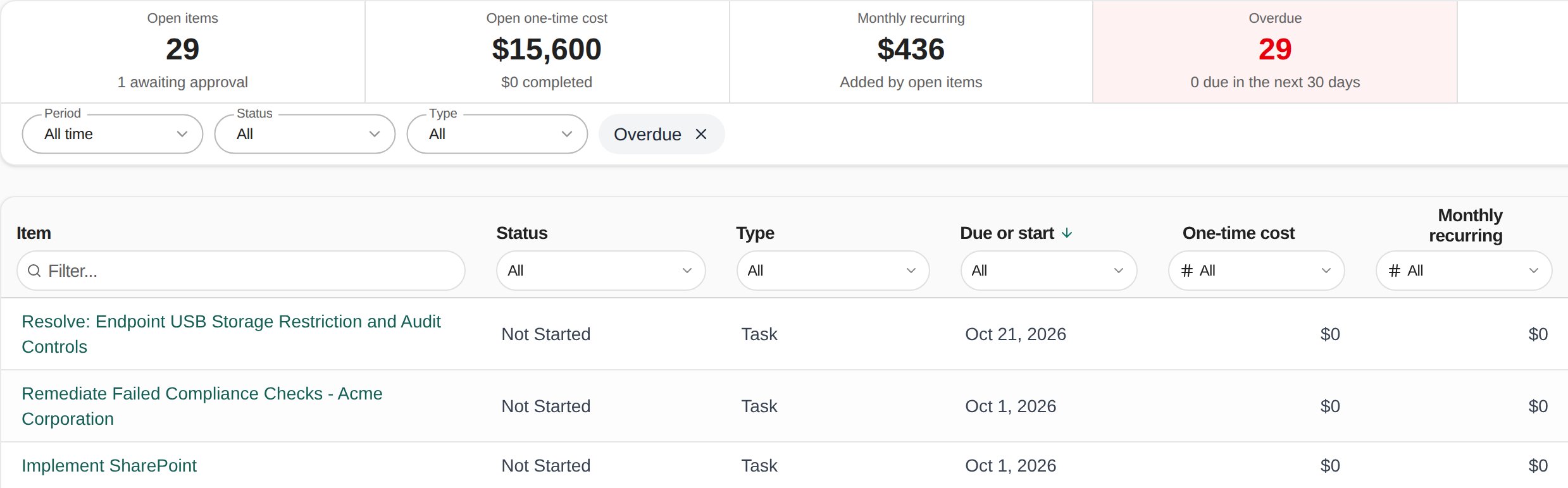
Branch preview. The Overdue chip carries into Items, with the most recently missed due date first.
Export to CSV
On Overview, Export downloads one row per item matching the page filters and chips, including items with zero cost. On Items, the CSV contains exactly the rows the table shows after you apply its column filters. The item CSV columns are Title, Client, Status, Type, Start date, Due date, One-time cost, Monthly cost, Annual cost, Hours, Owner and ISO 4217 (the currency code). All three cost columns appear for every Show measure. Monthly cost and Annual cost sum the item’s cost lines at their original frequency. On Clients, select Export for one row per visible client. The file follows the client table’s column filters and No open items selection. It contains the client table columns plus ISO 4217.Troubleshooting
Frequently asked questions
Does choosing a quarter multiply the monthly cost by three?
Does choosing a quarter multiply the monthly cost by three?
No. Period selects items by date. Monthly recurring still shows one month of recurring costs.
Why is an item with a past start date missing from Overdue?
Why is an item with a past start date missing from Overdue?
Only a past due date makes an open item overdue. An item due today appears under Due soon.