

Before you start
- You need the write agreements permission and an MSP staff account. Company users do not see these controls.
- The agreement must belong to a mapped company. Without one, the upload controls do not appear.
- Use a PDF no larger than 25 MB. The portal uses the file name, without
.pdf, as the document title, so give it a clear name. - Anyone who can read that agreement’s documents can open the file. There is no separate publish step.
Upload a PDF
1
Open the Documents tab
Click Agreements or Contracts in the sidebar, click the agreement’s row, then the Documents tab. Find Upload yearly PDF.
2
Set Agreement year
Choose the year the document belongs to. This only files the PDF. It does not change the agreement’s dates.
3
Choose Version handling
Pick Keep versions to add the PDF as the next version for that year. Pick Replace year to remove that year’s active files and start the new PDF as version 1. A notice shows how many active documents will be replaced.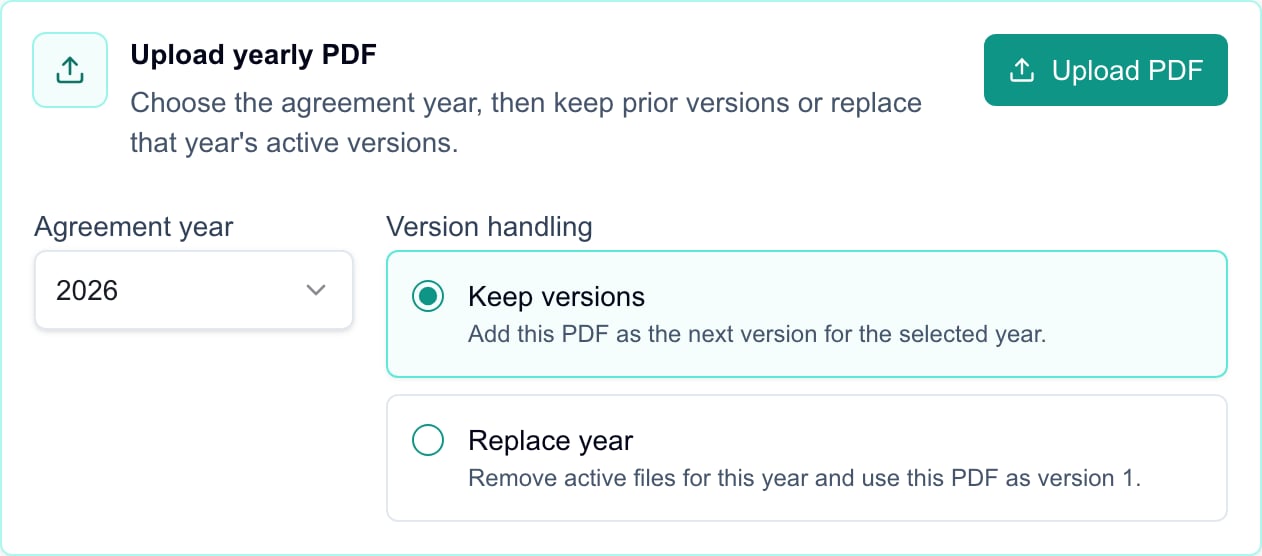
4
Click Upload PDF and pick the file
The upload starts as soon as you choose the file, using the year and version handling you set. There is no second Save button.
5
Check the result
Wait for Document uploaded. Then check the year, title, version badge, and the document count. Use Download to open the file. If an error appears, check the list before you try again.
Delete one document
1
Find the file
Look in the Documents tab for the right year and version.
2
Click its Delete icon
The Delete document? dialog opens and names the file.
3
Click Delete
Wait for Document deleted and check that the file is gone. Click Cancel to keep it.
Troubleshooting
Frequently asked questions
When does the upload save?
When does the upload save?
As soon as you choose a file after clicking Upload PDF. Set the year and version handling first.
Does changing the year or mode change any files?
Does changing the year or mode change any files?
No. They only set up the next upload.
What is the difference between Keep versions and Replace year?
What is the difference between Keep versions and Replace year?
Keep versions adds the next version. Replace year removes that year’s active files and starts again at version 1.
Can I upload a Word file or an image?
Can I upload a Word file or an image?
No. Only PDF files, up to 25 MB. Convert the file first.
Can I recover a replaced or deleted file?
Can I recover a replaced or deleted file?
No. Keep your own copy.
Does the upload update my PSA?
Does the upload update my PSA?
No. It only stores the PDF in MSPortal.