

Before you start
- Open Settings > User Settings (or click your name at the bottom of the sidebar and choose User Settings) and scroll to the Sidebar order card. Every signed-in user can use it.
- The editor lists only the pages available to your account. Your MSP controls the default layout and which modules exist.
- Nothing changes until you click Save order.
Keep the desktop sidebar expanded
1
Open the sidebar
On desktop, move the pointer into the icon rail on the left, or tab into the navigation.
2
Dock it
Click Keep sidebar expanded beside the logo. The sidebar stays open and the page moves beside it.
3
Collapse it again
Click Collapse sidebar beside the logo to return to the icon rail. Moving the pointer back into the rail opens it again.

Docked desktop navigation in MSPortal Demo. Available pages depend on your account.
Reorder pages and sections
1
Open Settings > User Settings
Scroll to the Sidebar order card.
2
Move pages
Drag the handle beside a page to move it within its section or into another section.
3
Create a section (optional)
Enter a Category name and click Add category. Drag pages into the new section. Click a custom section’s name to rename it, and use Move category up and Move category down to reorder it.Delete category returns the section’s pages to their default sections. It does not delete the pages or their records.
4
Save
Click Save order. Until you save, the editor shows Not applied until you save.
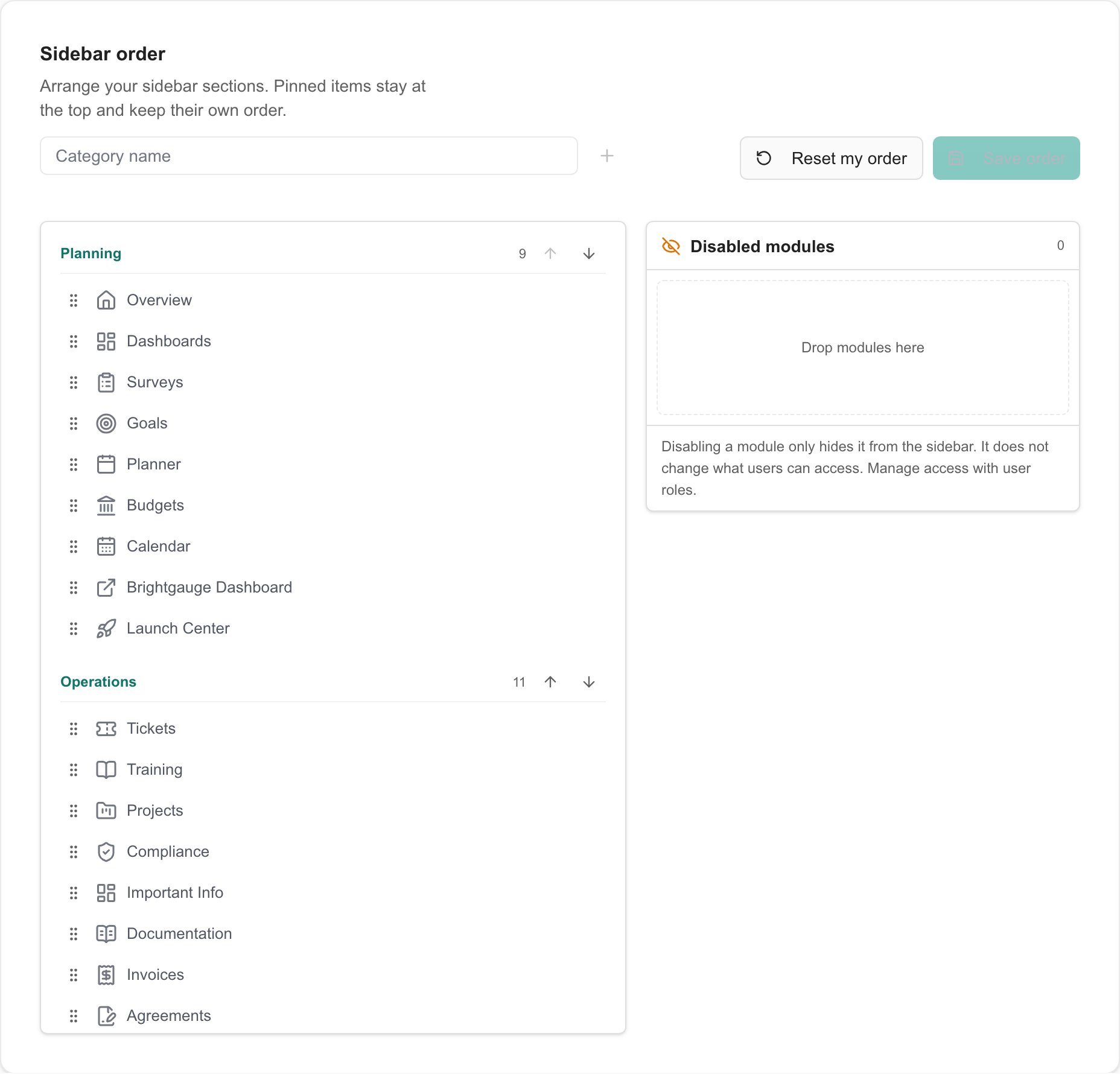
Personal layout editor in an MSP Demo session. Available pages depend on your account.
Add a settings shortcut
Put the settings pages you use most in your sidebar so they are one click away. For example, add Settings: Companies to Planning instead of opening the settings menu each time.1
Open Sidebar order
Click your name at the bottom of the sidebar, choose User Settings, and scroll to the Sidebar order card.
2
Find the Settings panel
The Settings panel beside your sidebar sections lists the settings pages your account can open, such as Settings: Users & Roles or Settings: Companies. Scroll the panel to see more.
3
Drag a page into a section
Grab the handle beside a settings page and drop it into any section, at the position where you want it. The page then shows In sidebar in the panel. Add as many shortcuts as you like.
4
Save
Click Save order. Until you save, the editor shows Not applied until you save. Your sidebar updates once you save.

Settings panel in Sidebar order, MSPortal Demo. The pages listed depend on your role.

A Settings: Companies shortcut in the Planning section, MSPortal Demo.
Hide or restore a page
1
Hide the page
Drag an unused page into Disabled modules, or click Remove from navigation on it.
2
Save
Click Save order.
3
Restore it later (optional)
Drag the page from Disabled modules back into a section, then click Save order.
Hiding a page changes navigation only. It does not revoke permissions, disable an integration, or delete any records.
Restore the default layout
1
Reset
In Sidebar order, click Reset my order. The editor loads your company or organization default.
2
Review and save
Check the layout, then click Save order. Reset alone does not save the change.
Troubleshooting
Frequently asked questions
Will my changes affect other people?
Will my changes affect other people?
No. Sidebar order is your personal layout. Your MSP manages company and organization defaults separately.
Does removing a page delete its data?
Does removing a page delete its data?
No. Removing a page from navigation only hides its sidebar entry.
How do I undo my personal layout?
How do I undo my personal layout?
Click Reset my order, review the staged default, then click Save order.
Can I add my own external links from this screen?
Can I add my own external links from this screen?
No. Your MSP adds custom links in shared Navigation settings. You can reorder links already available to you.