

Plans and add-ons in Launch Center
In Launch Center, open Plans or Add-ons under Standards. Choose Yes to name and edit your packages, or No if you do not use them. The answer saves automatically. If you change it while a save is in progress, your latest choice stays selected. Reopen the step to check the saved answer. Choosing No keeps existing plans and add-ons; it does not delete them.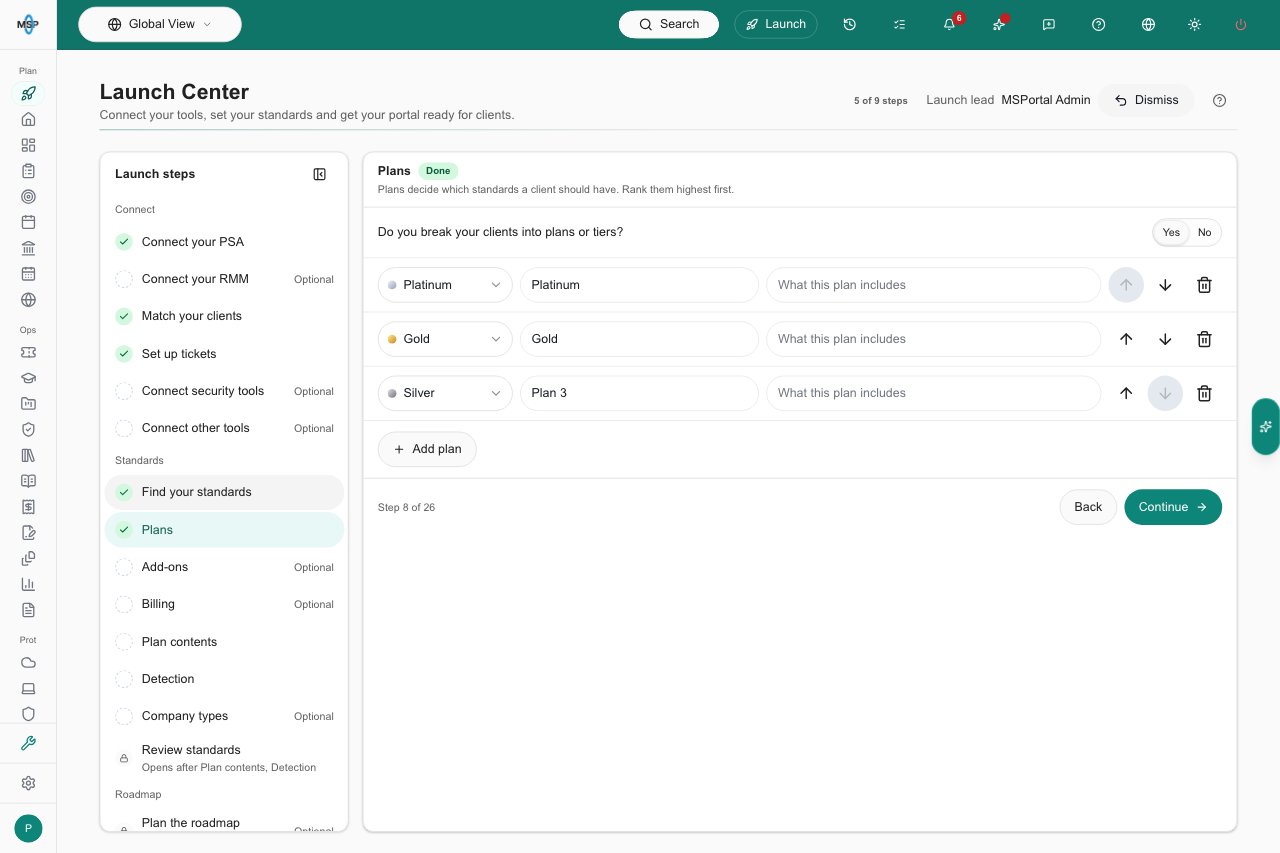
The Plans step in MSPortal Demo.
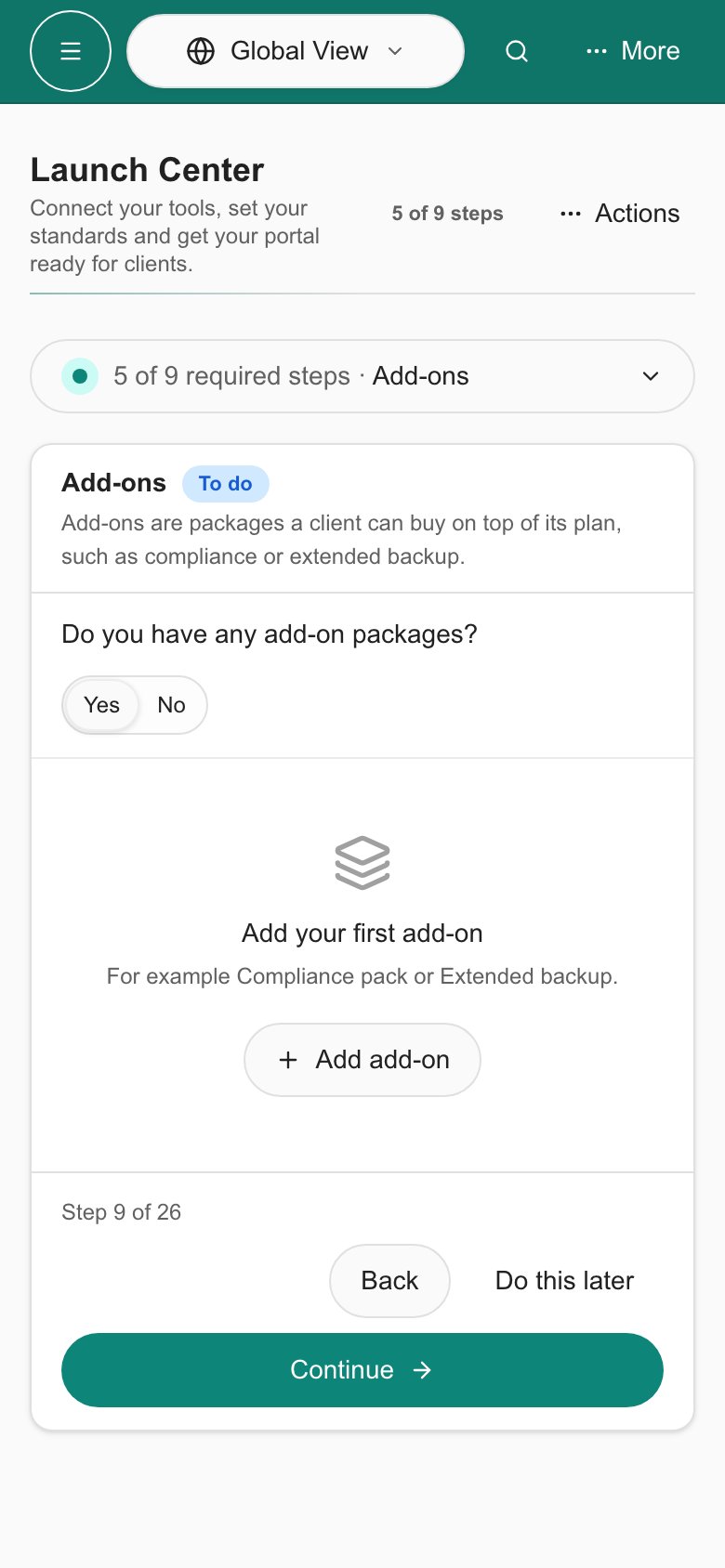
The Add-ons question on a phone.
Before you start
- You need Standards settings Manage permission and an account in good billing standing. With Read permission you can view the page but not change it.
- Each tier is a service plan, such as Platinum, Gold, Silver or Bronze. The names and the order are your choice.
- Company types come from your PSA. A PSA integration with synced companies must exist before you can assign company types to a plan.
- The standards you want to plan around must exist. See Manage the Standards catalog.
Create and rank plans
Open the tab
Add a tier
Name and describe it
Pick a color
Rank the plans
Assign company types to a plan
A company gets its plan from its PSA company type. If a company has several types, it gets the highest-ranked plan.Open the list
Tick the types
Save
Choose which standards belong to a plan
Open the standard
Pick the plans
Add deployment options to a standard
A deployment option is one way to meet a standard, such as a specific product or managed service. Each option is ranked by a tier.Open the standard
Add an option
Name it
Set its tier
Add detail
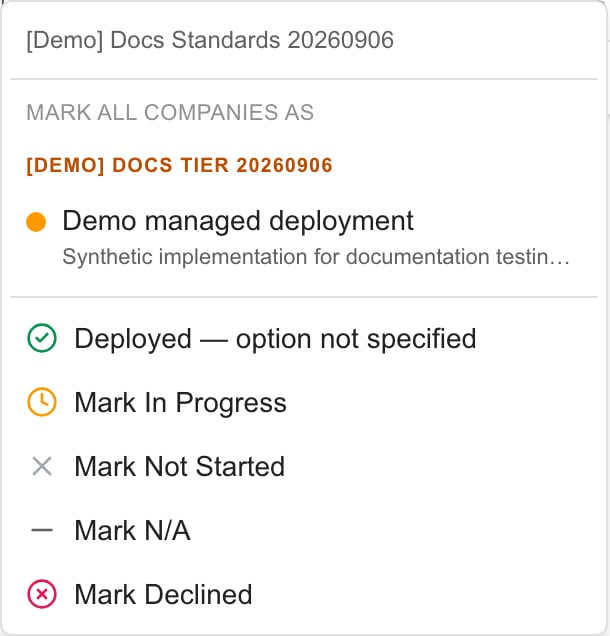
Synthetic example: a configured option appears under its tier in the standard column menu. This menu applies across the loaded company scope.
How the matrix uses tiers
- A deployed standard with no option selected shows Deployed, not classified, and the matrix counts it as unclassified.
- An option at or above the company’s target tier meets the target.
- An option below the target tier stays Deployed and is counted as below target. Its tooltip reads Below company target. It does not drop back to Not Started.
- In a one-of group with several deployed alternatives, the strongest deployed tier is the one compared to the target.
Change or delete tiers and options
Renaming a tier changes its label everywhere. Moving it changes its rank. Changing an option’s tier changes how companies using that option are classified.Delete an option
Delete a tier
Troubleshooting
Frequently asked questions
Where do I configure Standards tiers?
Where do I configure Standards tiers?
Are tier names fixed to Gold, Silver and Bronze?
Are tier names fixed to Gold, Silver and Bronze?
Which tier is strongest?
Which tier is strongest?
Is a new tier an unsaved draft?
Is a new tier an unsaved draft?
Where do the Company types come from?
Where do the Company types come from?
What if a company has several company types?
What if a company has several company types?
Does a plan install anything?
Does a plan install anything?
What tier does a new option start with?
What tier does a new option start with?
Does creating an option assign it to companies?
Does creating an option assign it to companies?
Can a deployed standard be below its target?
Can a deployed standard be below its target?
Does deleting an option ask for confirmation?
Does deleting an option ask for confirmation?
What happens to company types when I delete a tier?
What happens to company types when I delete a tier?