

Before you start
- You need Compliance settings access to open the page. Saving and resetting need manage access.
- Write down the current values before you change them. Reset restores defaults and cannot be undone.
Change the weights and grades
1
Open Scoring
Go to Settings > Compliance and click Scoring. The page is titled Compliance Scoring.
2
Set the scope weights
Under Scope Weights, set Company Scope Weight, Location Scope Weight and Device Scope Weight. Each accepts 0 to 10 in steps of 0.1.
3
Set the priority weights
Under Priority Weights, set High Priority Weight, Medium Priority Weight and Low Priority Weight. Each accepts 0 to 5 in steps of 0.1.
4
Set the criticality multiplier
Under Criticality Multiplier, enter a value from 0 to 5. The page shows the formula,
check_weight = scope_weight x (1 + criticality x multiplier) x priority_weight. A value of 0 ignores criticality.5
Set the grade thresholds
Under Grade Thresholds, set Grade A Threshold (%), Grade B Threshold (%), Grade C Threshold (%) and Grade D Threshold (%). Each is a whole number from 1 to 100. Keep A above B, B above C and C above D. A score below the D threshold gets an F.
6
Check the Grade Preview
Grade Preview shows sample percentages graded with your draft thresholds. It is not a live company score.
7
Save
Click Save Changes in the page header. A toast says Scoring configuration saved successfully. The button stays disabled until you change something.
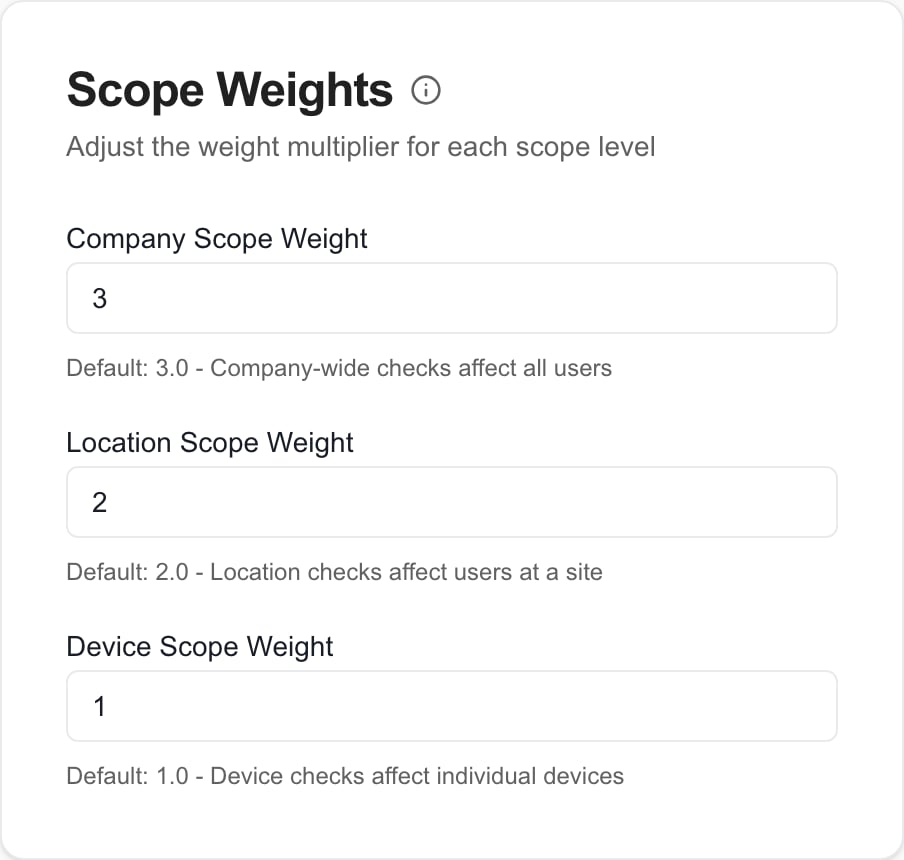
Scope weight controls in Compliance Scoring. Changes need Save Changes in the page header.
Reset to defaults
1
Click Reset to Defaults
Click Reset to Defaults in the page header. The Reset Scoring Configuration? dialog opens.
2
Confirm
Click Reset. The defaults are saved at once. A toast says Scoring configuration reset to defaults. You do not need to click Save Changes.
Reset does not restore your last custom settings. To go back to a custom model, enter the values you wrote down and save.
To throw away an unsaved edit, change the fields back or leave the page and open it again. Do not use Reset to Defaults for that.
Check the result
Open Scoring again after a save or reset and confirm the values. Then look at the compliance scores that matter to you. Saving does not certify compliance or fix failed checks.Troubleshooting
Frequently asked questions
Is Compliance Scoring the Client Health model?
Is Compliance Scoring the Client Health model?
No. Client Health has its own settings page and model.
Does editing a number save it?
Does editing a number save it?
No. Click Save Changes.
Can I use Reset to Defaults to cancel an edit?
Can I use Reset to Defaults to cancel an edit?
No. Reset saves the defaults at once. To discard an edit, leave the page and open it again.
Can I reset scoring for one company?
Can I reset scoring for one company?
No. Scoring is tenant-wide.
What does Grade Preview show?
What does Grade Preview show?
How your draft thresholds grade fixed sample percentages. It does not show live scores.
Can I change risk severity bands here?
Can I change risk severity bands here?
No. Risk scoring uses a separate fixed matrix. See Configure risk tracking and categories.