

Before you start
- Every signed-in user has the Notifications tab. The switches are yours alone; nobody else changes them.
- Email is on for Mentions until you turn it off. Every other kind is off until you turn it on.
- In-app notifications are always on. The switches control email only.
- While someone views the portal as you, the switches are read-only.
Turn email on or off
1
Open the Notifications tab
Go to Settings > User Settings and select the Notifications tab.
2
Find the notification
Notifications are grouped under Mentions and comments, Work for you and Alerts. Each row says when you get it. The In app column reads Always on.
3
Switch email on or off
Turn the Email switch for that row on or off. It saves right away, and a message confirms the change. There is no Save button.
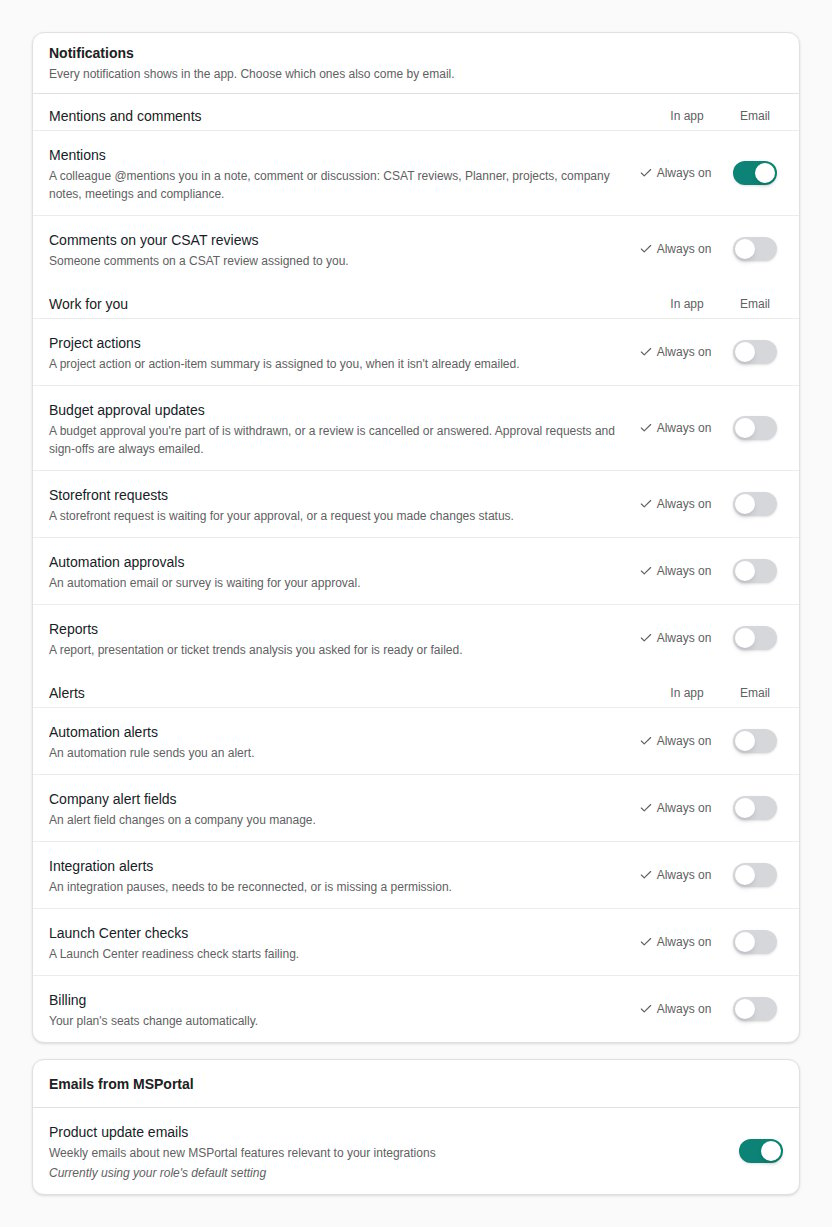
The Notifications tab for MSP staff, with email on for Mentions.
What each switch covers
Notifications that are always emailed have no switch here, so you never get the same email twice. These include approval requests (tickets, changes, budgets and scheduled reports), CSAT review assignments and copies, and project chat, which has its own email setting on each project’s chat.
What the email looks like
- The email comes from your MSP’s portal address and names the MSP.
- It arrives within about five minutes. Several notifications in that time come together in one email, so a burst of @mentions is one message, not one per mention.
- Each item links to the record in the portal. A notification you already read in the portal before the email goes out is not emailed.
- Every email ends with a link back to this tab, so you can turn it off from there.
Product update emails
The Emails from MSPortal panel on the same tab holds Product update emails. See Manage your profile and email preferences.Troubleshooting
Frequently asked questions
Can I turn off in-app notifications?
Can I turn off in-app notifications?
No. Every notification stays under the bell. The switches only add or remove email.
Can someone else change my switches?
Can someone else change my switches?
No. Each person sets their own on this tab.
Do the switches change ticket emails?
Do the switches change ticket emails?
No. Ticket replies and other emails your MSP sends through its own workflows are set up separately.