

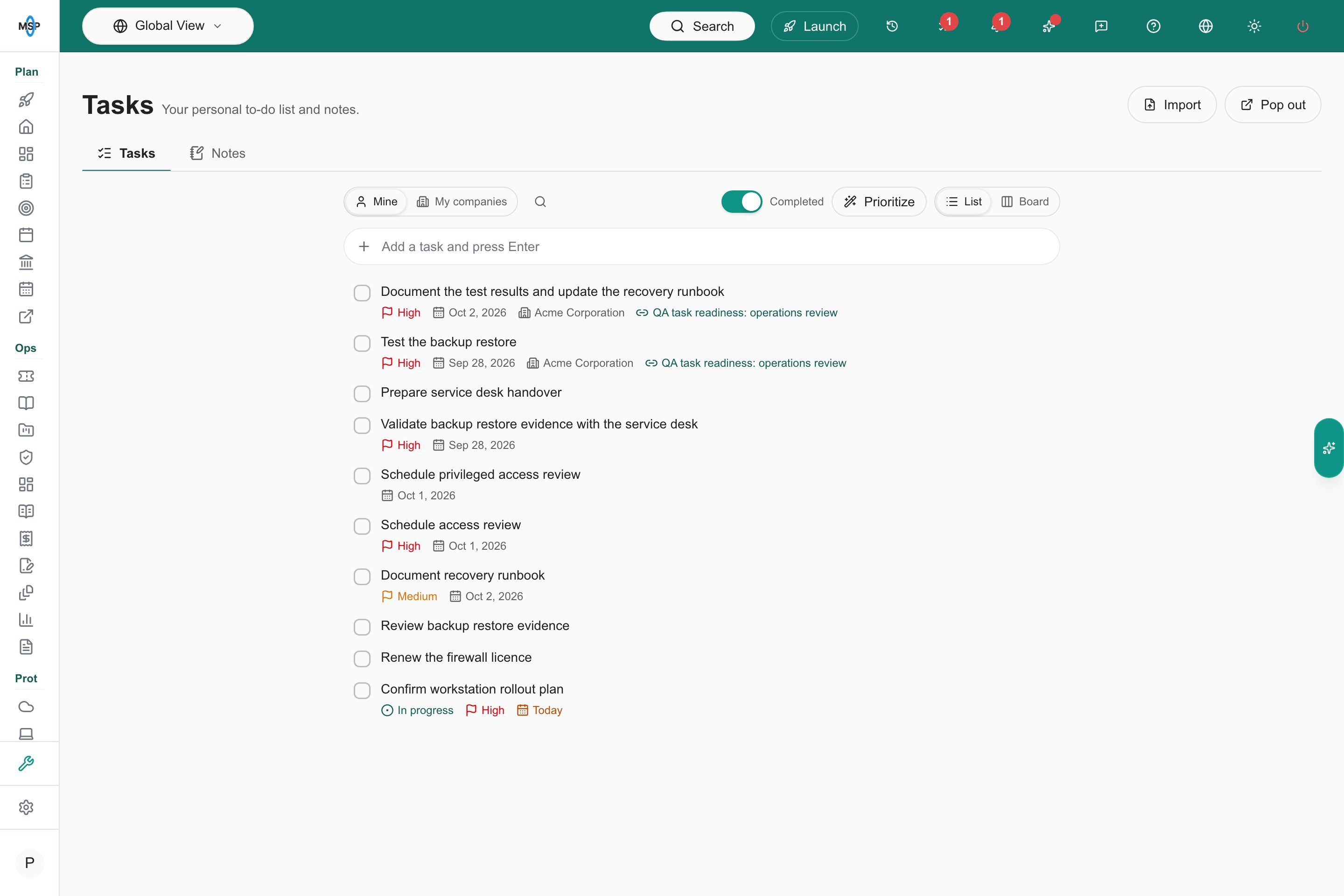
Personal tasks in List view, using synthetic Demo data.
Add and organize work
- Type into Add a task and press Enter.
- In the side panel, click a task title to edit it inline, then use the check button or press Enter to save. Change priority and due date using the row’s dropdowns. The outward-arrow button opens Edit task for notes and other details. In the full workspace, click a title to open the editor.
- Use the checkbox to complete a task. Completed tasks remain available under Completed; untick one to reopen it.
- Drag a task using its grip to reorder the list, or choose Board and use the grip to move it between To do, In progress, Blocked and Done. The checkbox completes a task; dragging the grip does not toggle it. You can also change status in the editor.
- Choose Search tasks to open a floating search field and filter the current view. Clear the search before dragging to reorder.
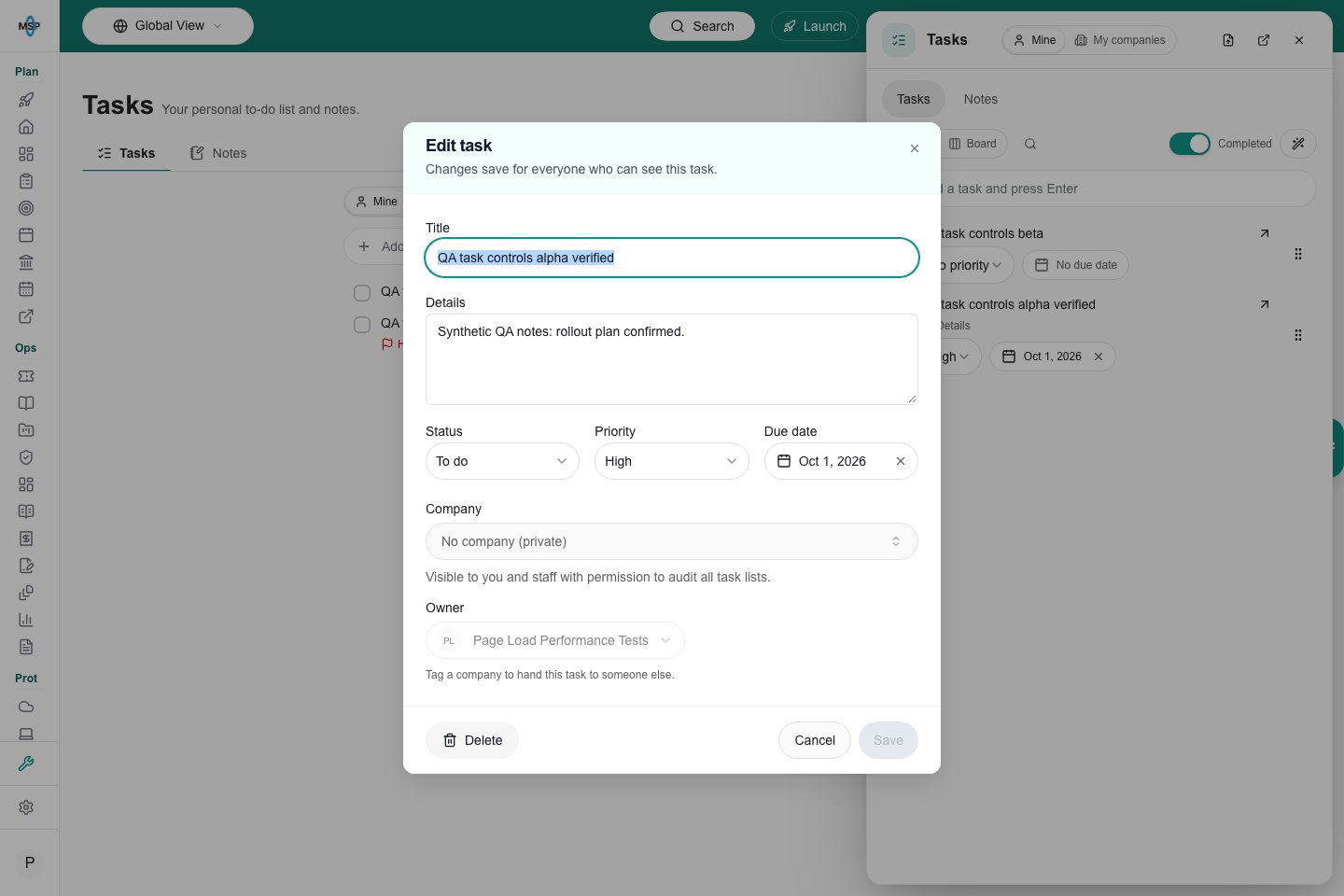
Task editor.
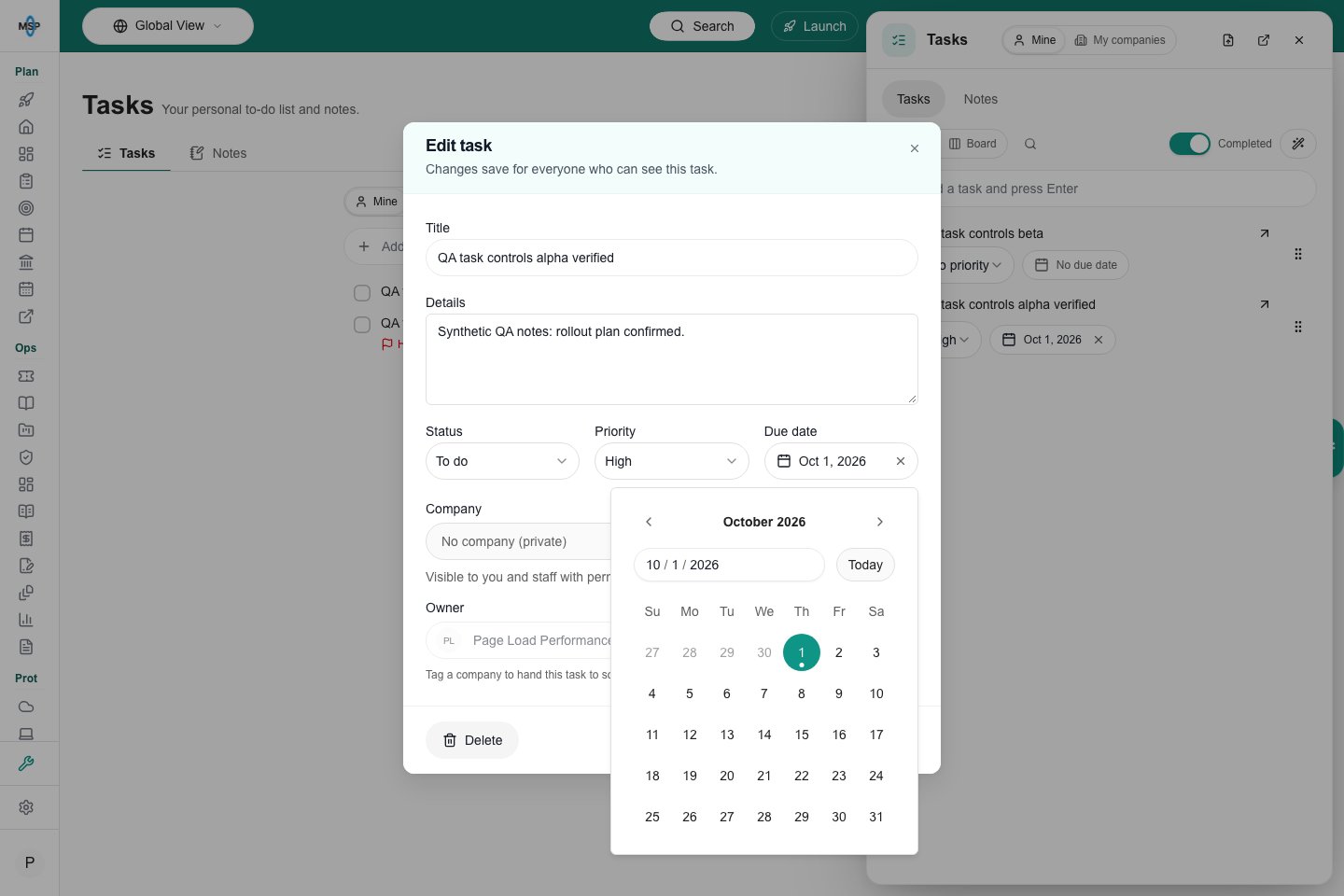
The date picker remains fully visible in the editor.
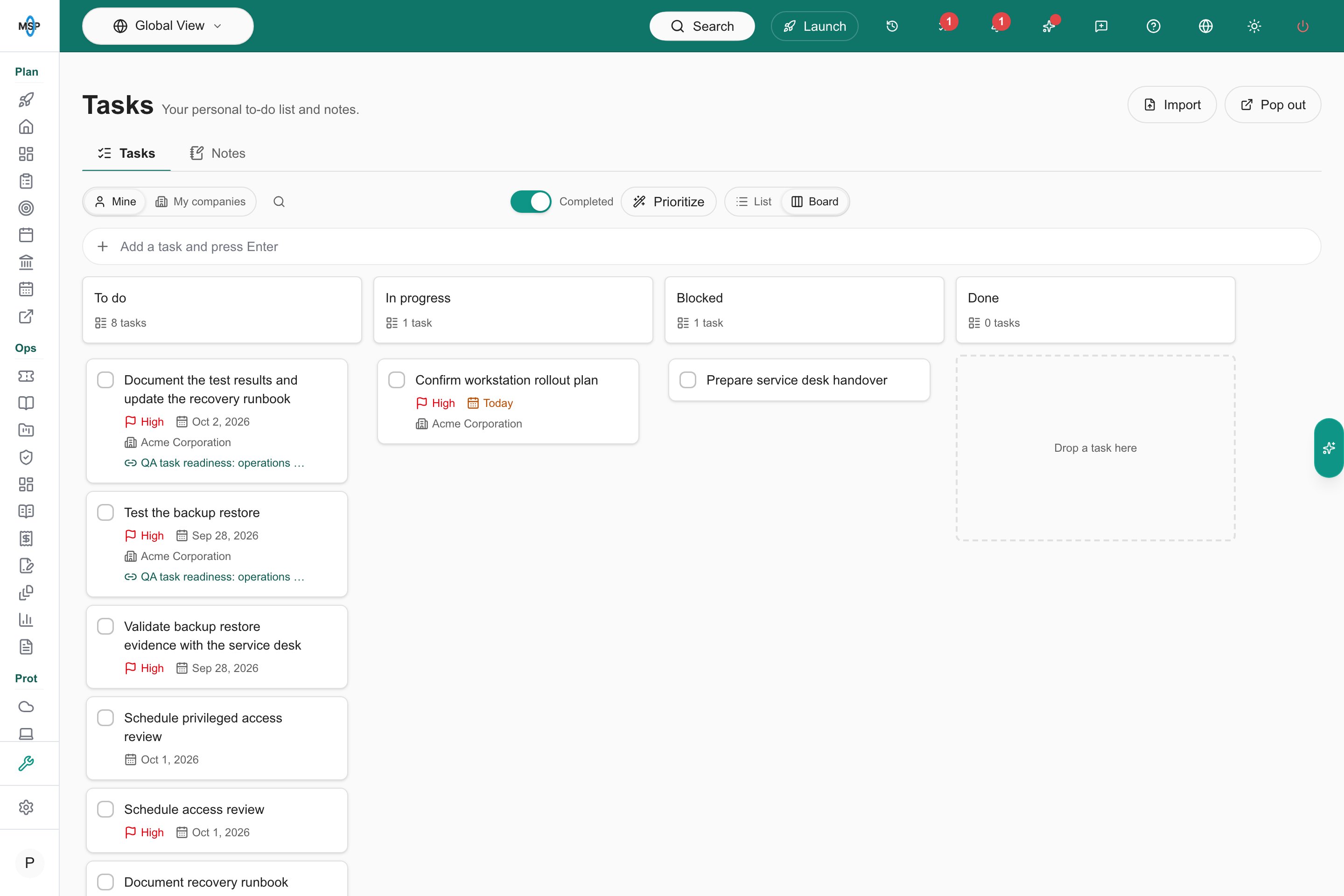
Board view.
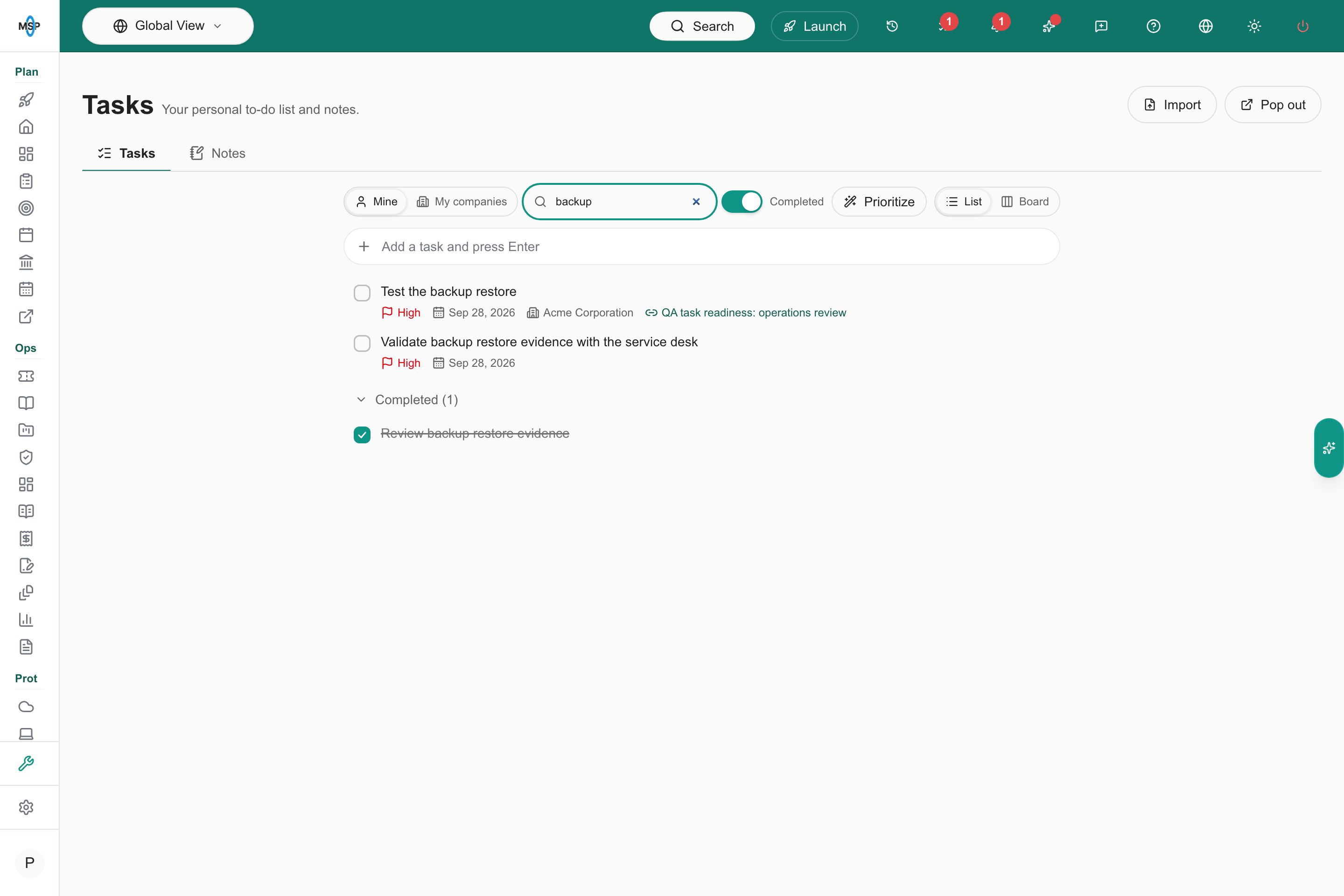
Completed tasks can be reopened.
Prioritize with AI
Prioritize ranks your own open tasks in the current task view and adjusts their priorities. It considers dates, current status and task context. Review the result; Undo is offered briefly after completion. Tasks owned by colleagues are left alone. Up to 200 eligible tasks are considered in one pass; the result tells you when more tasks were left unchanged.Work while browsing
The top-bar task button shows the number of your open tasks due today or overdue. The side panel stays open while you navigate. Tasks and Notes are available in the panel and full workspace. Choose Mine or My companies in the side-panel header. List and Board are in the toolbar below the tabs. A note icon with Details marks tasks that have notes in the editor. Inline changes save immediately; an unsuccessful title save keeps your draft available to retry.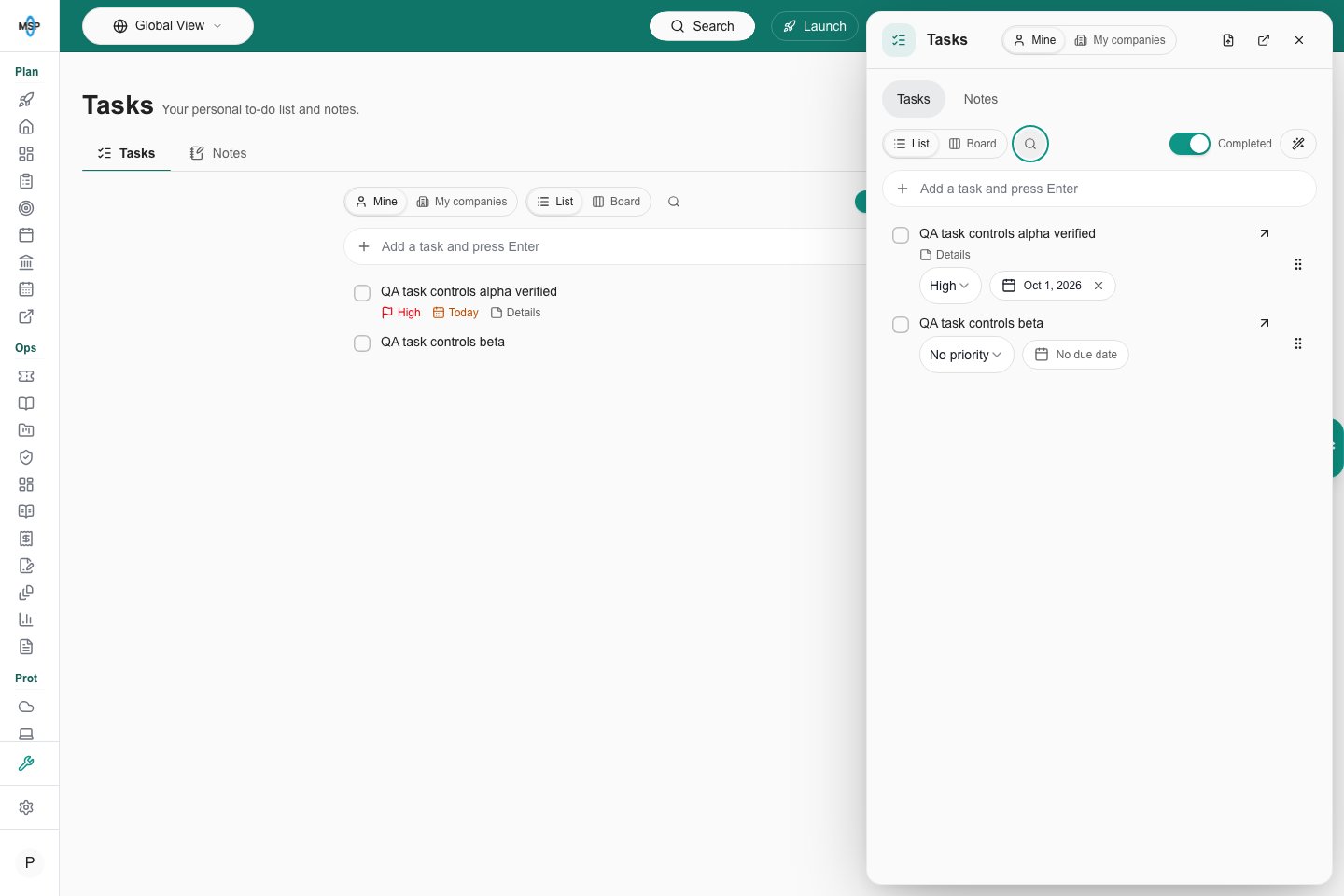
Task side panel.
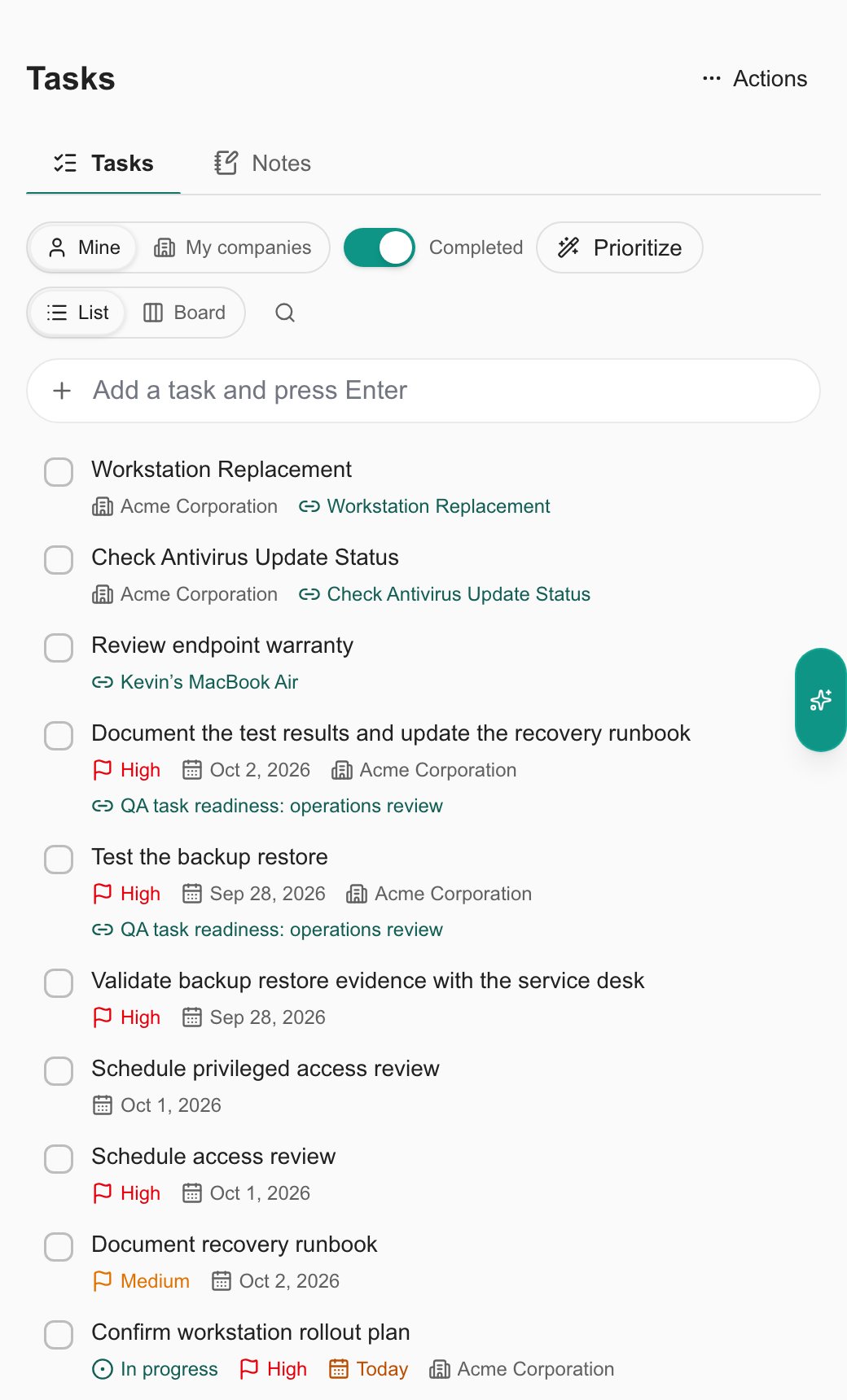
Separate task window.
Visibility and company tasks
- Mine contains tasks you own, including tasks tagged with a company.
- My companies contains tasks for companies to which you are assigned. These personal views are independent of the top-bar company selector.
- A task without a company is private to its owner, except that staff with See all task lists can read it in the audit view.
- Company tasks are shared with the company’s assigned team. Staff with company-settings access may also view them; editing requires assignment or company-settings write access.
- Choose a company before assigning a task to another staff member. You need permission to assign work for that company.
- A task mirrored from a meeting action item keeps the meeting’s company. Owner and supported task-field changes synchronize with that action item. Change the company in the meeting.
- Scratch notes are owner-only and are not included in task-list audit.
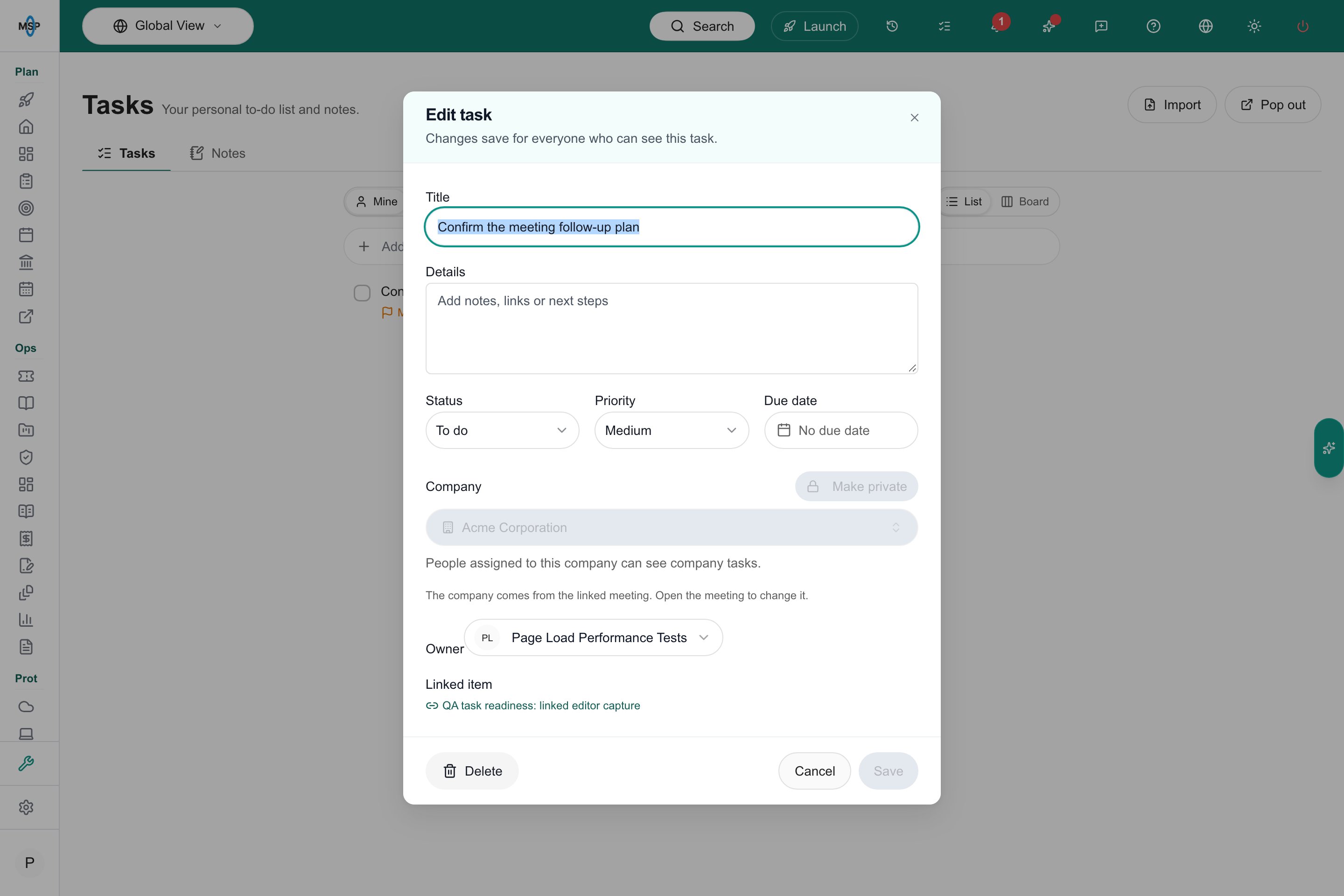
A linked task follows its meeting’s company.
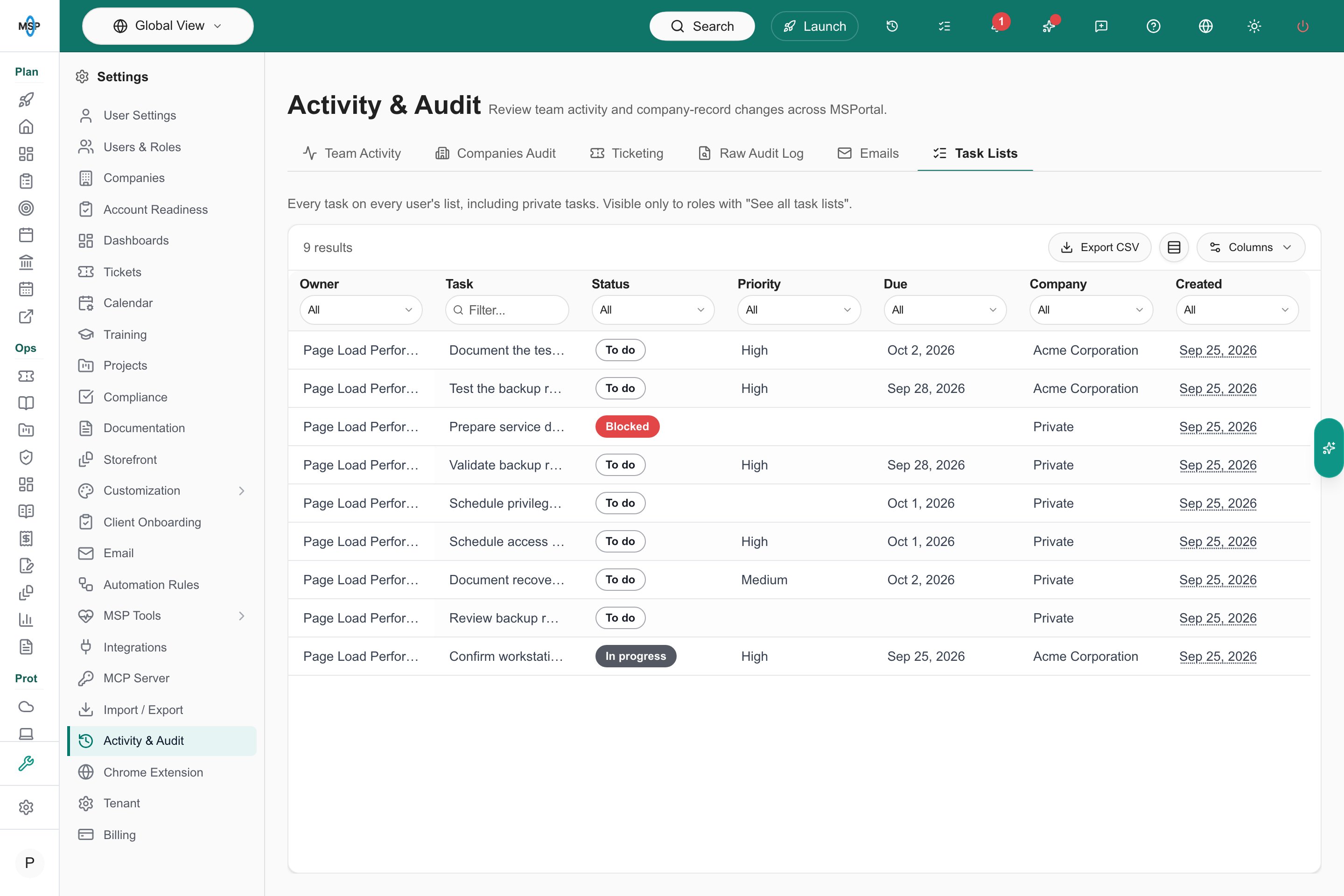
Task-list audit.
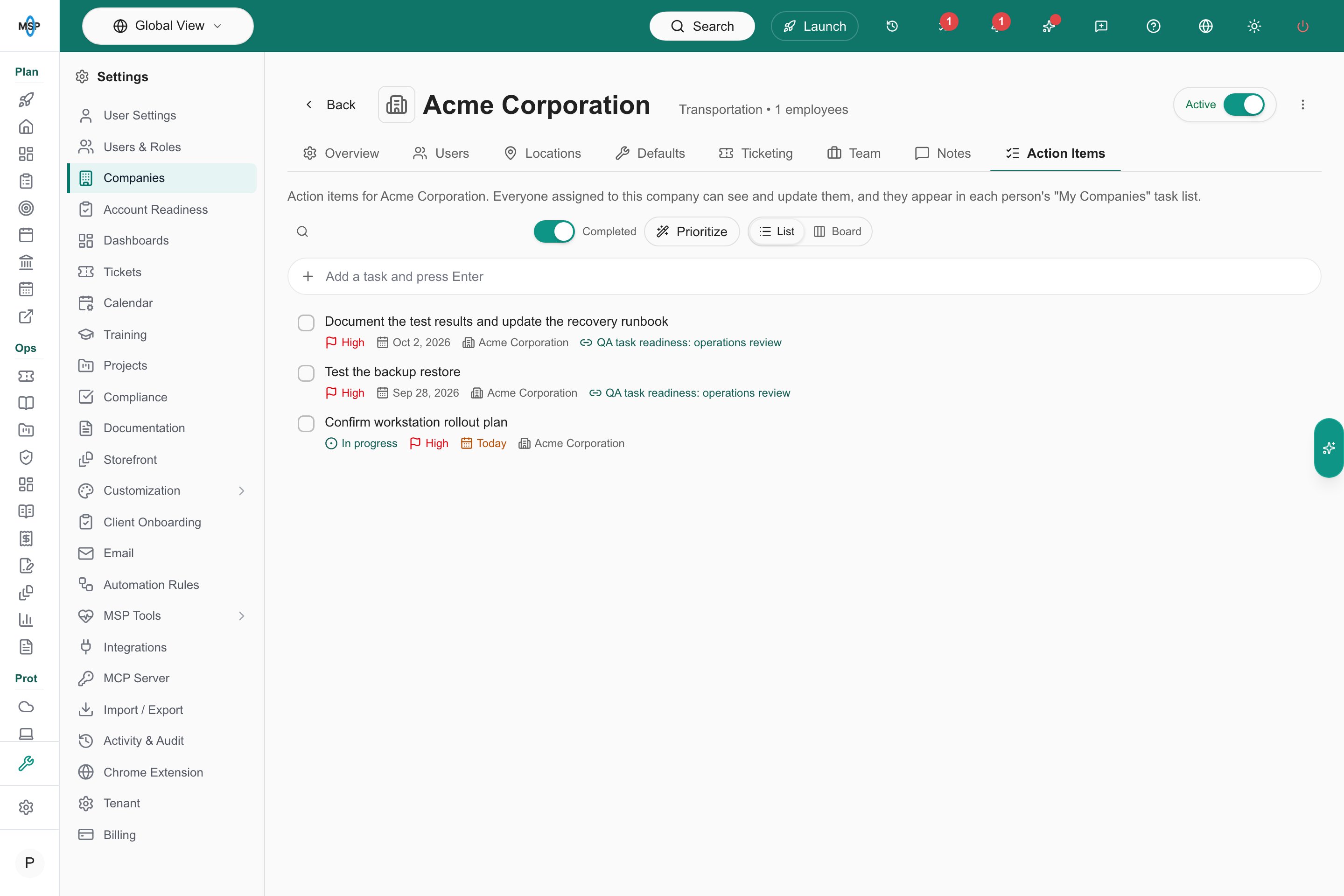
Company Action Items tab.
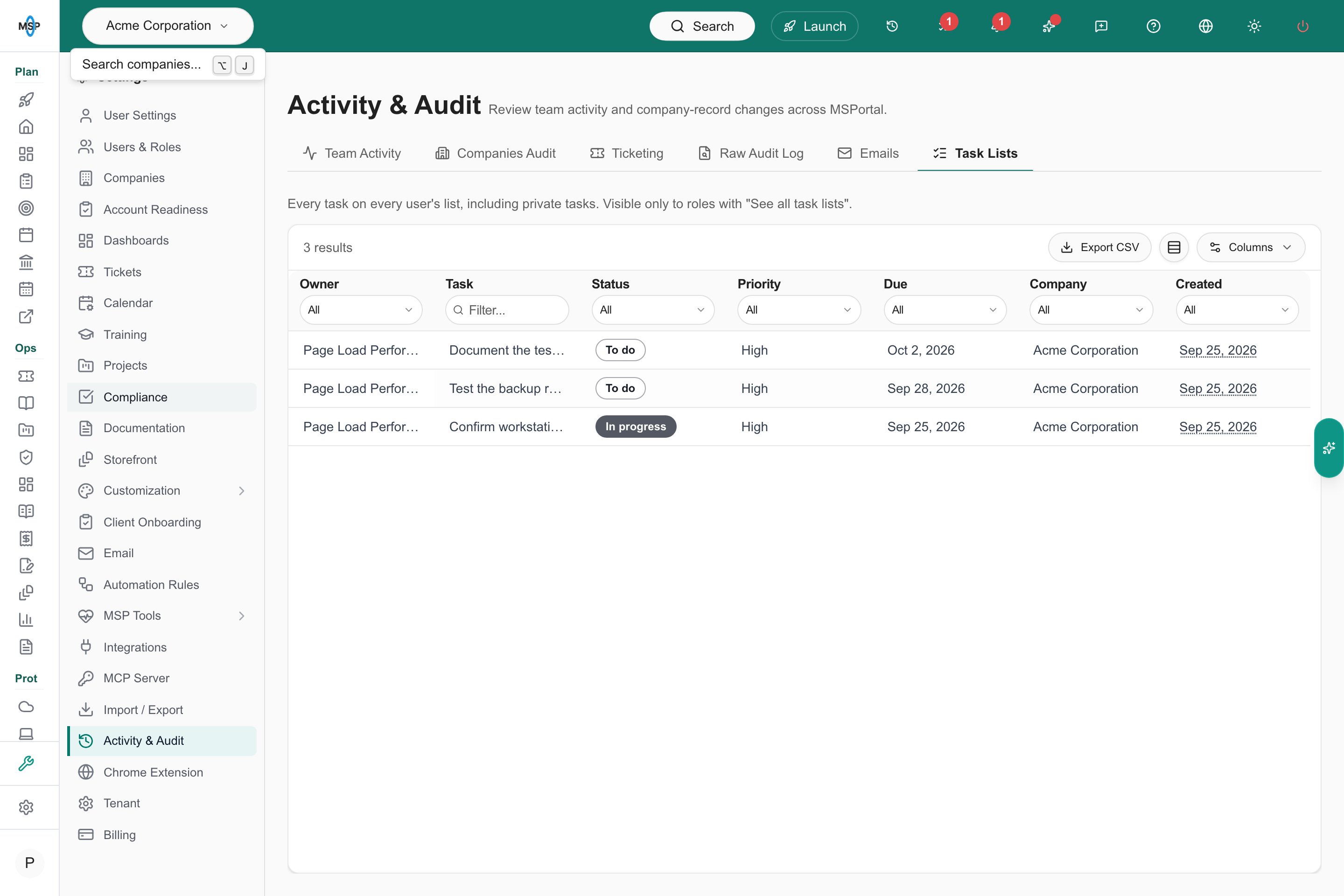
Audit follows the selected company.
Display options
The task workspace adapts to mobile screens and follows your light or dark appearance preference. On a narrow screen, scroll the board sideways to reach other columns.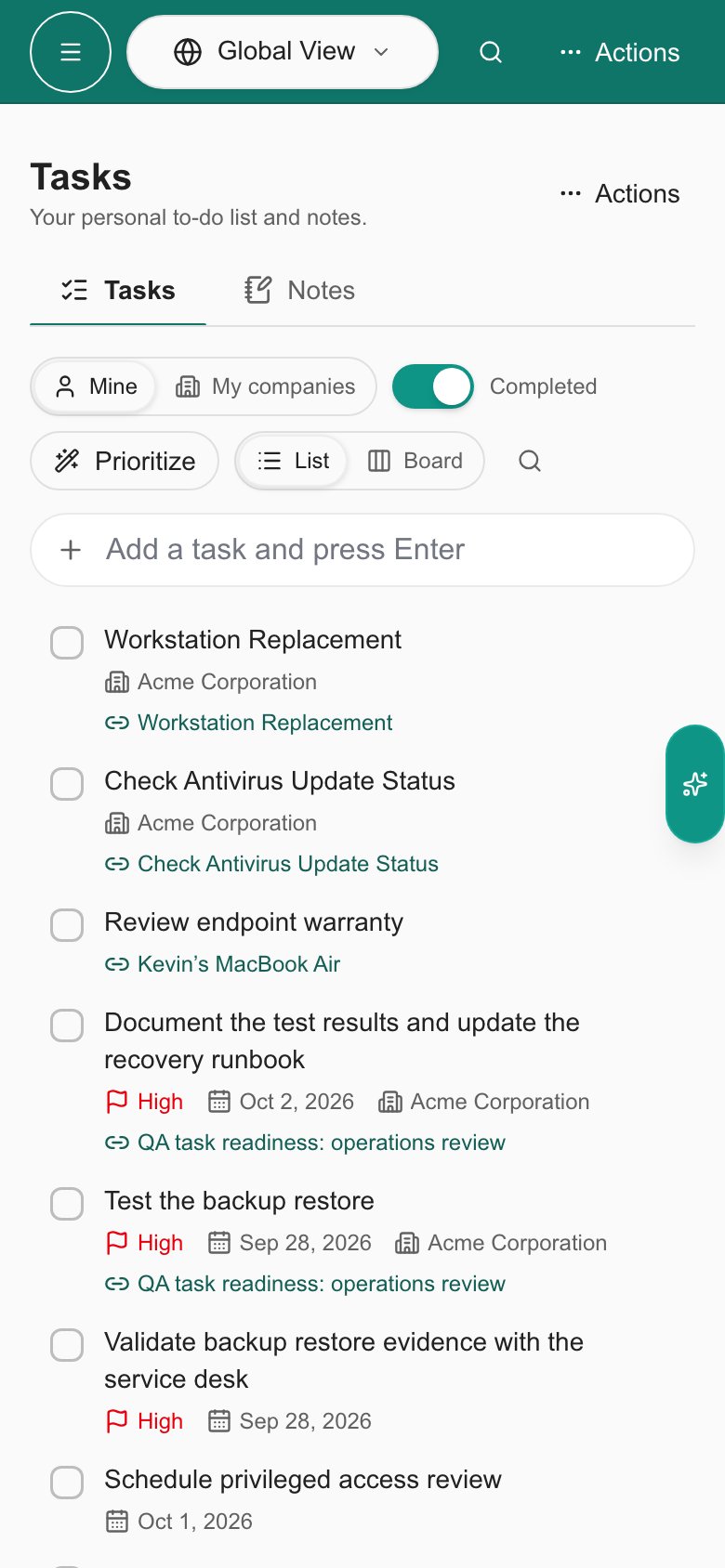
Mobile workspace.
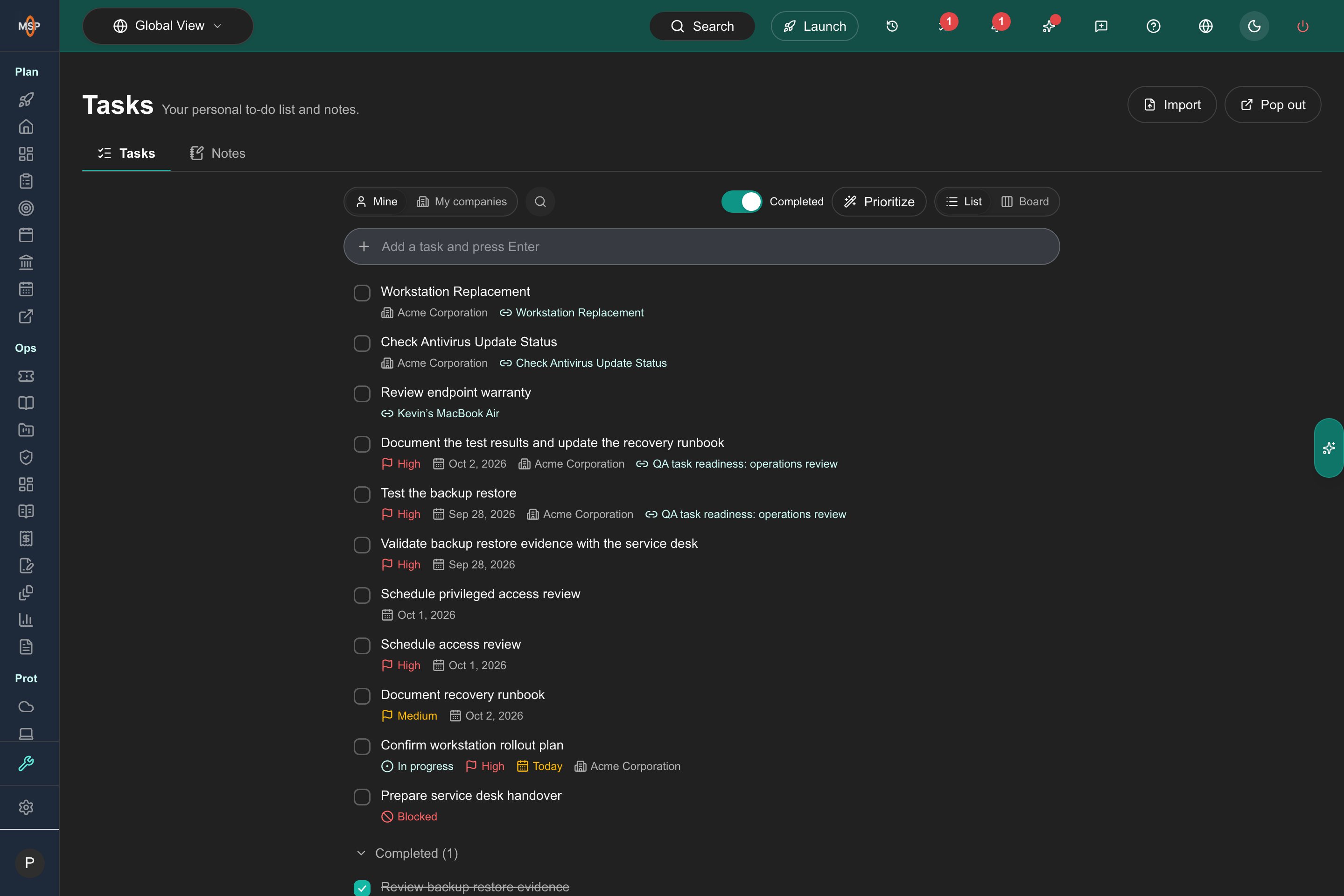
Dark appearance.
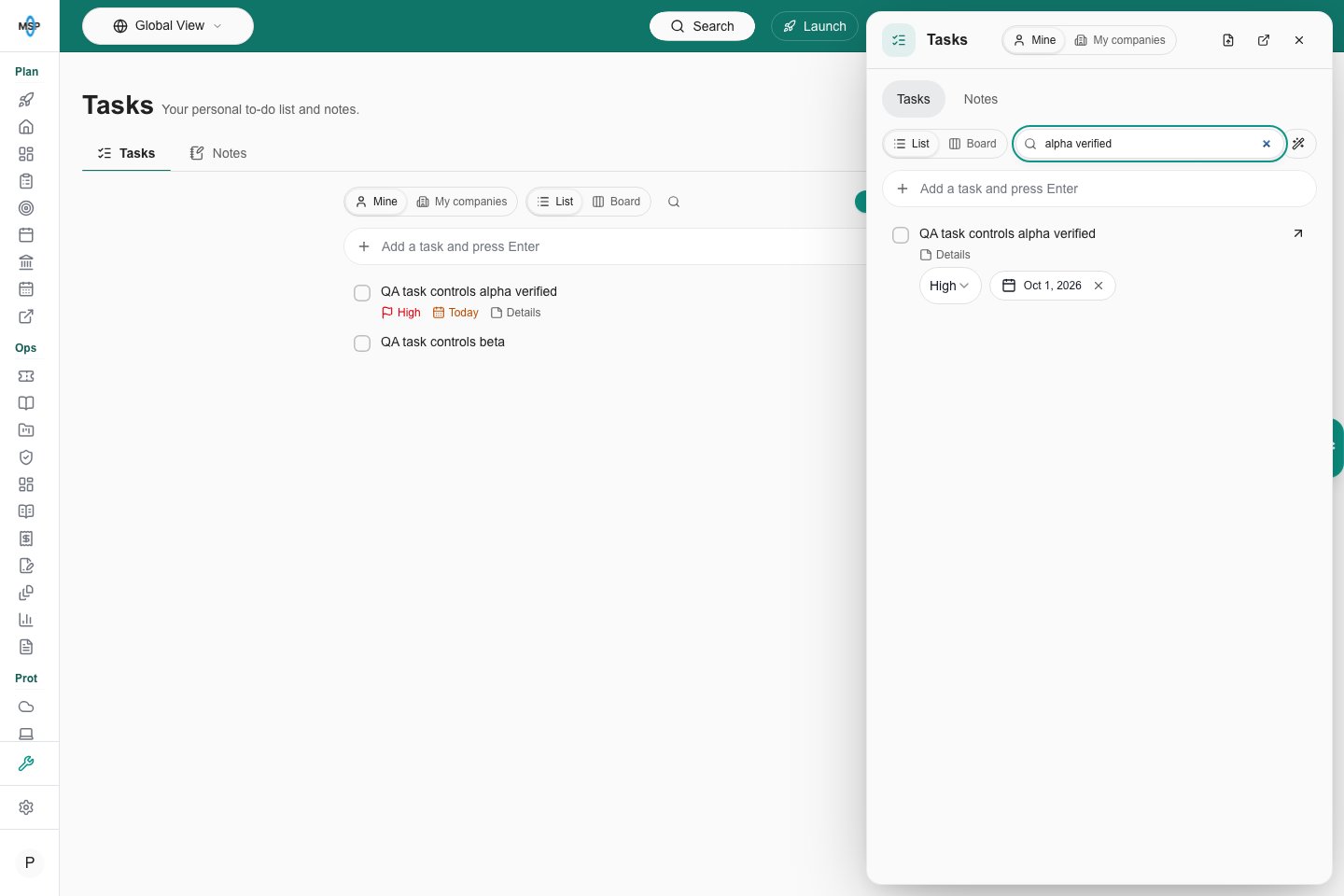
Floating search in the side panel.
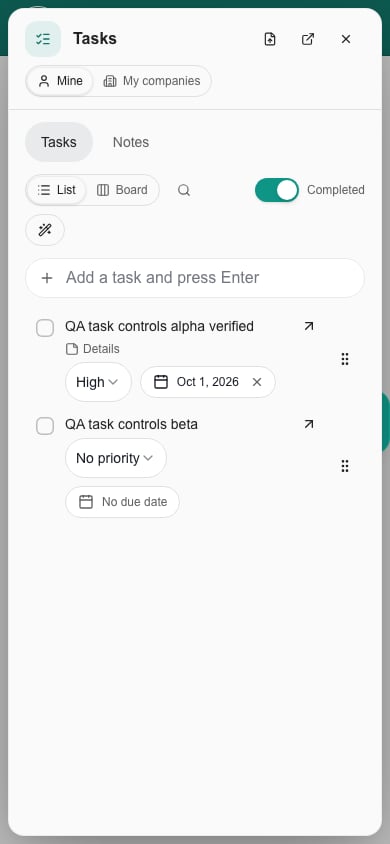
Inline controls on a phone.
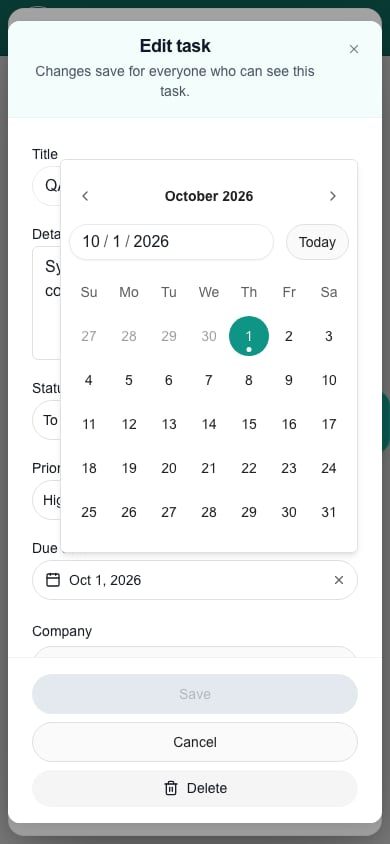
The complete date picker on a phone.