

Keep working notes
Open Tasks → Notes in the workspace or side panel. Type into a tab; it saves automatically after a short pause. The save indicator shows progress or a failure with a retry option. Switching tabs also saves pending edits. Use New notes tab to add a tab, up to 20. Double-click a saved tab’s name or open its actions menu to Rename it. The same menu offers Delete, with confirmation. Notes are private to their owner and are separate from task-list audit.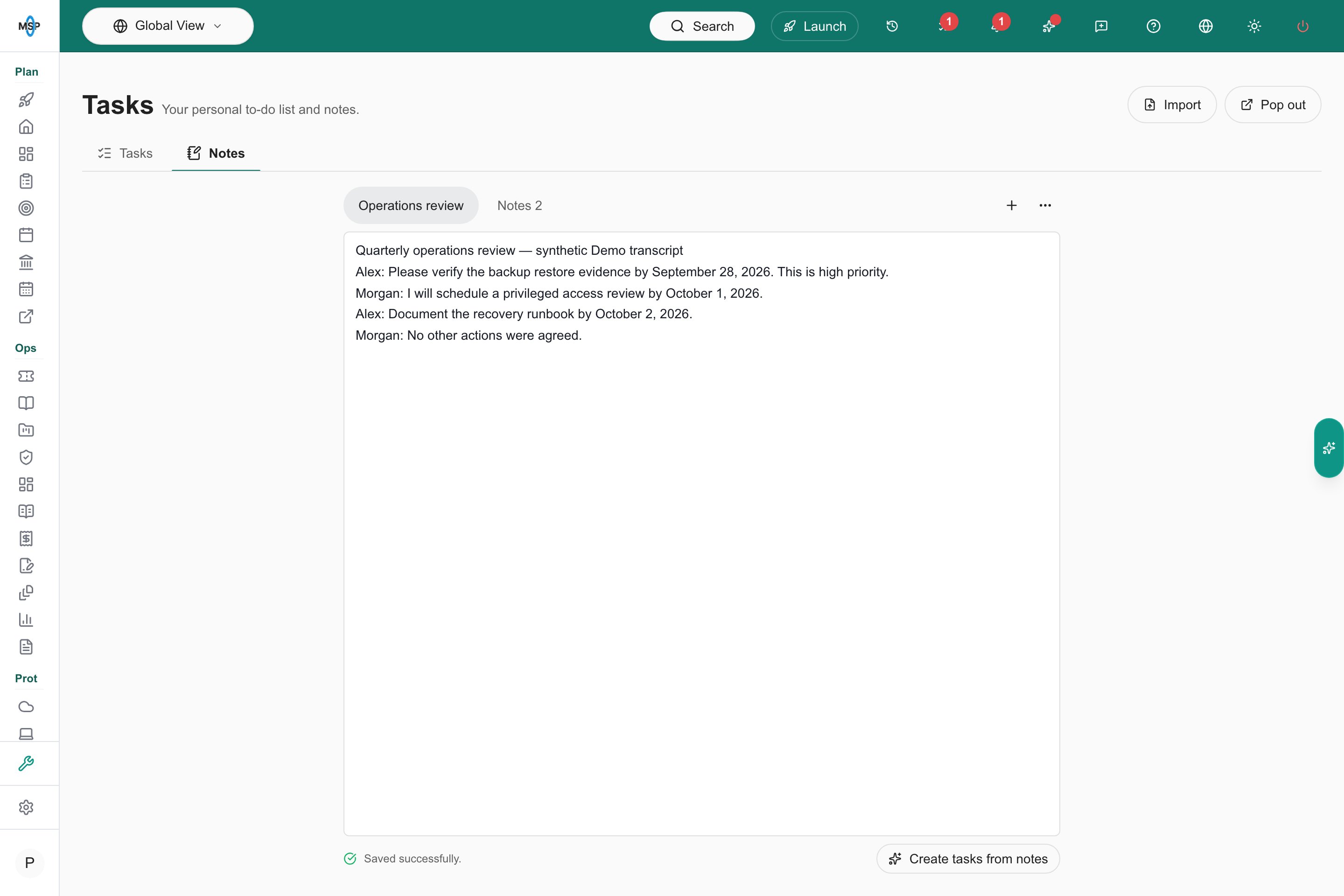
Saved working notes.
Turn a transcript or notes into tasks
- Paste the text into a notes tab. You can select a passage to use only that part; otherwise the current tab is used.
- Choose Create tasks from notes. AI must be available for your tenant.
- Review the suggested tasks. Edit titles, priorities and due dates, and untick anything you do not want.
- Choose Add tasks. Only the selected tasks are created.
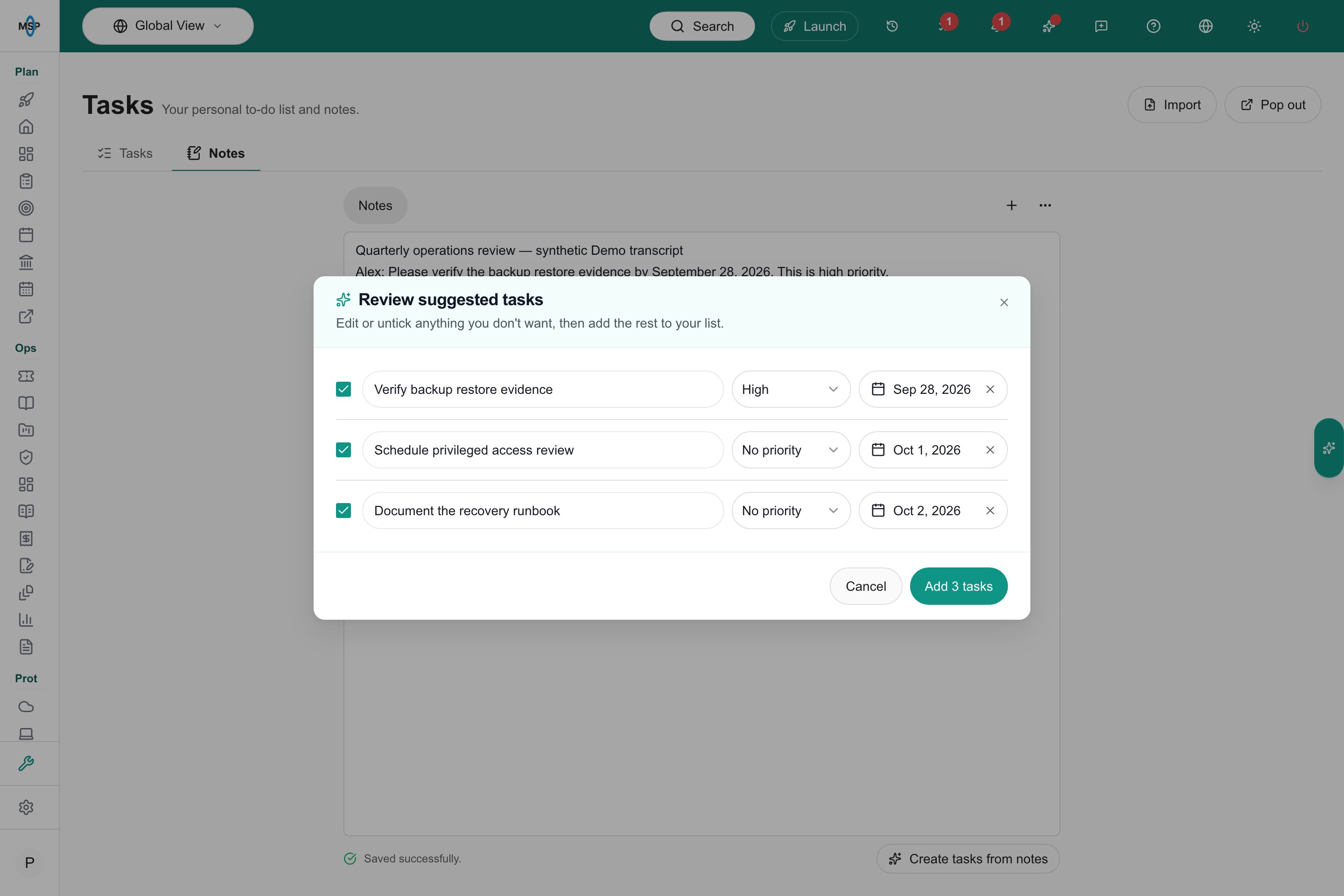
Genuine AI suggestions from a synthetic operations-review transcript.