

- A trigger (when to run)
- Optional conditions (which records to match)
- One or more actions (what to do)
field/value pair, Custom Email, ConnectWise issue-type IDs, and template bodies) are free-text inputs.
Create a Rule
Step-by-step walkthrough of every option in the rule wizard.
Bundling Expirations
Group matching records for tickets, Planner work and recipient-specific digests.
Example Rules
Adaptable setups for warranty alerts, meeting agendas, ticket surveys, and more.
Accessing Automation
Navigate to Settings > Automation from the sidebar. The main page lists every rule in your tenant. Each row shows:- Rule Name and description
- Trigger type badge (including Date Threshold, Scheduled and supported event triggers)
- Entity type badge (Device, Ticket, Meeting, etc.)
- Actions summary (either the single action label or “N actions”)
- Scope badge (All Companies or Specific)
- Enabled toggle to turn the rule on or off without deleting it
Row Actions
Hover over any rule row for the action menu:
The enabled toggle on each row takes effect immediately. A disabled rule keeps its configuration and history but will not fire.
Permissions
Three permissions control access to Automation:
Set these under Settings > Users & Roles on the role you want to grant access to. Users without Write or Manage permission open the wizard in read-only mode.
Execution Logs
Click Logs in the top-right of the rules page to open the execution history. Every rule run is logged with:- Timestamp and rule name
- How many entities were matched
- Which actions ran and whether each succeeded
- Any error messages if an action failed
AI Rule Designer
While editing or creating a rule, open the page’s AI Rule Designer from the assistant control available in your account. Describe what you want the rule to do in plain English, for example:Remind account managers 30 days before each company’s warranty expires, and send them the device list.The designer proposes a complete rule (trigger, conditions, actions, templates) as a diff against your current configuration. Review each section, accept the parts you want, and reject the rest. Useful for getting started quickly on complex rules or for generating email and planner templates.
Learning Path reminders
On Settings > Automation, choose Import > Learning Path reminders. The reminder rule defaults to Monday at 08:00 in your organization’s configured timezone. The import preview shows the exact timezone. Your browser’s timezone and the learner’s personal timezone do not change this rule’s default. The rule imports disabled. Review its schedule, conditions and email before enabling it. You can change the rule’s timezone in the editor. Reminders stop when the learner completes the path or the assignment is removed. Existing rules keep the schedule already saved on them.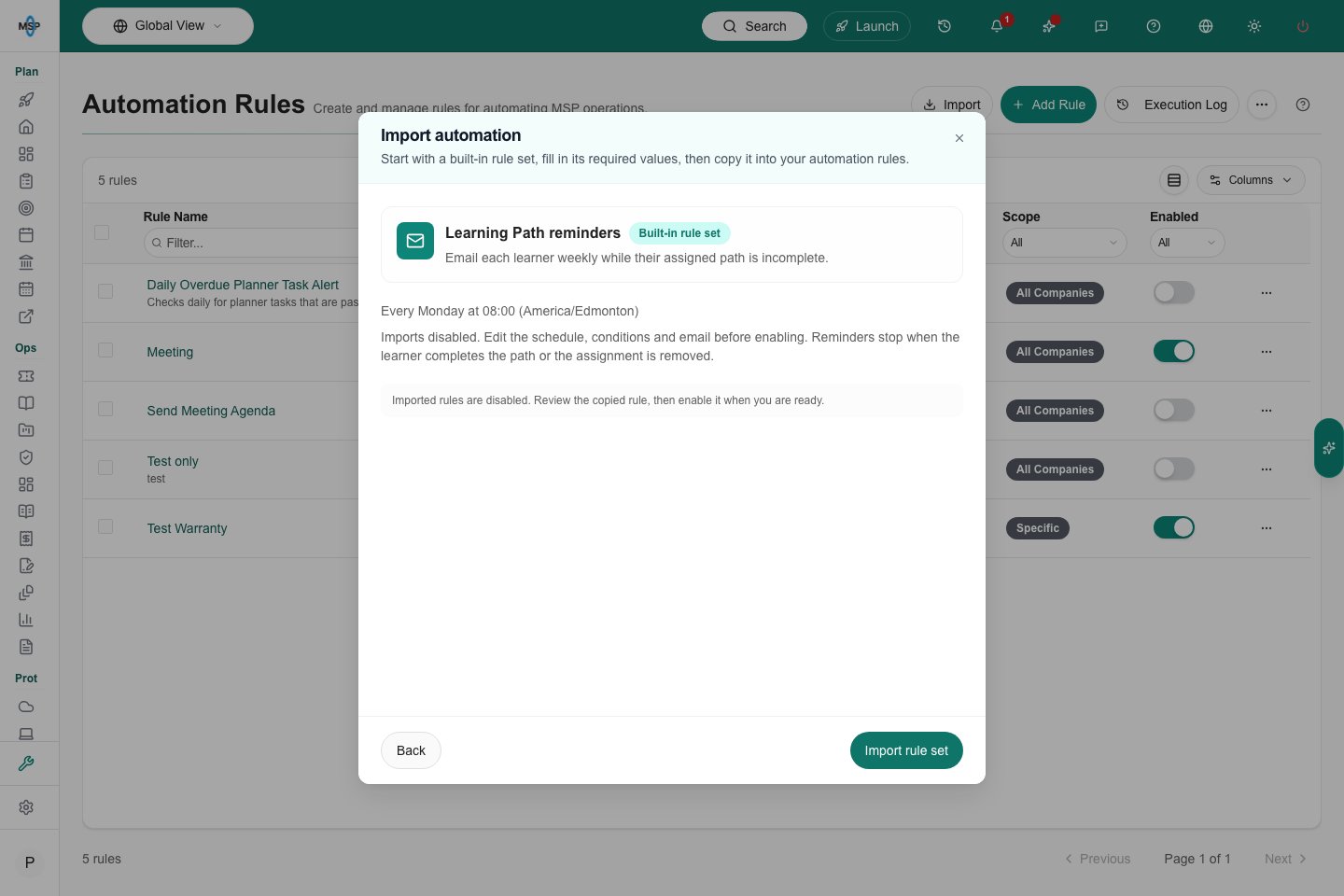
Demo’s reminder defaults to Monday 08:00 in its America/Edmonton organization timezone.
How Rules Fire
- Date Threshold rules check every date on the chosen field and fire when it matches the configured window (for example, 30 days before warranty expiration). They are evaluated in the background; check execution logs for the actual run time.
- Scheduled rules run on a fixed frequency: every hour, every 6 hours, every 12 hours, daily, or weekly. You set the time of day for daily and weekly runs. Weekly rules include a weekday, time and timezone; review all three before enabling a rule.
Questions and troubleshooting
Does Run Now just preview the rule?
Does Run Now just preview the rule?
No. It queues a real execution and may send email, create a ticket or modify records. Use Run Test in the editor to preview matching records without executing actions.
Can a disabled rule be run manually?
Can a disabled rule be run manually?
No. Run Now requires the rule to be enabled. Review its scope and actions before enabling it; a recent or running execution may also block another manual request.
Does an AI proposal save the rule?
Does an AI proposal save the rule?
Accepting proposed changes updates the editor. Review the resulting configuration, test the matches and save the rule explicitly.
Does changing the company selector limit an All Companies rule?
Does changing the company selector limit an All Companies rule?
No. A rule’s saved Scope determines which companies it evaluates. The selector can filter logs without changing the rule.
Why did a run match records without sending anything?
Why did a run match records without sending anything?
Inspect each action result, recipient resolution, approval state and duplicate suppression. A match count is not a delivery receipt or proof that a PSA ticket was created.
How should I handle a partially failed run?
How should I handle a partially failed run?
Inspect successful and failed actions and any external records before retrying. A failure does not roll back emails or tickets already created; do not assume a retry is side-effect free.
Next Steps
Wizard Walkthrough
Every option in the two-step wizard explained.
Example Rules
Warranty alerts, meeting agendas, ticket surveys, and more.