

Before you start
- You need the Automation Rules write or manage permission. See Rule wizard walkthrough for every field.
- For every example, open Settings > Platform > Automation Rules and click Add Rule.
- Keep Enable this rule off on the Review step until Run Test shows the records you expect. Start with Specific Companies scope if you want to try a rule on one client first.
Pick a pattern
Import a built-in rule set
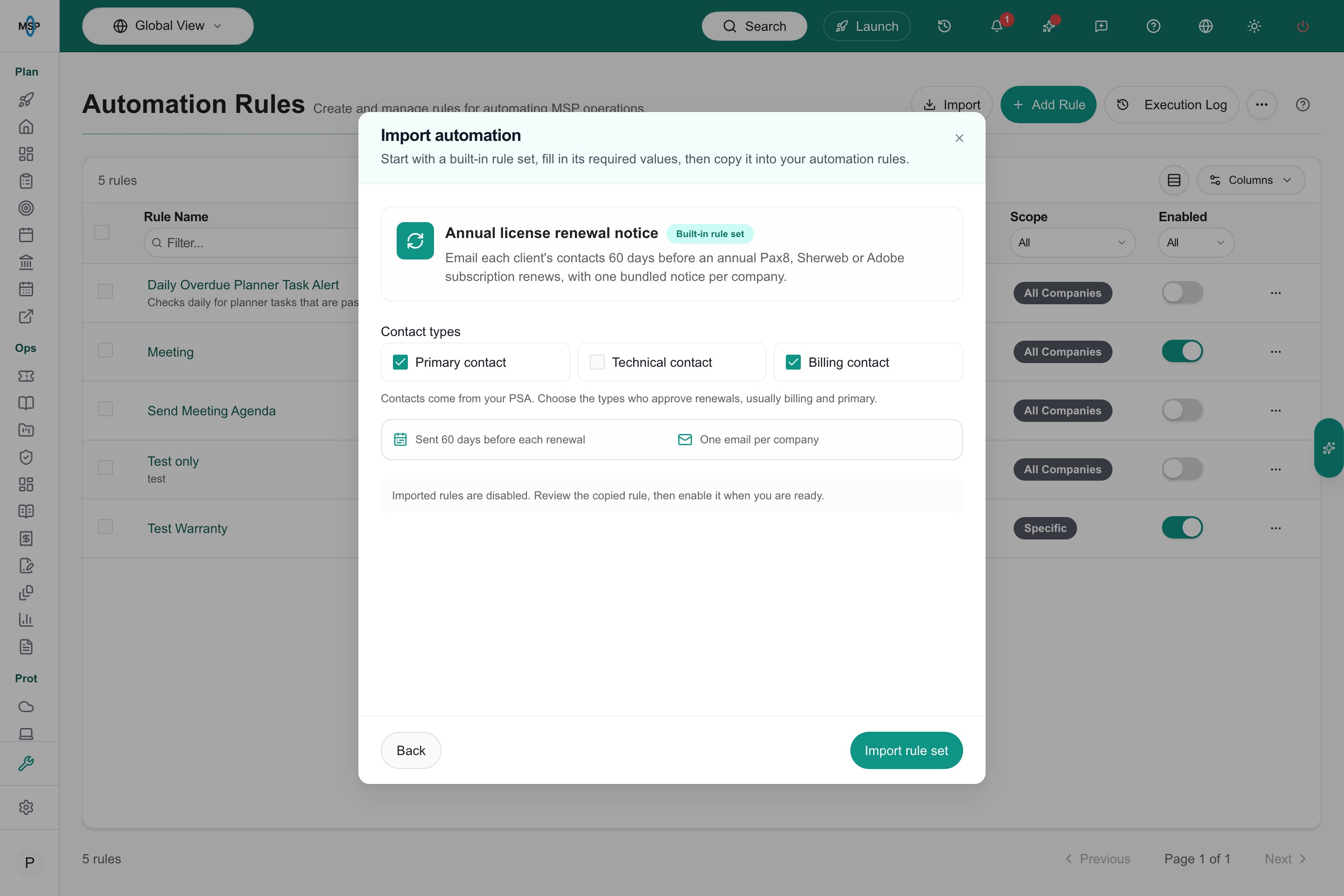
MSPortal includes ready-made rule sets. Importing one copies it into your rules as a disabled rule that you can review and change.Open Automation Rules
Click Import
Choose a rule set
Fill in the choices
Click Import rule set
Date-driven examples
1. Warranty expiration alert
Email the account manager 30 days before a device’s warranty ends, and create a Planner task for the tech team.Basic Information
- Rule Name: Warranty 30-Day Alert
- Priority: 50
- Scope: All Companies
- Description: Notify AM and open a Planner task 30 days before device warranty ends.
Trigger Configuration
- Entity: Device
- Trigger: Date Threshold
- Date Field: Warranty End Date
- Days: 30
- Direction: Upcoming
- Mode: Exactly 30 days
Conditions
- Field: Is Active, Operator: is true
Action 1: Send Email
- Send To: Role Members, then pick the Account Manager role
- Subject:
Warranty expiring: {{entity.name}} at {{entity.company_name}} - Body:
Action 2: Add to Planner
- Task Title:
Warranty renewal: {{entity.name}} ({{entity.company_name}}) - Business Value: Medium
- Due Offset (days): 30
Test and save
2. Meeting agenda generation
One day before a quarterly business review, use AI to draft an agenda from the client’s tickets, compliance status and goals, then send it to the attendees for approval.Basic Information
- Rule Name: QBR Agenda Draft
- Scope: All Companies
- Description: AI-drafted agenda sent to QBR attendees 1 day before the meeting.
Trigger Configuration
- Entity: Meeting
- Trigger: Date Threshold
- Date Field: Start Time
- Days: 1
- Direction: Upcoming
- Mode: Exactly (the option reads Exactly 1 days)
Conditions
- Event Type equals Quarterly Business Review
- Status equals Scheduled
Action 1: AI Transform
- AI Template: pick a meeting agenda template. For Meeting rules the list shows meeting templates.
{{ai_output}}.Action 2: Send Email
- Send To: Meeting Attendees
- Subject:
Agenda for tomorrow's QBR: {{entity.title}} - Body:
Test and save
3. Training due reminder
Remind each user 7 days before assigned training is due.Trigger Configuration
- Entity: Training
- Trigger: Date Threshold
- Date Field: Due Date
- Days: 7
- Direction: Upcoming
- Mode: Exactly 7 days
Conditions
- Status is one of Not Started, In Progress
Action: In-App Alert
- Alert Type: Warning
- Send To: Assigned user (the user the training is assigned to)
- Title:
Training due in 7 days: {{entity.name}} - Message:
Please complete "{{entity.name}}" by {{entity.due_date}}.
Name, test and save
4. Annual license renewal notice
Tell each client which annual subscriptions renew soon, while there is still time to change seat counts or cancel. The fastest way is the built-in rule set.Open the import dialog
Choose the rule set
Pick the contact types
Import and review
State-driven examples
These use a Scheduled trigger. The rule checks on a repeating schedule and acts on records in a given state. Leave Deduplication on Once per entity so each record is handled once.5. CSAT survey for resolved tickets
Check every hour for resolved tickets and send each ticket’s contact a satisfaction survey.Basic Information
- Rule Name: CSAT Survey on Resolved Tickets
- Scope: All Companies
- Description: Send the CSAT survey for tickets that reach Resolved.
Trigger Configuration
- Entity: Ticket
- Trigger: Scheduled
- Frequency: Every Hour
- Deduplication: Once per entity
Conditions
- Status equals Resolved
Action: Send Survey
- Send To: Ticket Contact
- Survey: pick your active CSAT survey
- Invite note (optional): a short thank-you message
Test and save
6. Stale goal nudge
Once a week, alert account managers about in-progress goals under 50% progress whose target date is more than 60 days past.Trigger Configuration
- Entity: Goal
- Trigger: Scheduled
- Frequency: Weekly
- Day of the week: Monday
- Time: 09:00, and pick your Timezone
- Deduplication: Once per entity
Conditions
- Status equals In Progress (pick the status your team uses for goals in progress)
- Progress (%) is less than 50
- Target Date is older than (days) 60
Action: In-App Alert
- Alert Type: Warning
- Send To: Role Members, then pick the Account Manager role
- Title:
Goal stalled: {{entity.name}} - Message:
{{entity.name}} at {{entity.company_name}} has a target date over 60 days past and is below 50% progress.
Name, test and save
7. Overdue compliance control
Every day at 7 AM, create a Planner task for each compliance control that is past due.Trigger Configuration
- Entity: Compliance
- Trigger: Scheduled
- Frequency: Daily
- Time: 07:00, and pick your Timezone
- Deduplication: Once per entity
Conditions
- Status is not one of the statuses that mean a control is finished or not applicable
- Due Date is older than (days) 0
Action: Add to Planner
- Task Title:
Remediate: {{entity.name}} ({{entity.company_name}}) - Business Value: High
- Due Offset (days): 14
Name, test and save
8. Meeting notes follow-up
Every evening, alert chosen users about meetings that are waiting for notes.Trigger Configuration
- Entity: Meeting
- Trigger: Scheduled
- Frequency: Daily
- Time: 18:00, and pick your Timezone
- Deduplication: Once per entity
Conditions
- Status equals Pending Notes
- Has Meeting Agenda Items is true
Action: In-App Alert
- Alert Type: Info
- Send To: Specific Users, then pick the people who should add notes
- Title:
Add meeting notes: {{entity.title}}
Name, test and save
Tips for building your own
- Start with the AI Rule Designer. Click the floating AI Rule Designer button, describe the outcome (“remind the account manager 60 days before warranty ends”) and review the suggested changes.
- Always test. Click Run Test at the bottom of Setup. It shows which records match under current data. Fix conditions before you save.
- Choose deduplication on purpose. Once per entity acts on each record once. Every run repeats the action on every run.
- Layer rules. Use several focused rules (60-day warning, 30-day warning, 7-day escalation) instead of one complex rule.
- Duplicate before changing. The Duplicate row action creates a disabled copy named Copy of followed by the rule name. Edit and test the copy, turn it on, then turn off or delete the old rule.
Troubleshooting
Frequently asked questions
Does an hourly schedule mean one hour after a ticket is resolved?
Does an hourly schedule mean one hour after a ticket is resolved?
Can I email the person who opened a ticket?
Can I email the person who opened a ticket?
Can a rule send to the assigned user automatically?
Can a rule send to the assigned user automatically?
Can I set a custom field to mark a record as done?
Can I set a custom field to mark a record as done?
How do I safely adapt an imported rule?
How do I safely adapt an imported rule?