

Before you start
- You need permission to edit project collaboration content (project overlay edit).
- Company users cannot edit these details. They read the Client Dashboard.
- The Hide from company users checkbox is for MSP staff only.
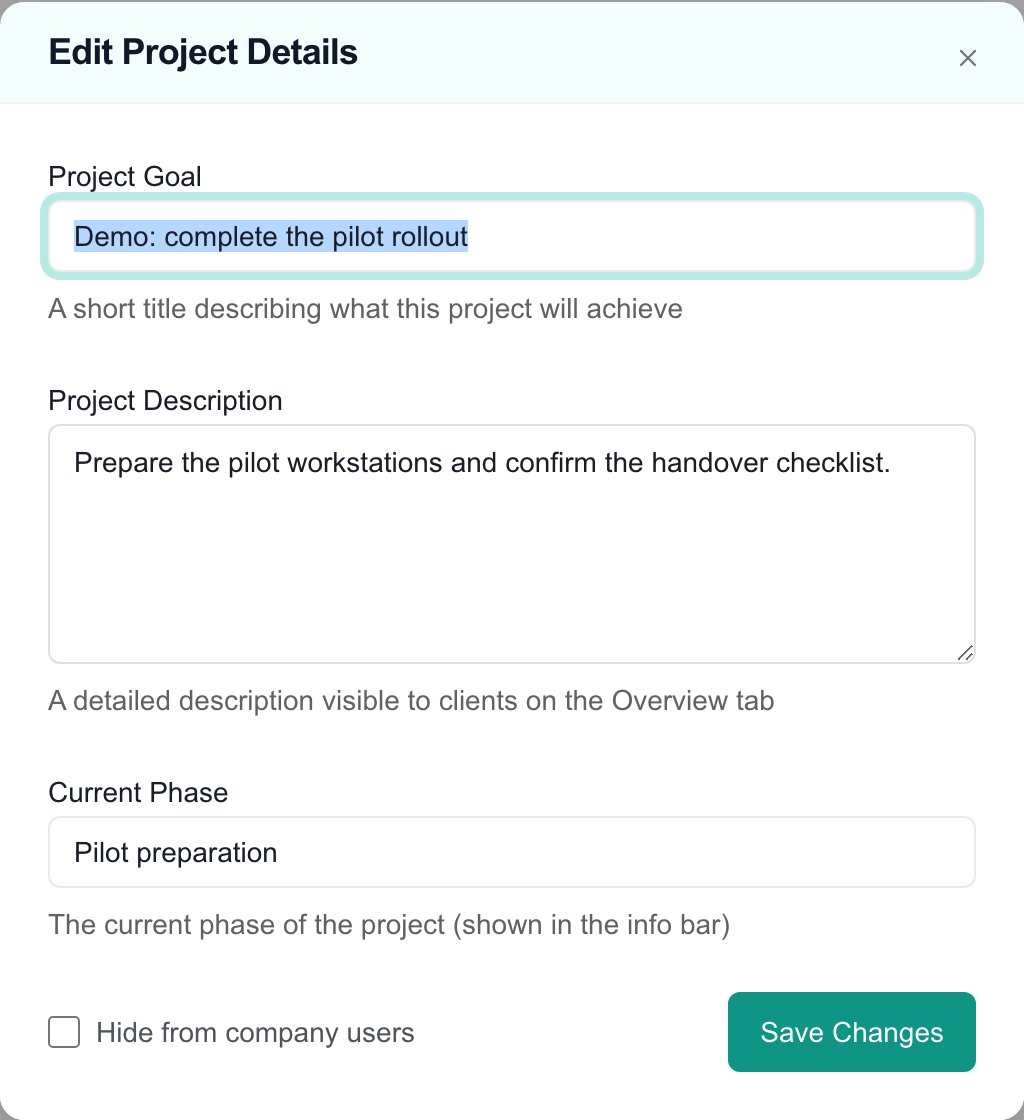
Update project details
1
Open Edit Project Details
Open Projects, click the project, and click Edit Project Details in the page header.
2
Maintain the narrative
Type a short outcome title in Project Goal, explain the scope and result in Project Description, and enter the label you want shown as the current phase in Current Phase. The limits are 200, 2,000, and 100 characters.
3
Set health, if needed
Health Status starts on Automatic, which works out health from the project’s dates, hours, and hold state. To override it, choose On Track, At Risk, or Blocked, then explain why in Status Note (up to 500 characters). The note shows beside the health badge on the Client Dashboard and in the health overview. Company users can read it on projects shared with them.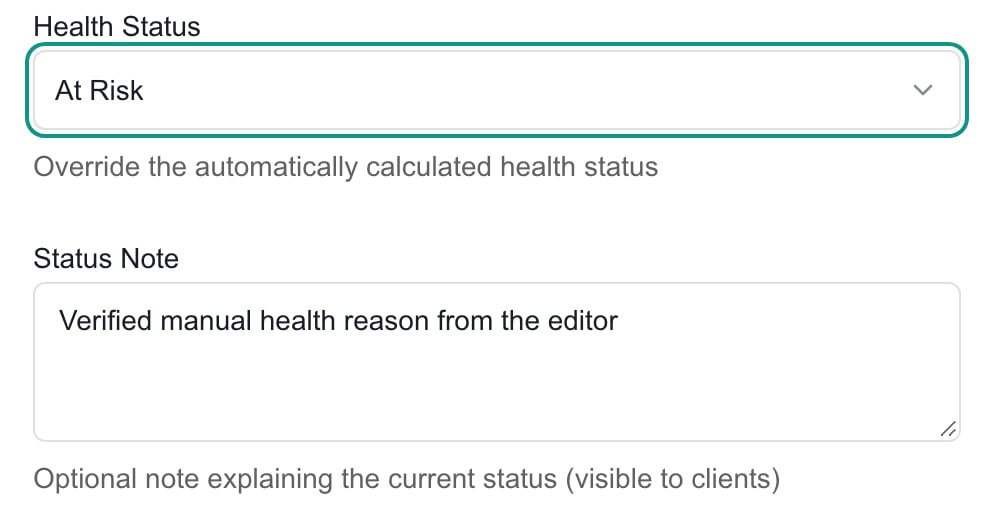
4
Review Company visibility
Tick Hide from company users to hide the project from Company users. Untick it to let it appear for users who already have access. It does not create users or grant permissions. Updates, milestones, deliverables, and documents each have their own visibility setting too.
5
Save Changes
Click Save Changes and wait for Project details updated. The form does not save as you type. Check the Client Dashboard to confirm the values. If saving fails, check the record before you try again.
Troubleshooting
Frequently asked questions
Why did my description not change Project Summary?
Why did my description not change Project Summary?
Project Description is displayed as Project Outcome. The project’s separate summary is not edited by this form.
Does Current Phase move the project into that phase?
Does Current Phase move the project into that phase?
No. It only changes a label on the Client Dashboard. Manage the plan and ticket statuses separately.
Does this form save as I type?
Does this form save as I type?
No. Select Save Changes. Closing the dialog without saving discards its edits.
Can I rename the project or change its status here?
Can I rename the project or change its status here?
No. This form edits the goal, description, phase label, health, and Company visibility. Use your PSA or the project’s own workflow for the name, schedule, and status.
Where do I change the client sponsor?
Where do I change the client sponsor?
Use the edit control in Client Dashboard’s Contacts section, then Save Changes there. See Manage project contacts.