

Before you start
- The controls work in Projects > Cards, List, and the portfolio Kanban. They only narrow projects you can already read.
- Schedule and the MSP Dashboard share most of these filters. See Filter the project schedule.
- The category dropdown, onboarding filters, and Upcoming state are MSP staff features.
Choose projects or onboarding projects
Open the category dropdown in the filter bar and pick one option.- All includes both categories.
- Projects shows projects without a linked onboarding portal.
- Onboarding projects shows projects linked to a client onboarding portal. An onboarding project type alone does not include a project.
Follow up on onboarding
On the MSP Dashboard, Projects and Onboarding metrics share one summary card. Select an onboarding metric to open the regular List with its matching criterion:
To filter by an onboarding criterion yourself:
1
Open the category dropdown
Click the category dropdown in the filter bar. You need onboarding-settings read access to see the submenu.
2
Open Onboarding projects
Point at Onboarding projects. On a phone the submenu opens over the parent menu. With a keyboard, press the right arrow.
3
Pick a criterion
Choose All, Active onboardings, Waiting on client, Never opened portal, or Outstanding files. Other list filters can narrow the results further.
- Cards
- List
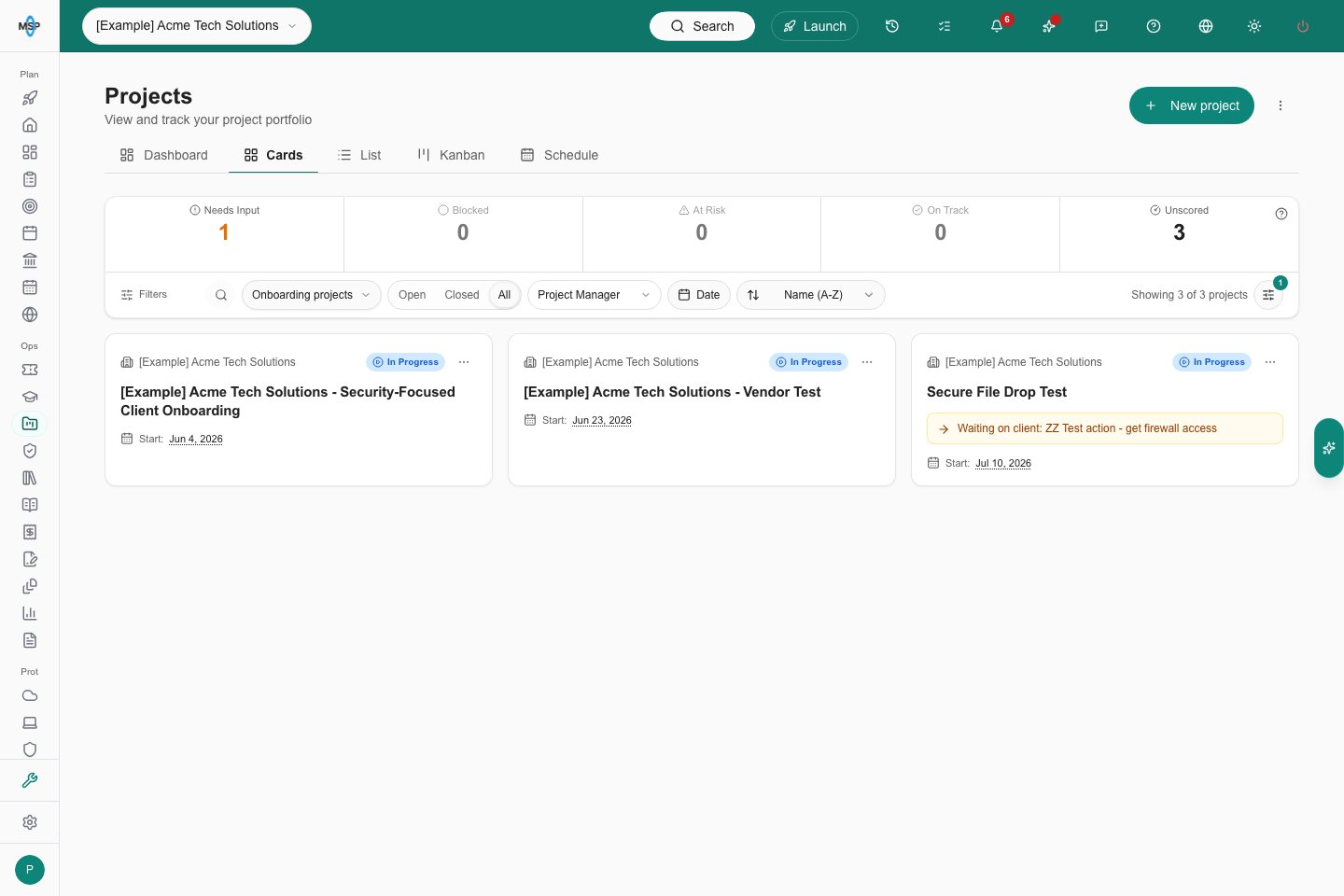
All onboarding in the selected Example company.
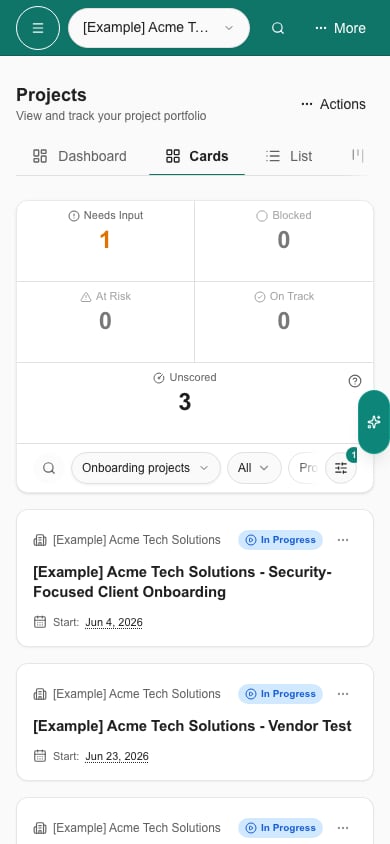
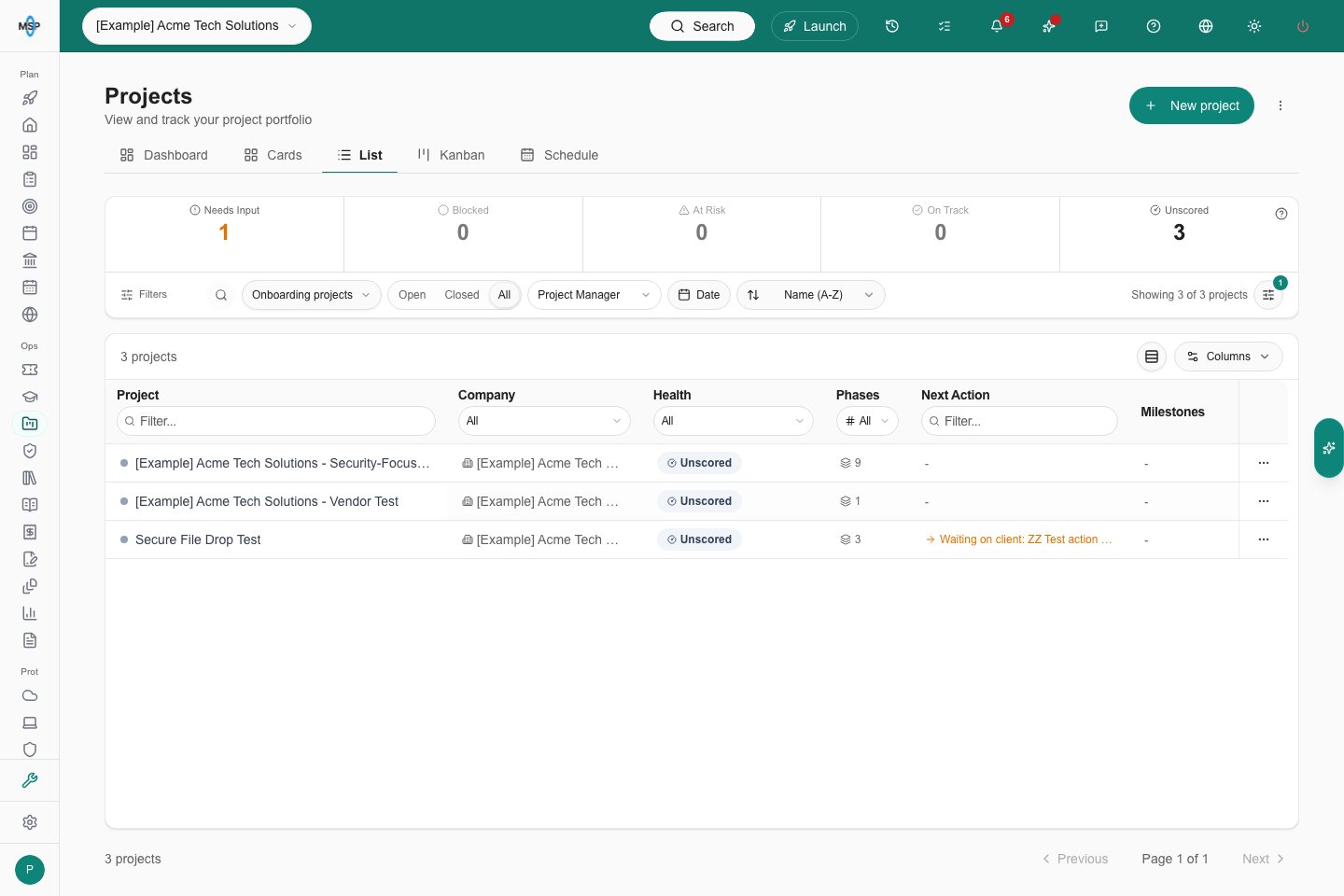
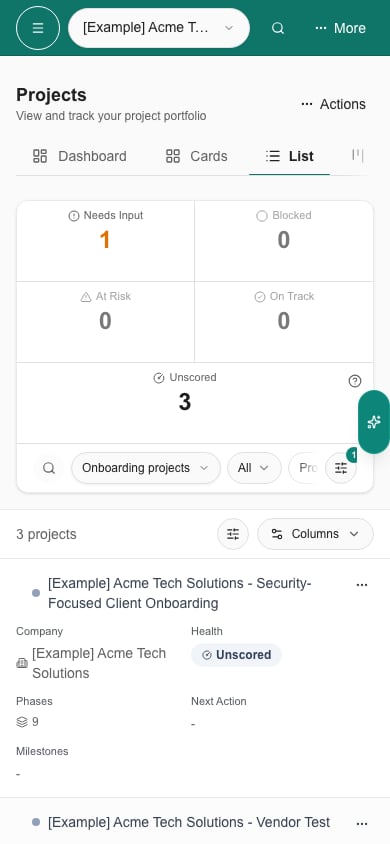
- Desktop
- Phone
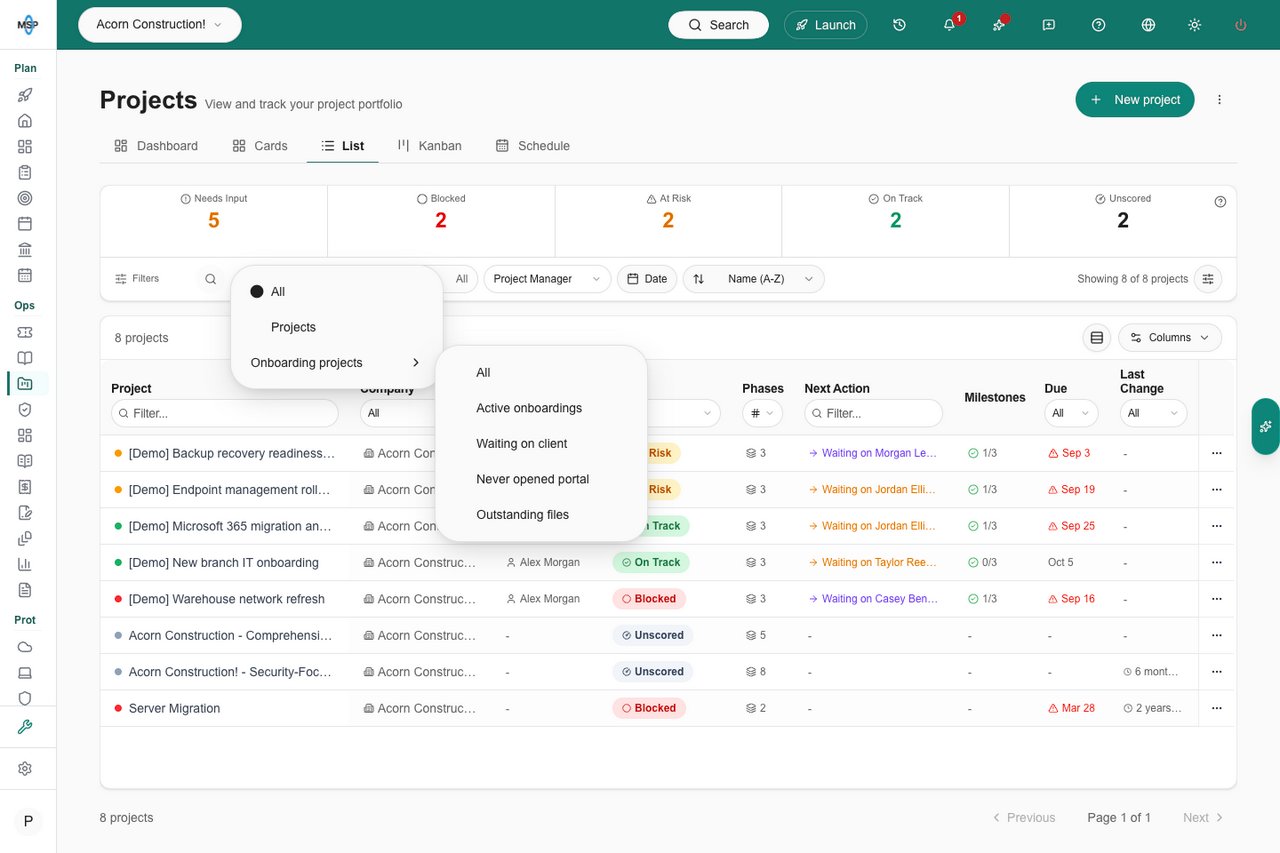
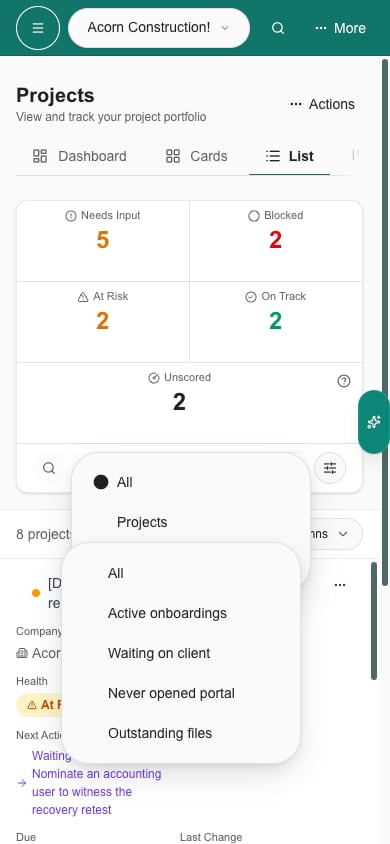
/projects/onboarding bookmarks open the regular list with the onboarding category selected.
Find open or closed work
1
Choose the company and view
Pick the company in the company selector, then open Projects and choose Cards, List, or Kanban.
2
Set Open, Closed, or All
Click Open, Closed, or All in the filter bar. Open is the starting choice. MSP staff with planner access and the Project tracker also see Upcoming, which lists sales opportunities expected to become projects.
3
Search
Click the search (magnifier) icon and type part of a project name, company name, or outcome.
4
Choose a manager
Click Project Manager and tick one or more people. A project matches if it belongs to any of them. The choices come from the projects currently shown, so other filters can remove a manager from the list.
5
Choose the sort order
Click Sort by and pick Name (A-Z), Name (Z-A), Last Changed, Due Date (Soonest), Due Date (Furthest), or Company (A-Z). Kanban keeps its configured columns.
Filter by activity or due date
1
Open the Date filter
Click Date in the filter bar.
2
Pick the date to filter on
Under Filter by, choose Last Activity or Due Date. Last Activity is the project’s last update time. Due Date is the project’s due date, not a task’s date.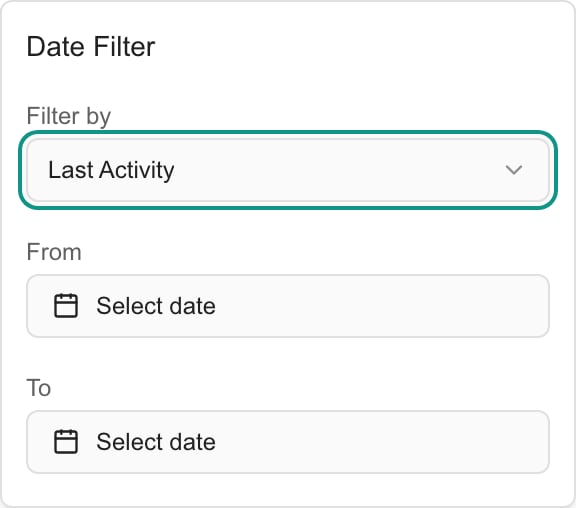
3
Set the range
Set From, To, or both. The list updates right away. Projects with no date in the range disappear, and From must not be later than To.
4
Clear it when you are done
Click Clear in the popover to remove the dates.
Apply several filters together
1
Open Filters
Click Filters in the filter bar, or press Ctrl+Shift+F (Cmd+Shift+F on Mac). The drawer lists Status, Health Status, Project Manager, and Exclude company, plus team, sales stage, and custom-field filters when your portal has them, and the Date Filter.
2
Make your selections
Tick one or more values in a section. A project matches if it has any ticked value in that section. Different sections narrow the results together. Status lists the stored PSA statuses, which can differ from the labels on cards.
3
Apply or discard
Click Apply Filters to use your choices and close the drawer. Closing the drawer without applying discards them. Reset clears the drawer’s choices, and you still click Apply Filters to use that. Reset does not change the search or Open / Closed / All.
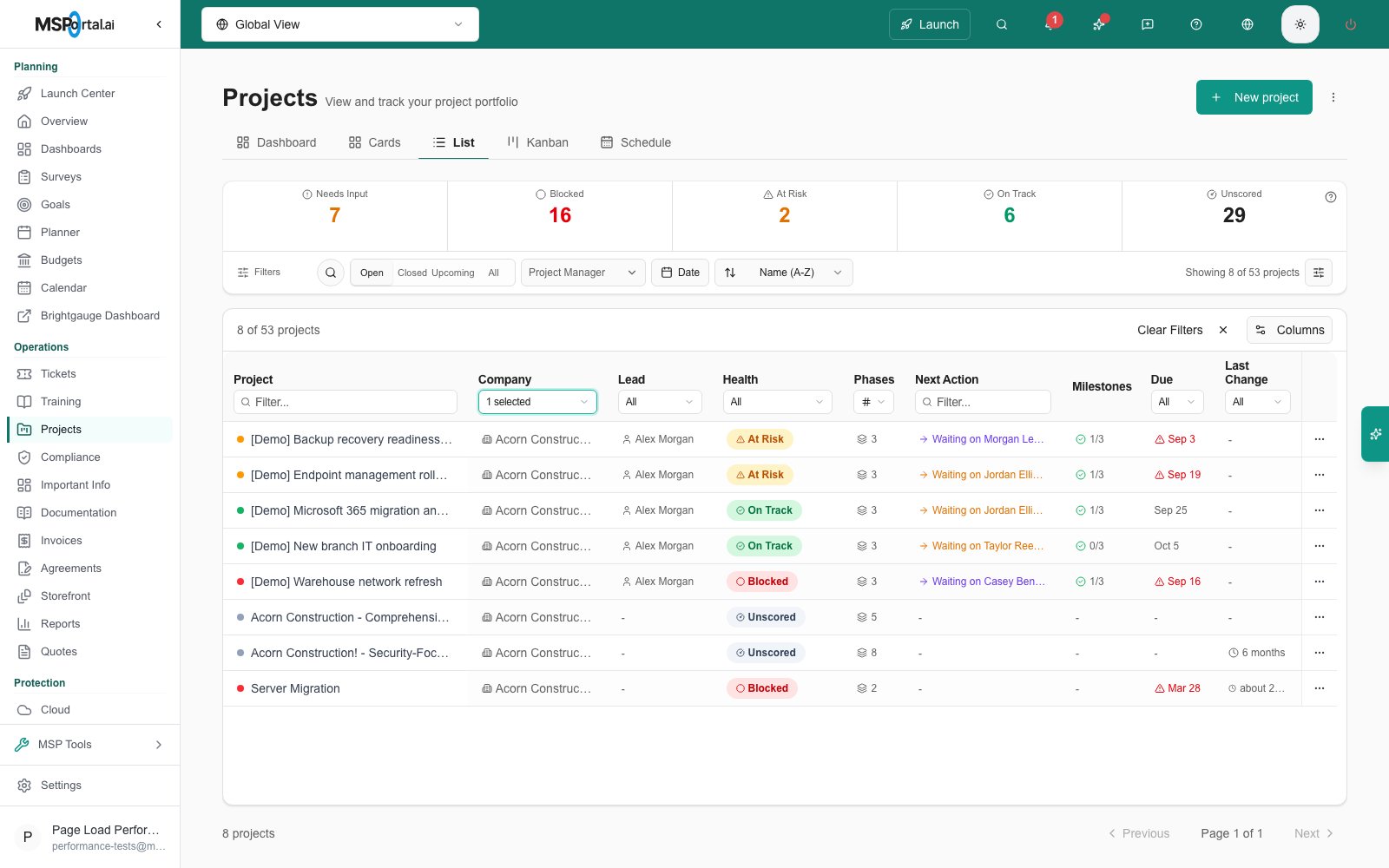
Filter List columns
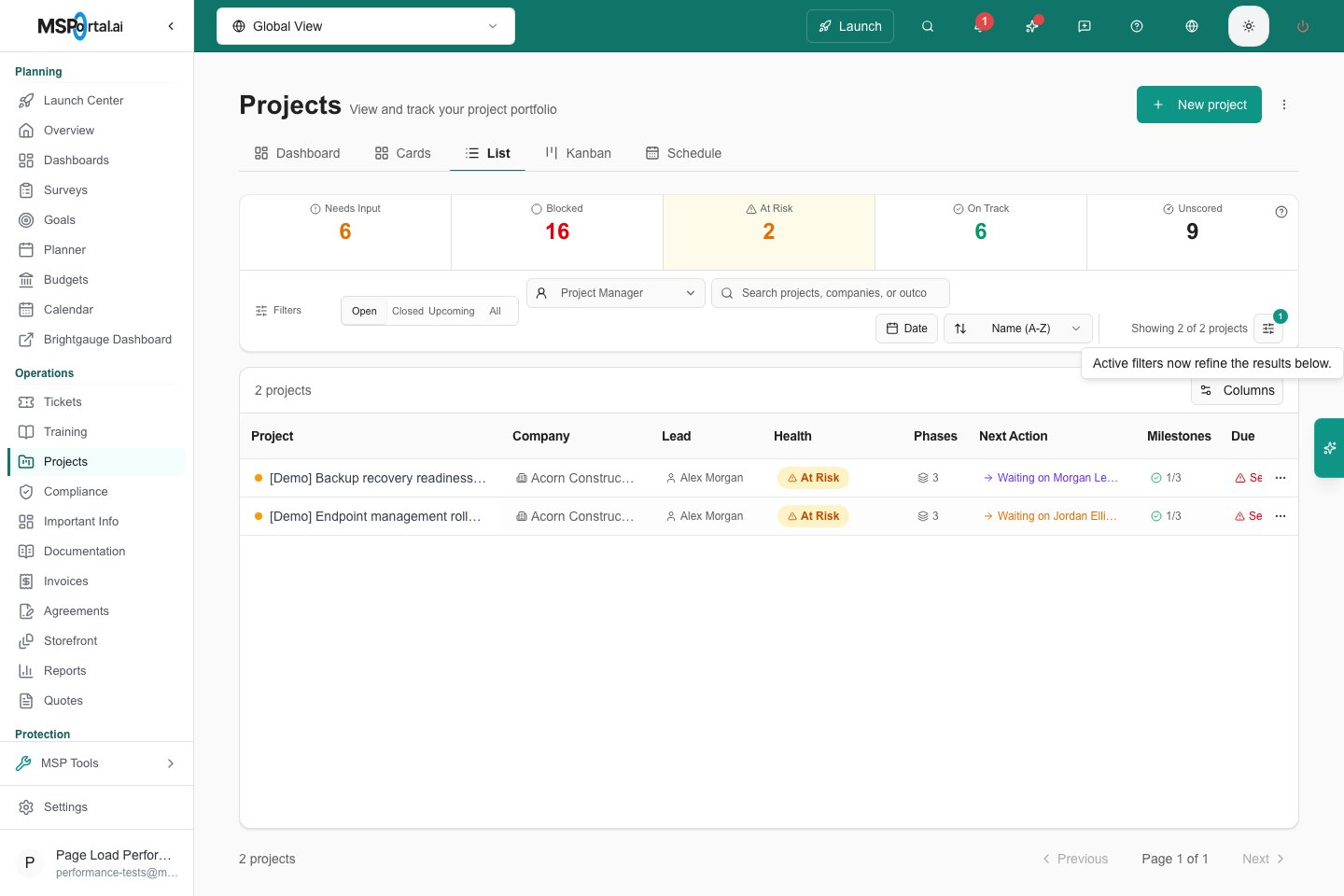
In List, each column heading has its own filter. Column filters narrow the rows already loaded by the toolbar and Filters choices, and every active filter must match.
The result count updates as you filter. Click Clear Filters above the table to remove every column filter. Column filters are not part of saved filters and reset when you leave the page. The health counts at the top ignore them.
Save and reopen filters
1
Set up the filters
Choose the health, status, manager, date, company exclusion, team and custom-field filters you want, along with the project category, Open / Closed / All and any search text.
2
Save them
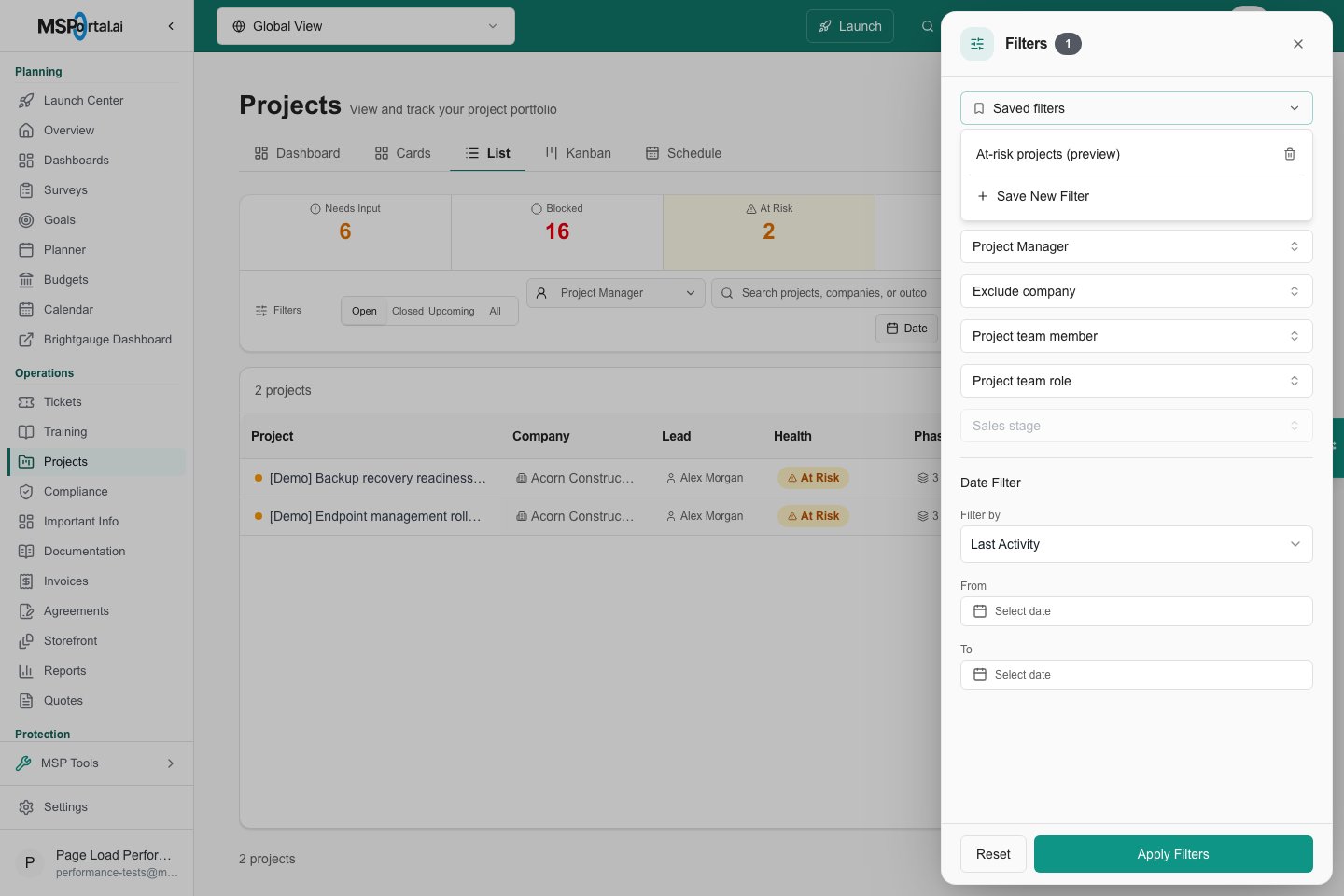
Click Filters, then Save Filter (or Saved filters, then Save New Filter). Enter a name and click the check mark. Saving with an existing name replaces that saved filter.
3
Reopen them later
Click Filters, then Saved filters, then a name. The saved choices replace your current ones and the drawer closes. Click the trash icon beside a name to delete it.
Understand health filters and totals
- Needs Input marks projects with pending client actions. A project can need input and also be On Track, At Risk, or Blocked.
- Ticking several health choices matches any of them.
- The health tiles count projects before the health filter is applied. They can overlap, so do not add them up.
- Unscored means the project has no due date and not enough hours data to score.
- To find Completed projects, set Open / Closed / All to All or Closed first.
Clear filters and remembered choices
1
Clear everything at once
Press Esc while the Filters drawer is closed. This removes the search, health, status, manager, date, company exclusion, team, and custom-field filters and returns the category to All.
2
Or clear from the drawer
Click Filters, Reset, then Apply Filters. Reset leaves the search alone.
3
Reset the open state if needed
Change Open / Closed / All yourself. Clearing never changes it, the sort order, or the view.
Troubleshooting
Frequently asked questions
Why are closed projects still missing after clearing filters?
Why are closed projects still missing after clearing filters?
Clearing filters leaves Open / Closed / All unchanged. Choose All or Closed separately, then confirm the company scope and access with your MSP if the project is still absent.
Why did my filter changes disappear when I closed Filters?
Why did my filter changes disappear when I closed Filters?
The drawer holds draft changes until you click Apply Filters. The Date and manager controls in the filter bar apply immediately.
Do Needs Input and Blocked counts add up to the total projects?
Do Needs Input and Blocked counts add up to the total projects?
No. A project can appear in both, and the health counts are calculated before the current health filter. Use the displayed project result count for the filtered list.
Can I filter a custom number field by greater than a value?
Can I filter a custom number field by greater than a value?
No. The Contains box matches text only. The Date filter covers a project’s Last Activity or Due Date.