

Before you start
- You need access to the project. Company users read shared content and answer requests assigned to them. The MSP manages editing and permissions.
- Editing project details and collaboration items needs project overlay-edit permission. Changing PSA statuses needs status-edit permission. Assigning people and PSA rescheduling need project write permission.
- Which sections you see also depends on project display settings, PSA support, and the project’s data.
Choose a section
The top row of the project page lists sections. The row under it lists the destinations in the active section. On a phone, swipe either row to reach the rest.
Going back to a section reopens the last destination you used while the project stays open. Milestones was the Timeline tab and Board was Kanban. Old project links still open the right place.
- Desktop
- Phone
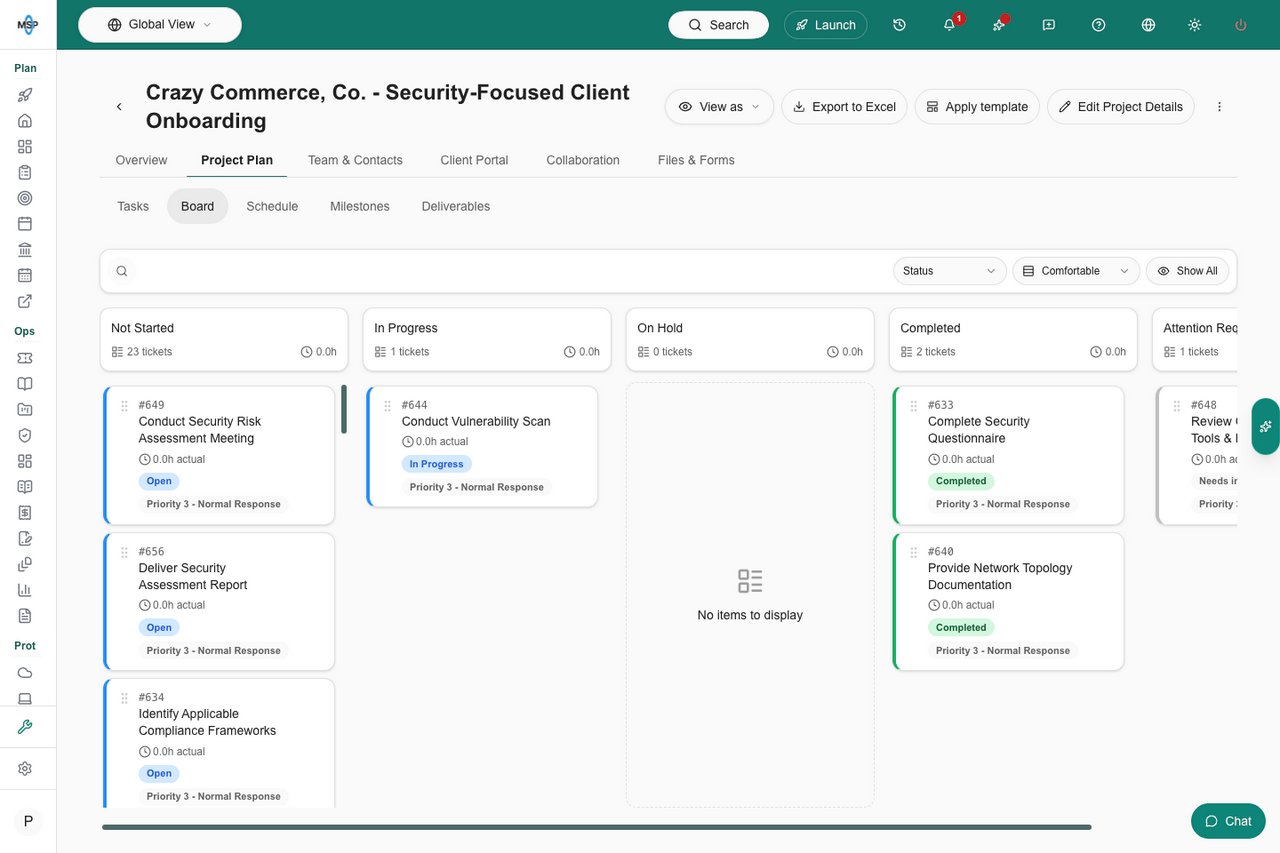
Project Plan keeps Tasks, Board, Schedule, Milestones, and Deliverables together.
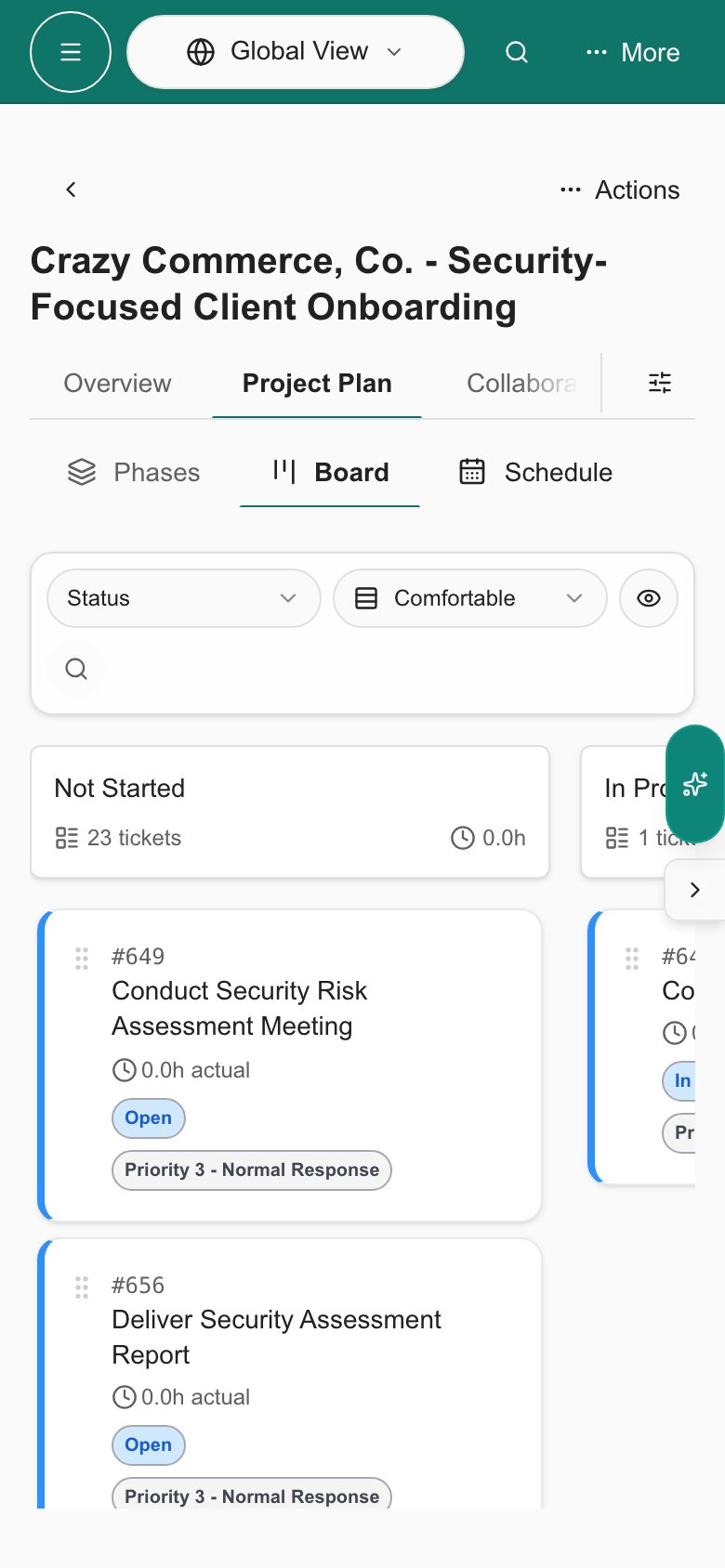
Use the page header
The header holds buttons for the whole project. You see the ones your role allows.Read the dashboards
1
Open Overview
Click Overview. MSP staff click MSP Dashboard or Client Dashboard in the row below. Company users get the Client Dashboard.
2
Read the MSP Dashboard
The top rail shows Open tasks, Unassigned open tasks, pending Decisions and Action Items, Actual hours, and Budget hours. Click a pending tile to open that list. On projects with a client portal, the portal’s progress shows under the rail. See Read the project overview.
3
Read the Client Dashboard
This is what clients see: the summary, milestones, deliverables, and contacts.
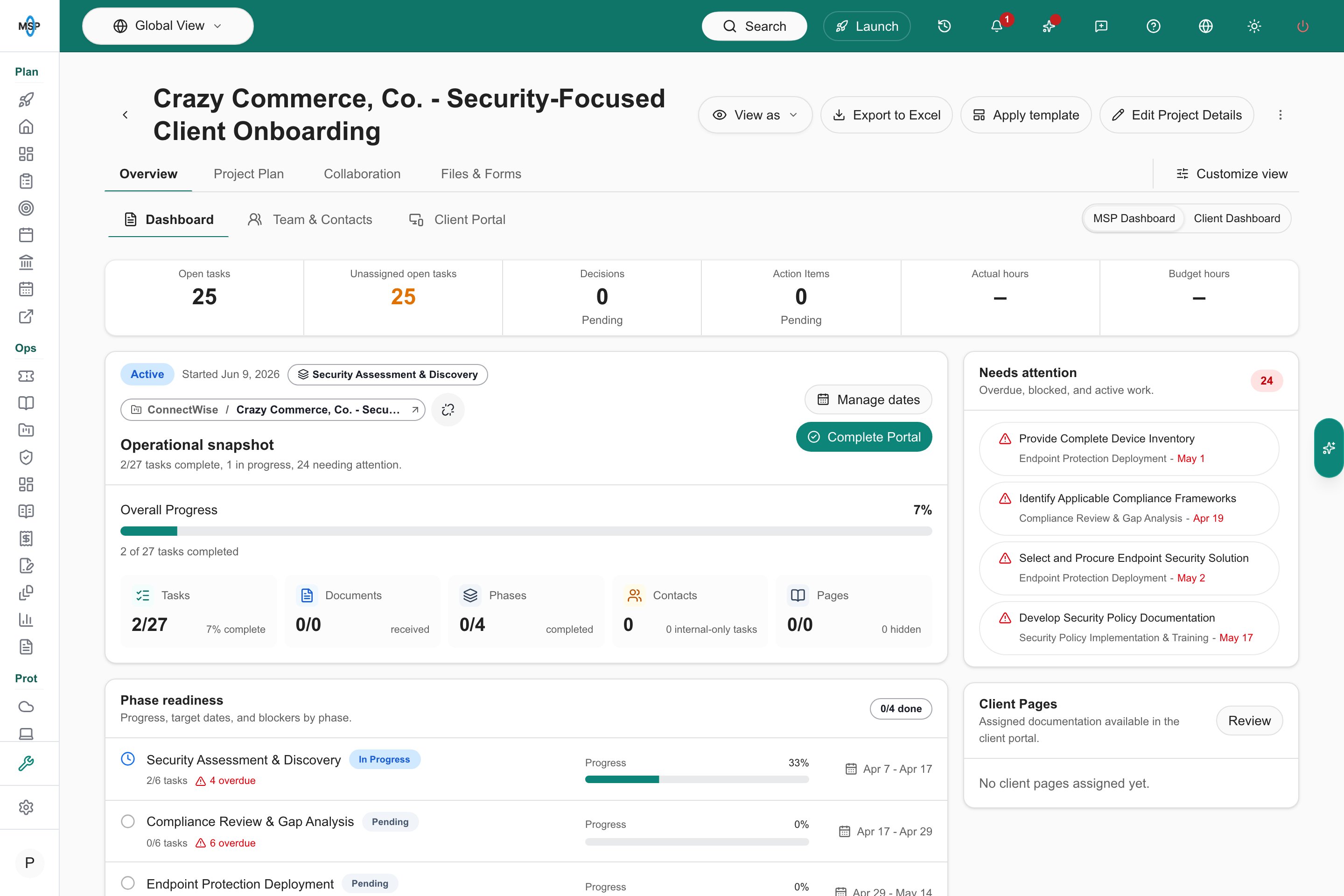
The linked onboarding dashboard sits beneath the project summary rail.
Find the guide for your task
Use Project chat
1
Open the chat
Click Collaboration and Chat, or click Chat in the bottom-right corner to chat from any tab.
2
Send a message
Type in Ask a question or share an update… and click Send, or press Ctrl or Cmd plus Enter.
3
Choose notifications
Use the notifications button to follow the chat and pick In-app notification, Email, or both. You are notified when someone posts a new message.
Use Project AI
1
Open Project AI
Click Open Project AI at the right edge of the project page.
2
Ask or pick a prompt
Ask about the project, or pick a quick prompt such as Draft update.
3
Review changes
Proposed changes appear as Proposed change cards. Click Apply only on the ones you want.
Troubleshooting
Frequently asked questions
Do the badges on sections count unread items?
Do the badges on sections count unread items?
No. The sections show no unread badges. The actions waiting button counts pending items in Decisions and Action Items, not only yours.
Can I answer a request without permission to edit project details?
Can I answer a request without permission to edit project details?
Yes, if you can access the project and the pending item is assigned to you. See the response guide.
Why does a small project have no Tasks or Board?
Why does a small project have no Tasks or Board?
A project with no phases and at most one ticket uses the simpler Client Dashboard. Display settings and permissions also matter. Native project editors always get Tasks.
Can Company users use Project AI to edit the project?
Can Company users use Project AI to edit the project?
No. They get a read-only Project AI when it is enabled. Changes need an MSP edit permission and your approval of each proposal.
Related guides
Project calendar
Inspect scheduled work and supported rescheduling.
Project settings
Configure tabs, field access, and status mappings.