

Destination paths below use the project sections.
Before you start
- Your role needs the project Kanban view permission, and your MSP must turn the board on in project settings.
- A project with no phases and at most one ticket uses the simpler Client Dashboard instead.
- Company users should ask their MSP about missing access. The MSP manages permissions.
Find a ticket
1
Open the project's board
Open Projects, click the project, then click Project Plan and Board. Read the column headings before you judge where a card sits.
2
Search the cards
Type a ticket title, number, or owner’s name in Search tickets…. For a number such as #633, search 633 without the hash. Search ignores capitals and covers only the tickets on this board, not descriptions or support tickets.
3
Check closed-ticket visibility
The eye button starts on Show All. Click it to switch to Hidden, which hides closed tickets. Click again to show them. It does not change any ticket’s status.
4
Read the matching cards
Each card shows the ticket number, summary, owner, and hours. In Comfortable or Compact density, cards also show status and priority badges. If a ticket seems missing, clear the search and set the eye button back to Show All.
Read a Halo project ticket’s type
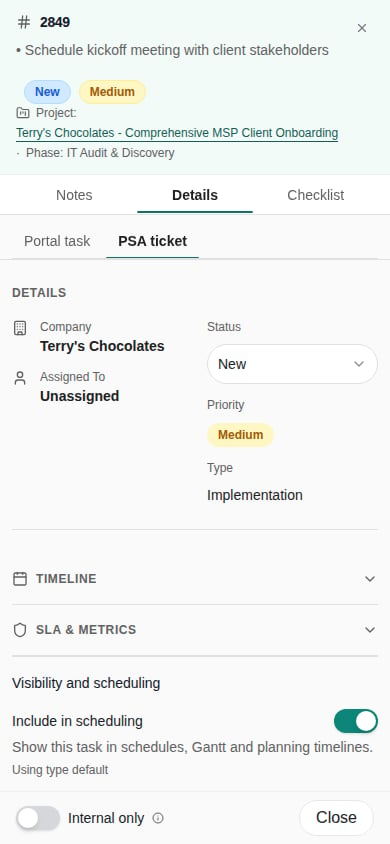
Open a Halo ticket card and read Type in its details. For a ticket linked to a portal task, select PSA ticket. On a phone, open Details first, then select PSA ticket when that tab is present. Type is the name supplied by Halo PSA, such as Implementation. The details refresh it when Halo supplies the name and keep the cached name when the source is unavailable. A dash means no name is available. MSP staff also see Type beneath the card title in Comfortable, Compact and Dense layouts when Halo supplies a name. Cards without a name omit that line; this card label is not shown to company users. The existing Halo Ticket Type field option controls whether the panel renders Type. Ticket display groups and their role assignments are documented in Ticket settings.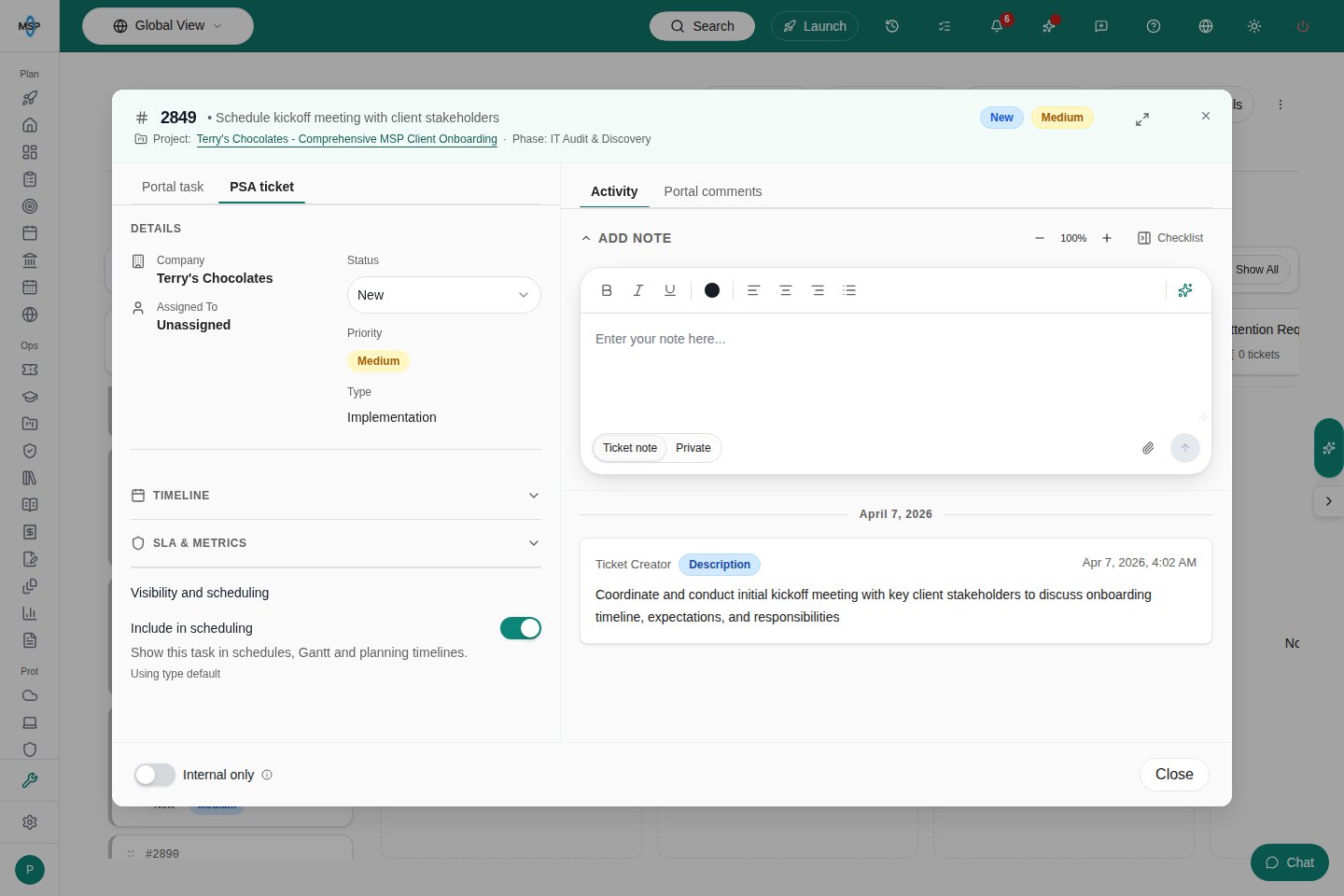
Group the same tickets differently
Click Group by and pick a layout.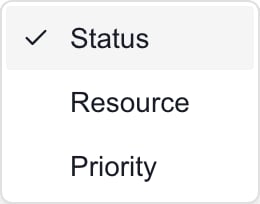
Choose card density and scroll
Click Density and choose Comfortable, Compact, or Dense. Dense uses smaller cards and hides the status and priority badges. Use Comfortable or Compact to see them.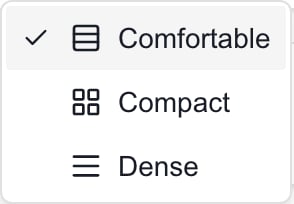
Understand counts and hours
Each column header shows the number of matching cards and their total actual hours. When a budget total exists, hours show as actual/budget h. The totals follow your search and the eye button. Hours are not percent complete or remaining time. Missing hours count as zero, so a zero total does not prove nobody worked. A card leaves out its hours row when actual hours are unavailable.MSP editing boundaries
Company users use this board to read shared work. MSP staff with the right permissions can drag cards for supported ConnectWise, Autotask, and Halo tickets.- Status changes need status-edit access.
- Owner and priority changes (ConnectWise and Autotask only) need project write access.
- A move can write back to your PSA.
Troubleshooting
Frequently asked questions
Why is Kanban missing from my project?
Why is Kanban missing from my project?
Check project access, the Kanban view permission, and whether the MSP enabled the board. Projects with no phases and at most one ticket use Client Dashboard. Company users need the MSP to manage their permissions.
How do I find a completed ticket?
How do I find a completed ticket?
Return the eye control to Show All and clear or adjust Search tickets. Hidden excludes closed tickets even when a search would otherwise match them.
Why is an Open ticket under Not Started?
Why is an Open ticket under Not Started?
Status columns are configured groups. Several provider statuses can map to one group; read the individual badge for the ticket’s supplied status.
Why does the board say Other?
Why does the board say Other?
The ticket’s status does not fit an available group or mapping. Other is a grouping fallback, not a new PSA status or proof of a failed ticket.
Does switching Resource or Priority change any tickets?
Does switching Resource or Priority change any tickets?
No. Group by changes the layout. An authorized MSP drag operation can change the underlying assignment or priority; switching the selector does not.
Why did the ticket counts and hours decrease?
Why did the ticket counts and hours decrease?
Column totals sum the cards matching the current search and closed-ticket filter. Clear the search and return to Show All before comparing the whole board.
Why did the status and priority badges disappear?
Why did the status and priority badges disappear?
Dense hides those badges. Choose Comfortable or Compact to show available badges again. Missing source values can also leave a badge absent.
Can I move native project tickets on this board?
Can I move native project tickets on this board?
The current board does not enable native drag controls. MSP editors should use Phases and Edit ticket. Native work remains in MSPortal.
Why can I read cards but not drag them?
Why can I read cards but not drag them?
Reading and editing have separate permissions. Company readers cannot manage project work. MSP drag controls also depend on the provider, the selected grouping, loaded assignment options, and whether another operation is running.
Does 0.0h mean no work has happened?
Does 0.0h mean no work has happened?
No. Zero can reflect missing or restricted hours, the current filters, or genuinely zero supplied hours. Ask the MSP for an appropriate progress summary rather than treating it as evidence of inactivity.
Related guides
Read phases and tickets
Use the hierarchical phase view and its task filters.
Project workspace
Find the other project tabs and collaboration guides.