

These destination paths use the grouped project navigation.
Before you start
- You need permission to edit project collaboration content (project overlay edit).
- Company users read shared updates. They cannot edit them.
- Updates live in MSPortal. Writing a bullet does not close a PSA ticket, schedule work, or send an email.
Create an update
1
Open Updates
Open Projects, click the project, then click Collaboration and Updates.
2
Add Update
Click the + button at the top of the Weekly Updates list and choose Add Update. If the list is empty, click Add Update in the empty state. The update is created at once and opens on the right. Closing it does not discard it.
3
Check the reporting week
Week Of starts on the Monday of the current week. Click the date to change it. It is the reporting week, not a publish date. Several updates can use the same week.
4
Write the summary
Type a short Summary. Text saves shortly after you stop typing. There is no Save or Publish button.
5
Add list entries
Under Completed This Week, Coming Up Next, Risks & Concerns, or Decisions Needed, type an entry and click the + next to it, or press Enter. Text left in the add field is not added to the list.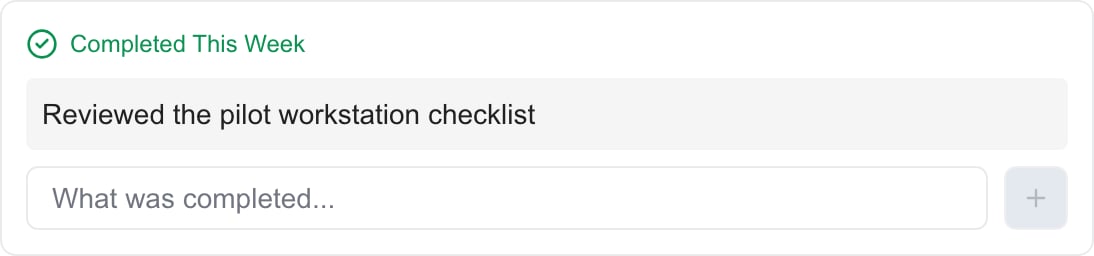
6
Correct a saved entry
Click the entry’s text and edit it in place. The change saves when you press Enter or click away. Press Shift+Enter for a line break, or Escape to undo before it saves. Clearing all the text restores the original entry. Use the entry’s delete control to remove it.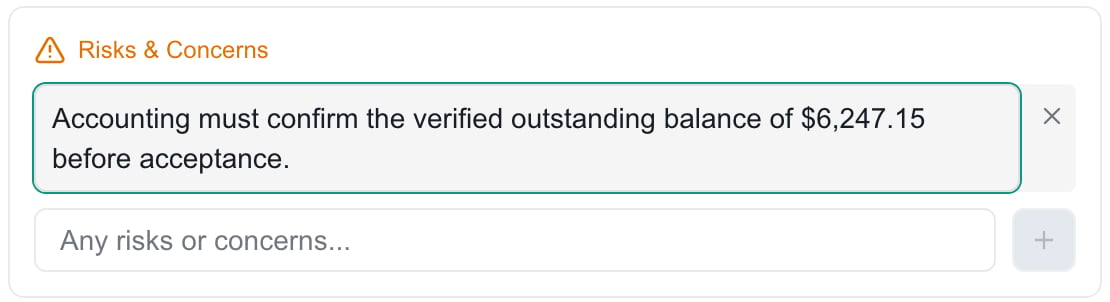
7
Share it when ready
Turn on Client Visible to share the update with Company users who can access the project. It saves at once and does not give anyone project access.
8
Check the saved result
Click another week and then back, or reopen the project, to check the update. If you see an error, check what was saved before you repeat a change.
Understand Decisions Needed
Adding a Decisions Needed bullet can create a linked pending item in Decisions. Open that register to set the request’s details, due date, urgency, and assignees using Manage project decisions and action items. The related request follows the source update’s audience. Assignment does not automatically notify anyone. Use the request’s explicit notification controls only when you intend to send a message. Decision titles are matched across updates, ignoring letter case and extra spaces. Repeated titles can represent the same pending request. Removing a bullet or an update can remove a pending request that was generated from it; resolving or deleting a linked request can remove matching bullets from more than one update. Give distinct decisions clear, distinct titles and check Decisions after changing these bullets.Delete an update
1
Select the update
Click the week in the Weekly Updates list.
2
Delete it
Click Delete at the top of the update and confirm. The update is removed from the project and cannot be undone.
3
Check Decisions
If the update had Decisions Needed bullets, open Collaboration > Decisions and check the related requests.
Troubleshooting
Frequently asked questions
Where is Save or Publish?
Where is Save or Publish?
There is no separate button. Add Update creates the update at once, Summary saves after a short pause, and the other controls save as you change them. Client Visible decides whether Company users can read it.
Does Client Visible send the update to clients?
Does Client Visible send the update to clients?
It shows the update in the portal. Adding, editing, or sharing an update does not email or notify clients.
Why did my typed bullet disappear?
Why did my typed bullet disappear?
Click the + next to the field or press Enter to add it. Text left in the field is not saved.
How do I fix a wrong figure in an AI-drafted update?
How do I fix a wrong figure in an AI-drafted update?
Open the update, click the entry that has the figure, and edit it in place. Check the Summary too, since AI drafts can repeat a detail.
Does Completed This Week update ticket status?
Does Completed This Week update ticket status?
No. These are notes only. Change the ticket status in the ticket itself.
Why did removing a decision bullet change the Decisions tab?
Why did removing a decision bullet change the Decisions tab?
Decision bullets and linked requests stay in sync. A pending request made from a bullet can disappear when you remove the bullet. Check Decisions after you change or delete an update.