

Before you start
- You need the Schedule view permission for Projects.
- Projects > Schedule (all projects) and a project’s own Project Plan > Schedule tab have different toolbars. This page covers both.
- Search and filters apply to the items loaded for the period on screen, so move to the expected dates first.
Find work in Projects > Schedule
1
Choose the dates
Click Day, Week, Month, or Year and use the arrows or Today.
2
Search
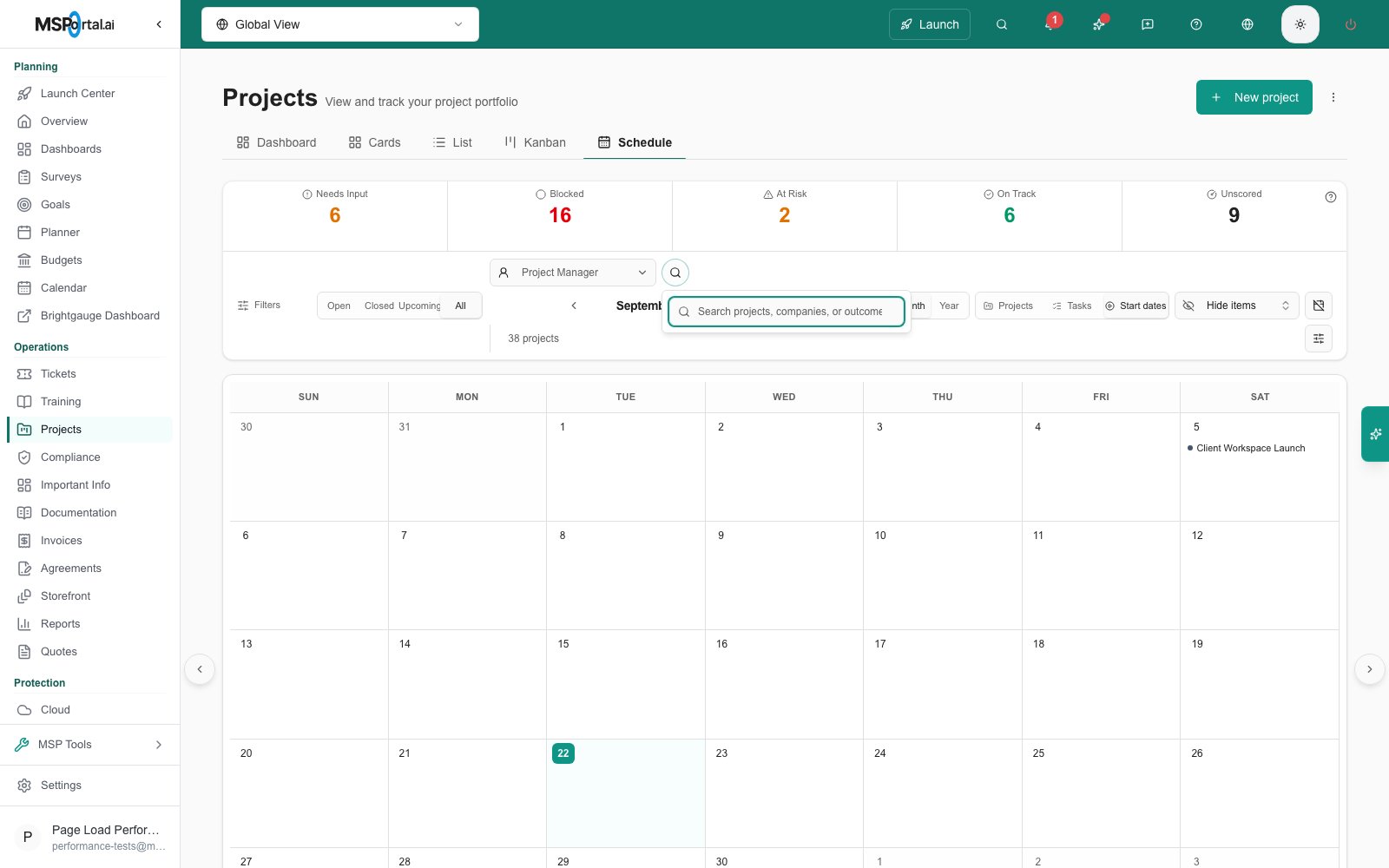
Click the search (magnifier) icon and type a project, company, or outcome. The icon turns teal while a search is active. Search does not look inside ticket descriptions or notes.
3
Set the project state and manager
Click Open, Closed, or All in the filter bar. MSP staff with the Project tracker also see Upcoming. Use Project Manager to pick one or more leads.
4
Pick staff
Click Staff and tick the people. The calendar keeps items assigned to any ticked person. Milestones and many project and phase spans have no assignee, so they disappear when you pick a person. The Staff list comes from the loaded items, not from your full user directory. When the Project tracker is on, use Project team member in Filters instead.
5
Use more filters
Click Filters to filter by Status, Health Status, Exclude company, and other fields. Click Apply Filters to use your choices. See Filter and sort projects.

Find work in a project’s Schedule tab
1
Open the tab
Open the project and click Project Plan, then Schedule.
2
Search
Type in Search events…. It matches item titles, owners, and company names.
3
Pick staff
Click Staff to keep items assigned to the people you tick.
4
Open more filters
Click the Filter icon for Project, Companies, and Assigned staff, then click Apply Filters. Closing the panel with X keeps your choices.
Hide or show all-day items
1
Open the Filters panel
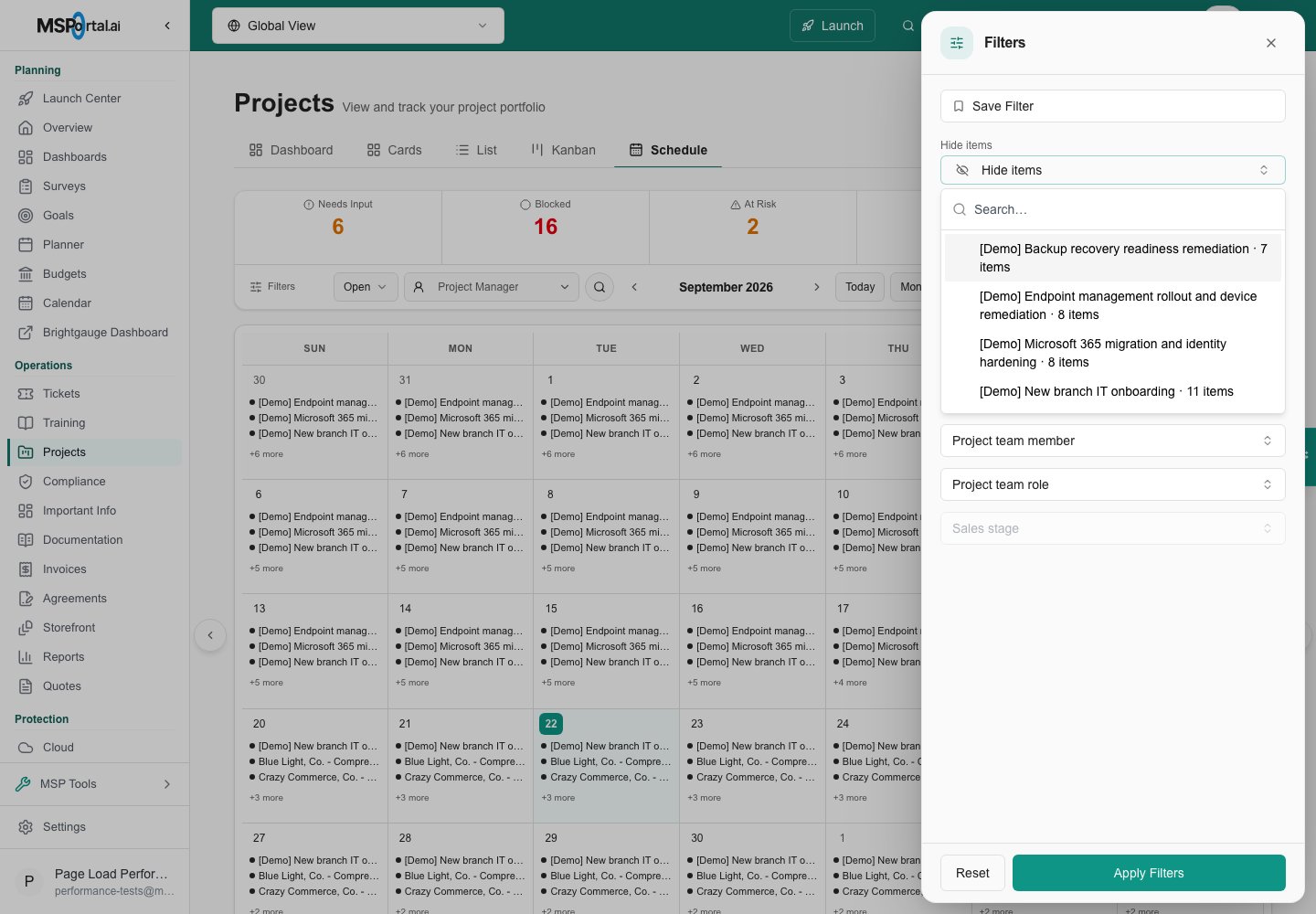
In Projects > Schedule, click Filters. In a project’s Schedule tab, use Hide items in the toolbar.
2
Turn all-day items on or off
In Projects > Schedule, use the Show all-day events switch. In a project’s Schedule tab, open Hide items and tick Hide all-day events. Project spans, phases, tasks, and milestones are all-day items. Timed service calls stay visible.
Hide items by title
1
Open Hide items
In Projects > Schedule, click Filters and find Hide items near the top. In a project’s Schedule tab, click Hide items in the toolbar.
2
Pick the titles
Tick a title to hide it. The change applies right away.
3
Show a title again
Open Hide items and untick the title. Hidden titles stay in the list even when they have no items in the current period.
Show weekends
1
Open the Filters panel
Use Week view. In Projects > Schedule, click Filters. In a project’s Schedule tab, click the Filter icon.
2
Turn on weekends
Turn on Enable Saturday / Sunday. Week view shows weekdays only until you do. Month view always shows the full week.
Save and reopen schedule filters
1
Set up the schedule
Choose the grouping, the calendar view, and your filters.
2
Save
Click Filters, then Save Filter (or Saved filters, then Save New Filter). Name it and click the check mark. Saving with an existing name replaces that filter.
3
Reopen
Click Filters, then Saved filters, then the name. It replaces your current choices.
- The Projects, Tasks, Start dates, Due dates, or Task due dates grouping
- The Day, Week, Month, or Year view
- The project state, search, health, manager, date, and custom-field filters
- Team roles, members, statuses, and sales stages
- All-day, weekend, and hidden-title choices
What clearing does
The schedule remembers its view in this browser. If you come back on the same day it can restore the date you were on. On a later day it opens on today but keeps your view.
Troubleshooting
Frequently asked questions
Does Hide items remove work for my company?
Does Hide items remove work for my company?
No. It is a display choice in your browser. It does not delete anything or change what clients see.
Can I search ticket history here?
Can I search ticket history here?
No. Search matches item titles and project, owner, and company text. Open the ticket for its history.
Do I need Apply Filters to keep a selection?
Do I need Apply Filters to keep a selection?
Hide items, the all-day switch, and the weekend switch apply as you change them. Other filters in the drawer apply when you click Apply Filters.
Why does the calendar open on a different month sometimes?
Why does the calendar open on a different month sometimes?
The view is remembered, and the date resumes only on the same day. Click Today to jump back at any time.