

Before you start
- You need the Schedule view permission for Projects.
- The calendar shows only items that have dates. Work without dates, or work your PSA has not synced, does not appear.
- Company users see the milestones their MSP shares. MSP staff see project spans, phases, tasks, milestones, and Autotask service calls. A single project’s own Schedule tab can show more dated work, as allowed by your MSP’s client display settings.
Move around the calendar
1
Open Schedule
Pick a company in the company selector, then open Projects and click Schedule.
2
Choose the period
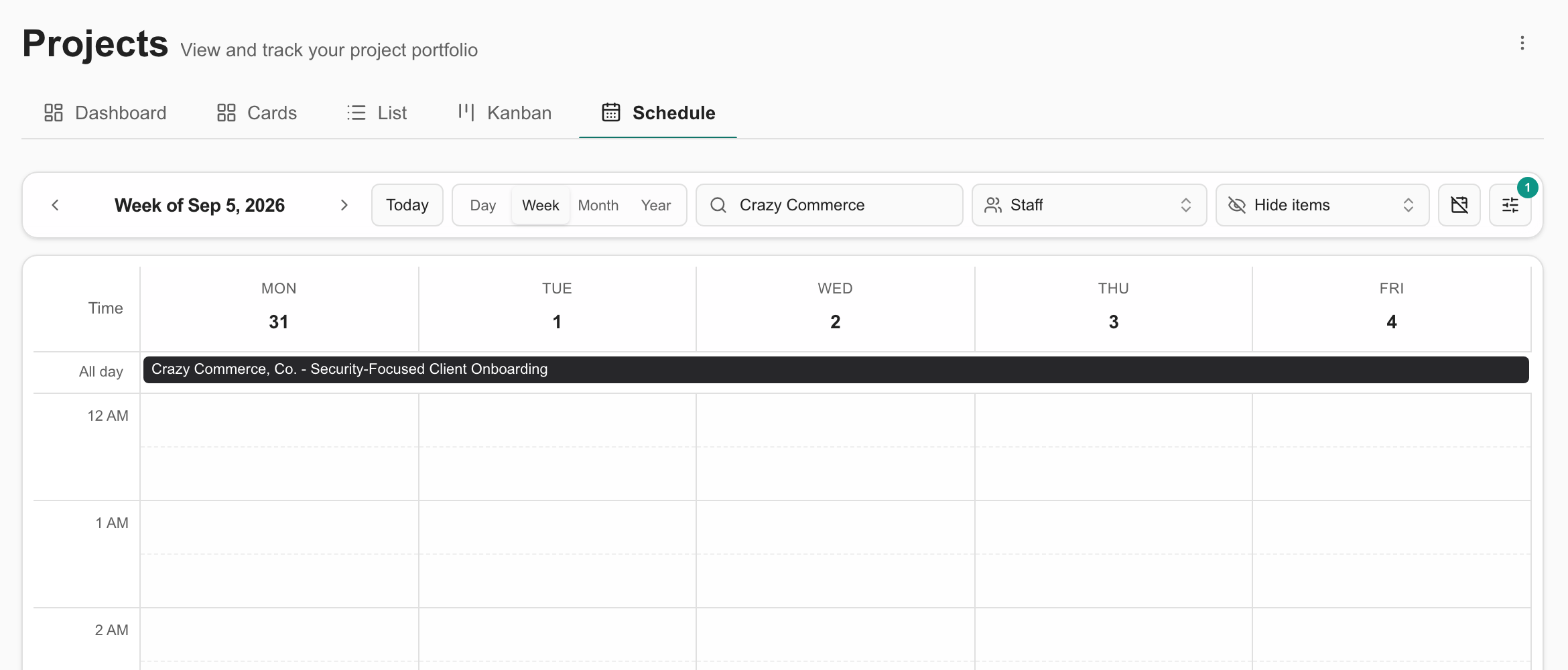
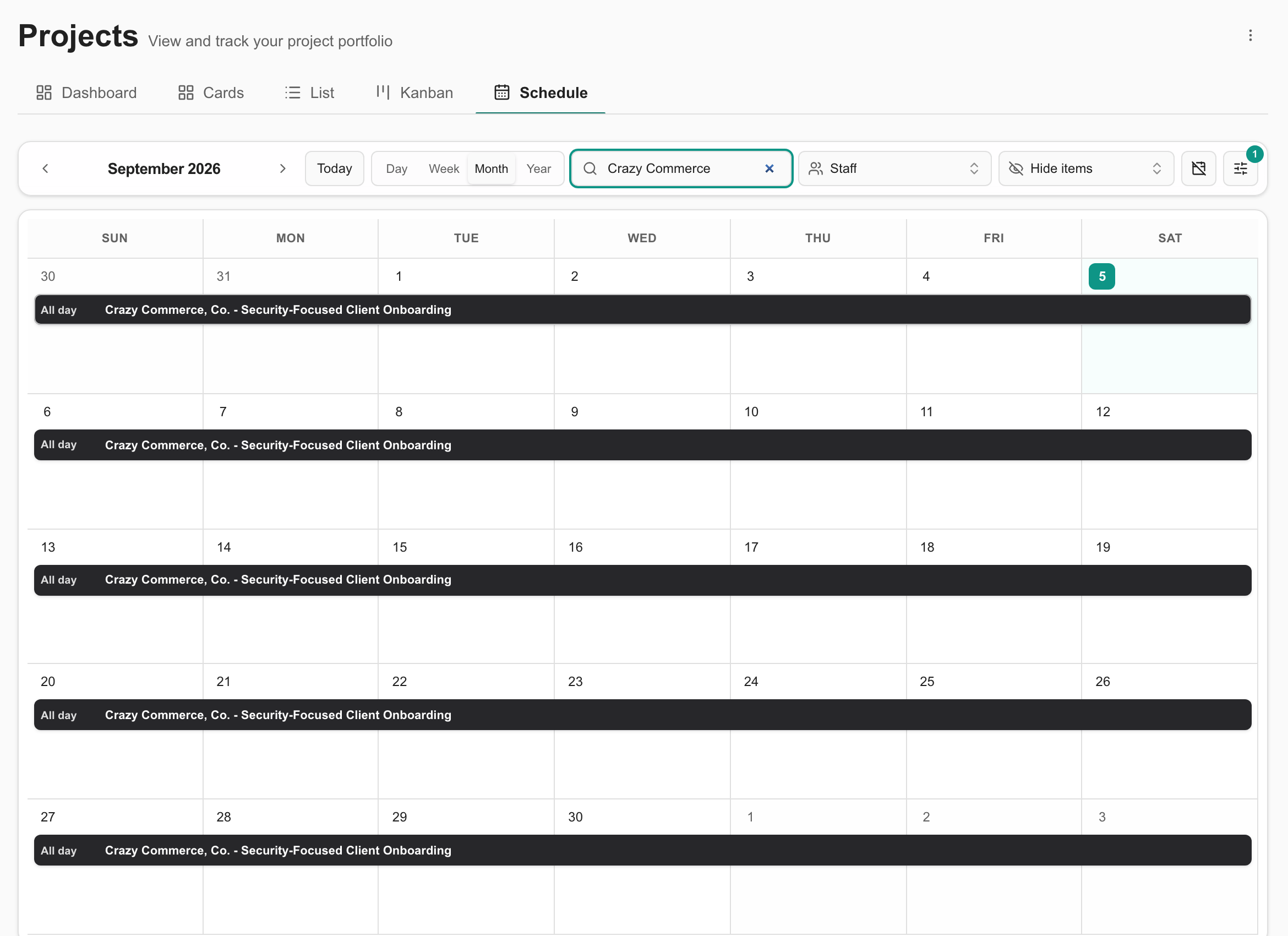
Click Day, Week, Month, or Year. Use the previous and next arrows to move one period, and click Today to jump back. You can also press the left and right arrow keys, and T for today.
3
Choose the grouping
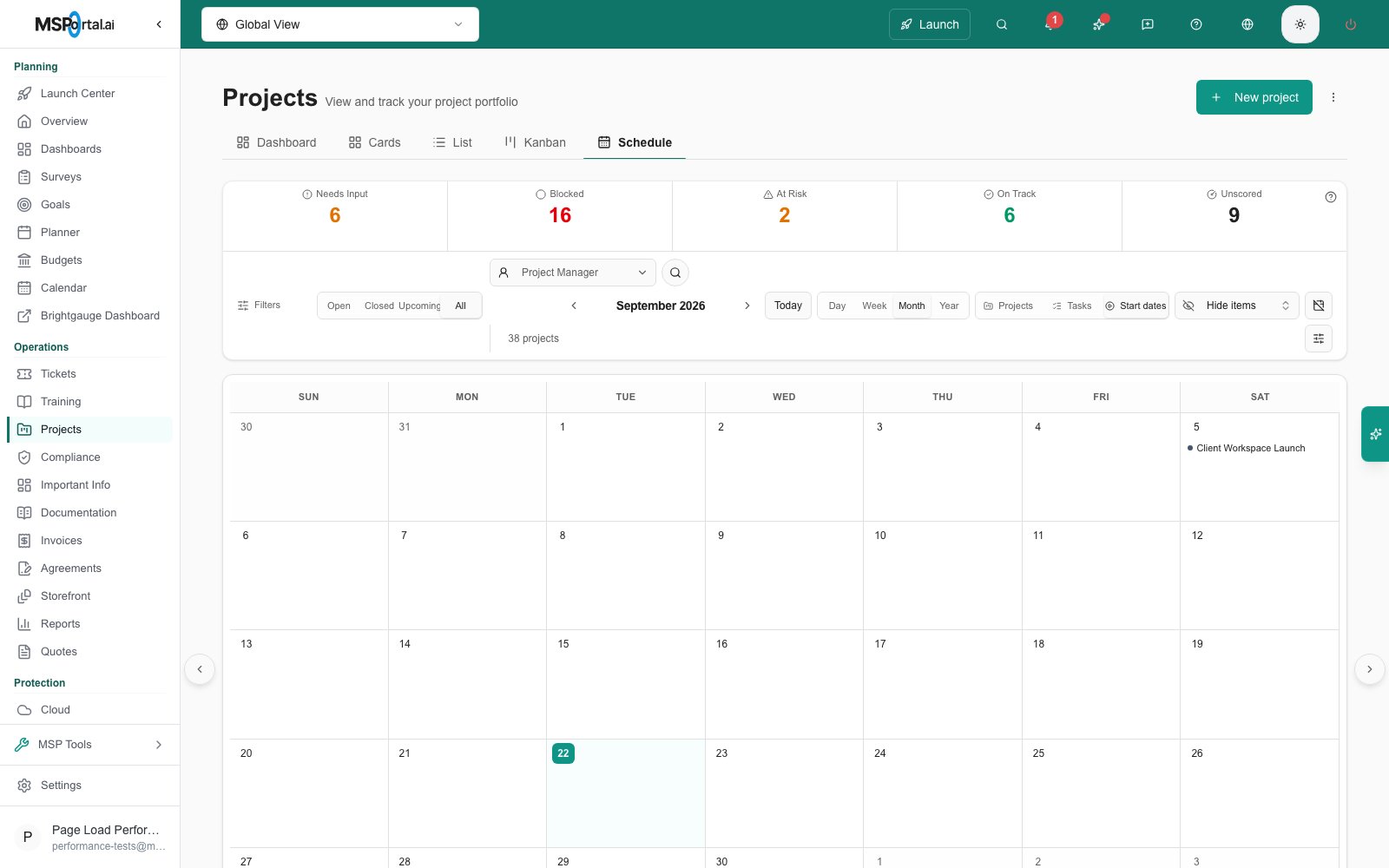
Click Projects, Tasks, Start dates, Due dates, or Task due dates in the toolbar. See Group the schedule.
4
Find the work
Click the search (magnifier) icon and type a project, company, or outcome. For more options, see Filter the project schedule.
5
Open an item
Click an item. Projects, phases, and milestones open the project, on the tab that holds the item. Tasks and Autotask service calls open the ticket details.
Group the schedule
Click Projects, Tasks, Start dates, Due dates, or Task due dates in the toolbar. Projects is the starting choice, and your browser remembers the one you pick.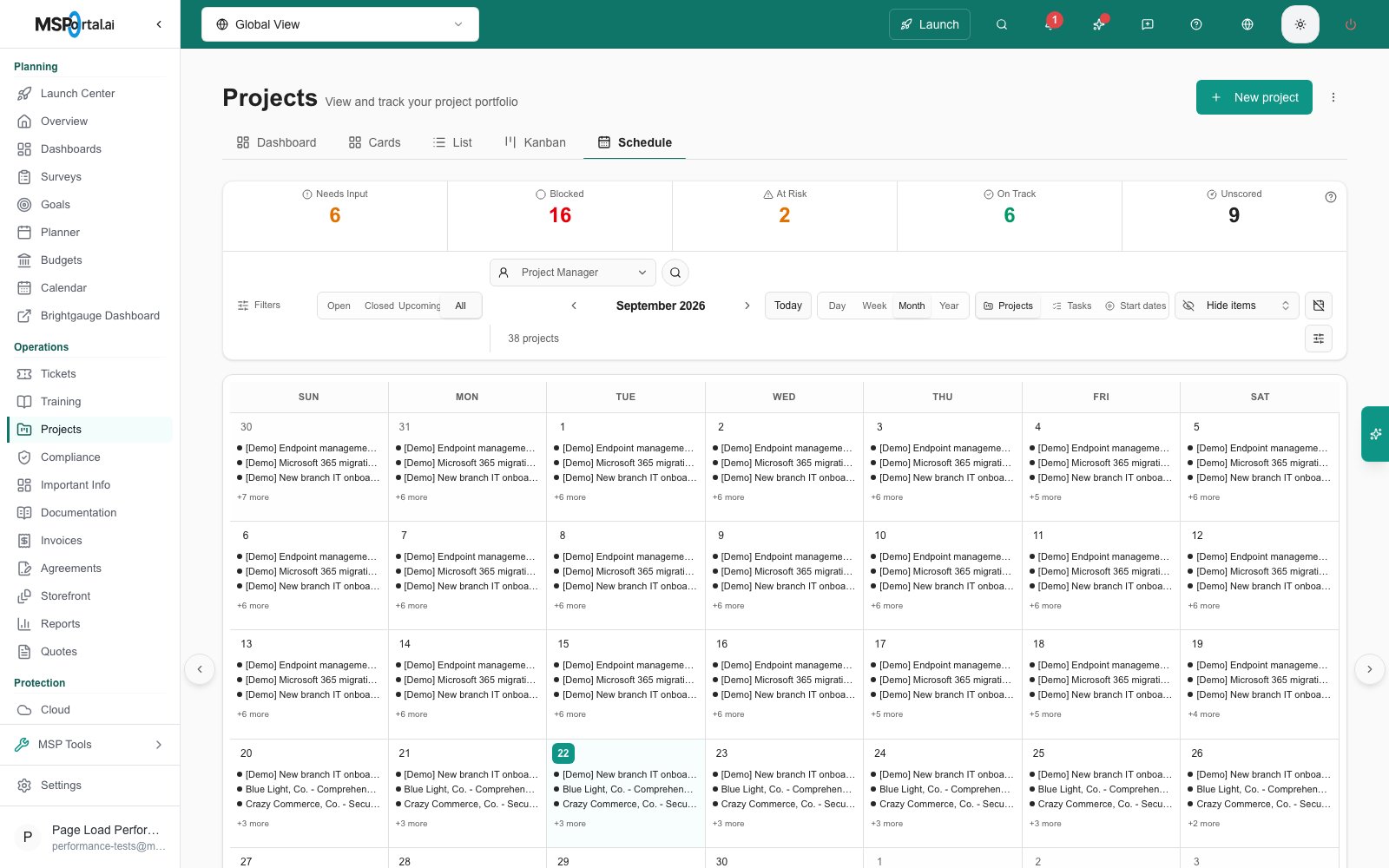
Reschedule an item
MSP staff can change dates from the calendar. Company users cannot, so they should ask their MSP.1
Switch to Tasks grouping
Click Tasks in the toolbar, so each item has its own line.
2
Open the item menu
In Month or Week view, click the … menu on the item and choose Reschedule.
3
Set the new dates
Check the item title. Set New date range, or New milestone date for a milestone.
4
Save
Click Save Changes. Check the new date on the calendar and in the item’s details. Click Cancel to leave the dates alone.
When the scheduling feature is on, Reschedule on a task opens Projects > Dispatch instead of the date dialog. The page opens with that task’s project in the Projects filter, the task open in the side sheet, and the board on the week of its start date. Change the dates there, then click Save. To book a technician on the task, use the Bookings section of the side sheet or drag the task onto a technician’s day; those bookings write to your PSA right away. See Plan a project schedule.
Review project teams and upcoming work (MSP staff)
Some ConnectWise portals have the Project tracker feature turned on.1
Filter by team
Click Filters and use Project team member and Project team role to find projects by who works on them. Use Status to narrow by project status.
2
Open a project's team
Click a project’s end marker on the calendar. Its title starts with Project ends. The Project team window shows the company, status, start and end dates, days until the end, and the people assigned. Click Open project for the full workspace.
3
Include upcoming work
In the filter bar, click Upcoming to see only upcoming work, or All to see it with open and closed projects. Use Sales stage in Filters to narrow it. You need planner read access.
4
Open an upcoming item
Click an Upcoming item on the calendar to see its company, opportunity type, sales stage, status, sales rep, date, and estimated revenue. Click Open item to go to it.
Troubleshooting
Frequently asked questions
Why can I see more on the calendar than a Company user?
Why can I see more on the calendar than a Company user?
Company users see shared milestones. MSP staff also see project spans, phases, tasks, and service calls.
Does a project date span mean a technician is booked?
Does a project date span mean a technician is booked?
No. A span shows planned dates. On this calendar, an Autotask service call is a timed booking. Projects > Dispatch shows ConnectWise schedule entries, Autotask service calls and Halo appointments by technician.
Does rescheduling a milestone change my PSA?
Does rescheduling a milestone change my PSA?
No. It changes the milestone’s planned date in MSPortal only.
Related guides
Projects
Return to the portfolio guide.
Project workspace
Review details and collaborate on a project.
Plan a project schedule
Plan tasks, owners, and dependencies on the Dispatch page.
Dispatch project work
See who is working on what by day and clear the Needs scheduling queue.