

Before you start
- You need project access and permission to edit project collaboration content (project overlay edit). General project-write or status-edit permission is not enough. Your subscription must also allow writes.
- Company users answer their own assigned items with Respond to project decisions and action items.
- Adding an item creates it at once, and edits save as you make them. There is no Save or Publish button. Write text that suits the project’s audience before you add it.
- The editor has no Client Visible switch for a single item.
Create a request
1
Open the right list
Open the project, click Collaboration, then Decisions for a decision or request, or Action Items for work to complete.
2
Add the item
Click the + button at the top of the list and choose Add Action (in Decisions) or Add Action Item (in Action Items). If the list is empty, click the button in the empty state. The item is created as Pending and opens on the right. Click All above the list if a filter hides it.
3
Describe the work
Replace the default Title and write a clear Description. In Decisions, pick a Type: Approval Required, Question, Access Needed, Scheduling, or Decision Required. Action Items are always the Action Item type and have no Type picker.
4
Set the date and owners
Pick a Due Date if you need one. In Assigned To, search for Company users or staff. The picker marks them Client or Staff. You can pick several people. Hidden user records are left out, and searching needs user-read access. Turn on Mark as Urgent to highlight pending work.
5
Check the saved item
Wait for text to finish saving, then click another item and back to check the title, description, date, and assignees. If you see a save error or someone else changed the same item, check it before you continue.
Check Company visibility
Project access and the source update decide what Company users see. Assigning only staff does not make a request private on a client-visible project. A decision linked to an internal weekly update can stay hidden from Company users even when you pick a Company assignee. Check Updates and the project’s visibility before you notify a Company user. Do not rely on assignment, or on not notifying, to control the audience.Notify assignees
Assigning someone does not notify them. After the assignment saves, use the Notifications panel in the item.1
Pick the channels
Tick In-App, Email, or both. In-App starts ticked and Email starts off.
2
Check who gets it
Review the assignees and the item text.
3
Notify
Click Notify Assignee or Notify Assignees. The panel then shows the result and Last notified. Delivery can work for some people or channels and fail for others.
Create a ticket from an action item
MSP staff can turn a pending action item into a project ticket, so the work is scheduled and tracked with the rest of the project. You need permission to edit project collaboration items, to edit projects, and to create tickets. Company users never see this control.1
Open the action item
Open the project, click Collaboration, then Action Items, and select a pending item that has no linked ticket.
2
Select Create ticket
Select Create ticket at the top of the item. The Create a ticket from this action item dialog opens and says where the ticket is created: your PSA (ConnectWise, Halo PSA or Autotask) for a PSA project, or MSPortal for an MSPortal project.
3
Review the ticket
Check Ticket summary, which starts as the item’s title, and choose a Phase. The phase starts as the item’s linked phase, otherwise a Priority work phase, which is created when the project has none. ConnectWise project tickets always need a phase. For a PSA ticket, Priority comes from your PSA project ticket defaults; an MSPortal ticket for an item marked urgent is High. Due date comes from the item.
4
Choose who sees the ticket
Leave Show this ticket to the client off to keep the ticket internal. Company users still see the action item and its status either way; they see the ticket number only when the ticket is shown to them.
5
Create it
Select Create ticket. “Ticket #N created” confirms it. The item’s Linked ticket shows the new ticket number, and Complete when the ticket closes is on.
- It writes to your PSA at once. Selecting Create ticket twice, or from two browser tabs, still creates one ticket.
- A ticket is never created twice. If the ticket was created but could not be linked, for example because MSPortal had not synced it yet, the item shows Link ticket #N instead of Create ticket. Select it to link that ticket; nothing new is created in your PSA.
- PSA defaults must be set. Board, status, priority and type come from Settings > Projects > Client Portals > PSA projects. See Set PSA defaults for portals. When they are missing, the dialog says so and Create ticket stays unavailable.
- The item completes when the ticket closes. The item shows when it completed and which ticket closed, for example Completed Oct 13, 2026, 6:01 PM when ticket #N closed. MSPortal tickets complete the item at once. PSA tickets are read on the next project sync. ConnectWise, Autotask, and Halo PSA project status syncs are scheduled every 15 minutes; completion appears after the sync finishes. Queues, retries, or a paused integration can delay the update.
- Reopening the ticket reopens the item. An item the ticket completed goes back to Pending and loses its completion details when the ticket reopens. It completes again when the ticket next closes. An item a person completed stays completed.
- You can turn completion off. Turn off Complete when the ticket closes to complete the item yourself. The switch appears on every action item with a linked ticket, including one you linked by hand. Turning it on for a ticket that is already closed completes the item immediately. Turning it off returns an item the ticket completed to Pending.
- Unlinking leaves the ticket alone. Choose No ticket under Linked ticket to unlink. MSPortal never closes or deletes the ticket, and completing the item writes nothing back to the PSA. Unlinking, or linking a different ticket, returns an item the ticket completed to Pending. After unlinking, you can create another ticket from the item.
Completion, cancellation, and removal
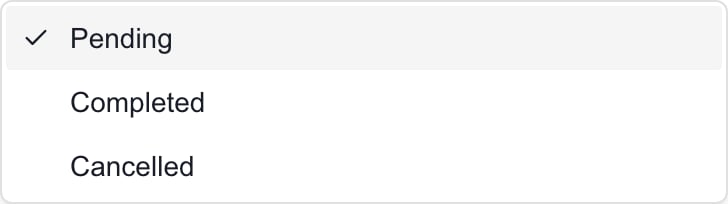
An assigned person completes an item with the action button at the top of the item (for example Approve or Answer). One assignee completing it resolves it for everyone. Questions need text. See the response guide. You can also set Status to Completed or Cancelled yourself. That is an admin change, not proof that an assignee approved. A completed item shows Response and completion details. If you set a completed item back to Pending, its completion date and who completed it are cleared, and Create ticket is offered again for an action item without a linked ticket. Any earlier Response stays, so check it before you treat the item as new.1
Find cancelled items
Click All above the list. Done shows completed items only.
2
Delete an item
Click the item, click Delete at the top, and confirm. There is no undo. If you see an error, check the list to see what was actually saved.
Decisions linked to weekly updates
Updates > Decisions Needed and the Decisions register are connected. New pending Decision Required or Approval Required items can be added to the latest existing update, or linked to an existing matching decision. Questions, access requests, scheduling requests, and Action Items do not automatically follow that same new-decision behavior. Changing or resolving a linked decision can change or remove matching Decisions Needed text. Matching uses the decision title, so repeated titles in different updates change together. Check Updates after you rename, complete, cancel, or delete a linked decision. Give different decisions different titles. These items live in MSPortal. A linked phase or ticket is only context. Editing or completing a request never edits or closes the PSA record. The reverse is possible: an action item with Complete when the ticket closes turned on completes when its ticket closes.Troubleshooting
Frequently asked questions
Does Add Action open an unsaved draft?
Does Add Action open an unsaved draft?
No. It creates a pending item at once, and edits save as you type. Check the project and audience first. There is no Publish step.
Will assigning a user send an email?
Will assigning a user send an email?
No. Pick the channels and click Notify Assignee after the assignment saves. Email starts off.
Why can I edit project status but not add an action?
Why can I edit project status but not add an action?
Editing decisions and action items has its own permission. Ask an admin to review your role.
Can I keep an item private by assigning only staff?
Can I keep an item private by assigning only staff?
No. Assignment does not control the audience. Check the project’s visibility and any linked weekly update. There is no per-item visibility switch.
Why did a decision also appear in Updates?
Why did a decision also appear in Updates?
Pending decisions and approvals stay in sync with Decisions Needed in a weekly update. Check both after you edit or resolve them, especially with repeated titles.
Why is an action item still pending after its ticket closed?
Why is an action item still pending after its ticket closed?
PSA tickets are read on the next project sync, scheduled every 15 minutes for ConnectWise, Autotask, and Halo PSA. Allow time for the sync to finish, and check the integration status if the item still has not updated. Also check that Complete when the ticket closes is on and that the closed ticket is the one under Linked ticket. Items that are already completed or cancelled are left as they are.
Does marking an item Completed prove the client approved it?
Does marking an item Completed prove the client approved it?
No. An MSP editor can set Status directly. Check the saved response and completion details, and use the assigned person’s response when you need their confirmation.