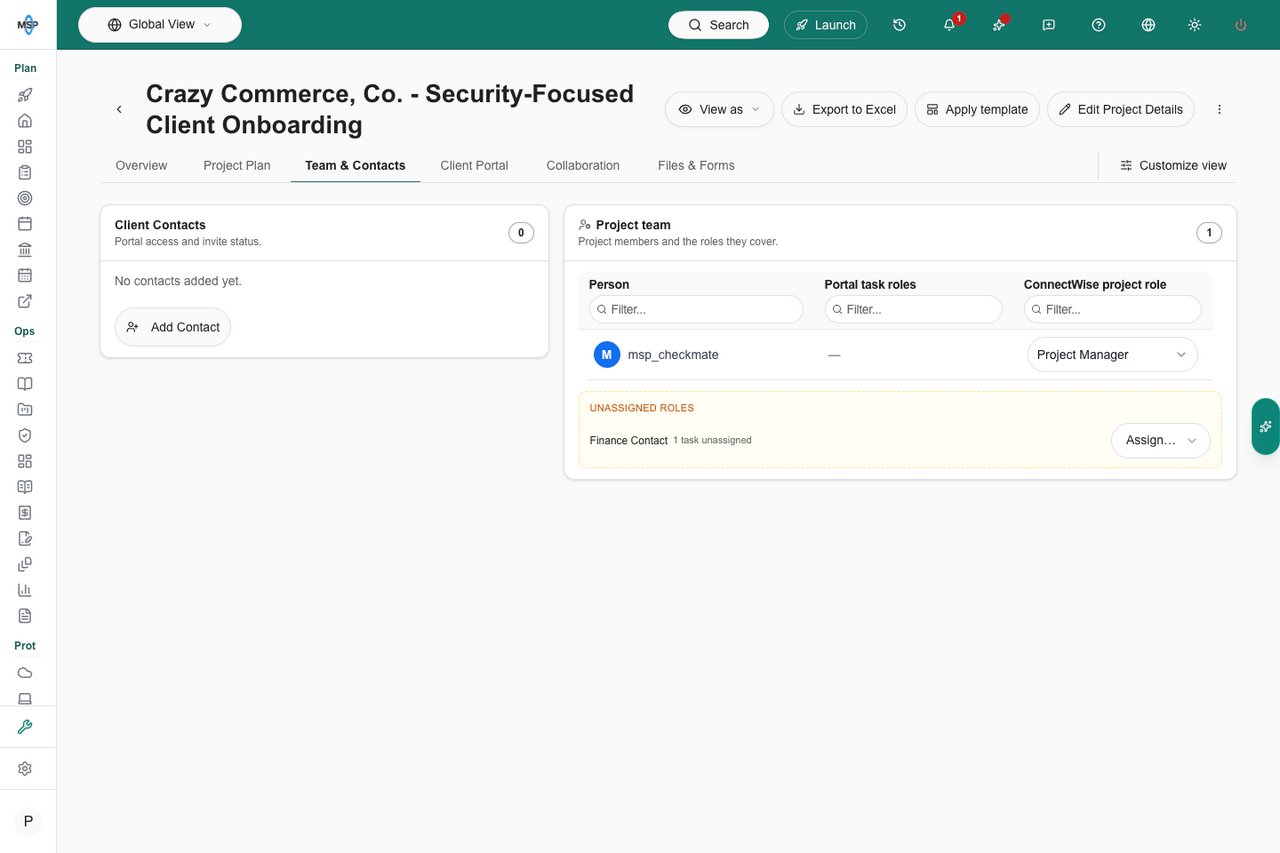
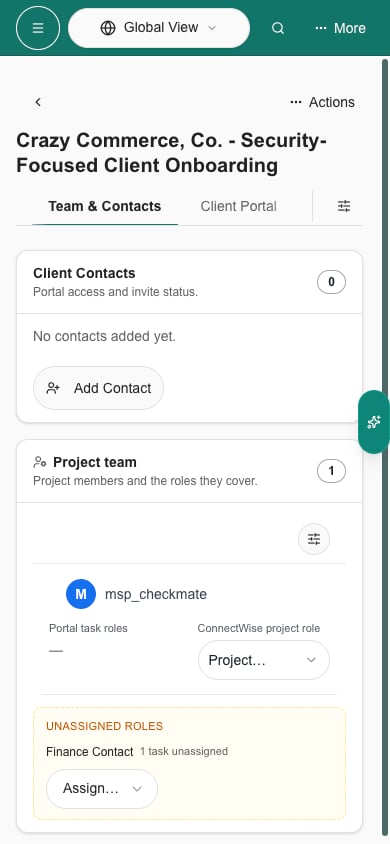
Find a team assignment
1
Check the project
Confirm the project and Company before reading the team. Project team identifies this view; Live from ConnectWise describes where the assignments are loaded from.
2
Read the assignment row
Person shows the member name and available profile information. Project role, Work role, Hours, and Status describe the assignment. One person can have more than one assignment row.
3
Filter the table
Use the Person text filter to search a name, member identifier, or email. Use Project role, Work role, or Status to select matching values, or Hours to narrow the assigned-hour range. Clear filters before concluding that someone is missing.
4
Check the other pages and columns
Use Rows per page for 25, 50, or 100 rows, and Previous or Next when another page exists. Open Columns to make Department, Start date, and End date visible. On a narrow screen, scroll the table horizontally to reach additional columns.
Understand the totals
The summary cards describe the full loaded team and do not recalculate when you filter the table or move between pages. The row count can exceed People when a person has several assignments.
Not assigned in Hours means no hours value was supplied for that row. It is different from an explicit zero-hour assignment, even though both contribute zero to the summary. A zero Hours filter can include rows without a supplied value.
Interpret Status and dates
Status is an assignment/profile indicator, not the project’s status or evidence that someone is currently working on it. Missing or unavailable profile information can limit the inactive indicator. Start date and End date are separate assignment fields; their filters do not represent all work scheduled between them.
Choose your columns
Open Columns. Use the eye control to show or hide an optional column and the grip to change its order. Person is required. Department, Start date, and End date are hidden by default. This capture shows the MSP column panel. It contains display controls only; it does not edit project assignments. Select Save Changes to apply your display preferences. Cancel or closing the panel discards changes in that panel. Reset prepares the default order and visibility; you still need Save Changes to apply them. These preferences affect your table display, not a technician’s assignment or access permissions.Freshness and missing information
Team assignments are requested from ConnectWise when the view loads new data. Member email, title, department, photo, and disabled state can come from the synchronized member profile. They can therefore have different freshness from the assignment itself. Live from ConnectWise does not mean every field continuously refreshes; the view can reuse a recent loaded result.- No project team assigned means no assignment rows were returned for this view. Check the project’s team in ConnectWise. Filtering an existing team to no matches can also show an empty table; clear filters first.
- Project team unavailable means loading failed. It does not prove there is no team. Ask an MSP administrator to check project access and the ConnectWise connection, then reopen the view after the issue is resolved.
- Missing profile details do not necessarily remove the assignment. Verify the member sync and source record if an email, department, or title is absent.
FAQs
Why is Team missing from my project?
Team is an MSP-only tab for ConnectWise projects. Company users and other project providers do not receive this view. Ask your MSP about the appropriate contact or staffing information.
Can I add or remove a team member here?
No. Update the project’s team in ConnectWise, then check the portal after fresh data loads. The Team table does not create users or grant portal permissions.
Why are there more rows than People?
Rows represent assignments. The same person can hold several assignments, while People counts that person once.
Does Assigned hours tell me how long the team worked?
No. It totals assigned effort. Use the appropriate project or ticket time information for recorded work; do not interpret assigned hours as billable time or completion.
Why do the summary cards stay the same after filtering?
They describe the full loaded team, including rows outside the current filter or page. Table filters change the displayed assignments only.
Does Inactive mean the project or assignment is completed?
No. It reflects a member profile marked disabled. Ended is a separate date-based indicator; neither completes the project or its tickets.
Where are the assignment dates and department?
Open Columns, show Start date, End date, or Department, then Save Changes. They are hidden by default. On smaller screens, scroll the table horizontally.
Does a project role give someone portal access?
No. A ConnectWise Project role describes their project assignment. MSP administrators manage portal users and permissions separately.