

Before you start
- You need permission to edit project collaboration content (project overlay edit).
- Company users read shared deliverables and files. They cannot edit them.
- Deliverables live in MSPortal. Editing one does not change a PSA ticket, upload a file, or record a client’s formal approval.
Create an output
1
Open Deliverables
Open Projects, click the project, then click Project Plan and Deliverables.
2
Add the deliverable
Click the + button at the top of the list and choose New Deliverable. If the list is empty, click New Deliverable in the empty state. It is saved at once as Planned, with Client Visible off, and opens on the right.
3
Describe the output
Replace Title with a clear name and add a Description if you want. Text saves after a short pause. There is no Save button, and closing the editor does not discard the deliverable.
4
Set status and dates
Pick Planned, In Progress, In Review, or Complete.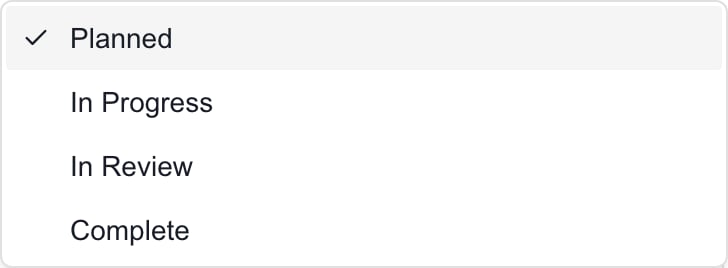
5
Choose the audience
Keep Client Visible off while you prepare internal content. Turn it on when the deliverable is ready for Company users who can access the project. This shares its title, description, and status. Each document needs its own Share with client switch.
6
Check the saved result
Click another deliverable and then back, or reopen the project, to check what saved. Clear Search if the deliverable is not listed.
Reorder and delete
1
Reorder
Drag a deliverable by its grip handle. Reordering is off while a search is active. It changes the list order, not due dates.
2
Delete
Click the deliverable, click Delete at the top, and confirm. This removes the deliverable and access to the documents attached to it. To remove a single file, use that file’s Delete instead. Copies people already downloaded cannot be taken back.
Troubleshooting
Frequently asked questions
Can I cancel a new deliverable by closing the editor?
Can I cancel a new deliverable by closing the editor?
No. New Deliverable saves the default record at once. Finish it or delete it.
Is In Review a request for client approval?
Is In Review a request for client approval?
No. It is only a status. Create a request in Decisions when you need a recorded answer.
Does Complete fill in the completion date?
Does Complete fill in the completion date?
No. Set Status and Completion Date separately.
Does deleting a deliverable delete its linked PSA ticket?
Does deleting a deliverable delete its linked PSA ticket?
No. It removes only the output and access to the files attached to it.