

Before you start
- Project AI appears on a project when AI is enabled for your portal and you have project read access. Company users see it only when client AI is enabled.
- Only MSP staff with a project write permission can apply changes. Everyone else gets a read-only assistant that answers questions.
- Reports and meetings need a selected company.
Ask Project AI about a project
1
Open the project
Open Projects and select the project.
2
Open Project AI
Click Open Project AI, the button at the right edge of the project page. The panel opens on the right and shows the project name and the tab you are on.
3
Ask a question or pick a quick prompt
Type in the box that reads Ask about this project or propose a change…, or click a prompt under Start with. Read-only users see Summarize health and Review tickets. Users who can write also see Draft update, Draft actions, Draft deliverables, Draft milestone, Draft decision, Generate details, and Organize tickets.
4
Read the answer
The assistant uses details from every project tab, tickets, time entries, and notes that your account can see.
Draft and apply a weekly update
1
Ask for the draft
In Project AI, click Draft update, or type a request such as “Draft a weekly update for the week of Monday using the latest tickets, time entries, and notes.”
2
Open the proposal
The panel switches to Review changes and shows a Proposed change card with the week, summary, completed work, next steps, risks, and whether it is client visible. If you went back to the chat, click Review changes to return.
3
Check the details
Confirm Client Visible is what you want. Weekly update proposals can come back client visible.
4
Apply or discard
Click Apply to save the update, or Discard to drop it. The card then reads Applied or Discarded. To get a different version, ask Project AI to adjust it.
5
Confirm the saved update
Open the Updates tab and check the new entry.
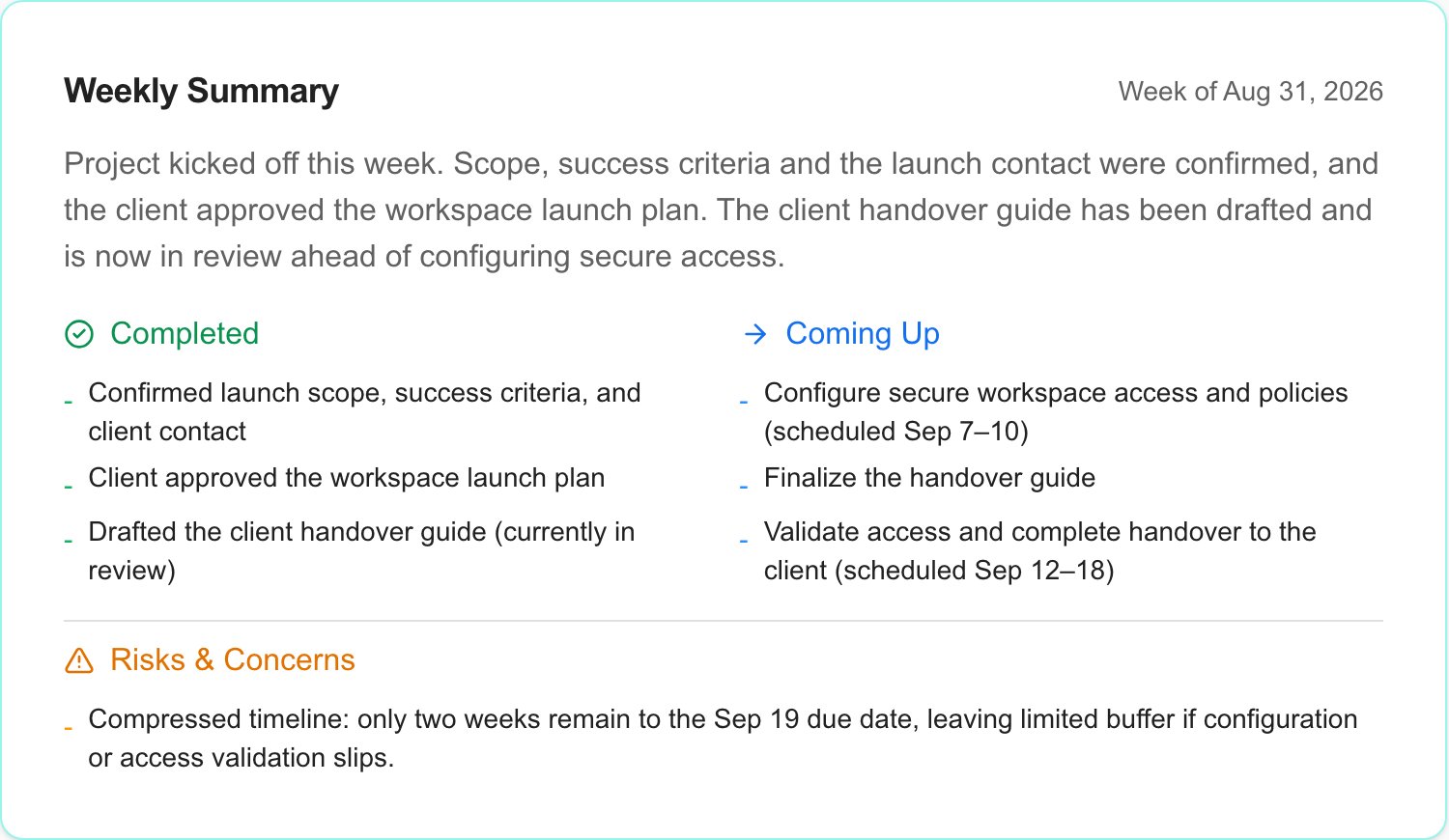
A reviewed AI draft saved to the walkthrough project.
Connect an external AI tool through MCP
1
Open MCP Server settings
Open Settings > MCP Server and follow the MCP Server guide to connect your AI client.
2
Ask for project work
In your AI client, ask for a project task, such as “Find the Acme network refresh project and propose a weekly update.”
3
Review the proposal before confirming
Project write tools stage a proposal first. Read the target and the changes, then confirm in your AI client.
4
Check the result in MSPortal
Open the project and look in the matching tab, such as Updates.
Document uploads are internal by default and stay staff-only until you share them on purpose. Files up to 3 MB can be sent in one call; larger files up to 10 MiB use a signed upload link: prepare the upload, send the file, then finalize it, confirming each step. Uploading with an existing document’s ID and current version adds a new version, keeps the document ID and its deliverable links, and withdraws earlier client shares. Version history is visible to MSP staff only. Project AI can also list folder documents and their versions, and propose restores and sharing changes as review cards.
MCP does not create native projects, design templates, add and delete native phases and tickets, or delete documents. Use the app for those. See the MCP tool reference for the full catalog.
Add project blocks to a QBR report
1
Select the company
Pick the company in the company selector at the top of the app.
2
Open the report builder
Open Reports, click New Report, and choose Builder. To change an existing report, open it instead.
3
Add a project block
Add the block that answers the client’s question.
4
Set the block options
Pick the project where the block has a project selector, set the date range, and turn on Include Closed Projects where it is offered.
5
Save the report
Save the report, then check the output before you share it. See Reporting for sharing and delivery.
Add a project to a meeting agenda
1
Open the meeting
Open the company meeting. If you are creating a new meeting, make sure the company shows in Select company before you save the draft.
2
Add an agenda item
Click Add Item and choose Project.
3
Pick the project
Search for the project, select it, and click Add Selected. The project appears in the agenda.
4
Preview the project slide
Click Present and move through the slides to check what participants will see. The project view shows health, dates, milestones, outcome, and client actions that are waiting.
Troubleshooting
Frequently asked questions
Does Project AI change my project on its own?
Does Project AI change my project on its own?
No. Every change appears as a Proposed change card. Nothing is saved until you click Apply.
Can a company user apply AI changes?
Can a company user apply AI changes?
No. Company users get a read-only assistant, and only when client AI is enabled.
Does a client-visible update send an email?
Does a client-visible update send an email?
No. Client Visible controls what the client sees in the portal. It does not send a message.
Can MCP create a native project?
Can MCP create a native project?
No. Create native projects in the app. See Native Projects.
Related guides
Native Projects
Follow the full creation-to-closeout workflow.
Project workspace
Use the project’s delivery and collaboration tabs.