

Before you start
- You need MSP staff access with the Projects Schedule view permission, and the scheduling feature must be enabled for your portal. Without both, the Dispatch tab does not appear. Company users never see it.
- Changing dates or people also needs project write permission. Without it, the board, the queue and the task editor are read-only, and Smart Schedule and Schedule settings… do not appear.
- The board follows the company selector. Pick a company, or Global View, before you open it. Only open projects load. When you arrive from a project or a task, that project is loaded whatever the selector says.
- Bookings and busy time come from ConnectWise. Autotask service calls and Halo appointments are not on the board.
- Bookings need a role that can see every appointment. If yours cannot, the board says ConnectWise bookings are hidden because your role cannot see every appointment. Task dates and owners still show.
Open the page
From the Projects header
From a project
From a task on a calendar
- Desktop
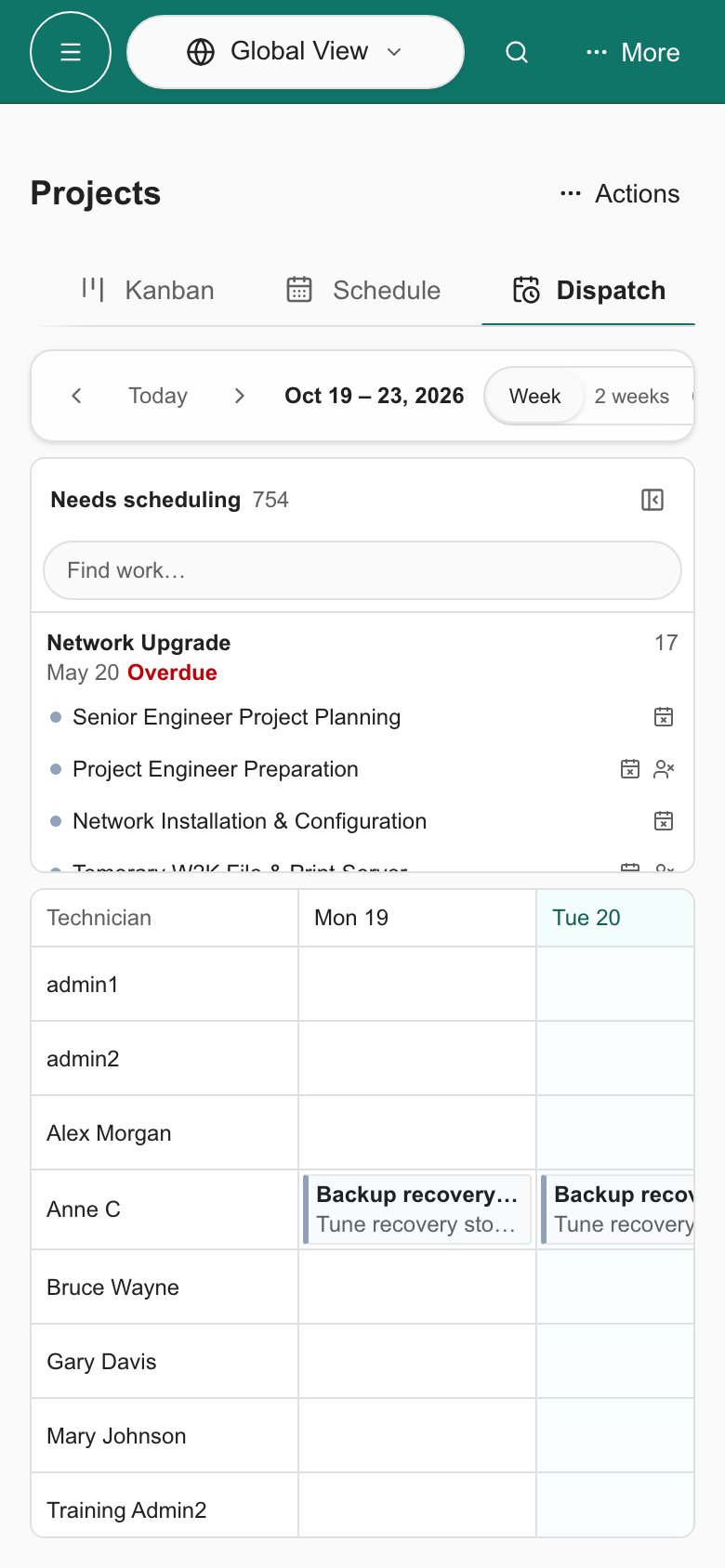
- Phone
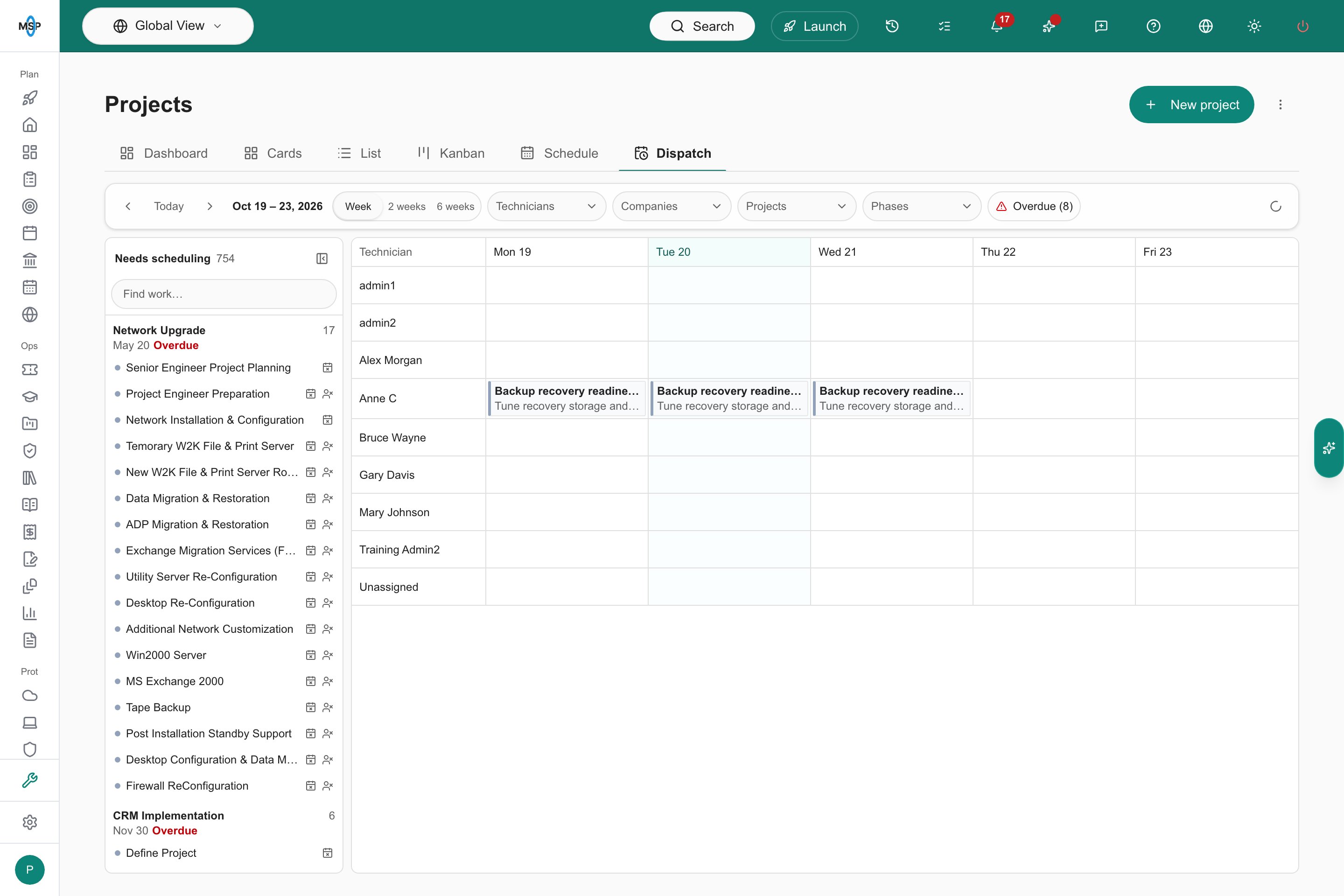
The Dispatch page on a Demo portal, with the Needs scheduling queue beside one week of technicians and days.
Use the toolbar
Everything sits in one row. On a phone the row scrolls sideways.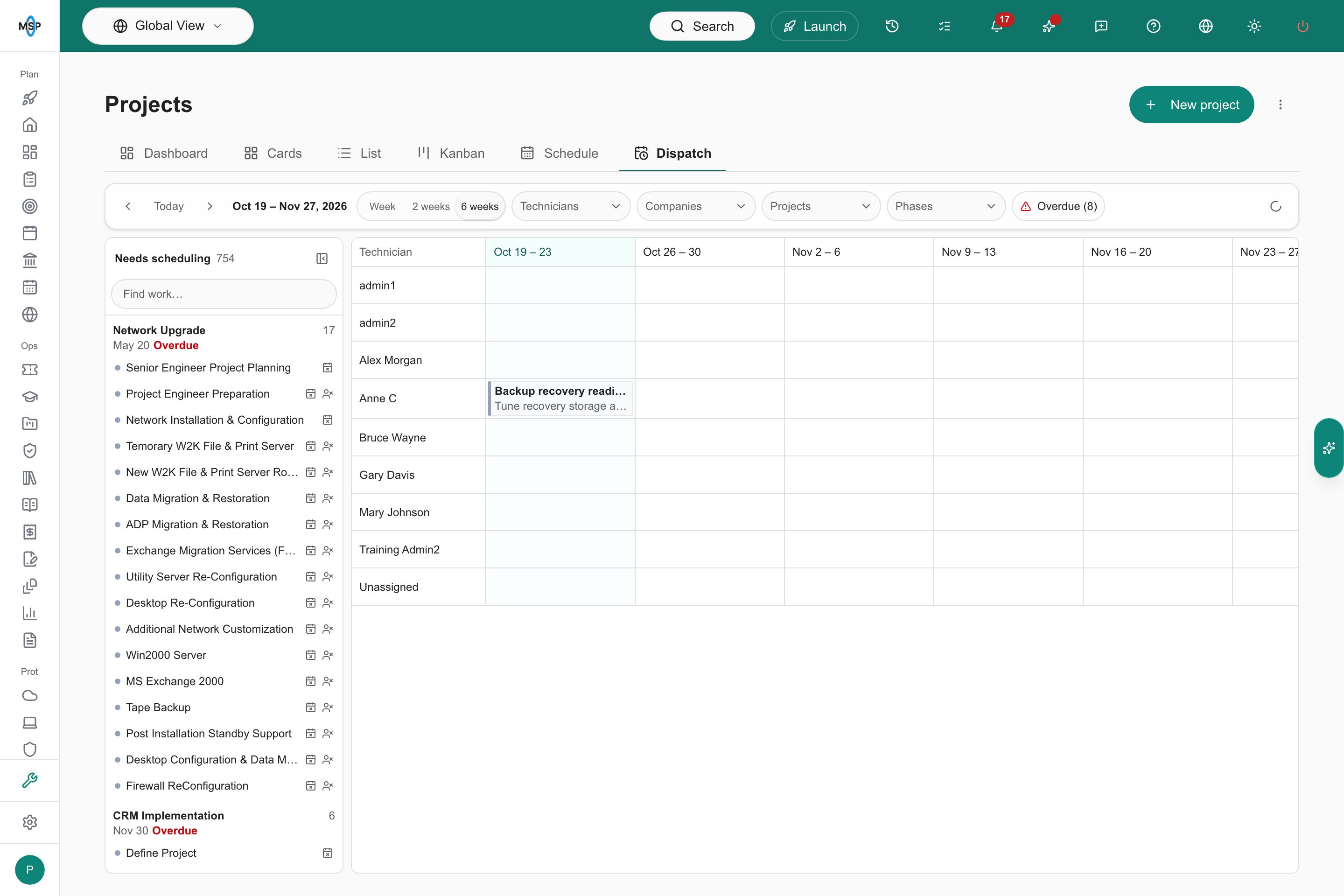
The 6 weeks range shows one column per week.
Read the board
Each row is one technician. The rows cover every task owner, everyone with a booking or busy time in the visible range, and the team of the project you are editing. A ConnectWise member who is listed in a ticket’s Resources but has no portal login still gets a row, under their ConnectWise identifier. Dated work with nobody on it sits on an Unassigned row at the bottom. Each column is one working day, or one week when the range is 6 weeks. Today is highlighted and a heavier line marks each new week. Each cell lists that person’s work for the day. Every chip has two lines. The first is the company, or the project name when the project has no company. The second is the project name, then the ticket number and title, for exampleServer refresh · #12345 Install firewall. Hover a chip to see the company, project, ticket, status, hours and source. Chips are coloured by ticket status, so a ticket still marked Need to Schedule stands out even once it is booked.
Open a task
Click any chip or queue row to open that task in a side sheet, where you set the dates, Assigned person and dependencies. The editor is the same as in the other views; see Use the task editor.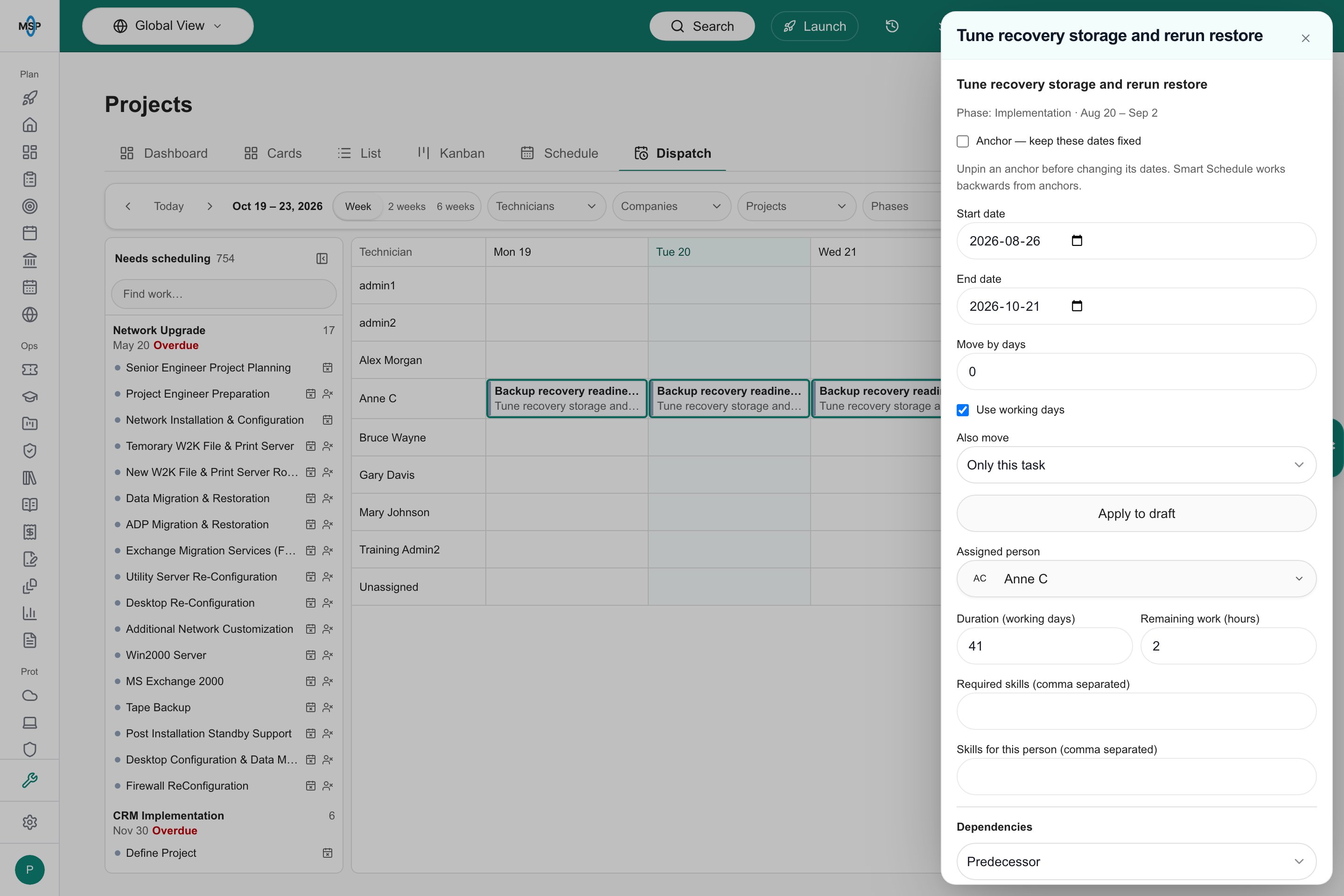
A task open in the side sheet, with the board still visible behind it.
Clear the Needs scheduling queue
Needs scheduling lists open work in scope that still has no date, no booking or no technician. It sits beside the board as a rail. Click Hide queue to collapse it to a narrow strip that shows only the count, and Show queue to bring it back. The queue is grouped by project and sorted by project due date, with undated projects last. Each group shows the project name, the number of tasks, the company, its due date or No due date, and Overdue in red when the project is past its due date. Each row is one line with the task’s status colour, the ticket number and title, and an icon for what is missing. A calendar icon with a cross means No date. A person icon with a cross means No technician. A row can show both. Hover a row for the status, the assigned person and the hours. Type in Find work… to filter the rows by task title, ticket number, project or company. A ConnectWise booking on or after today counts as both a date and a technician, so booked work leaves the queue even when the ticket’s own dates and Owner are empty. When nothing is left, the queue reads Every open task in this scope has a date and a technician. The Technicians filter keeps queue work assigned to those people, plus work with no technician. Companies, Projects, Phases and Overdue (N) narrow the queue the same way they narrow the board. On a phone the queue sits above the board.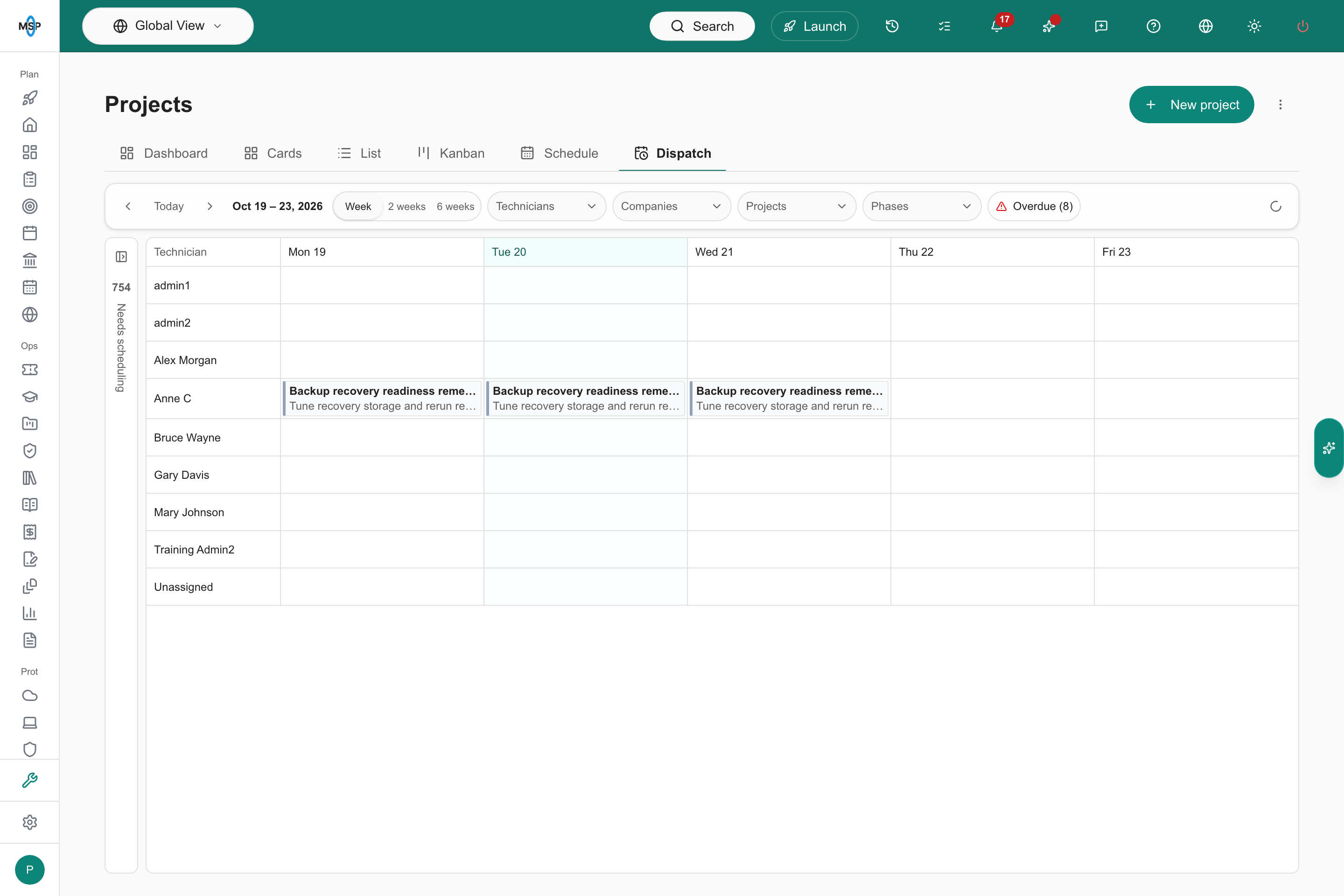
With the queue collapsed, a narrow strip shows the count and the board gets the width.
Set real project dates in ConnectWise
The queue sorts by each project’s Estimated End, which is its due date in MSPortal, and flags Overdue from it. When a project manager creates a project in ConnectWise, set a real Estimated Start and Estimated End instead of keeping the dates ConnectWise fills in. Placeholder dates push the project to the wrong place in the queue, and a project can show Overdue or No due date when it should not.Date and assign work by dragging
Drag a queue row or a chip onto a technician’s day. The task starts on that day and keeps its duration in working days. You can drag work from any project you can edit.- When the person is on the project team, the task is assigned to them.
- When they are not, the dates are set, the assigned person is left unchanged, and a one-line notice says so.
- Drop onto the Unassigned row to date the work and clear its person.
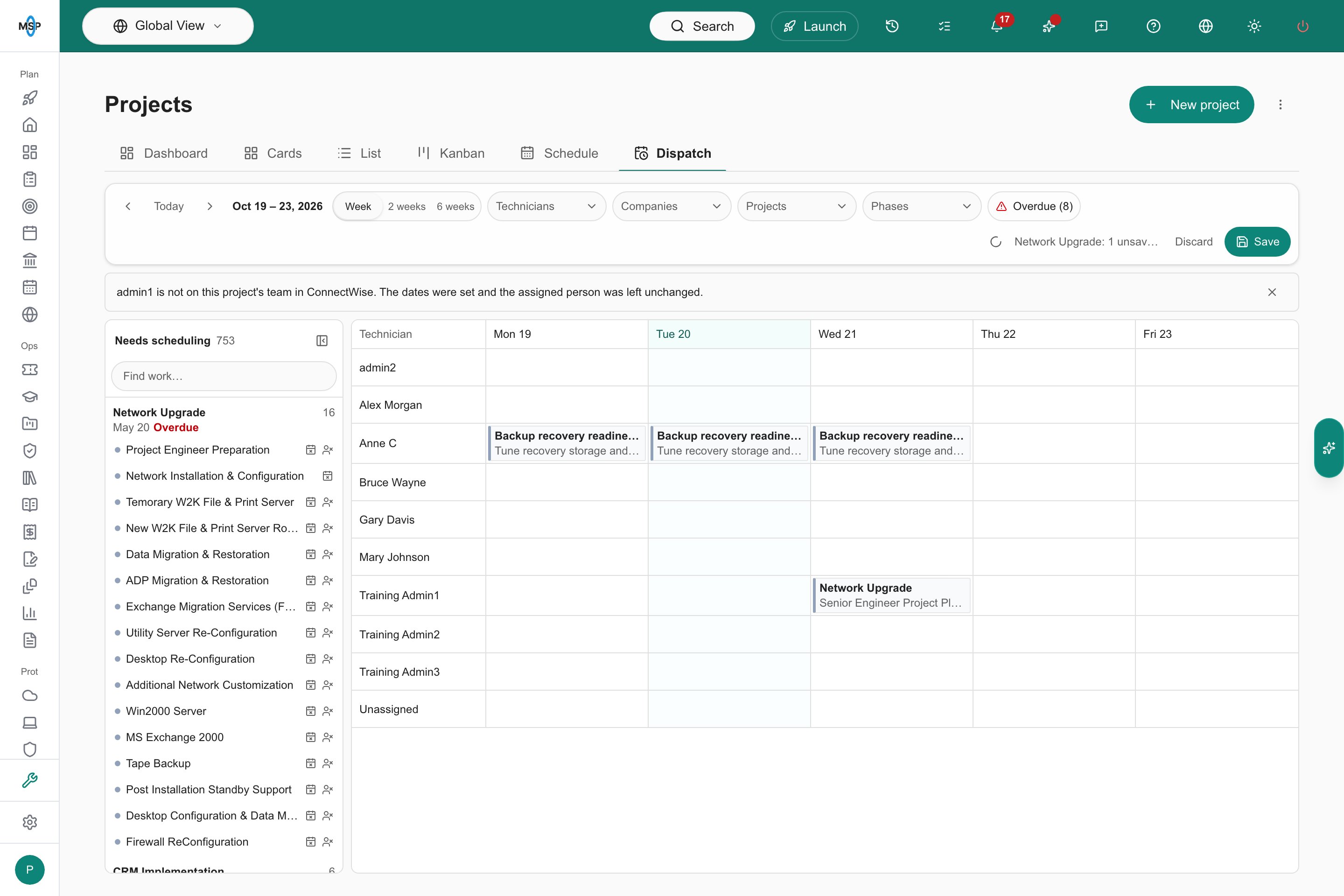
After a drop, the toolbar shows the unsaved change with Discard and Save. A notice appears when the technician is not on the project team.
Save or discard changes
Nothing changes in MSPortal or your PSA until you save. While you have changes, the right side of the toolbar shows N unsaved changes, Discard and Save. When the Projects filter is not on the project you edited, the count names it, for exampleServer refresh: 3 unsaved changes.
Save stays disabled, with a tooltip, while a task date change is waiting for Apply to draft, while a Smart Schedule proposal is open (Accept or reject the proposal first), or while schedule checks are blocking the save. Saving shows Saving….
Plan one project
Narrow Projects to exactly one project to plan it. The toolbar adds these controls.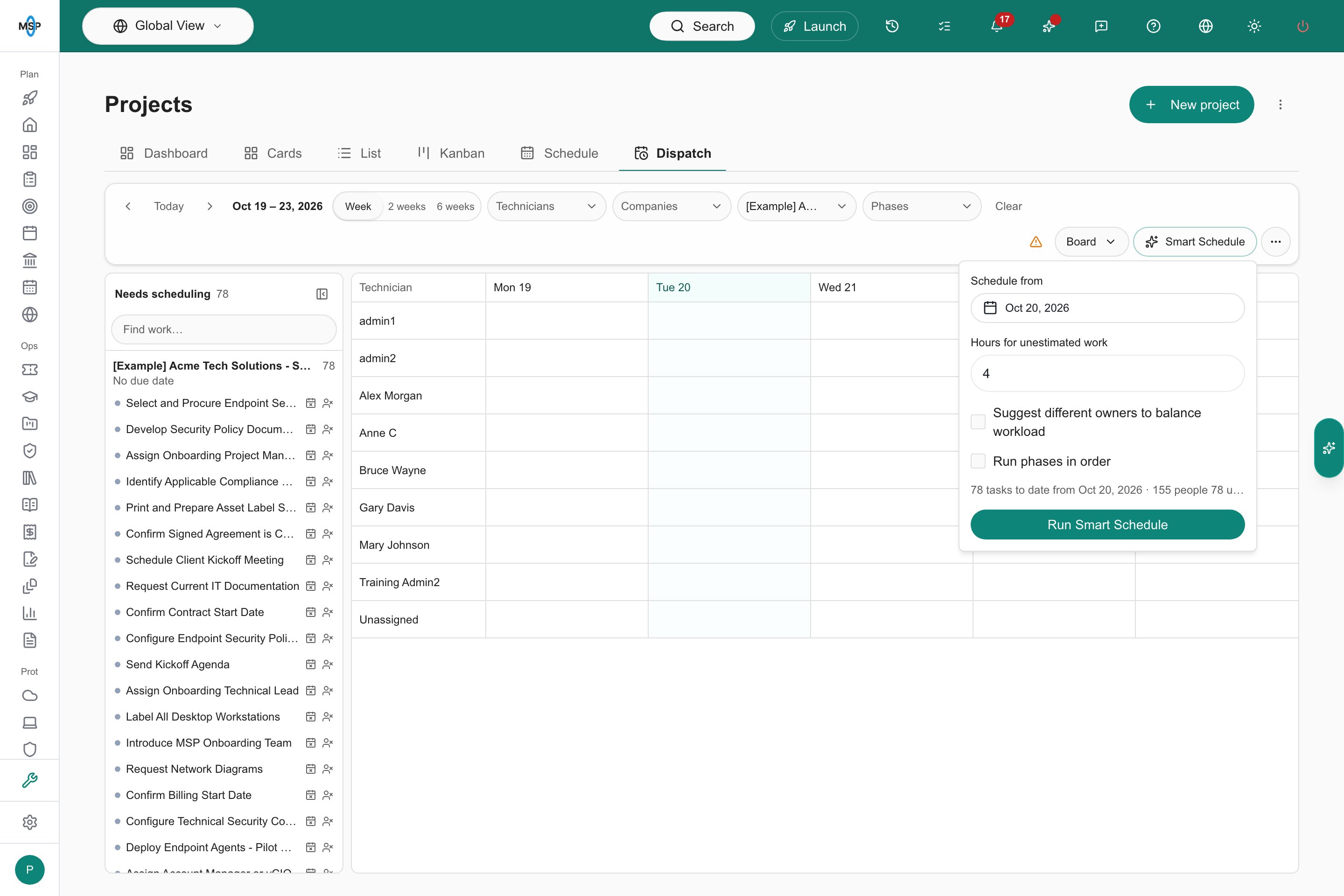
The Smart Schedule popover opens from the toolbar once Projects is narrowed to one project.
What saving writes to ConnectWise
For a ConnectWise project, Save writes each changed task’s dates to the project ticket’s Schedule Start and Schedule End fields and its person to the ticket’s Owner. Autotask and Halo projects sync dates and assigned people as described in Save your plan.Where ConnectWise dates and people come from
ConnectWise keeps a project ticket’s planned dates, its people and its actual schedule in different places, and MSPortal shows each of them from its own source.Leave a task out of scheduling
Include in scheduling is an MSPortal-only switch on each task, under Visibility and scheduling in the task’s details. It is on by default. Admins set the default per task type under Settings > Projects > Project Settings > Task types, and a single task can override its type. When it is off, the task is left out of this page, the project Gantt and Smart Schedule. The task itself, its bookings and its dependency links are kept, and they come back when you turn the switch on again. Nothing is written to your PSA either way. When a project has excluded tasks, Schedule settings… says how many, for example 3 tasks are excluded from scheduling. See Task types and individual task controls.Troubleshooting
Frequently asked questions
Why does a booked ticket still say Need to Schedule?
Why does a booked ticket still say Need to Schedule?
Why is my project not in the Projects filter?
Why is my project not in the Projects filter?
Can I plan more than one project at once?
Can I plan more than one project at once?
Can Company users open Dispatch?
Can Company users open Dispatch?
Where are Autotask service calls and Halo appointments?
Where are Autotask service calls and Halo appointments?