

Before you start
- You must be a tenant admin or an assigned approver for the rule’s action. Your MSP assigns reviewers in the automation rule, by person or by role.
- Approve and Reject show only for tenant admins and assigned approvers. Anyone else sees a read-only view with the message “Only a tenant admin or an assigned approver can approve or reject this request.” The row and bell panel show no decision buttons for those requests.
- A request stays open for a limited time. After that it shows Expired and cannot be reviewed.
Review a pending request
1
Open Pending Approvals
Click the Notifications bell in the top bar, then View all approvals. Or open Notifications and click the Pending Approvals tab. Choose Pending in the status filter to see only requests that wait for a decision.
2
Open the request
Click the row. The Review Pending Approval dialog shows the Rule, the Type, when it was Requested and when it Expires. For an email it also shows the Recipients and an Email Preview.
3
Edit the content if needed
Optional. Click Edit above the preview. Change the Subject or the Body, then click Preview to see the result. You cannot change the recipients here. Preview does not save anything, so your edits stay in the dialog until you approve.
4
Add a note
Optional. Type in Review Notes (optional) to explain your decision.
5
Decide
Click Approve, or Approve with Changes if you edited the content. Click Reject to stop this request. Wait for the confirmation message. Cancel closes the dialog without a decision and discards your edits.
Check history and delivery status
1
Pick a status
On the Pending Approvals tab, open the status filter and choose All statuses, Pending, Approved or Rejected. Approved also lists items that show Sent.
2
Open a past request
Click a row, or click View. The dialog opens in read-only mode with its saved review notes. An indicator shows when the content was changed before sending.
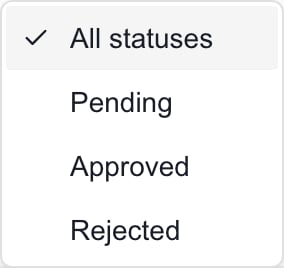
The status filter separates pending requests from review history.
A request that is already processed cannot be approved again.
Troubleshooting
Frequently asked questions
Does opening a request approve it?
Does opening a request approve it?
No. Only Approve, Approve with Changes and the row Approve button submit an approval.
Can I change the email recipients?
Can I change the email recipients?
No. The dialog shows the recipients but edits only the subject and body. Ask the MSP to fix the rule if the recipients are wrong.
Are my edits saved when I click Preview?
Are my edits saved when I click Preview?
No. Preview only switches the view. Edits are sent when you approve. Cancel discards them.
Can I undo an approval?
Can I undo an approval?
No. Approval can release the action at once. Contact your MSP quickly if it was a mistake.
Does rejecting a request turn off the automation rule?
Does rejecting a request turn off the automation rule?
No. It rejects only this request. The MSP manages the rule in Automation settings.
Does a Company administrator approve every request?
Does a Company administrator approve every request?
No. Only tenant admins and assigned approvers can decide. Ask your MSP if you think you should be one.