

Before you start
- Every signed-in user can open Notifications through the bell in the top bar.
- The full page loads your 100 most recent notifications. It is not a full archive.
- Opening a related record still follows your access to that record.
Find an alert
1
Open the bell
Click the Notifications bell in the top bar. The panel lists your recent unread alerts. Clear all marks them all read.
2
Open the full page
Click View all notifications. The Notifications tab opens.
3
Filter the list
Click All or Unread at the top. Use the Type filter to choose All types, Info, Warning, Error, Success, Product Request or Change Approval.The table also has filters on the Notification, Source and Time columns. Clear them if an alert seems to be missing.
4
Read the alert
Read the title, source and time. Hover over cut-off text to see the full message. The Source column shows where it came from, such as Automation, System, Manual or Planner mention.
5
Open the related record
Click the row. If the alert has a related record, the portal opens it. Clicking an unread row also marks it read. An alert with no related record stays on the page.
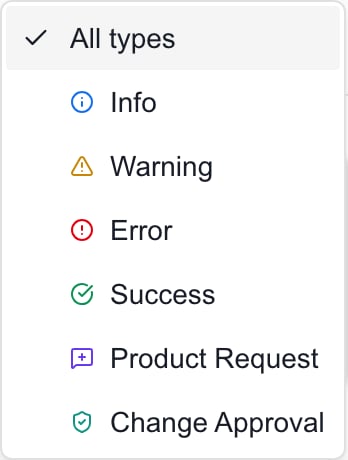
Use the type menu to narrow the Notifications list.
Mark notifications read or unread
1
Mark one alert read
On an unread alert, click the checkmark labeled Mark as read. This does not open the related record.
2
Mark one alert unread
On a read alert, click the dot icon labeled Mark as unread to bring it back to your unread list.
3
Mark everything read
Click Mark all read in the page header. It marks all your unread notifications read, not only the rows you can see. The button appears only while you have unread alerts.
Troubleshooting
Frequently asked questions
Can I mark a notification unread again?
Can I mark a notification unread again?
Yes. Click Mark as unread on a read alert.
Does Mark all read affect only my filtered rows?
Does Mark all read affect only my filtered rows?
No. It marks all your unread notifications read, whatever the filters show. To clear just one, use the checkmark on that row.
Why did an alert disappear after I opened it?
Why did an alert disappear after I opened it?
Opening an unread row marks it read, so it leaves the Unread view. Switch to All to find it.
Does opening an alert always take me somewhere?
Does opening an alert always take me somewhere?
No. Only alerts with a related record open another page, and your access to that page still applies.
Can I send a notification from this page?
Can I send a notification from this page?
No. Alerts come from the portal and from automation rules. Ask your MSP about the right way to send a message.
Does reading an error fix the problem?
Does reading an error fix the problem?
No. Read status only marks the alert as seen. Look into the related workflow separately.