

Before you start
Saving also requires an active MSPortal subscription. Completed tasks appear dimmed and cannot be moved or edited.
Open the workspace
1
Open a schedule
Go to Projects > Schedule to plan any open project in the selected company scope, or open a project and select its Schedule tab to plan only that project.
2
Select Plan schedule
Plan schedule appears above the calendar. From an individual project, the Project selector is locked to that project. From Projects > Schedule, choose the project in Project.
3
Or start from a task
In either calendar, open a task’s item menu and select Reschedule. The workspace opens on that task’s project, jumps to its start date, and selects the task for editing.
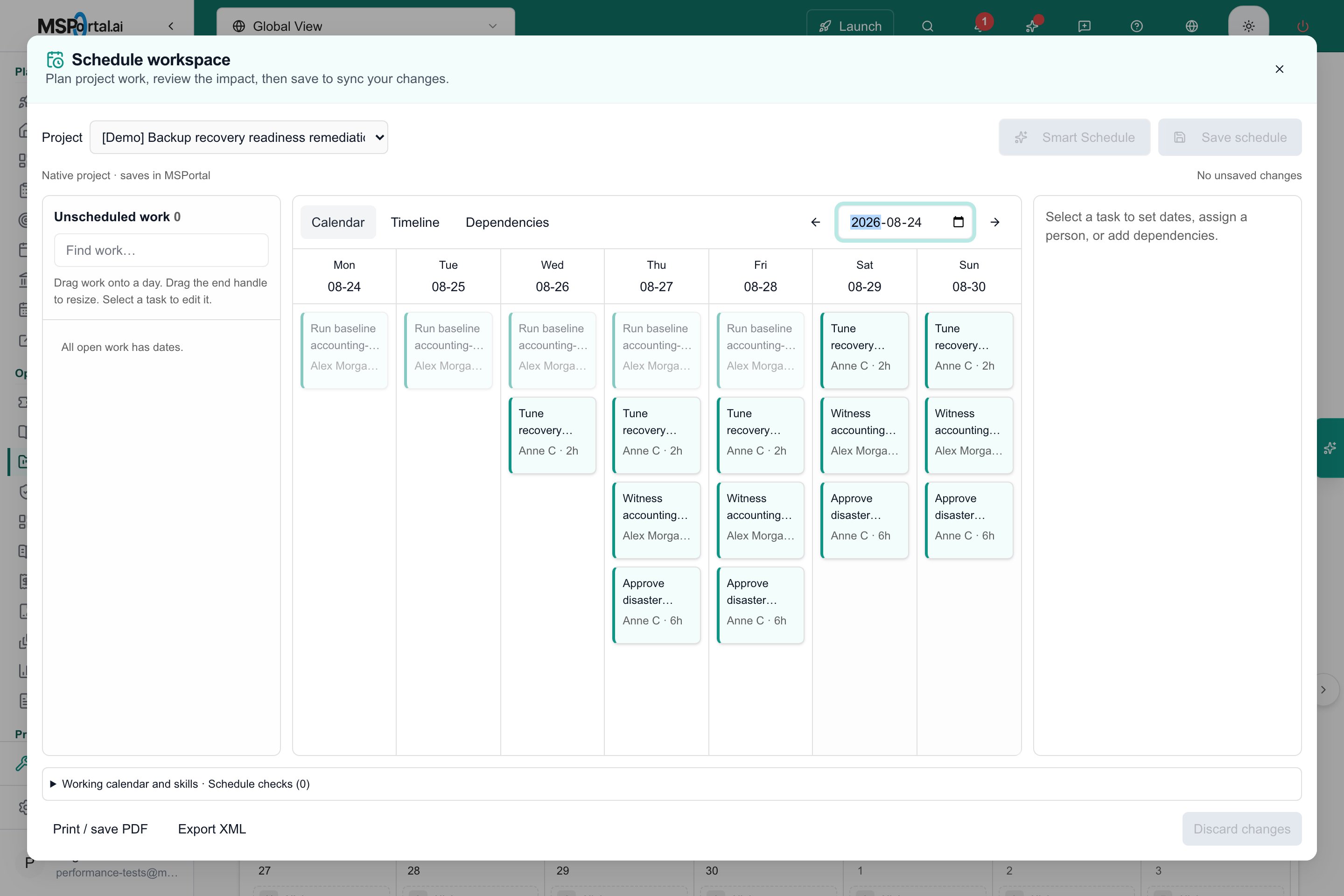
Calendar view of a Demo project in the Schedule workspace.
Choose a view
Select Calendar, Timeline or Dependencies above the schedule.
Use Previous week and Next week, or pick a date in the date field, to change the first day shown. Find work… filters both the unscheduled list and the calendar cards by title.
Task cards show the title, assigned person and remaining hours. An anchor icon and amber accent mark anchored tasks. A teal accent marks tasks on the critical path, where any delay pushes out the end of the linked work.
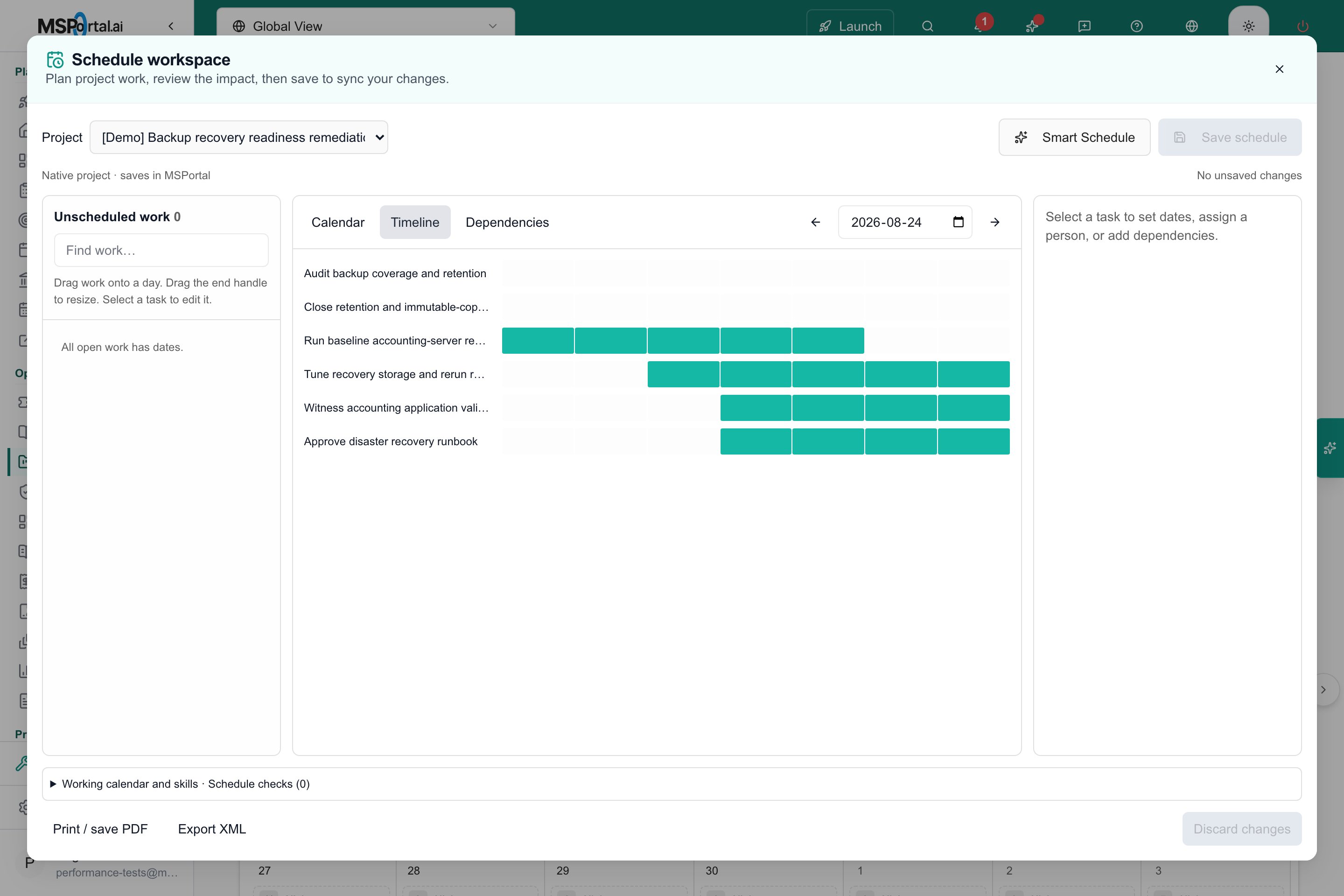
Timeline view of dated project tasks.
Move and edit tasks
The Unscheduled work panel lists open tasks without both dates, with a count beside its title. It reads All open work has dates. when nothing is left.- Move a task. Drag its card onto a day in Calendar, or onto a day cell in Timeline. The task keeps its duration in working days.
- Resize a task. Drag the handle on the card’s last day to a later day to change its end date.
- Schedule unscheduled work. Drag a card from Unscheduled work onto its start day.
- Edit a task. Select its card, row or box. You can also right-click a card and select Reschedule.
Use the task editor
The task editor opens beside the schedule. Date fields wait for Apply to draft; the other fields update the draft as you change them.
If you change a date field without applying it, Save schedule and Smart Schedule stay disabled. Selecting another task shows Apply to draft as a reminder.
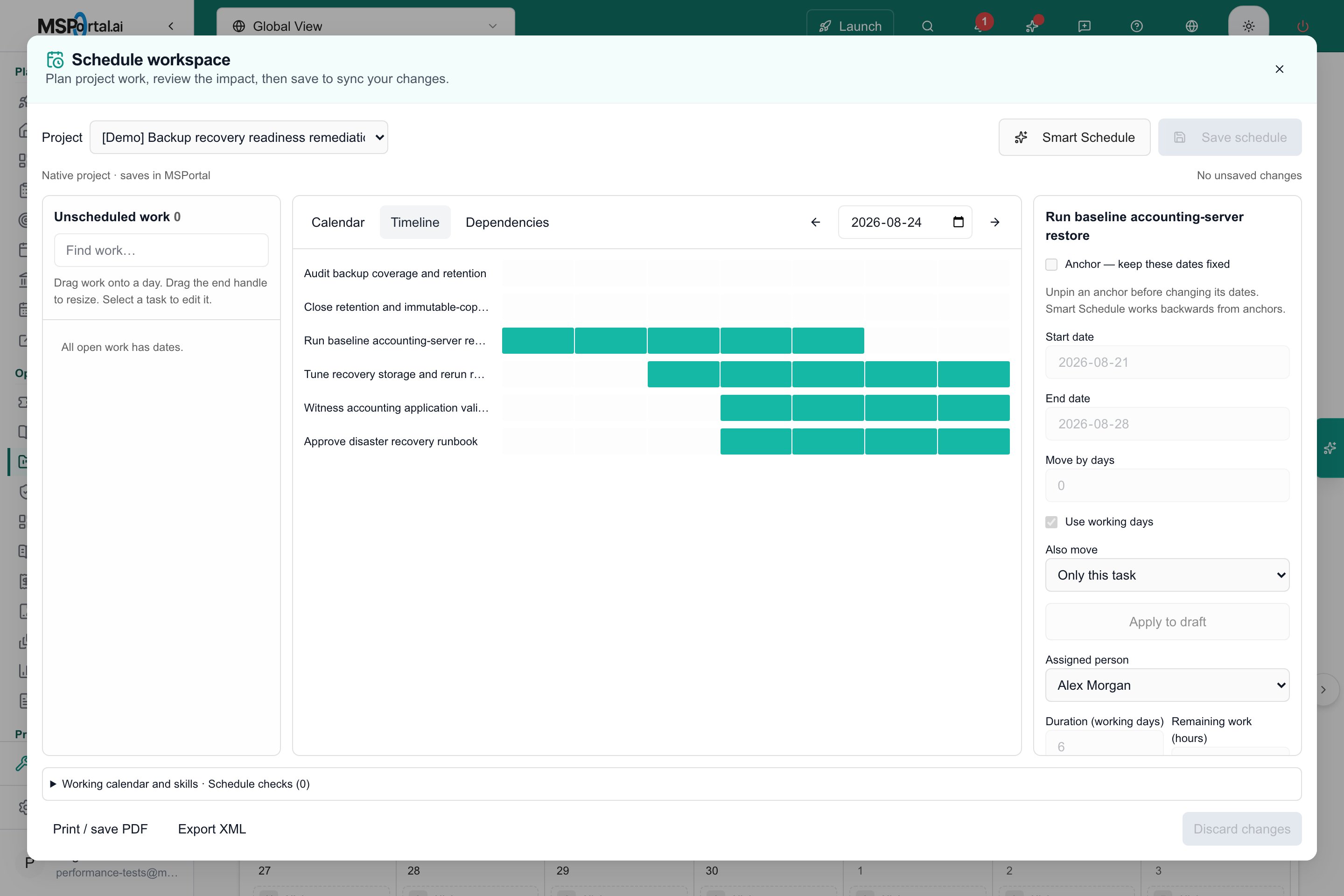
A completed task with its date controls disabled.
Link dependencies
Dependencies live on the later task. Select that task, then choose a Predecessor, a Type and a Lead / lag (working days) value, and select Add dependency.
A positive lag adds working days and a negative value creates a lead. Use the remove control beside a listed dependency to delete it. MSPortal rejects a link that creates a loop with These dependencies form a cycle. Remove a link before scheduling.
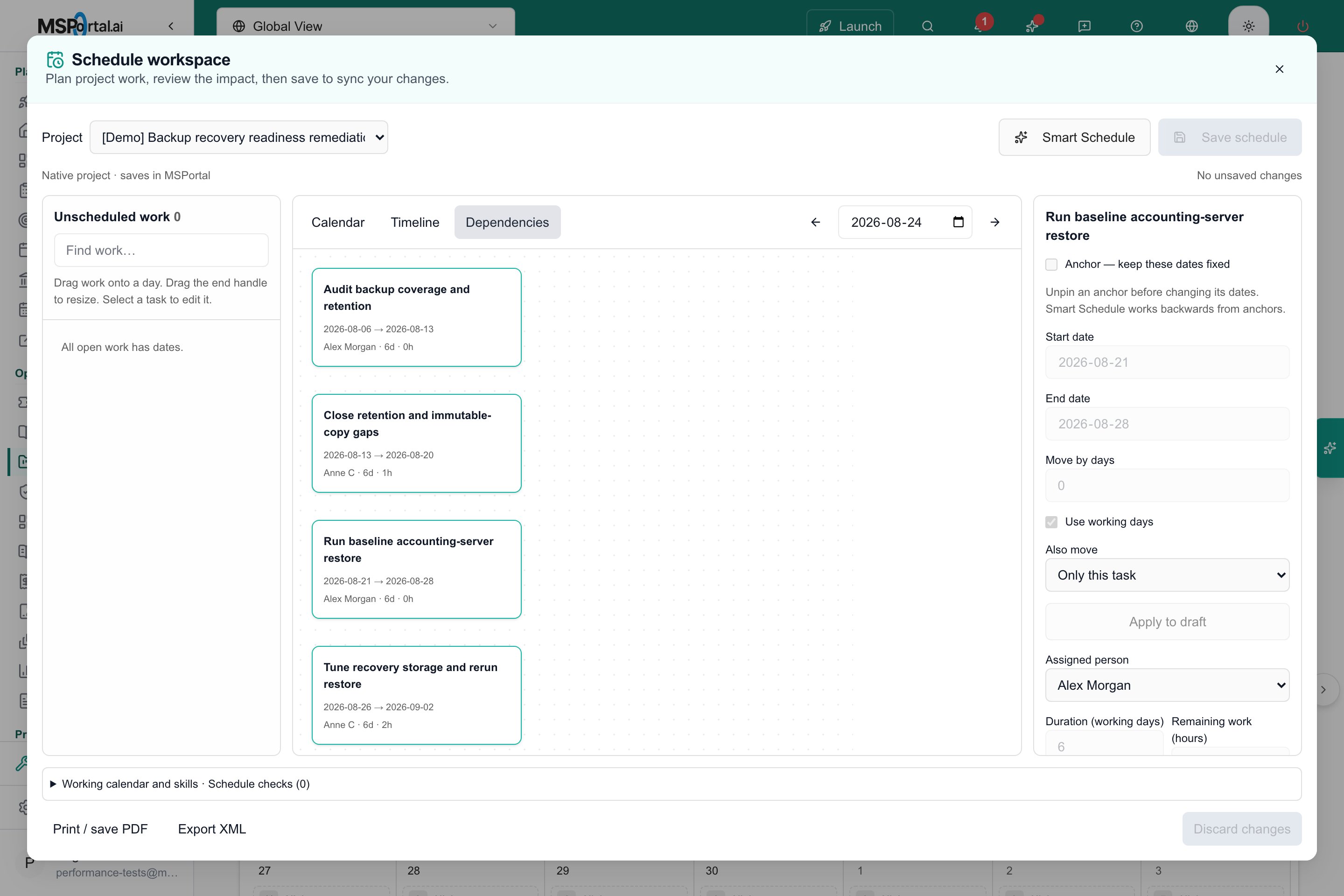
Dependencies view; this Demo project has no links configured.
Use Smart Schedule
Smart Schedule proposes dates, and owners where needed, for open tasks that are not anchored. It uses durations, remaining hours, dependencies, anchors, required skills and daily capacity.1
Check the planning settings
Expand Working calendar and skills below the schedule. Set Schedule from, Daily capacity (hours per person), Holidays / non-working dates (YYYY-MM-DD, comma separated) and the working weekday checkboxes. New plans start with Monday to Friday and 8 hours per day.
2
Choose owner handling
Unassigned tasks always receive a proposed owner. Select Recommend different owners to balance workload to let Smart Schedule reassign tasks that already have owners.
3
Generate the proposal
Select Smart Schedule. A panel lists each changed task with its old and new dates and owner, headed by the number of tasks that will change.
4
Accept or reject it
Select Accept proposal to copy the changes into your draft, or Reject proposal to drop them. Accepting does not save. Review the result, then select Save schedule.
Review schedule checks
The Schedule checks count sits beside Working calendar and skills. Expand the section to see each check, and select one to open its task.
Resolve the two blocking checks before you save. The other checks are warnings you can save with.
Save your plan
For a ConnectWise, Autotask or Halo project, the sequence is Smart Schedule → Accept proposal → Save schedule. Saving updates the actual project tickets or tasks in your PSA with the changed start dates, end dates and assigned people. Generating or accepting a proposal alone does not write to the PSA. These are date-based task schedules. Saving does not create timed technician appointments or dispatch-board bookings.1
Save
Select Save schedule. The button reads Saving and syncing… while MSPortal writes each changed task. You cannot close the workspace during a save.
2
Confirm the result
Schedule saved confirms success. The workspace then reloads the latest project data before you can edit again.
3
Recover from a failure
The schedule could not be saved. Your draft is retained. reports a failed save. Review the reloaded task dates and owners before retrying: an upstream date change can succeed before a later owner update fails. A message such as 3 tasks saved before a failure. Your remaining changes are retained. means earlier tasks already synced. After the reload, your unsaved changes return on top of the latest data. Review them and save again.
Protect, discard, print and export
Discard changes resets the draft to the last loaded schedule. Closing the workspace, switching Project, or using the browser Back button with unsaved changes asks Discard this schedule draft? Select Keep editing to stay, or Discard changes to leave. Closing the browser tab shows your browser’s own leave warning. Print / save PDF opens your browser’s print dialog with a landscape table of tasks, start dates, end dates and assigned people. Export XML downloadsproject-schedule.xml with the task dates, owners and planning rules. Both use the tasks currently shown, including an open proposal.
FAQs
Why is Plan schedule missing?
Why is Plan schedule missing?
The button requires an MSP staff account with project write permission. Company users and read-only roles do not see it.
Do anchors, dependencies and skills appear in my PSA?
Do anchors, dependencies and skills appear in my PSA?
No. They are MSPortal scheduling rules. Only task dates and assigned people sync to ConnectWise, Autotask or Halo.
Why is a project missing from the Project list?
Why is a project missing from the Project list?
The list shows open projects in the current company scope. Change the company selector before opening the workspace. Closed projects and projects outside the scope do not load, and the workspace shows No projects are available in this company scope. if none match.
Why is Save schedule disabled?
Why is Save schedule disabled?
Check for unapplied date fields, an open Smart Schedule proposal, or a Fixed anchor conflict or Dependency dates conflict check. The button also stays disabled when the draft has no changes.
Can Smart Schedule book timed appointments?
Can Smart Schedule book timed appointments?
No. It assigns whole working days to tasks. Use your PSA or the Calendar module for timed bookings.
Project calendar
Navigate Schedule and reschedule projects, phases and milestones.
Read a project schedule
Interpret dated items and their details.