Documentation Index

Fetch the complete documentation index at: https://docs.msportal.ai/llms.txt

Use this file to discover all available pages before exploring further.

There are two pieces to onboarding. The wizard handles the one-time technical setup: integrations, roles, branding, billing. The playbook is the order to do everything else in so your first client engagement actually reaches a QBR. Run the wizard once. Run the playbook for each new client.

Before you start

Have these on hand:
  • PSA API credentials (ConnectWise, Autotask, HaloPSA, or SyncroMSP)
  • RMM API credentials (Datto RMM, NinjaOne, Asio, Syncro, Addigy, or Meraki)
  • Microsoft 365 global admin consent on your tenant, plus each client tenant you’ll connect
  • Your logo and brand color
  • A domain you can add DNS records to, for sending email
The wizard takes 30 to 60 minutes, plus PSA mapping (usually the longest part). The playbook plays out over 2 to 4 weeks against your first client.

The wizard

The wizard sits in the bottom-right of the screen the first time you sign in. It auto-completes most steps as you save settings, you can minimize or dismiss it, and progress is saved to your tenant. If you close it, click the rocket icon in the sidebar to bring it back.

Setup steps

Foundation
  1. Tenant Details. Address, timezone, basics.
  2. AI Settings. How the AI assistant talks about your business.
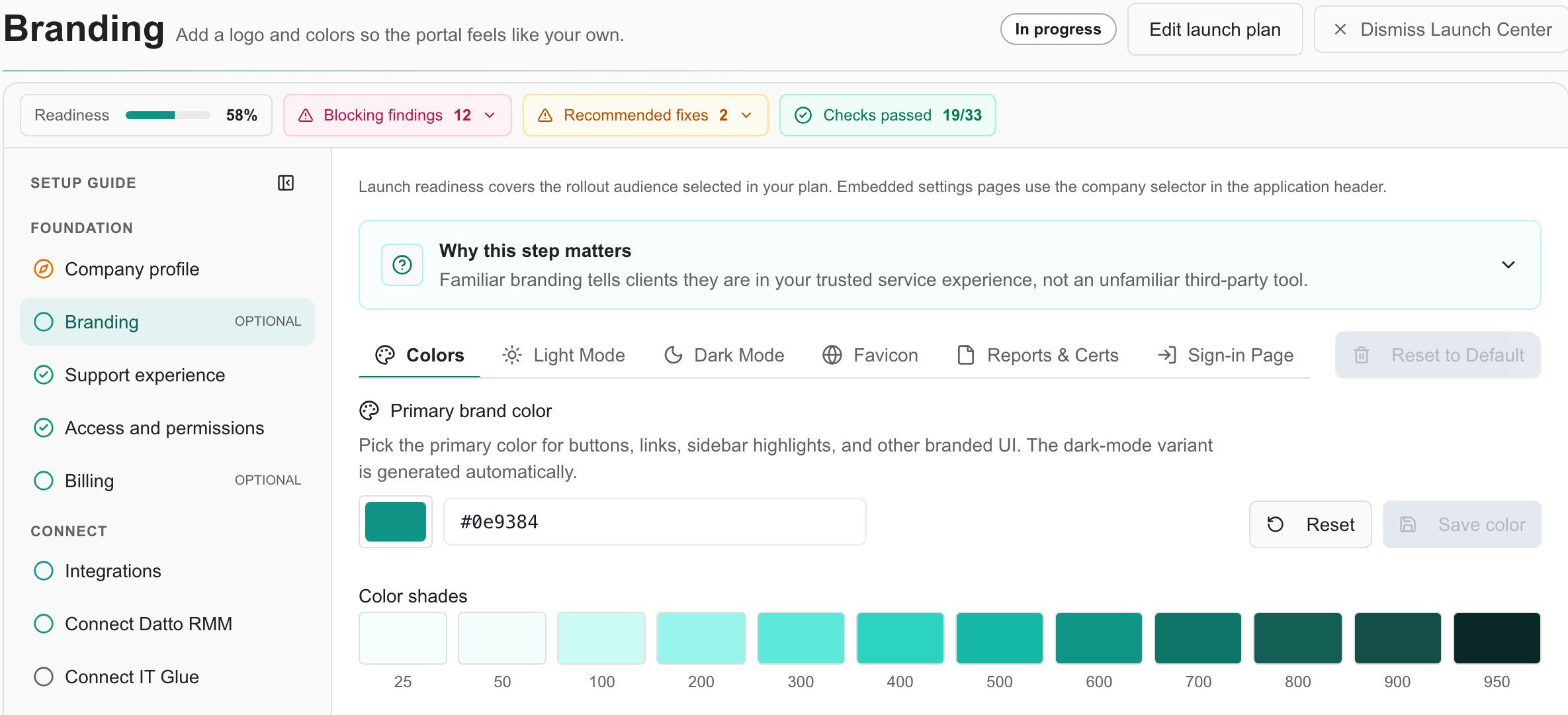
  3. Branding. Logo, primary color.
Users and permissions
  1. Tenant Roles. Roles for your internal team.
  2. Company Permission Groups. Permission bundles for client users.
  3. Company Roles. The roles your clients’ users get assigned.
Integrations
  1. Integration Selection. Pick your PSA and RMM.
  2. PSA Integration. Connect the PSA.
  3. Ticket Settings. Sync direction and status mappings.
  4. RMM Integration. Connect the RMM.
  5. Device Import. Pull devices in.
Other configuration
  1. Email Domain. Send email from your own domain.
  2. Training. Optional. Configure training courses.
  3. Billing. Subscription and payment.
Per-client setup
  1. Company M365 Setup. Connect M365 for a client.
  2. Company Users. Import client users.
If you only have time for the first pass, do Tenant Details, Tenant Roles, Branding, and your PSA + RMM. Everything else can come later. When the required steps are done, the wizard offers to mark onboarding complete. After that it stops appearing. You’ll find the same settings in Settings in the sidebar.

Setup Playbook

The order to roll MSPortal out for a real client. Six stages, ending in a presented QBR.
1

Connect integrations

PSA, RMM, M365, and Backup & Security. The wizard covers this. Don’t skip ticket status mappings or device import. Every later stage depends on the data these connectors pull in.See: Integration Selection, PSA, RMM, Device Import, Company M365 Setup.
2

Seed the planner and compliance

Pre-load the Planner with what you already know: your standard roadmap, the work the client has already agreed to, and obvious near-term items (firewall refresh, contract renewal, server EOL).Build Compliance checks against your MSP’s standard so every client gets scored against the same baseline.If a client onboarding is coming up in the next two months, build it out now so the kickoff survey has something to link against.
3

Run the kickoff survey, turn responses into goals

Tell the client what to expect. Use one of the standard kickoff survey templates or build your own. Run it, read the responses, and turn the ones that matter into client Goals. Link the planner items you seeded in stage 2 to the matching goals so every piece of work has a reason.
4

Build a budget and forecast

Import products from your PSA. Build a Budget from the planner items’ hours and cost estimates, then use the forecast view to project it forward. The forecast also drops in as a reporting widget for the QBR.
5

Build the report and QBR meeting

Make a test narrative report with the client’s real data, and add a budget widget. Create the upcoming QBR meeting and attach the budget and report. Turn on agenda automation so Claude drafts the agenda from live data. Approve it a week ahead so the client gets the pre-read on time.
6

Present, then loop

Run the QBR live in presentation mode. Take notes as action items in the meeting. Those become planner items automatically. Send the summary when you’re done. As you close out compliance checks during the quarter, the planner updates. Next quarter, start over at the kickoff survey.
The data flow page explains what happens to a record once it’s in MSPortal. This page tells you which records to create first.

Next