

Before you start
- Create the team role first and assign its initial staff on a company’s Team tab. See Account teams and Team Roles.
- Viewing the Global team roles card needs read access to Company Users settings. Changing global assignments needs write access to Company Users settings, and your billing must be active.
- Saving an automation that has a membership action needs write access to both Automation settings and Company Users settings.
- These controls select MSP staff, not customer contacts or Company users.

Make a team role global
1
Open the global settings
Go to Settings > Users & Roles and click Team Roles. Find Global team roles at the top and click Configure.
2
Review the existing members
Enabling Global collects the staff already assigned to this role at any company. That combined roster will serve every company, subject to existing company-specific exclusions.
3
Enable the role
Turn on the switch for the role. Each switch saves at once. There is no Save button. Wait for Global team role updated before you close the dialog.
4
Remove someone from a Global role (optional)
Open the role’s Global members list and click the remove button next to a person. Confirm the prompt. Their inherited assignments are removed from every company. Direct company assignments stay.
Keep a company-specific exception
Removing a member from one company’s role creates a lasting exception for that company. The person can remain assigned elsewhere. Global inheritance and PSA reconciliation do not silently restore the excluded assignment. Explicitly add the person back to that company’s role to clear their exception. An Add team members automation action also clears the selected person’s exception for the matched company. Turning Global off removes inherited assignments. Original company assignments and company-specific removal exceptions remain. It does not delete staff accounts or the team role.Automate membership changes
1
Start a rule
Go to Settings > Automation Rules and click Add Rule. Set the trigger, scope and conditions. See Rule Wizard Walkthrough.
2
Add the action
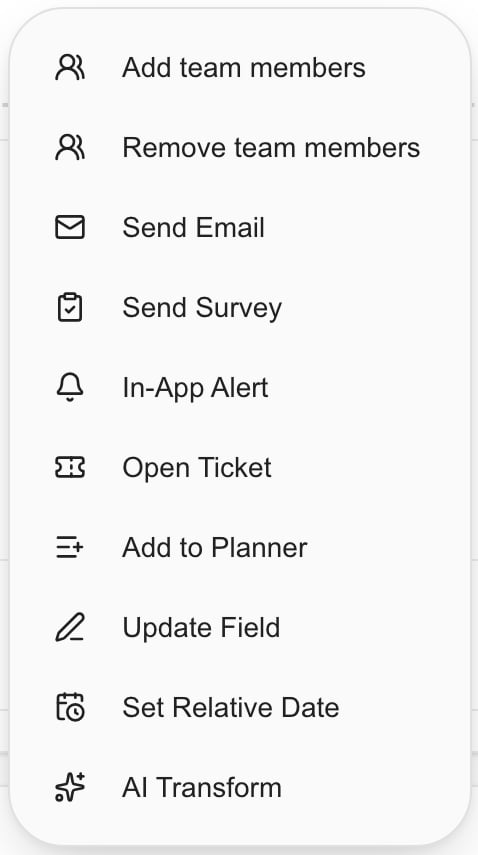
In Actions, click Add and choose Add team members or Remove team members.
3
Choose the role and staff
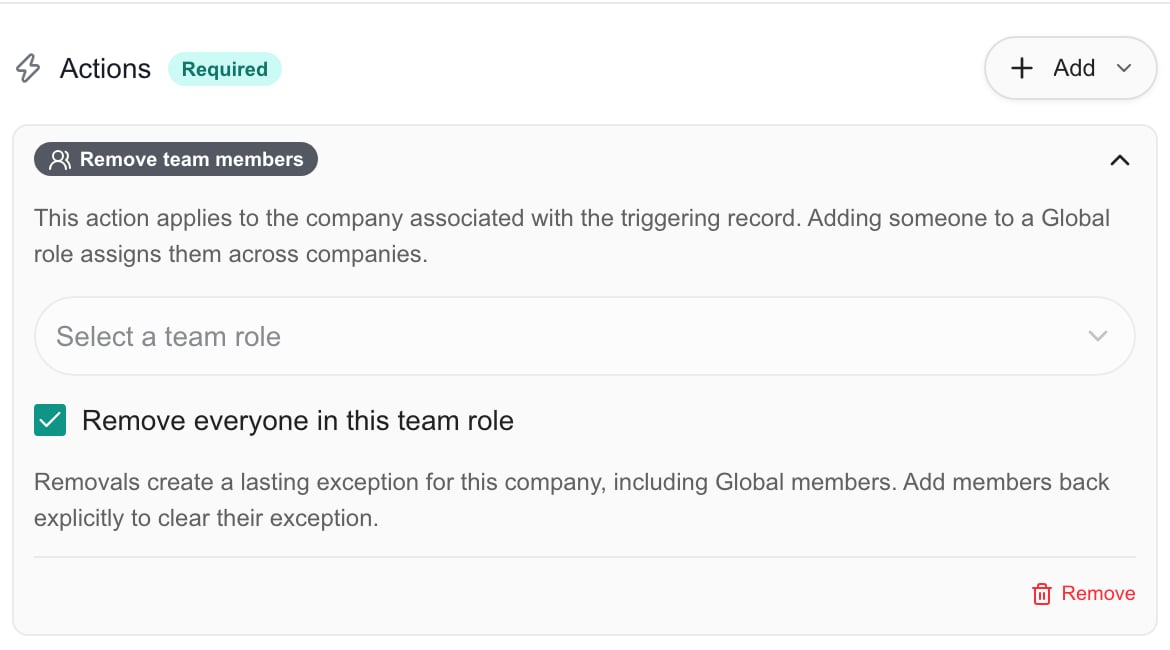
Pick a team role under Select a team role. Pick people under Select staff members. For removal you can instead check Remove everyone in this team role.
4
Test and save
Click Run Test, click Next, then click Create Rule. Save it inactive first if you are still preparing the rollout.
Example: finish an onboarding handoff
1
Create the team role
Create a company-specific Onboarding team role and assign the staff handling the handoff.
2
Create the rule
Add a rule with the Onboarding entity and the Onboarding Event trigger. Choose the completion event that fits your workflow.
3
Limit the scope
Set Scope to Specific Companies and pick the intended companies. Add conditions if needed.
4
Add the action
Add Remove team members, select Onboarding and check Remove everyone in this team role.
5
Save inactive, then enable
Save the rule with Enable this rule off. Turn it on from the rules list when you are ready.