

- an All, Assigned to me and Mine switch on Tickets;
- a Co-managed marker on tickets in the co-managed queue or category, and a You badge on tickets assigned to them;
- the Co-managed dashboard: open tickets, tickets created and completed by month, request types, completed work by priority and week, and patch status, counting only co-managed tickets.
Before you start
- Co-managed support is turned on for your portal by MSPortal. If Settings > Tickets has no Co-managed tab, ask MSPortal support to turn it on.
- Changing the settings needs the manage Tickets settings permission. With less, the tab reads “You can view these settings but not change them.”
- Adding the dashboard also needs the manage Dashboards settings permission.
- Connect your PSA under Integrations. The queue and category lists come from your synced tickets.
- Create a client role for the co-managed technicians under Users & Roles and give it to the client’s IT staff. Use a separate role from the one the client’s other employees have, so only the technicians get the co-managed views.
Set up co-managed support
1
Open Settings > Tickets > Co-managed
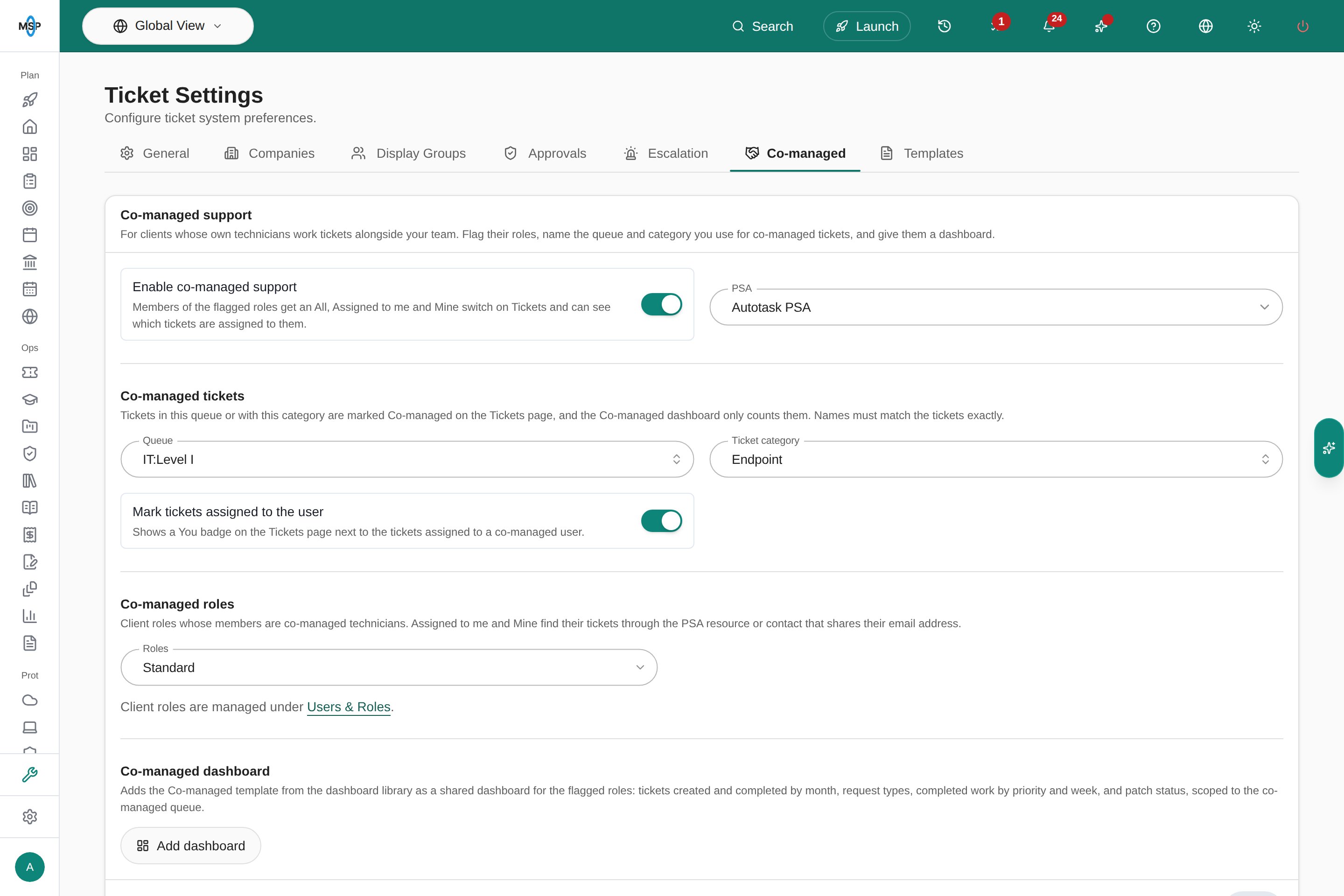
Co-managed support on MSPortal Demo, set up for an Autotask queue and category.
2
Turn on Enable co-managed support
If you have more than one PSA connected, choose the one the co-managed tickets live in under PSA.
3
Name the co-managed tickets
Under Co-managed tickets, pick the Queue (the Service board in ConnectWise, the Team in Halo PSA), the Ticket category, or both. Tickets in that queue or with that category are marked Co-managed on the Tickets page, and the Co-managed dashboard counts only them. Pick from the list: names must match the tickets exactly.
4
Choose whether to mark assigned tickets
Leave Mark tickets assigned to the user on to show a You badge next to the tickets assigned to each co-managed technician.
5
Flag the co-managed roles
Under Co-managed roles, pick the client roles whose members are co-managed technicians. Only client roles are listed.
6
Click Save
“Co-managed settings saved.” confirms it. Turning Enable co-managed support off later hides the switch, markers and dashboard tickets from the technicians but keeps your settings.
7
Add the dashboard
Under Co-managed dashboard, click Add dashboard. MSPortal adds the Co-managed template from the dashboard library as a shared dashboard for the roles you flagged, with every ticket widget scoped to the co-managed queue. Save your changes first: the dashboard uses the saved queue and roles. Open dashboard then takes you to it.
Give the role access to tickets and the dashboard
The co-managed role still follows its own permissions and display group. Check both under Settings > Users & Roles and Settings > Tickets > Display Groups:What the technicians see
On Tickets, members of a co-managed role get the Which tickets to show switch: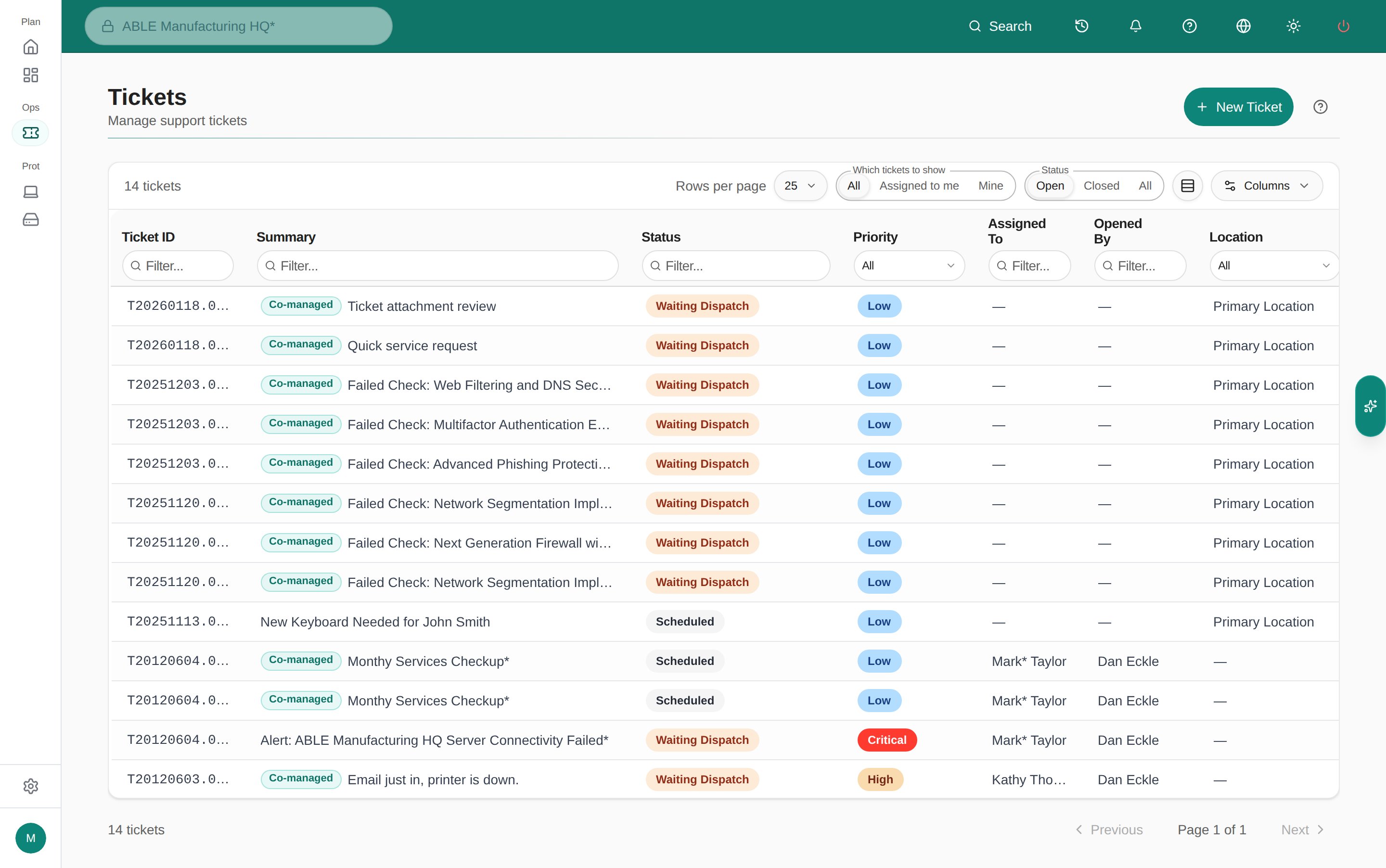
Tickets for a co-managed technician at a Demo company. Co-managed marks tickets in the co-managed queue.
Troubleshooting
Ticket settings
Display groups, delivery and routing.
Users & Roles
Create the client role and set its permissions.