Turn AI features on or off, add business context, and customize AI Home and the Assistant panel
AI settings control whether your organization and your clients can use AI, what the assistant knows about your business, and how AI Home and the Assistant panel look. This page is for MSP staff who manage those settings.
Before you start
You need AI Settings access. Read access lets you view the page. Write access lets you change every section and save it with Save Settings, including AI keys, models and the assistant voice key. Without write access the controls are disabled.
Tenant Settings access alone does not open this page. Ask an administrator to give your role AI Settings access in Users & Roles.
Open AI settings
1
Open Settings > Customization > AI
The page header has four tabs: General, Context, Home page and Assistant panel.
Save your changes
The page header has Reset and Save Settings buttons. Save Settings stays disabled until you change something.
Save Settings saves every tab on this page at once.
Reset returns the form to its last saved values.
If you leave the page with unsaved changes, MSPortal asks you to choose Discard changes or Keep editing.
Configure AI features
1
Open the General tab
General has the AI switches.
2
Set Enable all AI-powered features
Check it to allow AI for your whole organization. Uncheck it and no users, automations or background jobs can generate AI content.
3
Set Enable AI features for client users
Uncheck it so company users get the non-AI experience while your team keeps AI. This switch is disabled while the master switch is off, because turning the master switch off disables AI for everyone. To keep one client’s data away from AI completely, see Turn off AI for a company.
4
Set AI-Powered Home Page (Global)
Check Enable AI assistant on the home page for chat-based navigation and queries. When unchecked, every company sees the classic home page. When checked, you can switch individual companies in Settings > Companies. This box is also disabled while the master switch is off.
5
Click Save Settings
All three switches are on by default.
Add AI context
1
Open the Context tab
Fill in what the AI assistant can share and use: the portal name (What do you call the Portal?), AI advisor name, Support Email, Support Phone, Sales Phone, Emergency Phone, Business Hours, Website URL and General Notes.
2
Click Save Settings
General Notes holds up to 3,500 characters.
Customize the AI Home welcome screen
1
Open the Home page tab
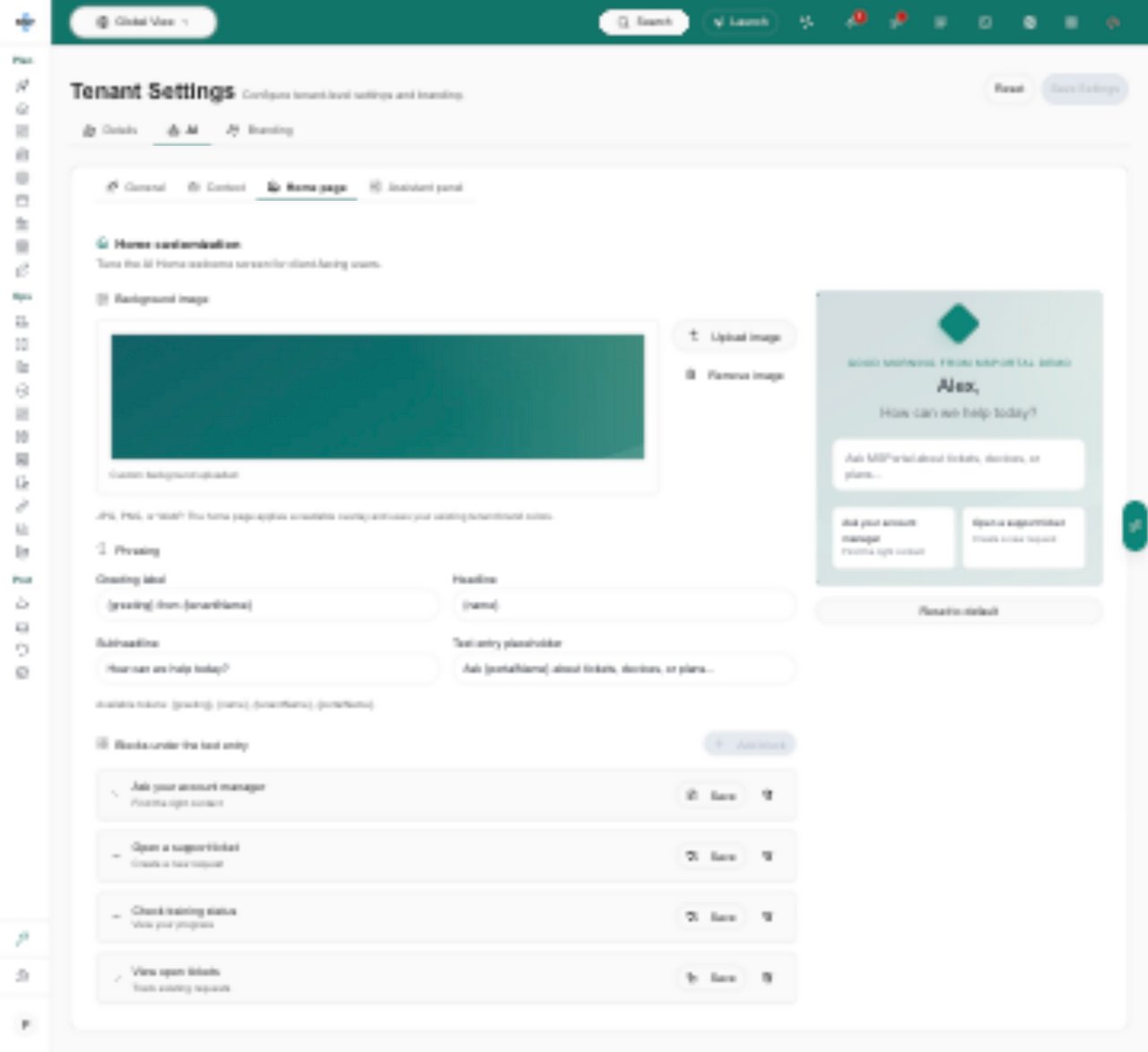
You need manage access to edit these controls. The preview on the right shows sample welcome text and blocks as you edit.
2
Upload a background image
Under Background image, click Upload image and choose a JPG, PNG or WebP file no larger than 3 MB. Wait for the upload confirmation and check the preview. The image applies after you save in the last step. A large landscape image such as 1920 × 1080 pixels is a good start. The image fills the welcome area and crops around the center on narrow screens, and MSPortal adds an overlay to keep the text readable.
3
Personalize the welcome text
Under Phrasing, edit Greeting label, Headline, Subheadline and Text entry placeholder. You can use {greeting}, {name}, {tenantName} and {portalName}. For example, use {greeting} for the label and {name} for the headline. Empty fields use the standard welcome text.
4
Add shortcut blocks
Under Blocks under the text entry, click Add block. Give each block a Label, an Icon, an optional Description and a Prompt sent to AI. The prompt runs when someone selects the block. For example, label a block Open a support ticket with the prompt I want to open a support request. You can add up to four blocks. Custom blocks replace the default quick actions.
5
Save and check Home
Click Save Settings in the header. The Save button on a block saves the same form. Then open Home with an account that has AI Home enabled, on a desktop and a phone, and check the background and text. The preview is only a sample. The live greeting uses the viewer’s name and the time of day. For a company user, AI Home must also be enabled for that company.
Example AI Home settings with a background, personalized welcome, and shortcut blocks.
To remove the image, click Remove image, then Save Settings. To restore the standard phrasing and quick actions, click Reset to default, then Save Settings.
Customize the Assistant panel
1
Open the Assistant panel tab
This tab sets the starter questions people see when they open the assistant from any page.
2
Add or edit starter questions
Click Add question and enter a Label, an Icon and a Prompt sent to the assistant. You can add up to six. Remove them all to open the panel with only the prompt box. Reset to default restores the standard questions.
3
Click Save Settings
The panel’s Preview updates as you edit.
Troubleshooting
Problem
What to do
AI is missing under Settings > Customization.
Your role has no AI Settings access. Tenant Settings access alone does not open it. Ask an administrator.
Save Settings is disabled.
You have not changed anything, a save is running, or you do not have write access to AI Settings.
Fields and switches are greyed out.
Changing them needs manage access to AI Settings. Ask an administrator.
The Enable AI features for client users or AI-Powered Home Page box is disabled.
Turn on Enable all AI-powered features first.
I uploaded an AI Home background but nothing changed.
Uploads are drafts. Click Save Settings.
A home background will not upload.
Use JPG, PNG or WebP at 3 MB or smaller.
Frequently asked questions
What turns off when I disable AI features?
Users, automations and background jobs can no longer generate AI content. Existing records are not deleted.
Does enabling AI give clients access to all data?
No. Company scope and permissions still apply.
Where did AI go from Tenant Settings?
AI moved to Settings > Customization > AI. Old links to the AI tab of Tenant Settings open the new page.
{"docsConfig":{"theme":"aspen","$schema":"https://mintlify.com/docs.json","name":"MSPortal.ai Documentation","colors":{"primary":"#0C8376","light":"#15B79E","dark":"#107569"},"logo":{"light":"https://mintcdn.com/msportal/KnbwIXtZSTlVJTt6/logo/light.svg?fit=max\u0026auto=format\u0026n=KnbwIXtZSTlVJTt6\u0026q=85\u0026s=eb69f6d6bf16b2c401770aef19ade1d2","dark":"https://mintcdn.com/msportal/KnbwIXtZSTlVJTt6/logo/dark.svg?fit=max\u0026auto=format\u0026n=KnbwIXtZSTlVJTt6\u0026q=85\u0026s=03f8df7191e7a8ea7da084df57f6107f"},"favicon":"https://mintcdn.com/msportal/KjsKytvp08K0bejm/favicon-16x16.png?fit=max\u0026auto=format\u0026n=KjsKytvp08K0bejm\u0026q=85\u0026s=378df7f039bbff7885231fec799d29ac","navbar":{"links":[{"href":"/release-notes/roadmap","label":"Roadmap"},{"href":"mailto:support@msportal.ai","label":"Support"}],"primary":{"type":"button","label":"Dashboard","href":"https://app.msportal.ai"}},"footer":{"socials":{"linkedin":"https://linkedin.com/company/msportal"},"links":[{"header":"Resources","items":[{"label":"MSPortal.ai","href":"https://msportal.ai"},{"label":"Support","href":"mailto:support@msportal.ai"},{"label":"Status","href":"https://status.msportal.ai"}]}]},"fonts":{"family":"Inter"},"styling":{"latex":true},"navigation":{"pages":[]}},"deployment":{"deploymentMetadataValue":{"subdomain":"msportal","hasAudioNarration":false,"actualSubdomain":"msportal","customDomains":["docs.msportal.ai"],"gitSource":{"type":"github","owner":"msportal-ai","repo":"mintlify-docs","deployBranch":"main","contentDirectory":"","isPrivate":false,"mountPath":"","label":""},"feedback":{"thumbs":true},"entitlements":{},"buildId":"6b00a607e733d6e1499bc8f3","clientVersion":"0.0.4248","searchFilterCounts":[{"language":"default","tag":"MSP Guides","count":477},{"language":"default","tag":"API Reference","count":433},{"language":"default","tag":"Operations","count":128},{"language":"default","tag":"Planning","count":101},{"language":"default","tag":"Integrations","count":96},{"language":"default","tag":"Projects","count":76},{"language":"default","tag":"Protection","count":59},{"language":"default","tag":"Standards","count":56},{"language":"default","tag":"Client Onboarding","count":48},{"language":"default","tag":"Getting started","count":45}]},"assistantConfig":{"enableAskAiButton":false,"enableStarterQuestions":false,"enableAskAiSearchBar":true},"basePath":"","hasChatPermissions":false,"hasWebMcpPermissions":false,"toggles":[],"googleFontsInlined":false},"customCss":[{"filePath":"style.css","content":"#page-title{font-size:1.75rem;line-height:2.125rem}#header .prose.text-lg{font-size:1rem;line-height:1.5rem;color:rgb(var(--gray-500))}#content-area .prose{font-size:0.9375rem;line-height:1.6}#content-area .mdx-content{margin-top:1.5rem}#content-area .mdx-content h2{font-size:1.25rem;line-height:1.75rem;margin-top:2.25rem;margin-bottom:0.75rem}#content-area .mdx-content h3{font-size:1.0625rem;line-height:1.5rem;margin-top:1.75rem;margin-bottom:0.5rem}#content-area .mdx-content li{margin-top:0.25em;margin-bottom:0.25em}#content-area .steps{margin-top:1rem}#content-area .step{padding-bottom:0.75rem}#content-area [data-component-part=\"step-title\"]{margin-top:0.25rem;margin-bottom:0.375rem}#content-area [data-component-part=\"accordion-content\"] td,#content-area [data-component-part=\"accordion-content\"] th{min-width:0}@media (max-width: 639px){#content-area [data-component-part=\"accordion-content\"] td:last-child{min-width:16rem}}#content-area [data-table-wrapper]>[data-component-part=\"scroll-area-viewport\"]{-webkit-mask-image:linear-gradient(\n to right,\n transparent 0,\n black min(var(--scroll-area-fade-size), var(--scroll-area-overflow-x-start, 0px)),\n black calc(100% - min(var(--scroll-area-fade-size), var(--scroll-area-overflow-x-end, 0px))),\n transparent 100%\n );mask-image:linear-gradient(\n to right,\n transparent 0,\n black min(var(--scroll-area-fade-size), var(--scroll-area-overflow-x-start, 0px)),\n black calc(100% - min(var(--scroll-area-fade-size), var(--scroll-area-overflow-x-end, 0px))),\n transparent 100%\n )}#content-area [data-table-wrapper]>[data-component-part=\"scroll-area-scrollbar\"][data-has-overflow-x]{opacity:1;pointer-events:auto}#sidebar-content li>a,#sidebar-content li>button{font-size:0.875rem;line-height:1.25rem;padding-top:0.3125rem;padding-bottom:0.3125rem}#sidebar-content li>a span{hyphens:manual}#sidebar-content a.nav-anchor{margin-bottom:0.25rem;font-size:0.875rem}#sidebar-content ul:has(>li>a.nav-anchor){margin-bottom:1rem;padding-bottom:0.5rem;border-bottom:1px solid rgb(var(--gray-100))}.dark #sidebar-content ul:has(>li>a.nav-anchor){border-bottom-color:rgb(255 255 255 / 0.1)}#table-of-contents{font-size:0.8125rem;line-height:1.25rem}#sidebar-content li>a>div:first-child:has(>svg,>img){display:none}:root{--sidebar-width: 16rem}@media (min-width: 1024px){#navbar .max-w-8xl,#body-content{max-width:none}#content-container{max-width:88rem;margin-left:0;padding-left:2.5rem;padding-right:2rem;column-gap:2.5rem;justify-content:space-between}}@media (min-width: 1280px){#content-area{width:calc(100% - 16.5rem);max-width:52rem;margin-left:0}#navbar.is-wide~#body-content #content-container{max-width:none}#navbar.is-wide~#body-content #content-area{width:100%;max-width:none}#table-of-contents-layout{width:14rem;padding-left:0}#table-of-contents{width:14rem}}.roadmap-embed{display:block;border:0;background:transparent;color-scheme:light}.dark .roadmap-embed{color-scheme:dark}#content-area img[width=\"390\"],#content-area img[width=\"780\"]{width:100%!important;max-width:300px!important;height:auto!important;margin-left:auto;margin-right:auto}"}]}
{"page":{"pagePath":"user-guides/settings/ai","slug":"/user-guides/settings/ai","pageMetadata":{"title":"AI Settings","description":"Turn AI features on or off, add business context, and customize AI Home and the Assistant panel","icon":"sparkles","href":"/user-guides/settings/ai"},"description":{"compiledSource":"\"use strict\";\nconst {jsx: _jsx} = arguments[0];\nconst {useMDXComponents: _provideComponents} = arguments[0];\nfunction _createMdxContent(props) {\n const _components = {\n p: \"p\",\n ..._provideComponents(),\n ...props.components\n };\n return _jsx(_components.p, {\n children: \"Turn AI features on or off, add business context, and customize AI Home and the Assistant panel\"\n });\n}\nfunction MDXContent(props = {}) {\n const {wrapper: MDXLayout} = {\n ..._provideComponents(),\n ...props.components\n };\n return MDXLayout ? _jsx(MDXLayout, {\n ...props,\n children: _jsx(_createMdxContent, {\n ...props\n })\n }) : _createMdxContent(props);\n}\nreturn {\n default: MDXContent\n};\n","frontmatter":{},"scope":{}},"pageType":"default","mdx":{"mdxSource":{"compiledSource":"\"use strict\";const{Fragment:_Fragment,jsx:_jsx,jsxs:_jsxs}=arguments[0];const{useMDXComponents:_provideComponents}=arguments[0];function _createMdxContent(props){const _components={a:`a`,code:`code`,li:`li`,p:`p`,strong:`strong`,tbody:`tbody`,td:`td`,th:`th`,thead:`thead`,tr:`tr`,ul:`ul`,..._provideComponents(),...props.components},{Accordion,AccordionGroup,Frame,Heading,OptimizedImage,Step,Steps,Table}=_components;if(!Accordion)_missingMdxReference(`Accordion`,true);if(!AccordionGroup)_missingMdxReference(`AccordionGroup`,true);if(!Frame)_missingMdxReference(`Frame`,true);if(!Heading)_missingMdxReference(`Heading`,true);if(!OptimizedImage)_missingMdxReference(`OptimizedImage`,true);if(!Step)_missingMdxReference(`Step`,true);if(!Steps)_missingMdxReference(`Steps`,true);if(!Table)_missingMdxReference(`Table`,true);return _jsxs(_Fragment,{children:[_jsx(_components.p,{children:`AI settings control whether your organization and your clients can use AI, what the assistant knows about your business, and how AI Home and the Assistant panel look. This page is for MSP staff who manage those settings.`}),`\n`,_jsx(Heading,{level:`2`,id:`before-you-start`,children:`Before you start`}),`\n`,_jsxs(_components.ul,{children:[`\n`,_jsxs(_components.li,{children:[`You need AI Settings access. Read access lets you view the page. Write access lets you change every section and save it with `,_jsx(_components.strong,{children:`Save Settings`}),`, including AI keys, models and the assistant voice key. Without write access the controls are disabled.`]}),`\n`,_jsxs(_components.li,{children:[`Tenant Settings access alone does not open this page. Ask an administrator to give your role AI Settings access in `,_jsx(_components.a,{href:`/user-guides/settings/users-roles#settings-permissions`,children:`Users \u0026 Roles`}),`.`]}),`\n`]}),`\n`,_jsx(Heading,{level:`2`,id:`open-ai-settings`,children:`Open AI settings`}),`\n`,_jsx(Steps,{children:_jsx(Step,{title:`Open Settings > Customization > AI`,children:_jsxs(_components.p,{children:[`The page header has four tabs: `,_jsx(_components.strong,{children:`General`}),`, `,_jsx(_components.strong,{children:`Context`}),`, `,_jsx(_components.strong,{children:`Home page`}),` and `,_jsx(_components.strong,{children:`Assistant panel`}),`.`]})})}),`\n`,_jsx(Heading,{level:`2`,id:`save-your-changes`,children:`Save your changes`}),`\n`,_jsxs(_components.p,{children:[`The page header has `,_jsx(_components.strong,{children:`Reset`}),` and `,_jsx(_components.strong,{children:`Save Settings`}),` buttons. `,_jsx(_components.strong,{children:`Save Settings`}),` stays disabled until you change something.`]}),`\n`,_jsxs(_components.ul,{children:[`\n`,_jsxs(_components.li,{children:[_jsx(_components.strong,{children:`Save Settings`}),` saves every tab on this page at once.`]}),`\n`,_jsxs(_components.li,{children:[_jsx(_components.strong,{children:`Reset`}),` returns the form to its last saved values.`]}),`\n`,_jsxs(_components.li,{children:[`If you leave the page with unsaved changes, MSPortal asks you to choose `,_jsx(_components.strong,{children:`Discard changes`}),` or `,_jsx(_components.strong,{children:`Keep editing`}),`.`]}),`\n`]}),`\n`,_jsx(Heading,{level:`2`,id:`configure-ai-features`,children:`Configure AI features`}),`\n`,_jsxs(Steps,{children:[_jsx(Step,{title:`Open the General tab`,children:_jsxs(_components.p,{children:[_jsx(_components.strong,{children:`General`}),` has the AI switches.`]})}),_jsx(Step,{title:`Set Enable all AI-powered features`,children:_jsx(_components.p,{children:`Check it to allow AI for your whole organization. Uncheck it and no users, automations or background jobs can generate AI content.`})}),_jsx(Step,{title:`Set Enable AI features for client users`,children:_jsxs(_components.p,{children:[`Uncheck it so company users get the non-AI experience while your team keeps AI. This switch is disabled while the master switch is off, because turning the master switch off disables AI for everyone. To keep one client’s data away from AI completely, see `,_jsx(_components.a,{href:`/user-guides/settings/companies#turn-off-ai-for-a-company`,children:`Turn off AI for a company`}),`.`]})}),_jsx(Step,{title:`Set AI-Powered Home Page (Global)`,children:_jsxs(_components.p,{children:[`Check `,_jsx(_components.strong,{children:`Enable AI assistant on the home page for chat-based navigation and queries`}),`. When unchecked, every company sees the classic home page. When checked, you can switch individual companies in `,_jsx(_components.strong,{children:`Settings > Companies`}),`. This box is also disabled while the master switch is off.`]})}),_jsx(Step,{title:`Click Save Settings`,children:_jsx(_components.p,{children:`All three switches are on by default.`})})]}),`\n`,_jsx(Heading,{level:`2`,id:`add-ai-context`,children:`Add AI context`}),`\n`,_jsxs(Steps,{children:[_jsx(Step,{title:`Open the Context tab`,children:_jsxs(_components.p,{children:[`Fill in what the AI assistant can share and use: the portal name (`,_jsx(_components.strong,{children:`What do you call the Portal?`}),`), `,_jsx(_components.strong,{children:`AI advisor name`}),`, `,_jsx(_components.strong,{children:`Support Email`}),`, `,_jsx(_components.strong,{children:`Support Phone`}),`, `,_jsx(_components.strong,{children:`Sales Phone`}),`, `,_jsx(_components.strong,{children:`Emergency Phone`}),`, `,_jsx(_components.strong,{children:`Business Hours`}),`, `,_jsx(_components.strong,{children:`Website URL`}),` and `,_jsx(_components.strong,{children:`General Notes`}),`.`]})}),_jsx(Step,{title:`Click Save Settings`,children:_jsxs(_components.p,{children:[_jsx(_components.strong,{children:`General Notes`}),` holds up to 3,500 characters.`]})})]}),`\n`,_jsx(Heading,{level:`2`,id:`customize-the-ai-home-welcome-screen`,children:`Customize the AI Home welcome screen`}),`\n`,_jsxs(Steps,{children:[_jsx(Step,{title:`Open the Home page tab`,children:_jsx(_components.p,{children:`You need manage access to edit these controls. The preview on the right shows sample welcome text and blocks as you edit.`})}),_jsx(Step,{title:`Upload a background image`,children:_jsxs(_components.p,{children:[`Under `,_jsx(_components.strong,{children:`Background image`}),`, click `,_jsx(_components.strong,{children:`Upload image`}),` and choose a JPG, PNG or WebP file no larger than 3 MB. Wait for the upload confirmation and check the preview. The image applies after you save in the last step. A large landscape image such as 1920 × 1080 pixels is a good start. The image fills the welcome area and crops around the center on narrow screens, and MSPortal adds an overlay to keep the text readable.`]})}),_jsx(Step,{title:`Personalize the welcome text`,children:_jsxs(_components.p,{children:[`Under `,_jsx(_components.strong,{children:`Phrasing`}),`, edit `,_jsx(_components.strong,{children:`Greeting label`}),`, `,_jsx(_components.strong,{children:`Headline`}),`, `,_jsx(_components.strong,{children:`Subheadline`}),` and `,_jsx(_components.strong,{children:`Text entry placeholder`}),`. You can use `,_jsx(_components.code,{children:`{greeting}`}),`, `,_jsx(_components.code,{children:`{name}`}),`, `,_jsx(_components.code,{children:`{tenantName}`}),` and `,_jsx(_components.code,{children:`{portalName}`}),`. For example, use `,_jsx(_components.code,{children:`{greeting}`}),` for the label and `,_jsx(_components.code,{children:`{name}`}),` for the headline. Empty fields use the standard welcome text.`]})}),_jsx(Step,{title:`Add shortcut blocks`,children:_jsxs(_components.p,{children:[`Under `,_jsx(_components.strong,{children:`Blocks under the text entry`}),`, click `,_jsx(_components.strong,{children:`Add block`}),`. Give each block a `,_jsx(_components.strong,{children:`Label`}),`, an `,_jsx(_components.strong,{children:`Icon`}),`, an optional `,_jsx(_components.strong,{children:`Description`}),` and a `,_jsx(_components.strong,{children:`Prompt sent to AI`}),`. The prompt runs when someone selects the block. For example, label a block `,_jsx(_components.code,{children:`Open a support ticket`}),` with the prompt `,_jsx(_components.code,{children:`I want to open a support request`}),`. You can add up to four blocks. Custom blocks replace the default quick actions.`]})}),_jsxs(Step,{title:`Save and check Home`,children:[_jsxs(_components.p,{children:[`Click `,_jsx(_components.strong,{children:`Save Settings`}),` in the header. The `,_jsx(_components.strong,{children:`Save`}),` button on a block saves the same form. Then open `,_jsx(_components.strong,{children:`Home`}),` with an account that has AI Home enabled, on a desktop and a phone, and check the background and text. The preview is only a sample. The live greeting uses the viewer’s name and the time of day. For a company user, AI Home must also be enabled for that company.`]}),_jsx(Frame,{caption:`Example AI Home settings with a background, personalized welcome, and shortcut blocks.`,children:_jsx(OptimizedImage,{src:`https://mintcdn.com/msportal/KF6a82weGxL5UpRv/images/product/tenant-ai-home-customization.png?fit=max\u0026auto=format\u0026n=KF6a82weGxL5UpRv\u0026q=85\u0026s=167d550313bbcf2995d3b006cfe24117`,alt:`AI Home settings showing an uploaded background image, personalized welcome phrasing, shortcut blocks, and sample preview.`,width:`1280`,height:`1173`,\"data-og-width\":`1280`,\"data-og-height\":`1173`,\"data-path\":`images/product/tenant-ai-home-customization.png`,\"data-optimize\":`true`,\"data-opv\":`3`,srcset:`https://mintcdn.com/msportal/KF6a82weGxL5UpRv/images/product/tenant-ai-home-customization.png?w=280\u0026fit=max\u0026auto=format\u0026n=KF6a82weGxL5UpRv\u0026q=85\u0026s=ee827027818912f9dafeaa979962bcaa 280w, https://mintcdn.com/msportal/KF6a82weGxL5UpRv/images/product/tenant-ai-home-customization.png?w=560\u0026fit=max\u0026auto=format\u0026n=KF6a82weGxL5UpRv\u0026q=85\u0026s=7dab91eccfcd9cff0263f20206c93617 560w, https://mintcdn.com/msportal/KF6a82weGxL5UpRv/images/product/tenant-ai-home-customization.png?w=840\u0026fit=max\u0026auto=format\u0026n=KF6a82weGxL5UpRv\u0026q=85\u0026s=3e0bfdd17b76becdb7c81fe739323a4a 840w, https://mintcdn.com/msportal/KF6a82weGxL5UpRv/images/product/tenant-ai-home-customization.png?w=1100\u0026fit=max\u0026auto=format\u0026n=KF6a82weGxL5UpRv\u0026q=85\u0026s=7f1669cf2b82d5602c4e482bd812a133 1100w, https://mintcdn.com/msportal/KF6a82weGxL5UpRv/images/product/tenant-ai-home-customization.png?w=1650\u0026fit=max\u0026auto=format\u0026n=KF6a82weGxL5UpRv\u0026q=85\u0026s=5559366b9a1748a8d5990ba37c8267f6 1650w, https://mintcdn.com/msportal/KF6a82weGxL5UpRv/images/product/tenant-ai-home-customization.png?w=2500\u0026fit=max\u0026auto=format\u0026n=KF6a82weGxL5UpRv\u0026q=85\u0026s=d379fddc0f78167f89a35a84da49036d 2500w`})})]})]}),`\n`,_jsxs(_components.p,{children:[`To remove the image, click `,_jsx(_components.strong,{children:`Remove image`}),`, then `,_jsx(_components.strong,{children:`Save Settings`}),`. To restore the standard phrasing and quick actions, click `,_jsx(_components.strong,{children:`Reset to default`}),`, then `,_jsx(_components.strong,{children:`Save Settings`}),`.`]}),`\n`,_jsx(Heading,{level:`2`,id:`customize-the-assistant-panel`,children:`Customize the Assistant panel`}),`\n`,_jsxs(Steps,{children:[_jsx(Step,{title:`Open the Assistant panel tab`,children:_jsx(_components.p,{children:`This tab sets the starter questions people see when they open the assistant from any page.`})}),_jsx(Step,{title:`Add or edit starter questions`,children:_jsxs(_components.p,{children:[`Click `,_jsx(_components.strong,{children:`Add question`}),` and enter a `,_jsx(_components.strong,{children:`Label`}),`, an `,_jsx(_components.strong,{children:`Icon`}),` and a `,_jsx(_components.strong,{children:`Prompt sent to the assistant`}),`. You can add up to six. Remove them all to open the panel with only the prompt box. `,_jsx(_components.strong,{children:`Reset to default`}),` restores the standard questions.`]})}),_jsx(Step,{title:`Click Save Settings`,children:_jsxs(_components.p,{children:[`The panel’s `,_jsx(_components.strong,{children:`Preview`}),` updates as you edit.`]})})]}),`\n`,_jsx(Heading,{level:`2`,id:`troubleshooting`,children:`Troubleshooting`}),`\n`,_jsxs(Table,{children:[_jsx(_components.thead,{children:_jsxs(_components.tr,{children:[_jsx(_components.th,{children:`Problem`}),_jsx(_components.th,{children:`What to do`})]})}),_jsxs(_components.tbody,{children:[_jsxs(_components.tr,{children:[_jsxs(_components.td,{children:[_jsx(_components.strong,{children:`AI`}),` is missing under `,_jsx(_components.strong,{children:`Settings > Customization`}),`.`]}),_jsx(_components.td,{children:`Your role has no AI Settings access. Tenant Settings access alone does not open it. Ask an administrator.`})]}),_jsxs(_components.tr,{children:[_jsxs(_components.td,{children:[_jsx(_components.strong,{children:`Save Settings`}),` is disabled.`]}),_jsx(_components.td,{children:`You have not changed anything, a save is running, or you do not have write access to AI Settings.`})]}),_jsxs(_components.tr,{children:[_jsx(_components.td,{children:`Fields and switches are greyed out.`}),_jsx(_components.td,{children:`Changing them needs manage access to AI Settings. Ask an administrator.`})]}),_jsxs(_components.tr,{children:[_jsxs(_components.td,{children:[`The `,_jsx(_components.strong,{children:`Enable AI features for client users`}),` or `,_jsx(_components.strong,{children:`AI-Powered Home Page`}),` box is disabled.`]}),_jsxs(_components.td,{children:[`Turn on `,_jsx(_components.strong,{children:`Enable all AI-powered features`}),` first.`]})]}),_jsxs(_components.tr,{children:[_jsx(_components.td,{children:`I uploaded an AI Home background but nothing changed.`}),_jsxs(_components.td,{children:[`Uploads are drafts. Click `,_jsx(_components.strong,{children:`Save Settings`}),`.`]})]}),_jsxs(_components.tr,{children:[_jsx(_components.td,{children:`A home background will not upload.`}),_jsx(_components.td,{children:`Use JPG, PNG or WebP at 3 MB or smaller.`})]})]})]}),`\n`,_jsx(Heading,{level:`2`,id:`frequently-asked-questions`,children:`Frequently asked questions`}),`\n`,_jsxs(AccordionGroup,{children:[_jsx(Accordion,{title:`What turns off when I disable AI features?`,id:`what-turns-off-when-i-disable-ai-features`,children:_jsx(_components.p,{children:`Users, automations and background jobs can no longer generate AI content. Existing records are not deleted.`})}),_jsx(Accordion,{title:`Does enabling AI give clients access to all data?`,id:`does-enabling-ai-give-clients-access-to-all-data`,children:_jsx(_components.p,{children:`No. Company scope and permissions still apply.`})}),_jsx(Accordion,{title:`Where did AI go from Tenant Settings?`,id:`where-did-ai-go-from-tenant-settings`,children:_jsxs(_components.p,{children:[`AI moved to `,_jsx(_components.strong,{children:`Settings > Customization > AI`}),`. Old links to the AI tab of Tenant Settings open the new page.`]})})]}),`\n`,_jsx(Heading,{level:`2`,id:`related-guides`,children:`Related guides`}),`\n`,_jsxs(_components.ul,{children:[`\n`,_jsx(_components.li,{children:_jsx(_components.a,{href:`/user-guides/getting-started/onboarding/ai-settings`,children:`Support identity and AI settings`})}),`\n`,_jsx(_components.li,{children:_jsx(_components.a,{href:`/user-guides/settings/companies#turn-off-ai-for-a-company`,children:`Turn off AI for a company`})}),`\n`,_jsx(_components.li,{children:_jsx(_components.a,{href:`/user-guides/ai-assistant/use-home-assistant`,children:`Use the Home AI Assistant`})}),`\n`,_jsx(_components.li,{children:_jsx(_components.a,{href:`/user-guides/settings/users-roles`,children:`Users \u0026 Roles`})}),`\n`,_jsx(_components.li,{children:_jsx(_components.a,{href:`/user-guides/settings/index`,children:`Settings overview`})}),`\n`]})]})}function MDXContent(props={}){const{wrapper:MDXLayout}={..._provideComponents(),...props.components};return MDXLayout?_jsx(MDXLayout,{...props,children:_jsx(_createMdxContent,{...props})}):_createMdxContent(props)}return{default:MDXContent};function _missingMdxReference(id,component){throw new Error(`Expected `+(component?`component`:`object`)+\" `\"+id+\"` to be defined: you likely forgot to import, pass, or provide it.\")}","frontmatter":{},"scope":{"config":{},"pageMetadata":{"title":"AI Settings","description":"Turn AI features on or off, add business context, and customize AI Home and the Assistant panel","icon":"sparkles","href":"/user-guides/settings/ai"}}},"mdxSourceWithNoJs":null},"mdxExtracts":{"tableOfContents":[{"title":"Before you start","slug":"before-you-start","depth":2,"children":[]},{"title":"Open AI settings","slug":"open-ai-settings","depth":2,"children":[]},{"title":"Save your changes","slug":"save-your-changes","depth":2,"children":[]},{"title":"Configure AI features","slug":"configure-ai-features","depth":2,"children":[]},{"title":"Add AI context","slug":"add-ai-context","depth":2,"children":[]},{"title":"Customize the AI Home welcome screen","slug":"customize-the-ai-home-welcome-screen","depth":2,"children":[]},{"title":"Customize the Assistant panel","slug":"customize-the-assistant-panel","depth":2,"children":[]},{"title":"Troubleshooting","slug":"troubleshooting","depth":2,"children":[]},{"title":"Frequently asked questions","slug":"frequently-asked-questions","depth":2,"children":[]},{"title":"Related guides","slug":"related-guides","depth":2,"children":[]}],"codeExamples":{}},"jsLinks":["/_mintlify/custom/msportal/d65dc731b8cde0aa/roadmap-embed.js"],"subdomain":"msportal","siteName":"MSPortal.ai Documentation","title":"AI Settings - MSPortal.ai Documentation","navMaps":{"firstHrefInVersion":{},"firstHrefInLanguage":{}},"lastModified":"2026-11-20T12:46:38.145Z","originalFileLocation":"user-guides/settings/ai.mdx"},"headHtml":"\u003cscript data-mint-head>(function(){var d=document.documentElement,p=null;if(!p){try{p=localStorage.getItem(\"isDarkMode\")}catch(e){}if(p==='true')p='dark';else if(p==='false')p='light';if(p!=='light'\u0026\u0026p!=='dark'\u0026\u0026p!=='system')p=\"system\"}var r=p==='system'?(matchMedia(\"(prefers-color-scheme: dark)\").matches?'dark':'light'):p;d.classList.remove(r==='dark'?'light':'dark');d.classList.add(r);d.setAttribute(\"data-theme-preference\",p)})();\u003c/script>\u003cmeta data-mint-head name=\"description\" content=\"Turn AI features on or off, add business context, and customize AI Home and the Assistant panel\">\u003cmeta data-mint-head name=\"application-name\" content=\"MSPortal.ai Documentation\">\u003cmeta data-mint-head name=\"generator\" content=\"Mintlify\">\u003clink data-mint-head rel=\"icon\" type=\"image/png\" sizes=\"192x192\" href=\"/mintlify-assets/_mintlify/favicons/msportal/MdEo74vho503Sp8Y/_generated/favicon/android-chrome-192x192.png\" media=\"(prefers-color-scheme: light)\">\u003clink data-mint-head rel=\"apple-touch-icon\" type=\"image/png\" sizes=\"180x180\" href=\"/mintlify-assets/_mintlify/favicons/msportal/MdEo74vho503Sp8Y/_generated/favicon/apple-touch-icon.png\">\u003clink data-mint-head rel=\"icon\" type=\"image/png\" sizes=\"16x16\" href=\"/mintlify-assets/_mintlify/favicons/msportal/MdEo74vho503Sp8Y/_generated/favicon/favicon-16x16.png\" media=\"(prefers-color-scheme: light)\">\u003clink data-mint-head rel=\"icon\" type=\"image/png\" sizes=\"32x32\" href=\"/mintlify-assets/_mintlify/favicons/msportal/MdEo74vho503Sp8Y/_generated/favicon/favicon-32x32.png\" media=\"(prefers-color-scheme: light)\">\u003clink data-mint-head rel=\"shortcut icon\" type=\"image/x-icon\" href=\"/mintlify-assets/_mintlify/favicons/msportal/MdEo74vho503Sp8Y/_generated/favicon/favicon.ico\" media=\"(prefers-color-scheme: light)\">\u003clink data-mint-head rel=\"icon\" type=\"image/png\" sizes=\"192x192\" href=\"/mintlify-assets/_mintlify/favicons/msportal/MdEo74vho503Sp8Y/_generated/favicon-dark/android-chrome-192x192.png\" media=\"(prefers-color-scheme: dark)\">\u003clink data-mint-head rel=\"icon\" type=\"image/png\" sizes=\"16x16\" href=\"/mintlify-assets/_mintlify/favicons/msportal/MdEo74vho503Sp8Y/_generated/favicon-dark/favicon-16x16.png\" media=\"(prefers-color-scheme: dark)\">\u003clink data-mint-head rel=\"icon\" type=\"image/png\" sizes=\"32x32\" href=\"/mintlify-assets/_mintlify/favicons/msportal/MdEo74vho503Sp8Y/_generated/favicon-dark/favicon-32x32.png\" media=\"(prefers-color-scheme: dark)\">\u003clink data-mint-head rel=\"shortcut icon\" type=\"image/x-icon\" href=\"/mintlify-assets/_mintlify/favicons/msportal/MdEo74vho503Sp8Y/_generated/favicon-dark/favicon.ico\" media=\"(prefers-color-scheme: dark)\">\u003cmeta data-mint-head property=\"og:title\" content=\"AI Settings - MSPortal.ai Documentation\">\u003cmeta data-mint-head property=\"og:description\" content=\"Turn AI features on or off, add business context, and customize AI Home and the Assistant panel\">\u003cmeta data-mint-head property=\"og:site_name\" content=\"MSPortal.ai Documentation\">\u003cmeta data-mint-head property=\"og:url\" content=\"https://docs.msportal.ai/user-guides/settings/ai\">\u003cmeta data-mint-head property=\"og:type\" content=\"website\">\u003cmeta data-mint-head property=\"og:image\" content=\"https://msportal.mintlify.site/_mintlify/api/og/v2?division=Settings\u0026amp;title=AI+Settings\u0026amp;description=Turn+AI+features+on+or+off%2C+add+business+context%2C+and+customize+AI+Home+and+the+Assistant+panel\u0026amp;theme=88706d4dcbb07b7aeafbf701\u0026amp;signature=1e2202296b1c606d3a61ae91d037c9ac9812a5e132a59e8cdf310fbda7eb8d54\">\u003cmeta data-mint-head property=\"og:image:width\" content=\"1200\">\u003cmeta data-mint-head property=\"og:image:height\" content=\"630\">\u003cmeta data-mint-head name=\"twitter:card\" content=\"summary_large_image\">\u003cmeta data-mint-head name=\"twitter:title\" content=\"AI Settings - MSPortal.ai Documentation\">\u003cmeta data-mint-head name=\"twitter:description\" content=\"Turn AI features on or off, add business context, and customize AI Home and the Assistant panel\">\u003cmeta data-mint-head name=\"twitter:image\" content=\"https://msportal.mintlify.site/_mintlify/api/og/v2?division=Settings\u0026amp;title=AI+Settings\u0026amp;description=Turn+AI+features+on+or+off%2C+add+business+context%2C+and+customize+AI+Home+and+the+Assistant+panel\u0026amp;theme=88706d4dcbb07b7aeafbf701\u0026amp;signature=1e2202296b1c606d3a61ae91d037c9ac9812a5e132a59e8cdf310fbda7eb8d54\">\u003cmeta data-mint-head name=\"twitter:image:width\" content=\"1200\">\u003cmeta data-mint-head name=\"twitter:image:height\" content=\"630\">\u003cmeta data-mint-head name=\"msapplication-config\" content=\"/mintlify-assets/_mintlify/favicons/msportal/MdEo74vho503Sp8Y/_generated/favicon/browserconfig.xml\">\u003cmeta data-mint-head name=\"apple-mobile-web-app-title\" content=\"MSPortal.ai Documentation\">\u003cmeta data-mint-head name=\"msapplication-TileColor\" content=\"#0C8376\">\u003clink data-mint-head rel=\"canonical\" href=\"https://docs.msportal.ai/user-guides/settings/ai\">\u003clink data-mint-head rel=\"alternate\" type=\"application/xml\" href=\"/sitemap.xml\">\u003clink data-mint-head rel=\"alternate\" type=\"text/markdown\" href=\"/user-guides/settings/ai.md\">\u003cscript data-mint-head type=\"application/ld+json\">{\"@context\":\"https://schema.org\",\"@graph\":[{\"@type\":\"Organization\",\"@id\":\"https://docs.msportal.ai/#organization\",\"name\":\"MSPortal.ai Documentation\",\"url\":\"https://docs.msportal.ai\",\"logo\":{\"@type\":\"ImageObject\",\"url\":\"https://mintcdn.com/msportal/KnbwIXtZSTlVJTt6/logo/light.svg?fit=max\u0026auto=format\u0026n=KnbwIXtZSTlVJTt6\u0026q=85\u0026s=eb69f6d6bf16b2c401770aef19ade1d2\"}},{\"@type\":\"WebSite\",\"@id\":\"https://docs.msportal.ai#website\",\"name\":\"MSPortal.ai Documentation\",\"url\":\"https://docs.msportal.ai\",\"publisher\":{\"@id\":\"https://docs.msportal.ai/#organization\"}},{\"@type\":\"WebPage\",\"@id\":\"https://docs.msportal.ai/user-guides/settings/ai#webpage\",\"url\":\"https://docs.msportal.ai/user-guides/settings/ai\",\"name\":\"AI Settings\",\"description\":\"Turn AI features on or off, add business context, and customize AI Home and the Assistant panel\",\"dateModified\":\"2026-11-20T12:46:38.145Z\",\"isPartOf\":{\"@id\":\"https://docs.msportal.ai#website\"},\"breadcrumb\":{\"@id\":\"https://docs.msportal.ai/user-guides/settings/ai#breadcrumb\"}},{\"@type\":\"BreadcrumbList\",\"@id\":\"https://docs.msportal.ai/user-guides/settings/ai#breadcrumb\",\"itemListElement\":[{\"@type\":\"ListItem\",\"position\":1,\"name\":\"Settings\",\"item\":\"https://docs.msportal.ai/user-guides/settings\"},{\"@type\":\"ListItem\",\"position\":2,\"name\":\"AI Settings\",\"item\":\"https://docs.msportal.ai/user-guides/settings/ai\"}]},{\"@type\":[\"Article\",\"TechArticle\"],\"@id\":\"https://docs.msportal.ai/user-guides/settings/ai#article\",\"headline\":\"AI Settings\",\"name\":\"AI Settings\",\"description\":\"Turn AI features on or off, add business context, and customize AI Home and the Assistant panel\",\"url\":\"https://docs.msportal.ai/user-guides/settings/ai\",\"mainEntityOfPage\":{\"@id\":\"https://docs.msportal.ai/user-guides/settings/ai#webpage\"},\"dateModified\":\"2026-11-20T12:46:38.145Z\",\"publisher\":{\"@id\":\"https://docs.msportal.ai/#organization\"},\"isPartOf\":{\"@id\":\"https://docs.msportal.ai#website\"}}]}\u003c/script>\u003cscript data-mint-head type=\"application/ld+json\">{\"@context\":\"https://schema.org\",\"@type\":\"WebSite\",\"name\":\"MSPortal.ai Documentation\",\"publisher\":{\"@type\":\"Organization\",\"name\":\"MSPortal.ai Documentation\"},\"provider\":{\"@type\":\"Organization\",\"name\":\"Mintlify\",\"url\":\"https://mintlify.com\"}}\u003c/script>","agentPointerHref":"/user-guides/settings/ai.md","siteName":"MSPortal.ai Documentation","nav":{"global":null,"tabs":[{"tab":"Company Guides","pages":[{"title":"Company Guides","href":"/user-guides/account/manage-your-profile"}]},{"tab":"MSP Guides","anchors":[{"anchor":"Getting started","icon":"rocket","pages":[{"title":"Getting started","href":"/user-guides/getting-started"}]},{"anchor":"Planning","icon":"compass","pages":[{"title":"Planning","href":"/user-guides/company-overview"}]},{"anchor":"Operations","icon":"briefcase","pages":[{"title":"Operations","href":"/user-guides/client-onboarding"}]},{"anchor":"Protection","icon":"shield-halved","pages":[{"title":"Protection","href":"/user-guides/cloud"}]},{"anchor":"MSP Tools","icon":"toolbox","pages":[{"title":"MSP Tools","href":"/user-guides/msp-tools"}]},{"anchor":"Administration","icon":"gear","groups":[{"group":"Settings","pages":[{"title":"Settings overview","icon":"gear","href":"/user-guides/settings"},{"title":"Users \u0026 Roles","icon":"users","href":"/user-guides/settings/users-roles"},{"title":"Global Team Roles","icon":"users","href":"/user-guides/settings/global-team-roles"},{"title":"Change a Company user’s permissions","icon":"user-shield","href":"/user-guides/settings/change-company-user-permissions"},{"title":"Give a parent-company user access to child companies","sidebarTitle":"Parent-company access","icon":"sitemap","href":"/user-guides/settings/parent-company-access"},{"title":"Custom Fields","icon":"table-list","href":"/user-guides/settings/custom-fields"},{"title":"Companies Settings","icon":"building","href":"/user-guides/settings/companies"},{"title":"Project Settings","icon":"gear","href":"/user-guides/settings/projects"},{"title":"Planner settings","icon":"table-cells-large","href":"/user-guides/settings/planner-views"},{"title":"Training settings","icon":"graduation-cap","href":"/user-guides/settings/training"},{"title":"Ticket settings","icon":"ticket","href":"/user-guides/settings/tickets"},{"title":"Co-managed support","icon":"handshake","href":"/user-guides/settings/comanaged-support"},{"title":"Compliance Settings","icon":"shield-check","href":"/user-guides/settings/compliance"},{"title":"Schedule compliance assessments","icon":"calendar","href":"/user-guides/settings/compliance-schedules"},{"title":"Configure compliance scoring","icon":"sliders","href":"/user-guides/settings/compliance-scoring"},{"title":"Configure risk tracking and categories","icon":"shield-alert","href":"/user-guides/settings/compliance-risk"},{"title":"Playbook settings","icon":"book","href":"/user-guides/settings/playbooks"},{"title":"External Resources Settings","icon":"link","href":"/user-guides/settings/external"},{"title":"Onboarding Settings","icon":"clipboard-check","href":"/user-guides/settings/onboarding"},{"title":"Note templates","icon":"file-lines","href":"/user-guides/settings/templates"},{"title":"Email settings","icon":"envelope","href":"/user-guides/settings/email"},{"title":"Client Health scoring settings","icon":"heart-pulse","href":"/user-guides/settings/scoring"},{"title":"Traffic Light settings","icon":"traffic-light","href":"/user-guides/settings/traffic-light-settings"},{"title":"Manage the Standards catalog","icon":"wrench","href":"/user-guides/settings/standards"},{"title":"Configure Standards tiers and deployment options","icon":"layer-group","href":"/user-guides/settings/standards-tiers"},{"title":"Choose which Standards apply","icon":"filter","href":"/user-guides/settings/standards-applicability"},{"title":"Use PSA billing to answer Standards","icon":"tags","href":"/user-guides/settings/standards-sku-automation"},{"title":"Sync Standards to companies","icon":"arrows-rotate","href":"/user-guides/settings/sync-standards"},{"title":"Retire Standards definitions","icon":"trash-can","href":"/user-guides/settings/retire-standards"},{"title":"Financial Reporting Settings","icon":"dollar-sign","href":"/user-guides/settings/financial-reporting"},{"title":"Integrations Settings","icon":"plug","href":"/user-guides/settings/integrations"},{"title":"Integration Company Mapping","icon":"diagram-project","href":"/user-guides/settings/integration-company-mapping"},{"title":"Liongard Documentation Visibility","icon":"radar","href":"/user-guides/settings/liongard-visibility"},{"group":"Automation","expanded":false,"pages":[{"title":"Automation Rules","icon":"robot","href":"/user-guides/settings/automation/index"},{"title":"Rule Wizard Walkthrough","icon":"list-check","href":"/user-guides/settings/automation/wizard"},{"title":"Bundling Automation Matches","icon":"layer-group","href":"/user-guides/settings/automation/bundling"},{"title":"Example Automation Rules","icon":"book-open","href":"/user-guides/settings/automation/examples"}]},{"title":"Import and export data","icon":"file-import","href":"/user-guides/settings/import-export"},{"title":"Tenant Settings","icon":"building-columns","href":"/user-guides/settings/tenant"},{"title":"Branding Settings","description":"Set your brand color, logos, custom domains and sign-in page","icon":"palette","href":"/user-guides/settings/branding"},{"title":"AI Settings","icon":"sparkles","href":"/user-guides/settings/ai"},{"title":"Billing settings","description":"Review your subscription, usage and invoices, and manage payment methods in the hosted billing portal.","icon":"credit-card","href":"/user-guides/settings/billing"}]},{"group":"Playbooks","pages":[{"title":"Use playbooks to prepare compliance reviews","icon":"book","href":"/user-guides/playbooks/index"}]}]},{"anchor":"Integrations","icon":"plug","pages":[{"title":"Integrations","href":"/user-guides/integrations"}]}]},{"tab":"API Reference","pages":[{"title":"API Reference","href":"/api-reference/budgets/list-budgets"}]},{"tab":"Release Notes","pages":[{"title":"Release Notes","href":"/release-notes"}]}]},"basePath":"","title":"AI Settings - MSPortal.ai Documentation","deploymentId":"dpl_2pTxFtyBudBMYZiCw1MyvoA1wxpd","buildId":"dpl_2pTxFtyBudBMYZiCw1MyvoA1wxpd","dynamics":["07c022d89b","a74be98ba7"],"chunks":["Frame-B0oVBAXA.js","DynamicMarkdown-BvJIe00T.js","zoom-image-lightbox-BXthlMNf.js","lightbox-handle-r17bVUz3.js"]}