

Before you start
- You need read access to Users settings to see the Automatic Import tab.
- Changing anything under Client users needs write access to both Users and Company Users settings. Deleting a rule also needs manage access to Users settings.
- Changing anything under your own staff, or under Exclusion rules, needs write access to Users settings, and manage access to delete a rule.
- You can only give a role whose permissions your own role holds. Role lists turn off the roles you cannot give.
- Create the roles first, on the Roles tab. Client users get a Company role. Staff get a Tenant role.
- A source appears once its integration is connected and syncing users. Exclusion rules are there whenever a connection syncs users, Google Workspace included. With nothing connected, the page shows No user sources connected and a link to your integrations.
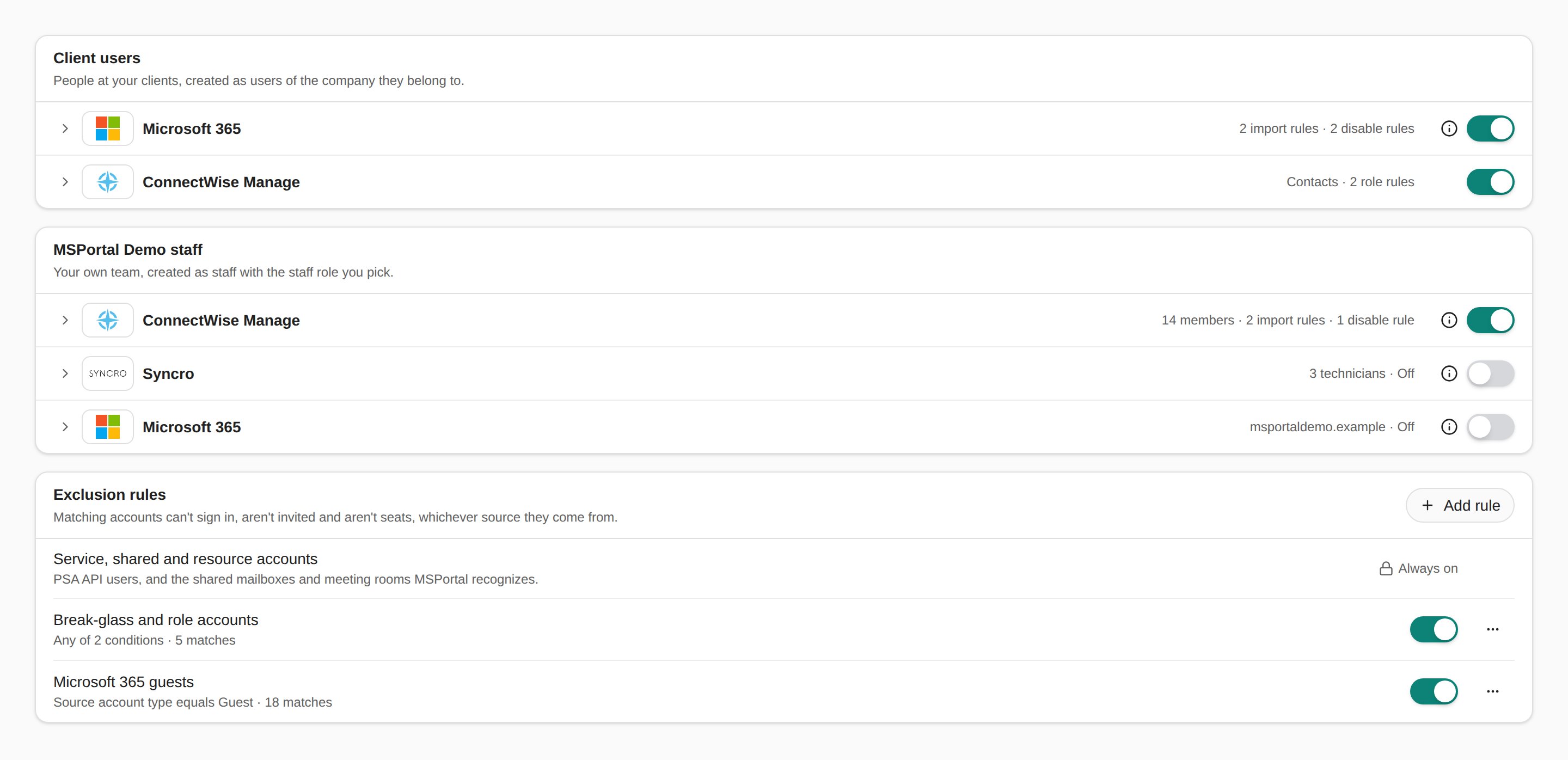
Sample data: every user source in two panels, each with its switch and a summary of its rules, and the Exclusion rules panel under them.
Phone preview
Phone preview
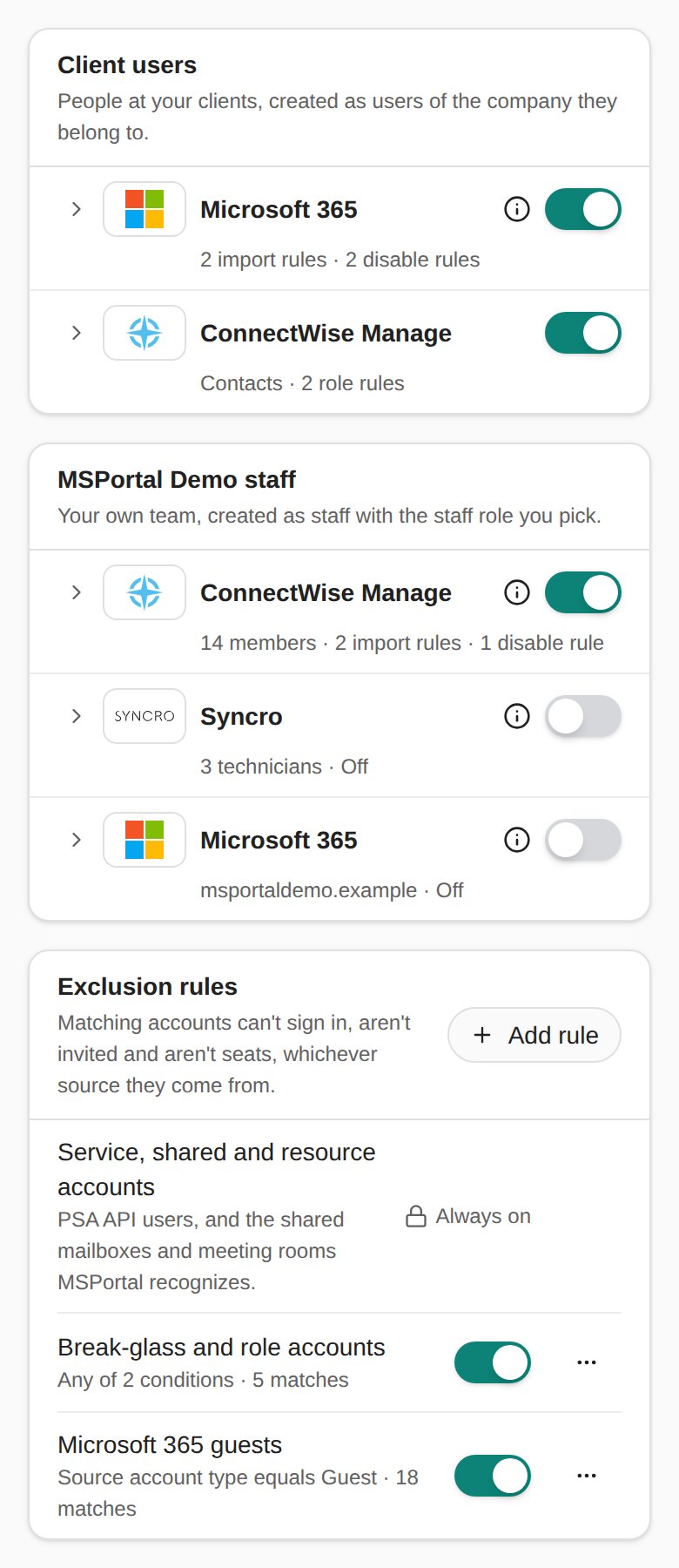
The same page on a phone. A source's summary sits under its name.
Read the page
The page has three panels:- The switch on the right is Import from this source automatically. On means the source is creating users.
- The summary beside the switch (under the source’s name on a phone) says what the source does today, for example 2 import rules · 2 disable rules, or Off. Built-in disables are counted. A summary in amber, such as Pick a default role, names something to fix before the source can import.
- Click the row to open its rules. Import rules decide who becomes a user and with which role. Disable rules decide who is turned off and signed out.
Import client users from Microsoft 365
Open Microsoft 365 under Client users. Its rules read the people synced from every client tenant you have connected.Add an import rule
Name the rule
Choose the role and priority
Add the conditions
Preview the matches
Save and apply
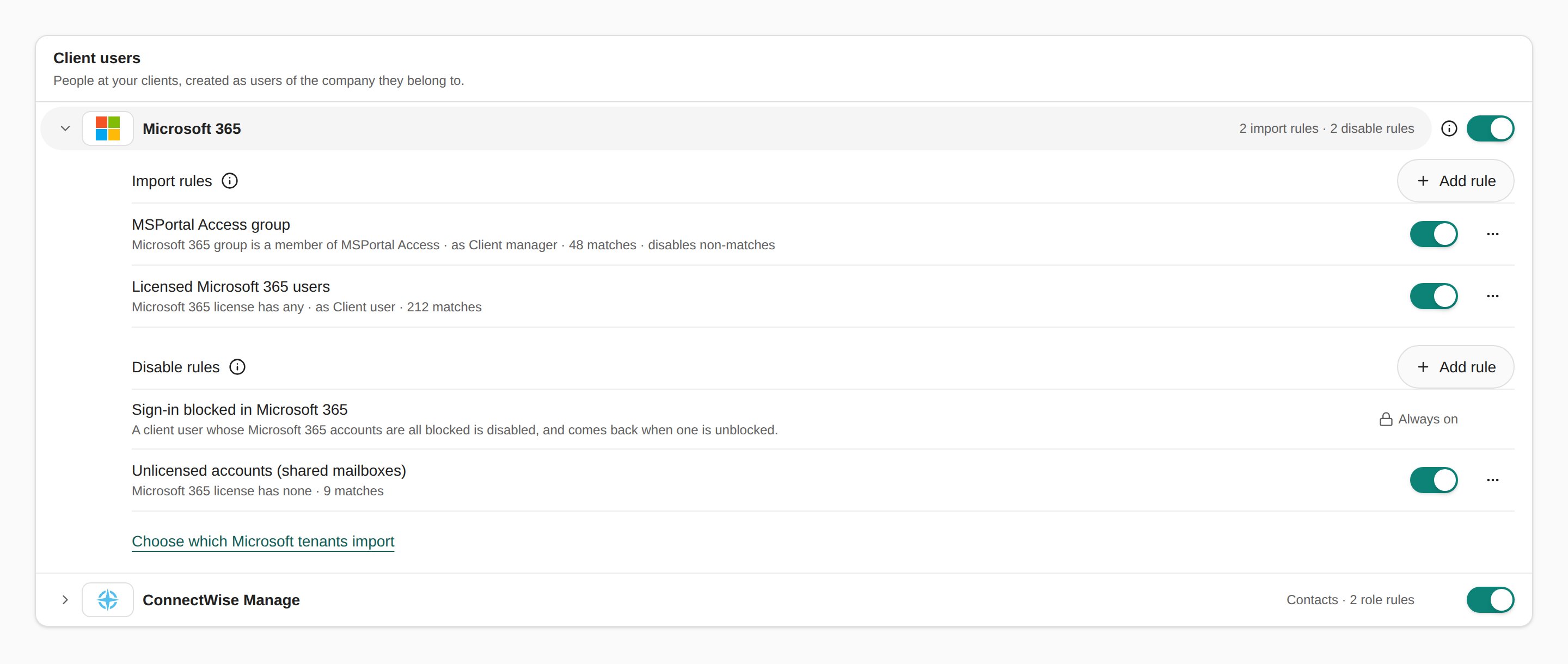
Sample data: Microsoft 365 open, with two import rules, the built-in disable and one disable rule.
Phone preview
Phone preview
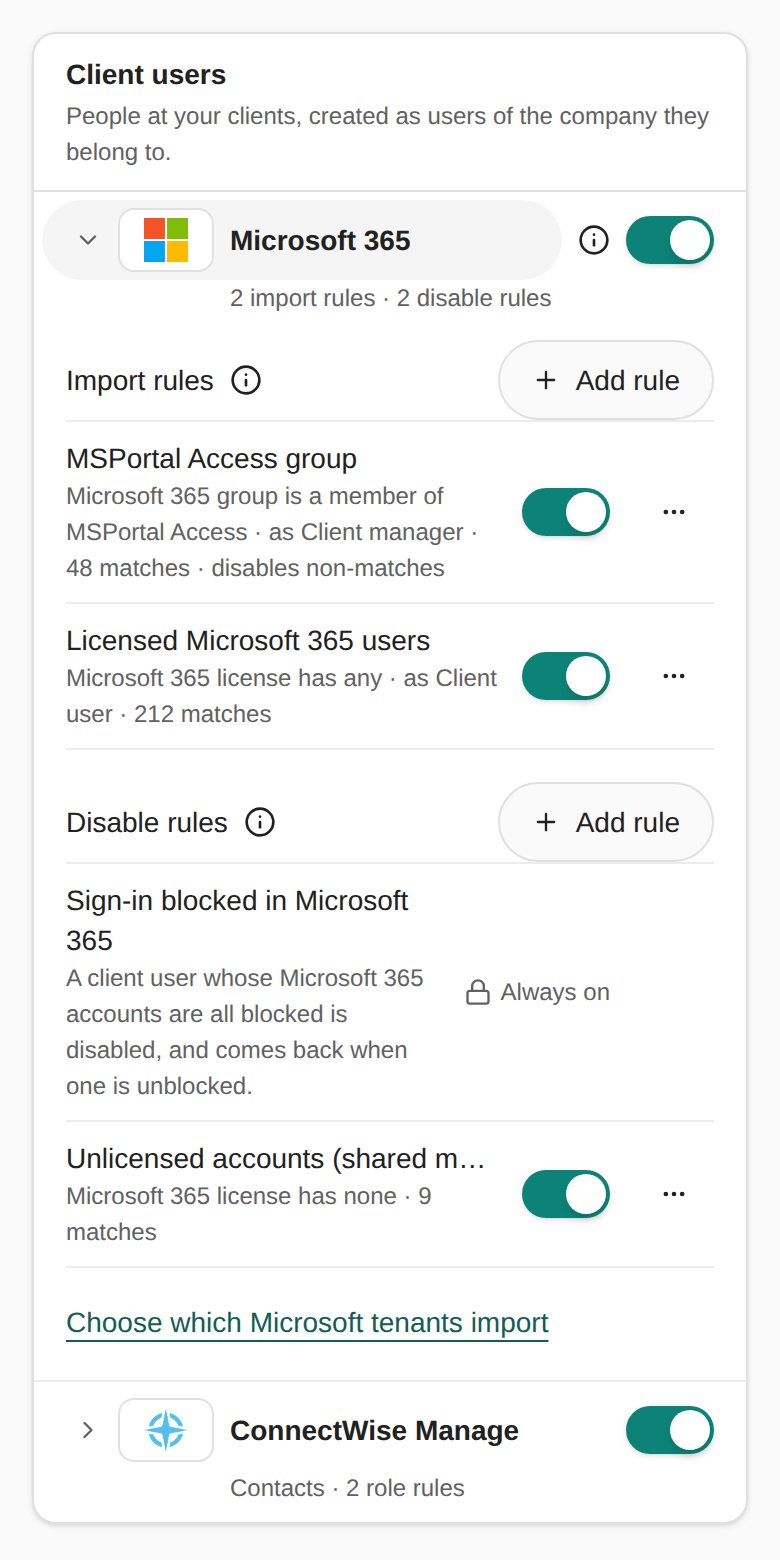
The Microsoft 365 rules on a phone.
Match by Microsoft 365 license
Use the License field with is assigned or is not assigned. The Value list shows the licenses synced from your clients’ Microsoft 365 tenants, with how many companies have each one. A rule matches that license in every client tenant, so one rule covers all of them. has any and has none need no value: they match an account with at least one license, or with none. For example, import everyone with Microsoft 365 Business Premium, or disable accounts that have no license. Licenses sync once a day. A license condition never judges an account that appeared after the last license sync, so a new hire is not caught by has none before their license is on file.What an import rule does
- When it runs: after each Microsoft 365 users sync, and right after you save the rule or turn a tenant’s user import back on.
- Who it creates: a Company user in the company the person’s Microsoft 365 tenant is connected to, with status Imported and the rule’s role.
- No invitation: MSPortal sends no email. The Microsoft 365 account is linked to the portal user when the person first signs in. To invite people, use Send Welcome Email on Company Users.
- Existing users stay as they are: an import rule never changes a portal user’s details or role. An address already used by a portal user in your organization, as a main address or a Microsoft alias, is skipped. With Disable users who stop matching on, it can disable and turn back on the people it matches, as described below.
- Turning it off keeps users: pausing, editing or deleting an import rule stops new imports only. Users it already imported stay. People a synced rule disabled are turned back on. Remove them from Company Users if they should not have access.
- The source’s switch: it is on while at least one import rule is active. Turning it off pauses every active Microsoft 365 import rule. Turning it back on resumes the rules it paused, and leaves a rule you paused yourself paused.
- Per tenant: to stop imports for one client’s Microsoft tenant, turn off user import on the Microsoft 365 Companies page.
Who an import rule skips
Keep access in sync with a group
Map a Microsoft 365 group to a role: create an import rule with the condition Groups include the group, choose the role, and turn on Disable users who stop matching. A group named the same in every client tenant (for example MSPortal Access) is matched in all of them. The group list shows how many companies have each group, for example 2 companies. Hover over a group to see which companies they are: up to 12 names, then how many more. When you move through the list with the keyboard, the highlighted group’s companies show under the list. With no groups synced yet, the list says No groups synced from Microsoft 365 yet.- Joining the group: a member without a portal user gets one, with the rule’s role. A member who already has a portal user keeps it, and the rule starts keeping their access in sync.
- Leaving the group: once someone the rule has matched stops matching every rule that keeps access in sync, MSPortal disables their portal user and signs them out after the next Microsoft 365 sync.
- Rejoining: they are turned back on after the next sync.
- Pausing or deleting the rule: turning the rule off, deleting it or turning Disable users who stop matching off turns back on the people it disabled, within a few minutes.
- Roles: people the rule created move to the role of the highest-priority synced rule they match, so a second rule for a Managers group can give managers a different role. Once someone changes a person’s role by hand, the rules leave that role alone. People who were portal users before the rule keep their role.
- Turning a rule on disables nobody: only people a rule has matched can be disabled by it. People who were never in the group are left as they are.
- An administrator’s choice wins: if you turn a removed person back on, the rule leaves them alone until they rejoin the group and leave it again.
- Safety stop: when more than 25 people, and over half of everyone the synced rules track, would be disabled in one pass, MSPortal disables no one and reports it to the MSPortal team. That pattern usually means a group failed to sync, not a mass departure. A disable rule is held the same way when it would suddenly disable more than 25 people and over half of everyone in scope. A change you make yourself is never held: saving a rule applies it, so a rule you just created or edited after checking Preview matches goes through. To apply a held change once you have checked it, open the rule and save it again.
Disable client users from Microsoft 365
Disable rules, in the same Microsoft 365 row, lists everything that turns a client user off.- Sign-in blocked in Microsoft 365 is built in and marked Always on. A client user whose Microsoft 365 accounts are all blocked is disabled, and comes back when one is unblocked. See Microsoft 365 users.
- Add rule creates your own disable rule. It disables, and signs out, each Company user whose Microsoft 365 accounts all match. They are turned back on when they stop matching, or when you pause or delete the rule. If you turn someone back on yourself, the rule leaves them alone until they stop matching and match again. People come back with the status they had before, so an invited person stays invited.
Create PSA contacts from Microsoft 365
PSA contacts, in the same Microsoft 365 row, lists each ConnectWise, Autotask and Halo connection. Turn on Create and update contacts in a connection to give every client user linked to Microsoft 365 a contact in that PSA. While it is off, the row explains that each person is matched to their PSA contact by email, and a contact is created only for people who have none.- Who gets a contact: every active Company user linked to an enabled Microsoft 365 account of their own company. Guests, and accounts an exclusion rule leaves out, never get one. The person’s company has to be mapped to a company in that PSA.
- Matching existing contacts first: each person gets one contact. MSPortal first looks for their existing contact by email in the mapped PSA company and links it. It creates a contact only for people who have none, and from then on updates that same contact.
- What is sent: first and last name, job title, business phone and mobile phone. After the first sync, MSPortal sends a field only when Microsoft 365 changes it. It never clears a field and never changes a contact’s email, so an edit made in the PSA stays until Microsoft 365 changes that field.
- When it runs: after each Microsoft 365 users sync, after you save a Microsoft 365 import rule, and right after you turn the option on.
- What the row shows: how many contacts are up to date, how many are waiting and how many MSPortal created. When some could not be written, the row says how many failed. Click Show who for each person and the reason.
- Turning it off: MSPortal stops writing contacts to that PSA. Contacts it created stay in the PSA.
Import client users from PSA contacts
Each ConnectWise, Autotask and Halo PSA connection has its own row under Client users. Its switch turns contact import on for that connection: active contacts of your imported companies become Company users after each users sync.Open the connection's row
Choose the role for everyone else
Give some contacts another role (optional)
Turn the switch on
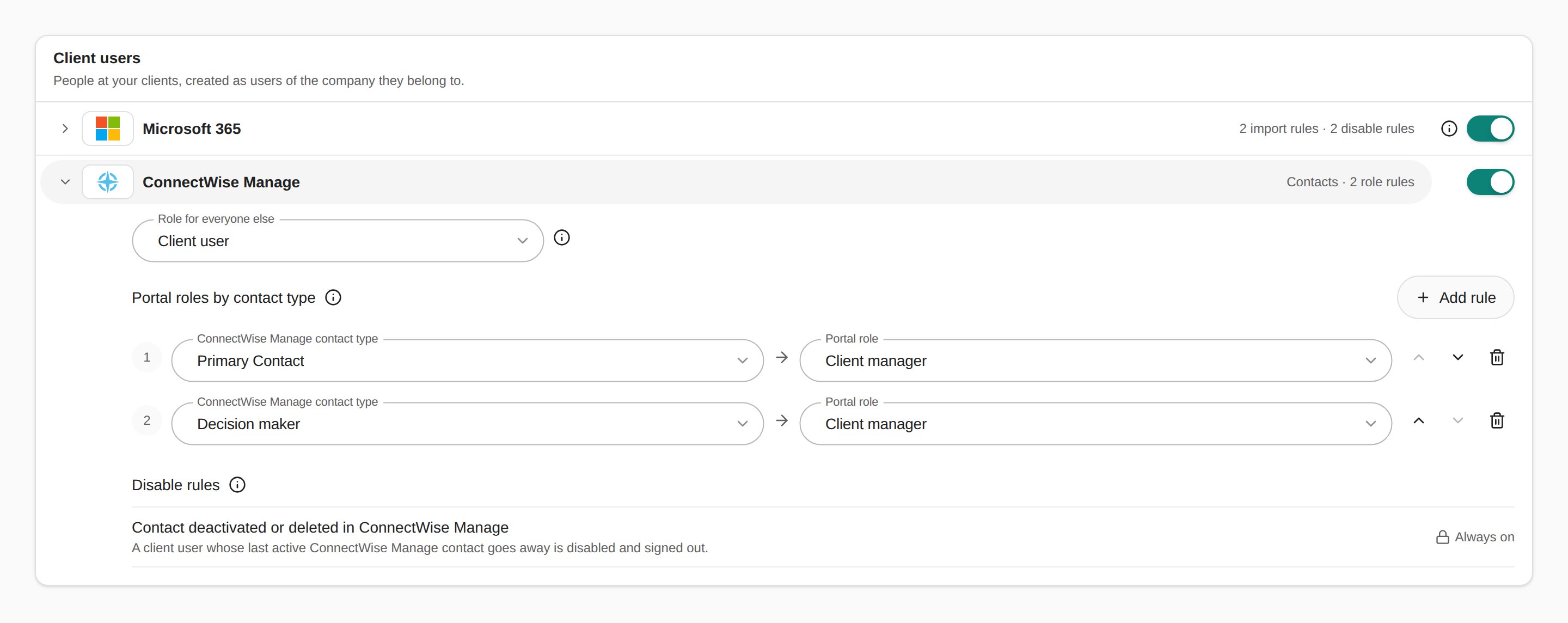
Sample data: a ConnectWise connection's contacts, with the default role, two contact type rules and the built-in disable.
Phone preview
Phone preview
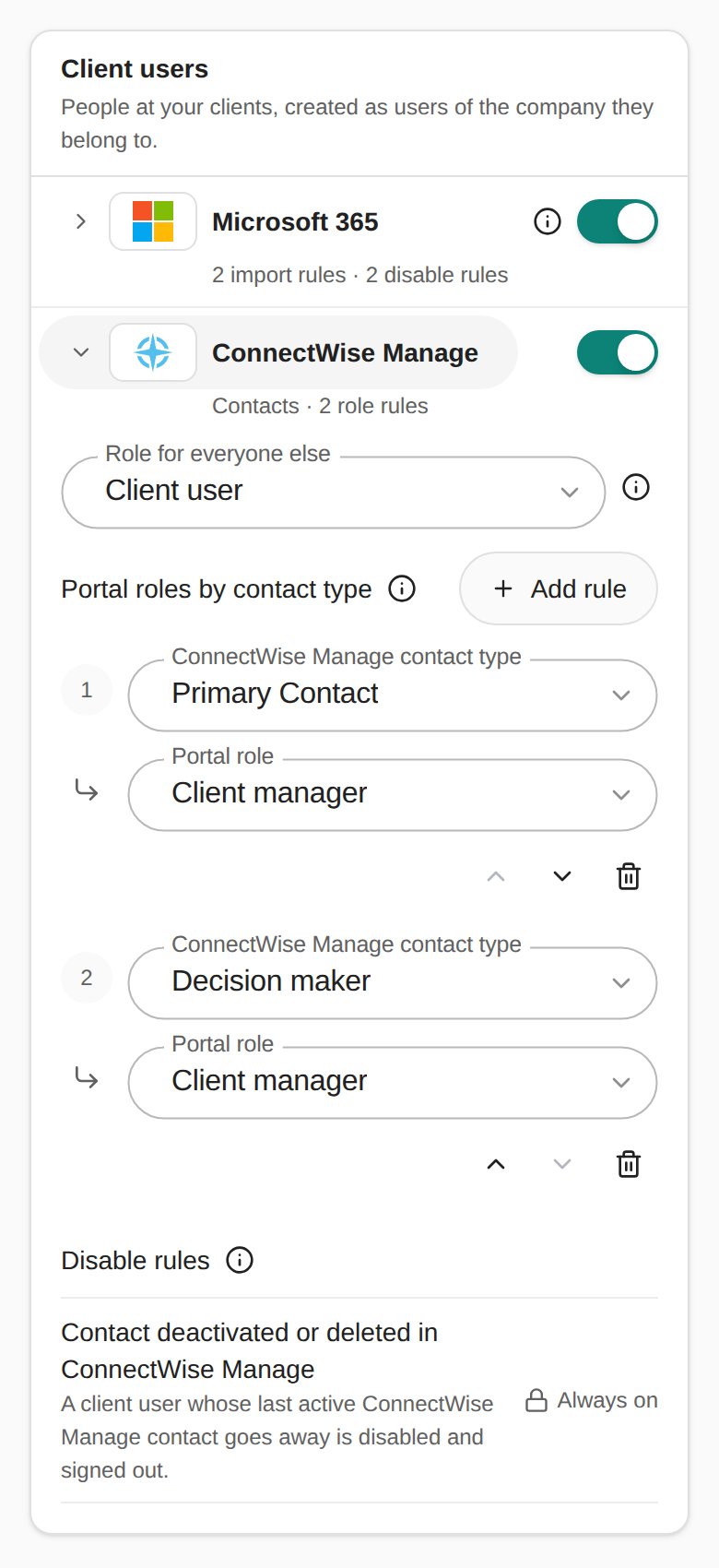
A PSA connection's contact import on a phone.
- Changing a role rule updates existing users. Users already imported from that connection move to the role their contact type now maps to.
- Removing a rule asks first. The confirmation says what happens to the contacts the rule covered: they get the role of the next rule that matches, their company’s default import role, or Role for everyone else. With none of these, they keep the role they have. Roles set by hand stay.
- Disable rules: Contact deactivated or deleted is built in and marked Always on. A client user whose last active contact in the PSA goes away is disabled and signed out.
- Users must be syncing. When the connection is not syncing users, or its API key cannot read contacts, the row’s summary reads Not importing and the row says why. Turn on Sync Users under Choose data on the connection’s page. You can still turn the import off here.
- Changing who gets a role checks every role. Reordering, adding or removing a rule, changing the default role and turning the import on can all hand a role to new people, so each of those saves needs you to be able to give every role in the list.
- The PSA’s own page links here. On the connection’s Choose data task, Contact Auto-Import shows On or Off and the link Set up in Automatic Import.
Import your own staff
The second panel, named after your MSP, creates MSP staff. Its sources are:- Each PSA connection’s technicians: ConnectWise members, Autotask resources, Halo PSA agents, and Syncro and NinjaOne technicians. The row shows how many the connection has synced.
- Your own Microsoft 365 tenant: the tenant your own team signs in with. MSPortal offers a Microsoft 365 tenant here only when your account, or a Primary Admin’s, is a member of it, so a client’s directory can never create staff. Membership goes by the address you sign in to MSPortal with, after you have signed in with it once. A rule reads that one tenant only. If the connection is later reconnected to a different tenant, its staff rules are removed, and the people their disable rules had turned off are turned back on. If no tenant qualifies, the panel explains that and you can connect your own tenant like any other company’s. Each directory is one row: when several of your companies connect the same Microsoft 365 directory, it shows once, unless more than one of those connections already has rules of its own.
Open a source and add an import rule
Name the rule, then choose the staff role and priority
Add the conditions
Preview, then save and apply
- A PSA’s groups list that PSA’s own teams, departments and roles, under headings such as Teams, Departments, Security roles and Work roles.
- Job title, Department, Office location and Employee type, compared with equals or does not equal, list the values the source’s accounts hold, with how many accounts hold each. An import rule lists the values of active people, a disable rule those of everyone. To use a value that is not listed, type it and pick Use ”…” with your text.
- User type offers Member or Guest. Yes/no fields such as Deactivated offer is true or is false.
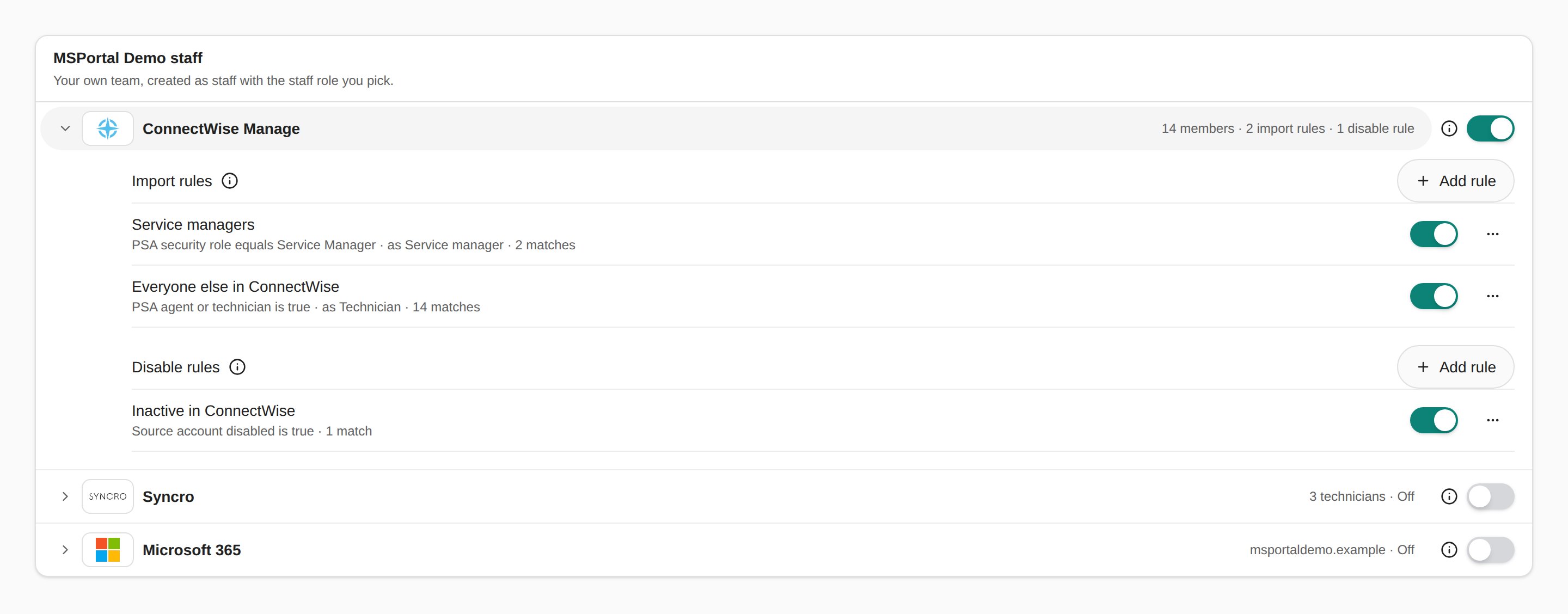
Sample data: a ConnectWise connection's staff rules, one role for service managers and one for everyone else.
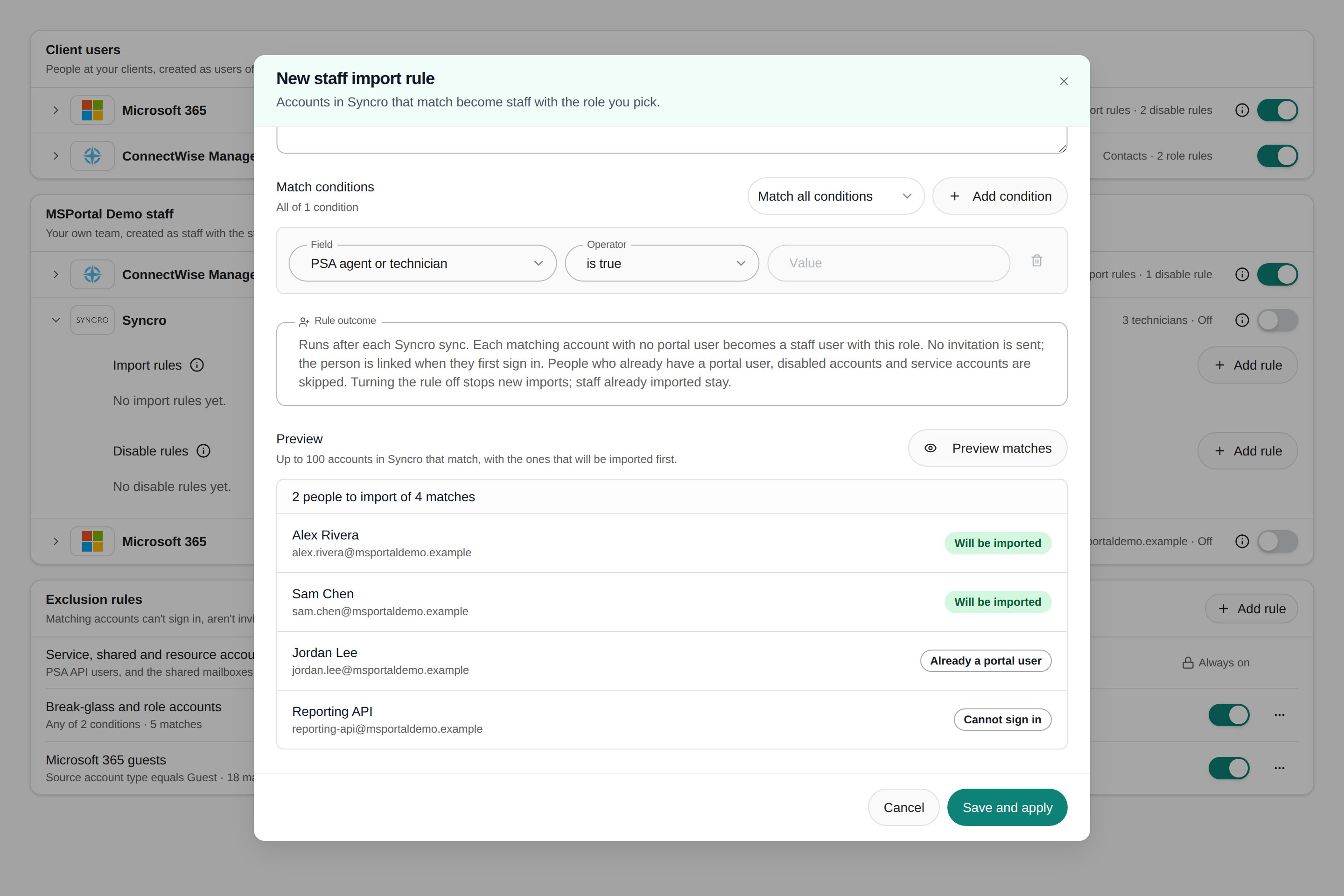
Sample data: a new staff import rule, with the preview showing who will be imported and why others are skipped.
Phone preview
Phone preview
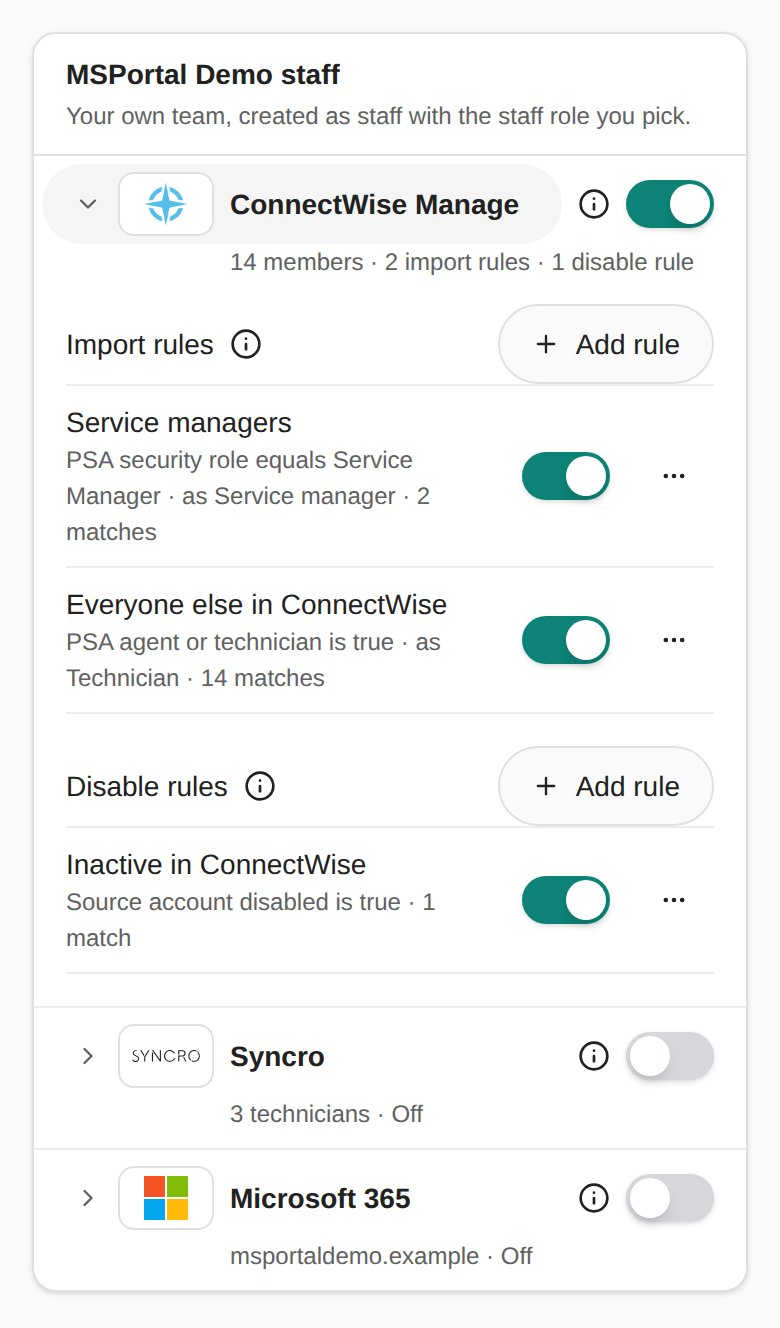
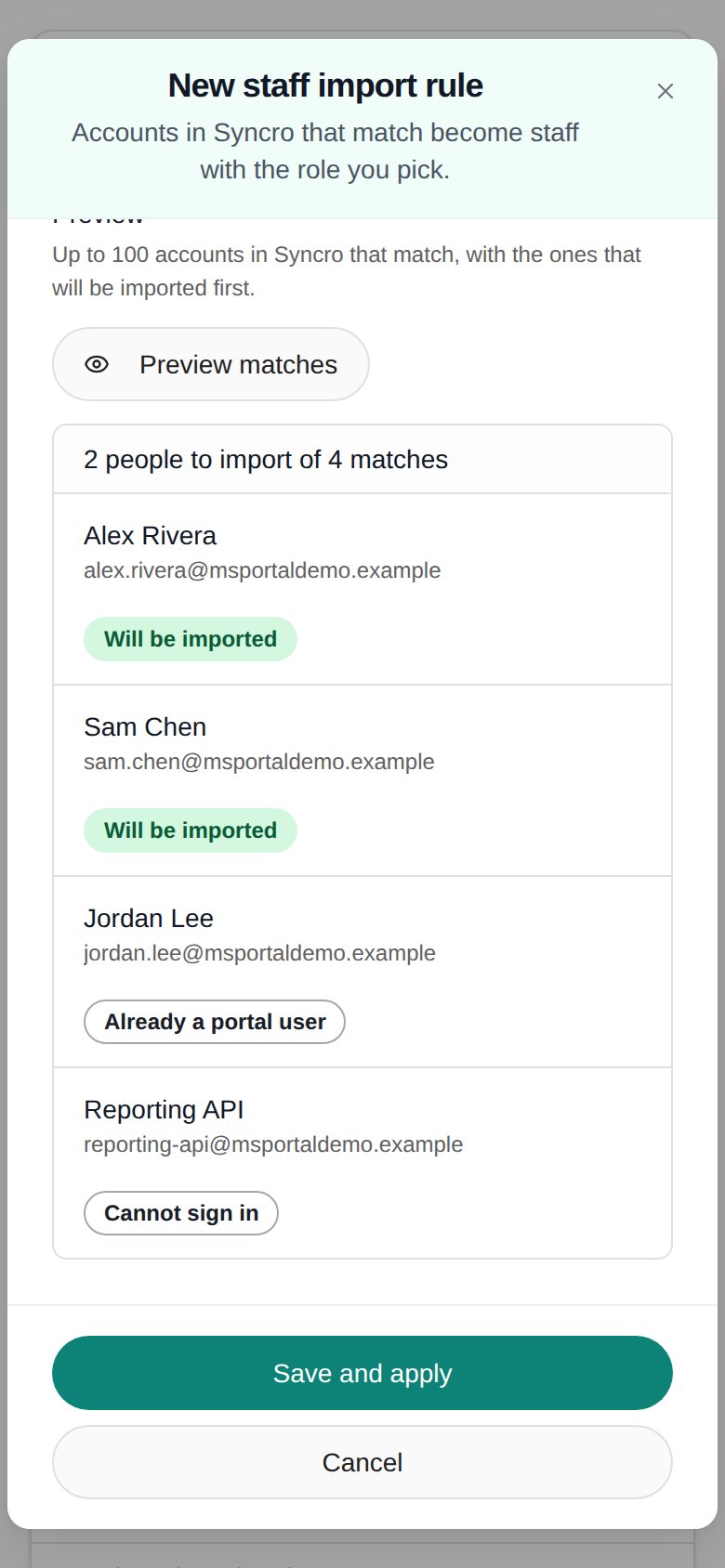
The staff rules and the rule dialog on a phone.
- When it runs: after each sync of its source, and right after you save it.
- Who it creates: a staff user with status Imported and the rule’s role, linked to the technician or Microsoft 365 account it came from.
- No invitation: MSPortal sends no email. The person is linked when they first sign in. Send invitations from the Users tab when you are ready.
- Existing users stay as they are: a person who already has a portal user, staff or client, is skipped. A rule never changes an existing user’s role and never turns a client user into staff.
- Skipped accounts: disabled accounts, service and API accounts, accounts an exclusion rule matches, and accounts with no email address. The preview shows Account disabled, Cannot sign in or No email address for each.
- Staff before contacts: in a PSA sync, staff rules run before contact import. A technician who is also a contact of one of your companies becomes staff, not a client user.
- Turning it off keeps staff: pausing or deleting an import rule stops new imports only.
Disable staff who leave
Add a disable rule to the same source, so a person who is deactivated in your PSA or Microsoft 365 loses portal access without anyone remembering to remove them.Add a disable rule
Choose the condition
Preview, then save and apply
- Who it disables: a staff member whose accounts in that source all match. They are disabled and signed out. This includes someone an import rule creates in the same sync, who is turned off straight away.
- Coming back: they are turned back on when an account stops matching, or when you pause or delete the rule. They return with the status they had before.
- Disconnecting the source: removing the PSA or Microsoft 365 connection removes its staff rules and turns back on the people its disable rules had turned off.
- An administrator’s choice wins: if you turn someone back on yourself, the rule leaves them alone until they stop matching and match again.
- Primary Admins are never disabled by a rule, and you cannot save a rule that would disable your own account.
- Safety stop: when a rule would turn off more than three people and over half of your active staff in one pass, MSPortal holds the change, because that pattern usually means a sync failed, not that most of your team left. The rule’s row then says how many disables are held back. Click Review on that row, or save the rule, and MSPortal asks Disable N staff members? with the number it would turn off now. Confirm to apply it, or cancel to leave everyone on. The confirmation covers the people you were shown: anyone the rule matches later is held again.
- NinjaOne does not report when a technician is deactivated, so a disable rule on a NinjaOne source has to match on something else, such as a name or an email address.
Add exclusion rules
The Exclusion rules panel, under your sources, lists the accounts every source leaves out. Use it for service accounts, shared mailboxes, break-glass accounts and anything else that is not a person who should sign in. An account that matches an exclusion rule becomes a service account with sign-in blocked:- No sign-in and no invitation: it cannot sign in to the portal or be invited.
- Not a seat: it does not count as a seat in financial reporting.
- Skipped by imports: Microsoft 365 import rules and staff import rules skip it. A PSA contact import still adds it, as a service account that cannot sign in.
- Still visible: its records, history and source links stay.
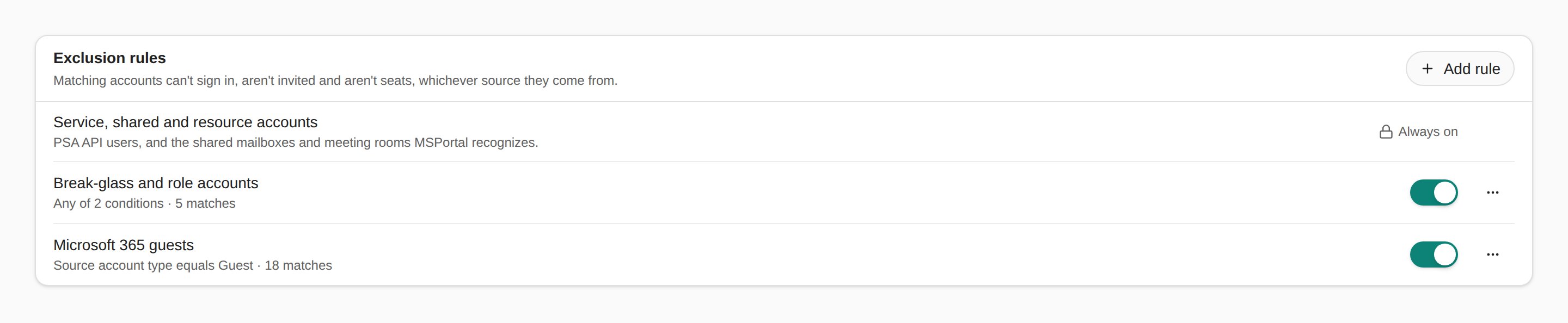
Sample data: the Exclusion rules panel with the built-in row and two rules.
Phone preview
Phone preview
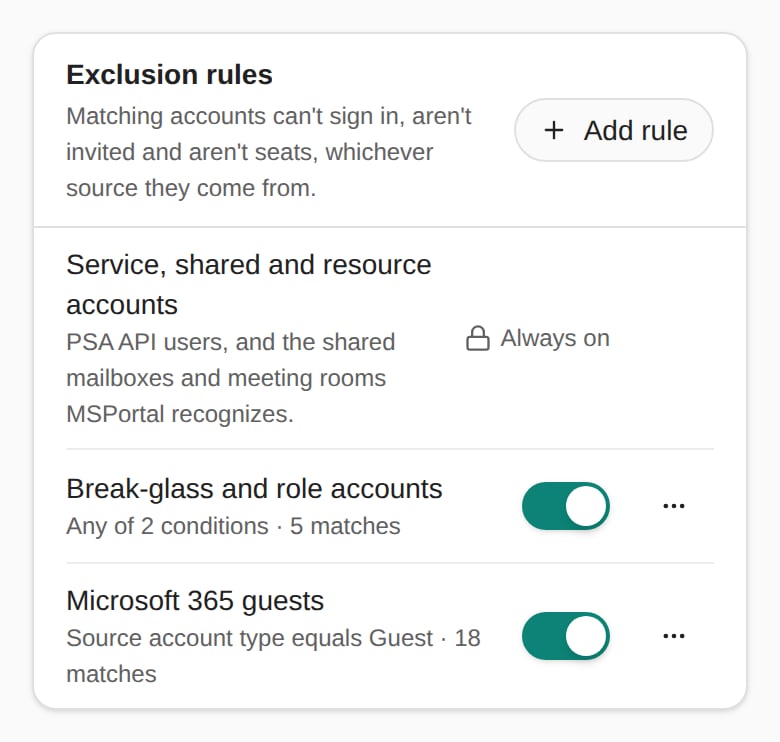
The same panel on a phone.
Add a rule
Name the rule
Add the conditions
Preview the matches
Save and apply
Troubleshooting
Frequently asked questions
Does an import rule invite the people it creates?
Does an import rule invite the people it creates?
What happens to imported users when I delete the import rule?
What happens to imported users when I delete the import rule?
Where did the Access Rules tab go?
Where did the Access Rules tab go?
Where did Contact Auto-Import on my PSA connection go?
Where did Contact Auto-Import on my PSA connection go?
Does MSPortal delete PSA contacts?
Does MSPortal delete PSA contacts?
Can a rule turn a client user into staff?
Can a rule turn a client user into staff?