

Before you start
- Your role needs permission to create tickets. See How to open a ticket.
- Your IT provider must have made at least one active template available to your company.
- You do not need to design or configure a template to ask for help.
Choose a request
The easiest way is the AI Assistant on Home. Describe what you need and the assistant picks a template for you. To choose one yourself, use the steps below.1
Open New Ticket
Click Tickets in the sidebar, then New Ticket. If the AI Assistant panel opens, click Edit form or close the panel.
2
Find the request
Under Request Service, type in Search services or problems… or click a category. Requests are sorted by how often they are used. Each card shows the request name, its category, and a short description. If your portal uses the list view, open Choose a template… under Select Template and search instead.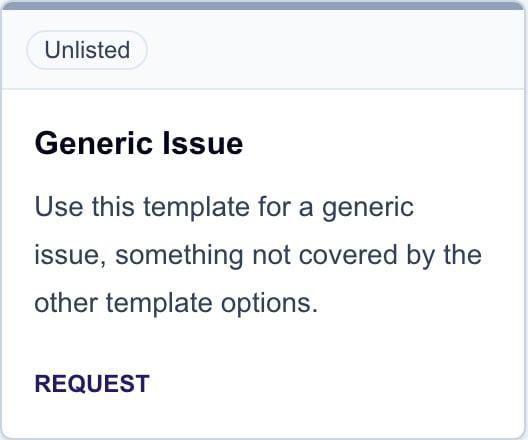
3
Read the description
Read the card’s description to be sure the request fits. Click the card to open its form.
4
Answer the questions
Fill in the form and click Create Ticket. See How to open a ticket for the full steps and for what the result messages mean.
What the questions mean
If a request is missing
First check the company you are working in, the category, and the search text. If it is still missing, ask your IT provider to check that:- The template is active.
- It is turned on for your company.
- Your role is allowed to use it.
- Any company type or industry limits match your company.
Troubleshooting
Frequently asked questions
Do I need to pick a template before using the Home assistant?
Do I need to pick a template before using the Home assistant?
No. Describe what you need on Home. The assistant picks an available template and gathers the details.
Why do I see fewer requests than my IT provider's staff?
Why do I see fewer requests than my IT provider's staff?
Your list only shows active templates that are turned on for your company and role. Staff can see more in the template editor.
Can a company administrator turn on a missing template?
Can a company administrator turn on a missing template?
No. Ask your IT provider.
Does choosing a template create the ticket?
Does choosing a template create the ticket?
No. The ticket is created when you click Create Ticket and see the success message.