

Before you start
- Your MSP must turn training on for you and make courses available to your company.
- Premium courses also need Premium training turned on for you.
- For Huntress tiles, use Open your Huntress training. Huntress tiles are existing assignments and have no enroll button.
Find a course
1
Open the library
Click Training in the sidebar, then Training Menu > Course Library.If Training opens a provider’s learning portal instead, use that portal’s catalog.
2
Search or filter
Type in the search box to search by course title, description, or category. Click Filters to narrow by Category, Tags, Course Type, and Difficulty Level, then click Apply Filters.Use the small grid, large grid, or list buttons to change the layout. My Courses shows only your enrollments. Click Show All to remove that filter.
3
Read the course card
Check the description and any Required, Included, or Premium label. If the card has a Preview button, click it to watch a preview. A preview does not enroll you or complete the course.
Enroll in a course
1
Click Enroll
Click Enroll on the course card (Enroll Now in list view). Wait for the confirmation message.MSP staff see Self Enroll to enroll themselves and Enroll Users to enroll others.
2
Click Start
After you enroll, the card shows Start. After you have made progress, it shows Continue. See Take a course and track progress.
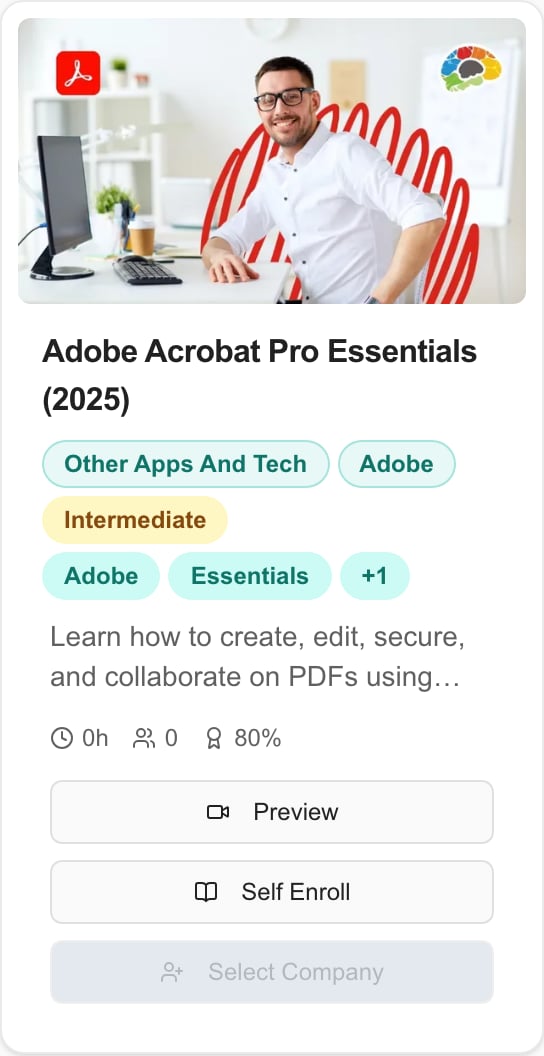
A course card in an MSP session. Company learners see Enroll. Staff see Self Enroll and Enroll Users.
Find a course you already completed
1
Open Filters
In the course library, click Filters.
2
Show completed courses
Under Visibility, select Show completed courses, then click Apply Filters.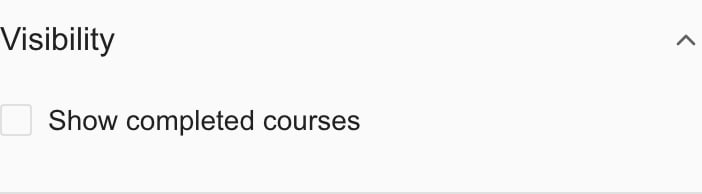
3
Open the certificate
On a completed course with a certificate, click View Certificate. You can also check status in Training Menu > My Training.
Remove an enrollment
1
Find the course
Click My Courses to show your enrollments.
2
Click Unenroll
Click Unenroll on the card. This button appears only on a course you have not finished and that has no certificate. Learners see it only on courses they have not started and that are not required.
Troubleshooting
Frequently asked questions
Can I enroll a coworker?
Can I enroll a coworker?
No. Company learners enroll themselves. Ask your MSP to assign training to another user or group.
Does Preview count as completing the course?
Does Preview count as completing the course?
No. Enroll, then use Start or Continue and finish the content and any quiz.
Does Enroll start the course right away?
Does Enroll start the course right away?
No. It adds the course to your training. Click Start to open it. Starting a course inside an assigned learning path can enroll and open it in one step.
Why did the course disappear when I finished it?
Why did the course disappear when I finished it?
The library hides completed courses by default. Turn on Show completed courses.