

Before you start
- You need Quotes read access (the Quotes resource with Read access in the role editor).
- Your MSP must have a quoting provider connected, and your company must be mapped.
- Your role can limit which quotes you see. See Control company quote access.
- Quotes show after the sync. Syncs run every four hours.
Find a quote
1
Open Quotes
Click Quotes in the sidebar.
2
Pick the company
Use the company selector in the top bar. Changing the company resets the filters and the page. Company users see only their own company.
3
Filter the list
Type in the filter boxes under the Number, Name, or Contact headings. Open the Stage filter to pick a stage. Open the Created filter to pick a range such as This Month or Last Quarter. The filters work together.
4
Show more columns
Click Columns, turn on Owner or Monthly, and click Save Changes. One-Time shows only when some quote has a one-time amount.
5
Check the quote
Confirm the Number, Name, Company, Stage, and Contact. The contact is the quote’s billing contact. The owner is a different person.
Open the quote details
1
Find the quote
Use the steps above.
2
Open the details
Click the Number, or click anywhere else on the row. The quote detail page opens in MSPortal. See Read a quote’s details.
Open the provider page
1
Find the quote
Use the steps above.
2
Open it
Click the … menu on the row and choose Open in Quoter, Open in QuoteWerks, or Open in Salesbuildr. The page opens in a new tab. On the detail page, the provider link is Open quote.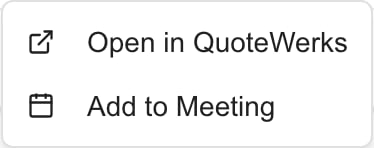
3
Review the quote
Read the terms on the provider page. Any acceptance, signature, or payment step happens there.
Add a quote to a meeting
1
Open the row menu
Click the … menu on the quote row and choose Add to Meeting.
2
Pick the meeting
In the Add to Meeting Agenda dialog, open Select Meeting and pick the meeting. Check its company and date.
3
Click Add to Agenda
Click Add to Agenda. A message reads Added to meeting agenda.
Troubleshooting
Frequently asked questions
Do I click the quote name to open details?
Do I click the quote name to open details?
No. Click the Number or the row. The Name is plain text. Use Open in on the … menu for the provider page. See Read a quote’s details for the detail page.
Why does Mine only hide a quote I own?
Why does Mine only hide a quote I own?
Mine only matches the quote’s billing contact to your full name. It does not match the quote owner.
Does All quotes show every customer's quotes?
Does All quotes show every customer's quotes?
No. Your company access still applies.
Where do I approve a quote?
Where do I approve a quote?
On the provider page. MSPortal has no approve action.
Can I export every matching quote to CSV?
Can I export every matching quote to CSV?
Yes. Export CSV covers every quote that matches your filters, not only the page you are viewing. See Download quote documents.