

Before you start
- You need Training read access.
- Your portal email must match a Huntress learner that is still active.
- You must be in a Huntress assignment that has synced episodes. Draft and canceled assignments do not show.
- Your MSP must turn on and map the Huntress SAT feed. MSP staff who only manage Huntress see company-wide assignments in Find Huntress training assignments, not personal tiles.
Find your episodes
1
Open the course library
Open Training > Training Menu > Course Library.
2
Click My Courses
This shows your enrollments. Personally assigned Huntress episodes are already included. You do not enroll separately.
3
Search
Search by episode title, description, company, or assignment name. Huntress tiles carry a Huntress badge and the assignment name.
4
Clear filters if an episode is missing
Huntress episodes use the Security Awareness category and have no difficulty level, so a Difficulty Level or Course Type filter can hide them.
5
Find completed episodes
Click Filters, select Show completed courses under Visibility, then click Apply Filters.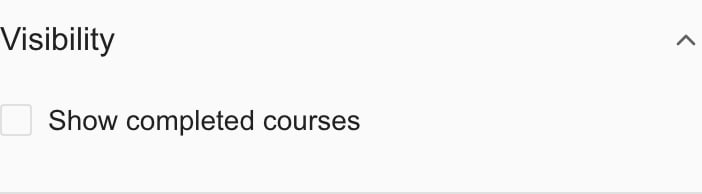
Open an episode
1
Read the button on the tile
The button reads Start when you have no progress, Continue when you have some, and Review when the episode is complete.
2
Click the button
The episode opens in a new browser tab on Huntress. Huntress may ask you to sign in.
Larger grid and list views show more detail, such as the unlock date and passing score.
Check your progress
Progress on Huntress tiles comes from synced assignment activity. A completion date, or progress of 100% or more, changes the button to Review. Several episodes in one assignment can show the same progress or score, because the numbers belong to the assignment and not to each episode. Huntress tiles count toward the library’s Enrolled Courses and Completed totals and its average score. Those totals also include portal courses. Tiles have no certificate, Unenroll, or Enroll Users buttons. Finishing an episode in Huntress does not update the portal right away. Check the result in Huntress first. If the portal still looks out of date later, ask your MSP to check the Huntress sync.Troubleshooting
To ask for help, start with the Home AI Assistant. Include the assignment, the episode, and the result you expected.
Frequently asked questions
Does Start guarantee my completion is tracked?
Does Start guarantee my completion is tracked?
No. It opens a preview link. Use your assigned Huntress link for tracked learning and check the result in Huntress.
Why can an MSP admin see assignments but no personal tiles?
Why can an MSP admin see assignments but no personal tiles?
Personal tiles need a matching learner email and membership in an assignment with synced episodes. Admin access does not assign training.
Do I need to enroll in a Huntress episode?
Do I need to enroll in a Huntress episode?
No. Assigned episodes already appear under My Courses.