

Branch preview: this guide and its screenshots describe Voice as it works on an unreleased branch, captured on the MSPortal Demo tenant with sample accounts and calls. Labels and figures are verified against that build and will be recaptured from production after release.
Before you start
- Your role has the Voice read permission. MSP roles that could already read Security received it automatically. Company roles get it when the MSP grants it; see Company user permissions.
- Your MSP has connected Intermedia and mapped its customer accounts to companies. Voice appears in the sidebar only once a voice integration exists. See Configure Intermedia Integration.
- Call history needs call analytics connected for each account. Accounts without it still show their users, but no calls.
- Voice is a feature MSPortal turns on per account, listed under Protection. If the permission and integration are in place and the sidebar entry is still missing, contact support@msportal.ai.
Open Voice
1
Open Voice
Select Voice in the sidebar’s Protection group. The page opens on Overview.
2
Set the company scope
Use the company selector at the top of the page. Every tab, chart and table follows it. MSP staff can choose any company they are allowed to see, or all companies.
3
Choose the period
Open the period selector in the header and choose Last 7 days, Last 30 days or Last 90 days. The default is the last 30 days. Every tab reads the same period.
4
Pick a tab
Select Overview, Calls, Users or Accounts in the header.
- Desktop
- Phone
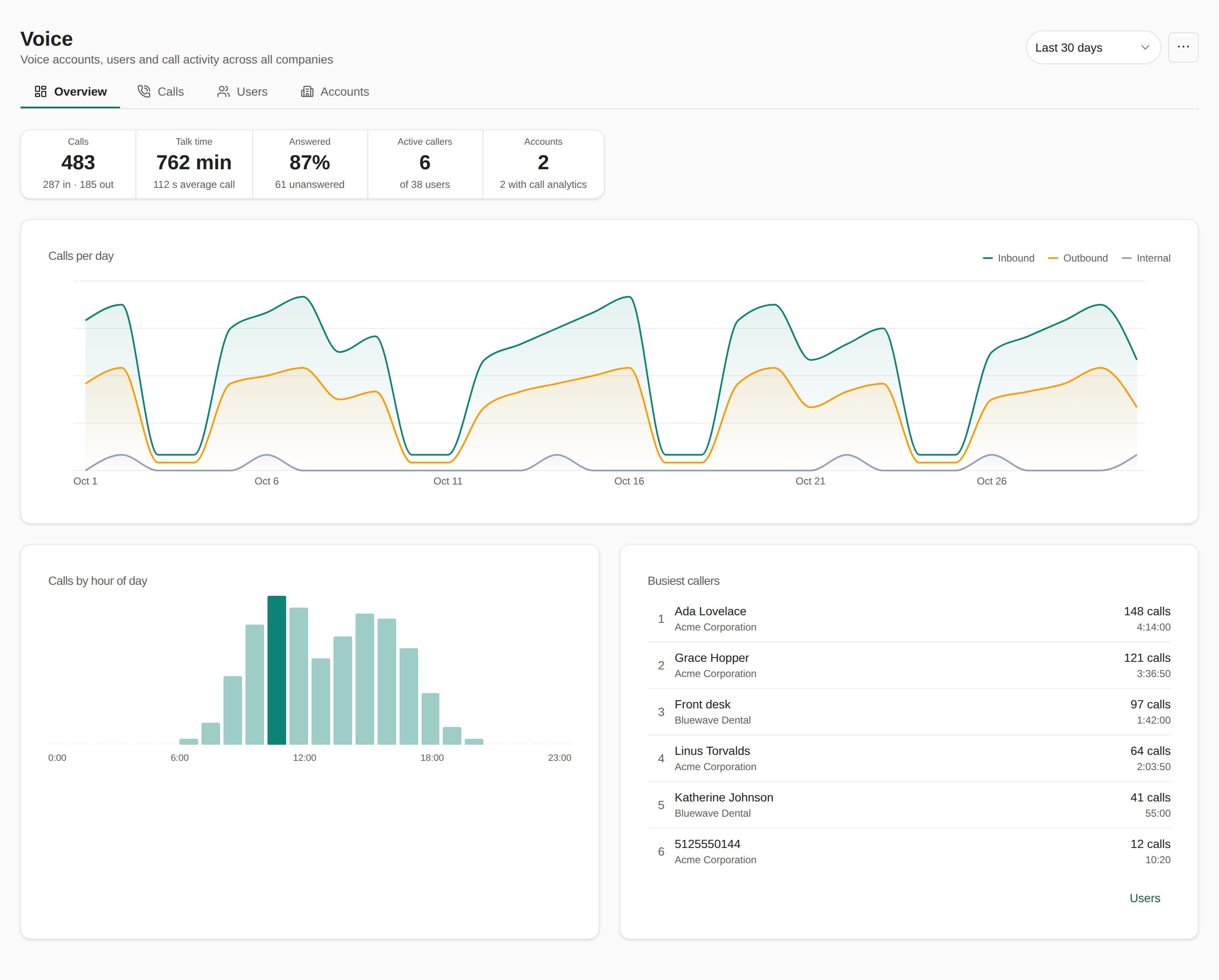
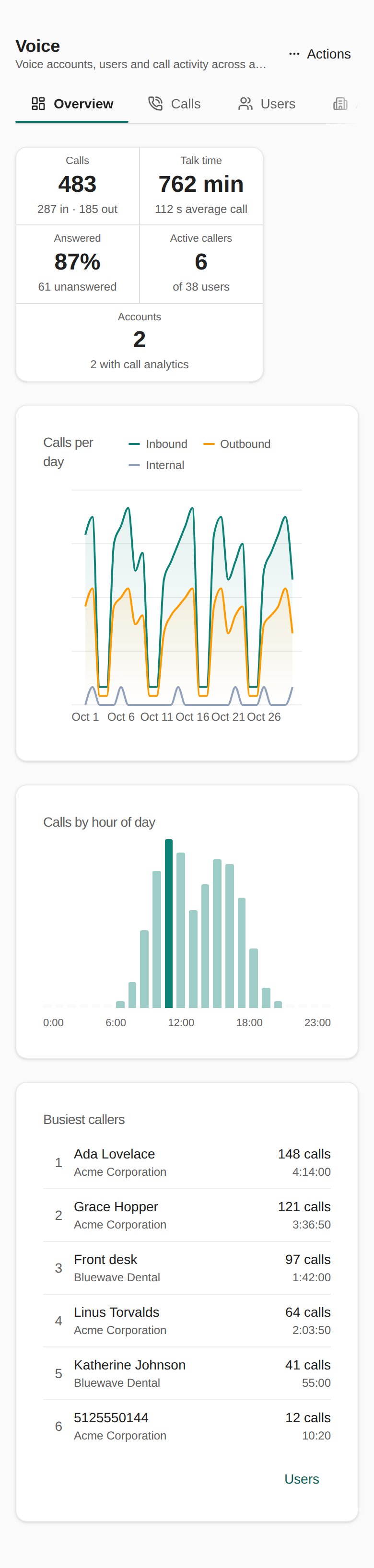
Branch preview on the Demo tenant: the Voice Overview with the summary rail, Calls per day, Calls by hour of day and Busiest callers.
What each tab shows
Overview
The summary rail shows five figures for the period:
Below the rail:
- Calls per day plots the period as three series, Inbound, Outbound and Internal.
- Calls by hour of day shows which hours are busiest. Days and hours follow your browser’s time zone.
- Busiest callers lists the eight people with the most calls, each with their company and talk time. Select Users at the bottom of the card to open the full list.
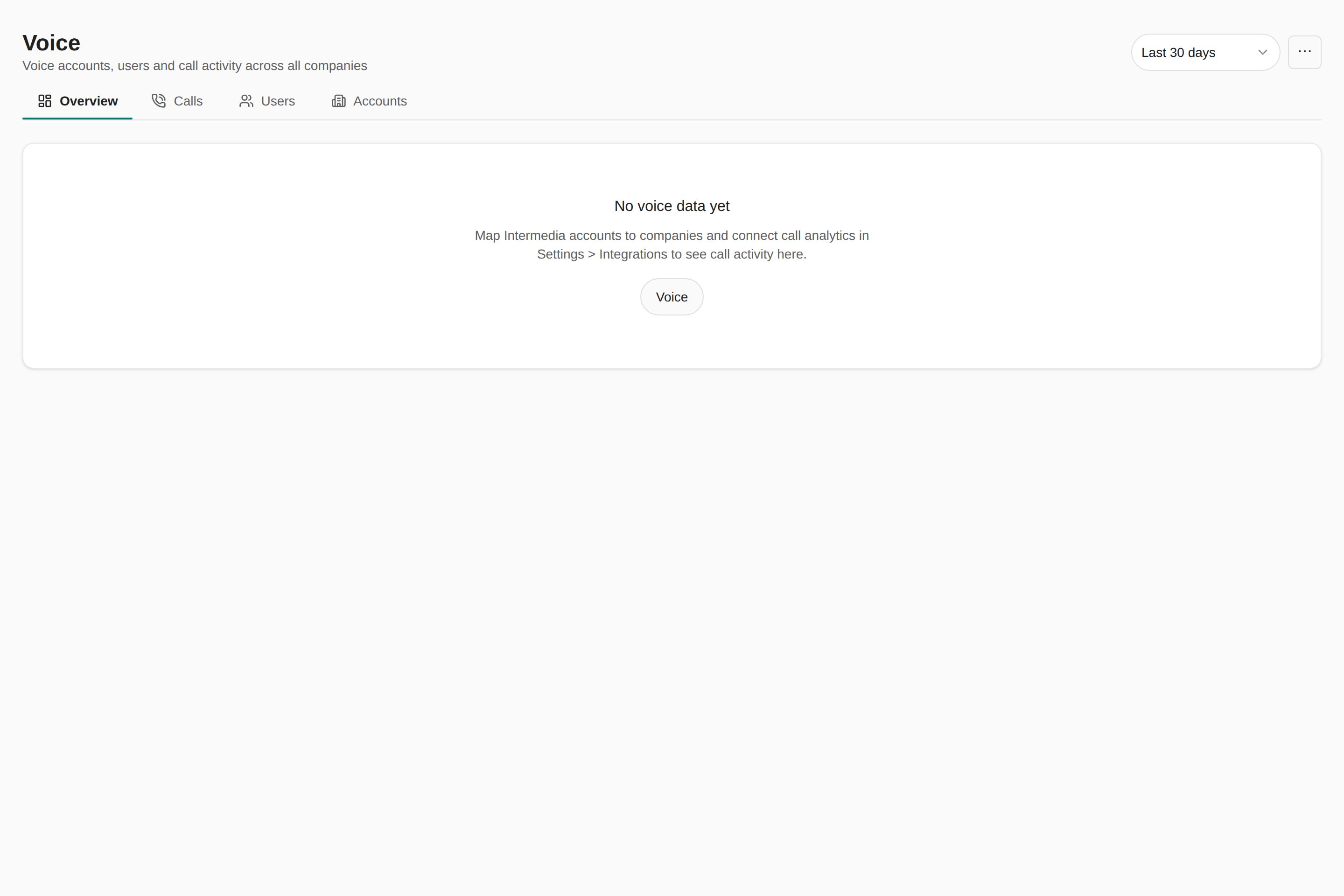
Branch preview on the Demo tenant: the Overview before any account is mapped.
Calls
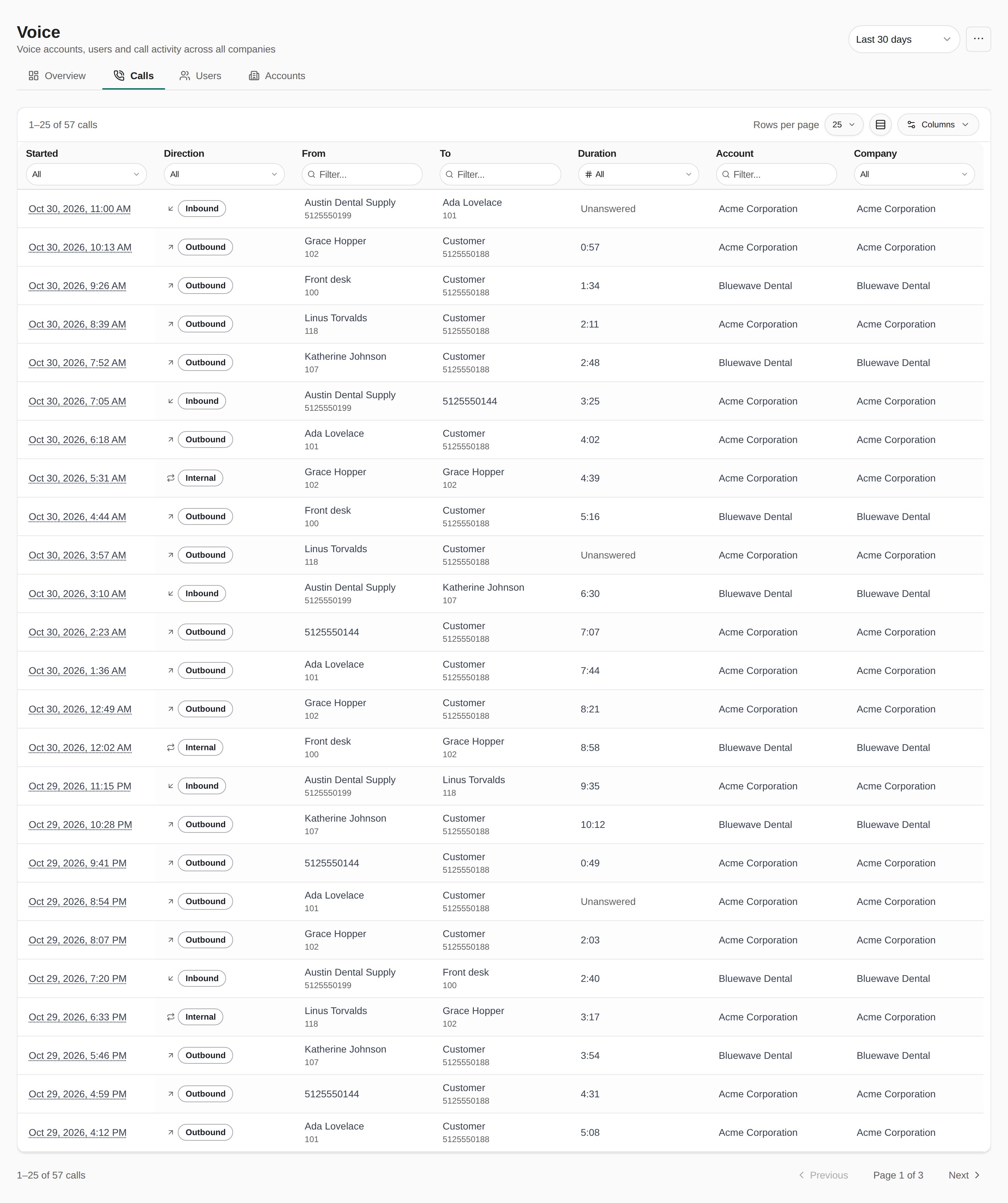
Branch preview on the Demo tenant: the Calls tab with 57 sample calls over the last 30 days.
Filter in the row under the headers: a date range for Started, a direction, text for the parties and the account, a duration range and a company. The company filter only narrows the active company scope; it cannot reach companies outside it. Tables show 25 rows per page; change Rows per page or use Columns to choose what you see. Select a column heading to sort.
Users
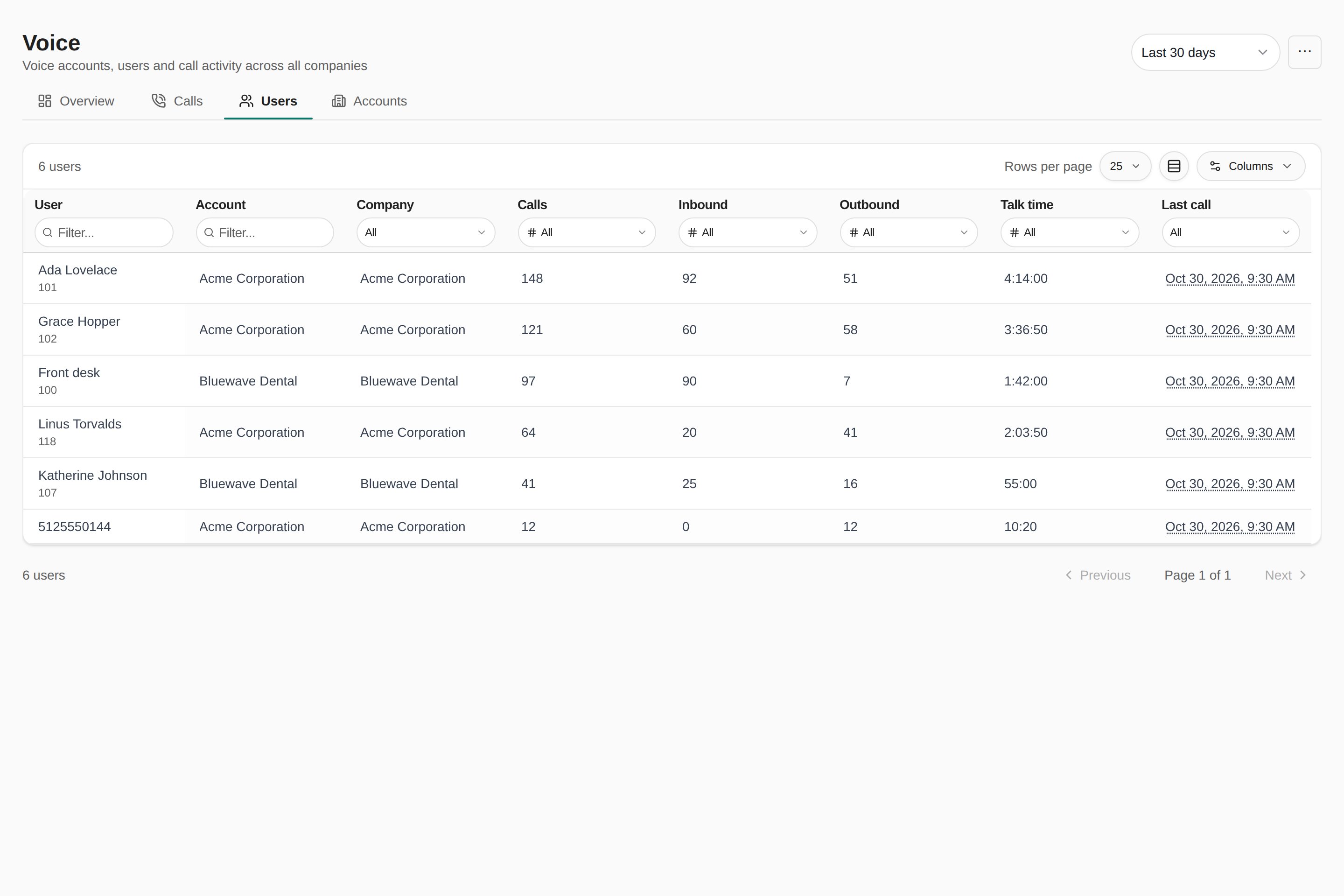
Branch preview on the Demo tenant: the Users tab ranking six callers by calls.
The caller of an outbound or internal call and the called party of an inbound call count as the user.
Accounts
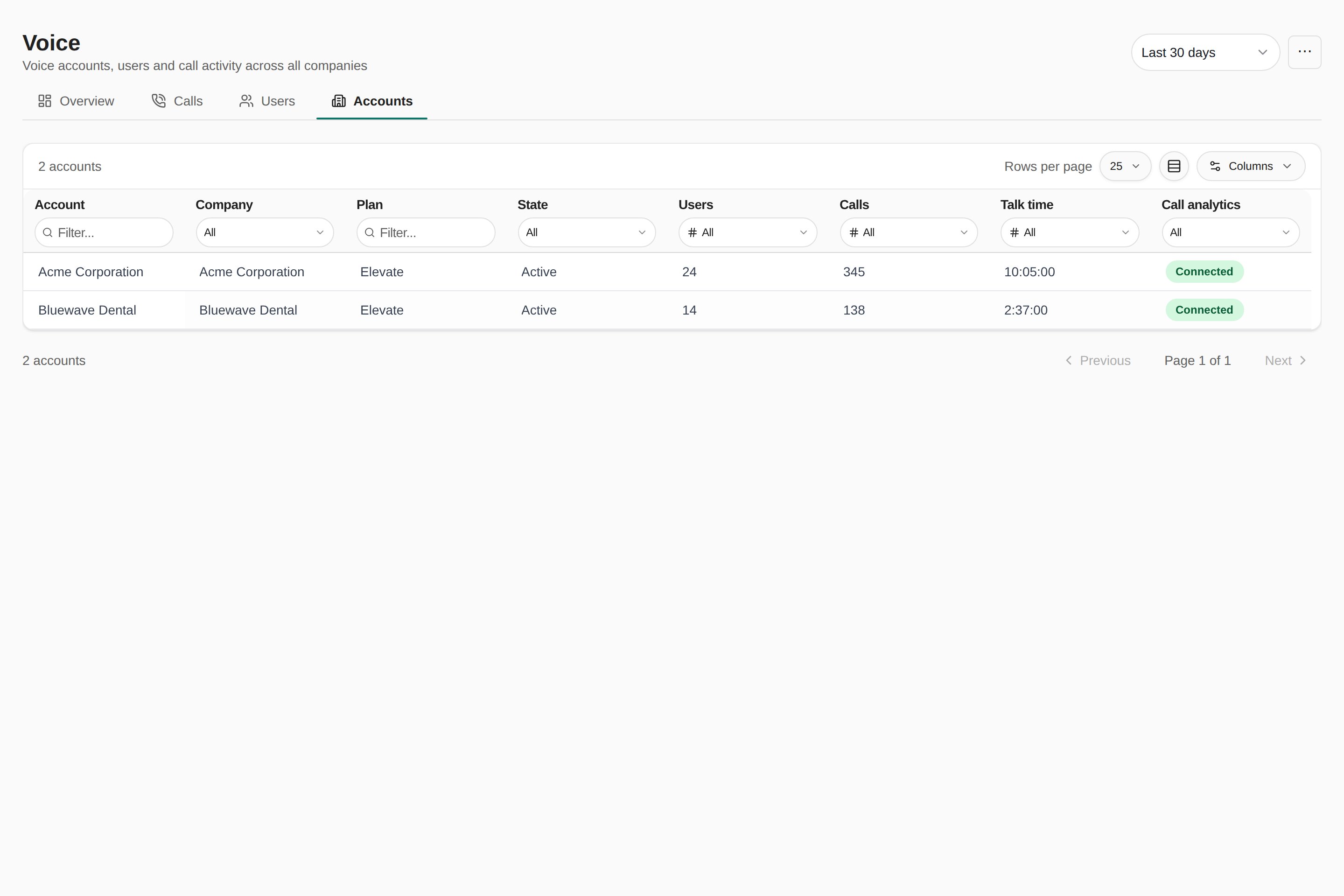
Branch preview on the Demo tenant: the Accounts tab with two mapped accounts, both with call analytics connected.
How often data updates
Opening Voice does not start a sync. MSP staff can run Sync All Data on the Intermedia setup page.
Voice in reports and dashboards
Two blocks in the Voice category of the block library read the same data, scoped to the report’s company and period:
Both need the Voice read permission and a connected Intermedia integration; otherwise they stay out of the library. Full Report also offers a Voice content source, off by default, with Summary and Detailed levels, so the written report can cover call volumes, talk time, answered share, the busiest callers and each account’s users. See Reporting.
Voice in the MCP server and public API
AI clients connected to the MCP server get aquery_voice tool with four actions: get_voice_summary, list_voice_calls, list_voice_users and list_voice_accounts. They need the voice.read scope, the Voice read permission and a connected voice provider, and they follow the connected user’s company access. See the MCP Tools Reference.
The public API exposes the same reads under the voice.read scope:
Each accepts an optional
companyId and a window as days (7, 30 or 90, default 30) or from and to timestamps. The API key’s linked user needs the Voice read permission, and the request is refused when no voice provider is connected. See the API Reference tab for parameters and response fields.
Troubleshooting
Frequently asked questions
Can company users see other companies' calls?
Can company users see other companies' calls?
No. Company users see only the accounts mapped to the companies they can access, and the company filter cannot reach beyond that scope.
Why does Active callers show fewer people than Users?
Why does Active callers show fewer people than Users?
Users counts everyone provisioned in the mapped accounts. Active callers counts only those with at least one call in the period.
Does Voice record or play calls?
Does Voice record or play calls?
No. It shows call records as the provider reports them: who called whom, when, for how long and at what charge.
Configure Intermedia Integration
Connect Intermedia, map accounts to companies and connect call analytics.
Reporting
Add the Voice blocks and content source to reports and dashboards.
MCP Tools Reference
Call the Voice actions from a connected AI client.
Company user permissions
Grant company roles the Voice read permission.