

Before you start
- You need the Security Awareness read permission.
- Your MSP must connect CyberHoot and map its customers to companies. See Enable the CyberHoot integration.
- If you have more than one awareness integration, choose the CyberHoot tab on Security Awareness.
Find a challenge
1
Open the challenge list
Open Security > Security Awareness, check the company selector, and click HootPhish challenges above the company table. A window opens.
2
Search
Type in Search challenges. It matches the challenge name, the company name, or the CyberHoot challenge ID.
3
Filter by status
Use the status dropdown to choose All challenges, Active, or Completed. Choose All challenges to see challenges in any other status.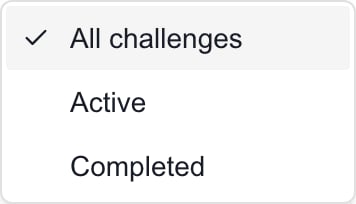
4
Page through the list
Use Previous page and Next page. Each page holds up to 25 challenges, newest start date first.
5
Pick a challenge
Click the challenge name in the table, or tap its card on a small screen. Its participant results appear below the list.
Read the challenge columns
The table shows HootPhish challenges (the name), Mapped companies, the status, Dates, Participation, Success, Challenge score, and Challenge rank. Cards on small screens also show Avg. participant score.- Participation and Success are different percentages.
- A status of Completed does not mean every participant passed.
- A dash or Not provided means CyberHoot supplied no value.
Troubleshooting
Frequently asked questions
Does selecting a challenge send anything to learners?
Does selecting a challenge send anything to learners?
No. It only shows the imported results.
Does Completed mean everyone passed?
Does Completed mean everyone passed?
No. Check Succeeded and Failed in the participant results.
Can I create or export challenges here?
Can I create or export challenges here?
No. Manage campaigns in CyberHoot.