

Before you start
- You have Backup read access and the record is inside your selected companies.
- Panels are read-only. They never start a backup, change a plan, resolve an alert or restore data.
Read Acronis activity
1
Open the row
Go to Backup > Devices, or choose Acronis under Backup > Microsoft 365, then select the device, mailbox, drive, site or team.
2
Confirm the resource
Check the resource name and company at the top of the panel.
3
Read the activity cards
Each card can show the operation, policy, resource name, result, how long ago it finished and how long it took. Results read OK, Failed, Warning or Running. Other provider values appear unchanged.
4
Page through activity
The panel shows 15 activities per page. Use the arrows when more pages exist. Go back to page 1 when you open another resource.
Read Cove Microsoft 365 history
1
Open the row
Go to Backup > Microsoft 365, choose Cove if a selector appears, and select a mailbox, drive, site or team.
2
Read the daily status
The panel is titled Backup history and covers the last 28 days. Daily backup status shows each day for the workload.
3
Read the runs
Each run shows its status plus Started, Completed, Protected data, Processed size and Errors. Use Previous and Next to page. A note says when only the most recent runs are shown.
Read NinjaOne details
1
Open the row
Go to Backup > Devices and select a NinjaOne row.
2
Read the storage
Check Status and Total Storage. Storage can split into Cloud, Local and Revisions, with breakdowns such as File/Folder, Image, Image v2, Network Share, and Current, Previous and Deleted revisions.
3
Compare the dates
Under Details, compare Last Success, Last Failure and Last Synced.
Read Datto Backup details
1
Open the row
Go to Backup > Devices and select a Datto Backup row.
2
Read the summary
The panel shows the asset’s status (Protected, Needs attention, Last backup failed or No backup yet) with Last snapshot, Latest offsite copy, Local recovery points, Screenshot verification, Volumes and Operating system. A note appears when backups are paused.
3
Read the history
Recent backups summarizes the latest attempts, and the Timeline lists each one as Successful, Failed or Verification failed, with any reported errors. A successful backup can still carry a verification warning.
Read Slide Backup details
1
Open the row
Go to Backup > Devices and select a Slide Backup row.
2
Read the summary
The panel shows the asset’s status, Open alerts, Last recovery point, Latest cloud copy, Backup schedule, Local retention, Boot verification, File system verification, Protected volumes, Operating system, IP addresses and Agent last seen. Notes appear when backups are paused or the encryption key is sealed.
3
Read the appliance
The Slide appliance section shows its name, model, serial number, service plan, software version, warranty expiry, storage and protected data.
4
Read the history
Recent backups lists each run as Successful, Failed, Canceled or In progress, with boot, file system and service verification results.
Read NinjaOne SaaS Backup history
1
Open the row
Go to Backup > Microsoft 365, choose NinjaOne SaaS Backup and select a record.
2
Read the summary
The panel shows the account’s state (Backing up, Backing up with errors, Never backed up or Deactivated), Last backup, Workload, Messages or Files, and Storage.
3
Read recent changes
Recent changes is a timeline of what MSPortal saw change, such as Errors reported, Errors cleared, Backup completed, Deactivated, Reactivated or First recorded.
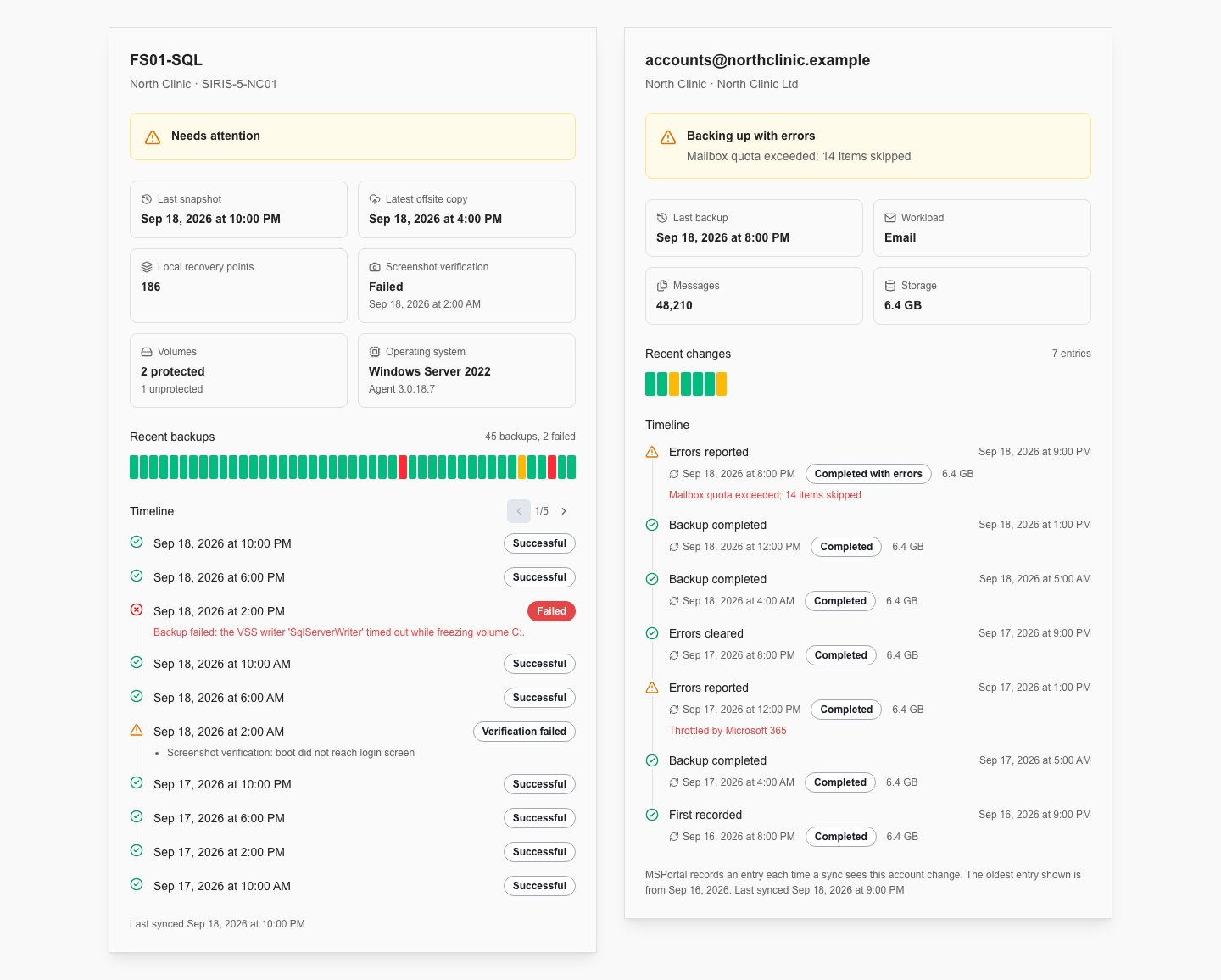
Example detail panels with illustrative data: Datto Backup history (left) and NinjaOne SaaS Backup recent changes (right).
Troubleshooting
Frequently asked questions
Does OK always mean a successful backup?
Does OK always mean a successful backup?
No. Read the operation type. OK can describe discovery or retention cleanup too.
Why are only a few result counts shown?
Why are only a few result counts shown?
A card shows up to four nonzero result entries. It is a summary of that activity.
Does Last Synced mean the device just backed up?
Does Last Synced mean the device just backed up?
No. It shows when MSPortal imported the record. Check the last success and the reported status separately.
Can I restore from a panel?
Can I restore from a panel?
No. Ask your MSP through the Home AI Assistant, as described in Open a ticket.