

Before you start
- You have Backup read access and a provider has reported data for your companies.
- The company selector at the top shows the companies you want. With several companies selected, tiles and cards add their results together.
Review the dashboard
1
Open the Dashboard
Go to Backup > Dashboard.
2
Check the company selection
Confirm the selector before you compare numbers.
3
Read the tiles
Read the summary tiles across the top. See the table below.
4
Read the provider cards
Scroll to the card for each connected provider.
5
Open the matching records
Select a tile, a status segment or a bar to open the records behind it.
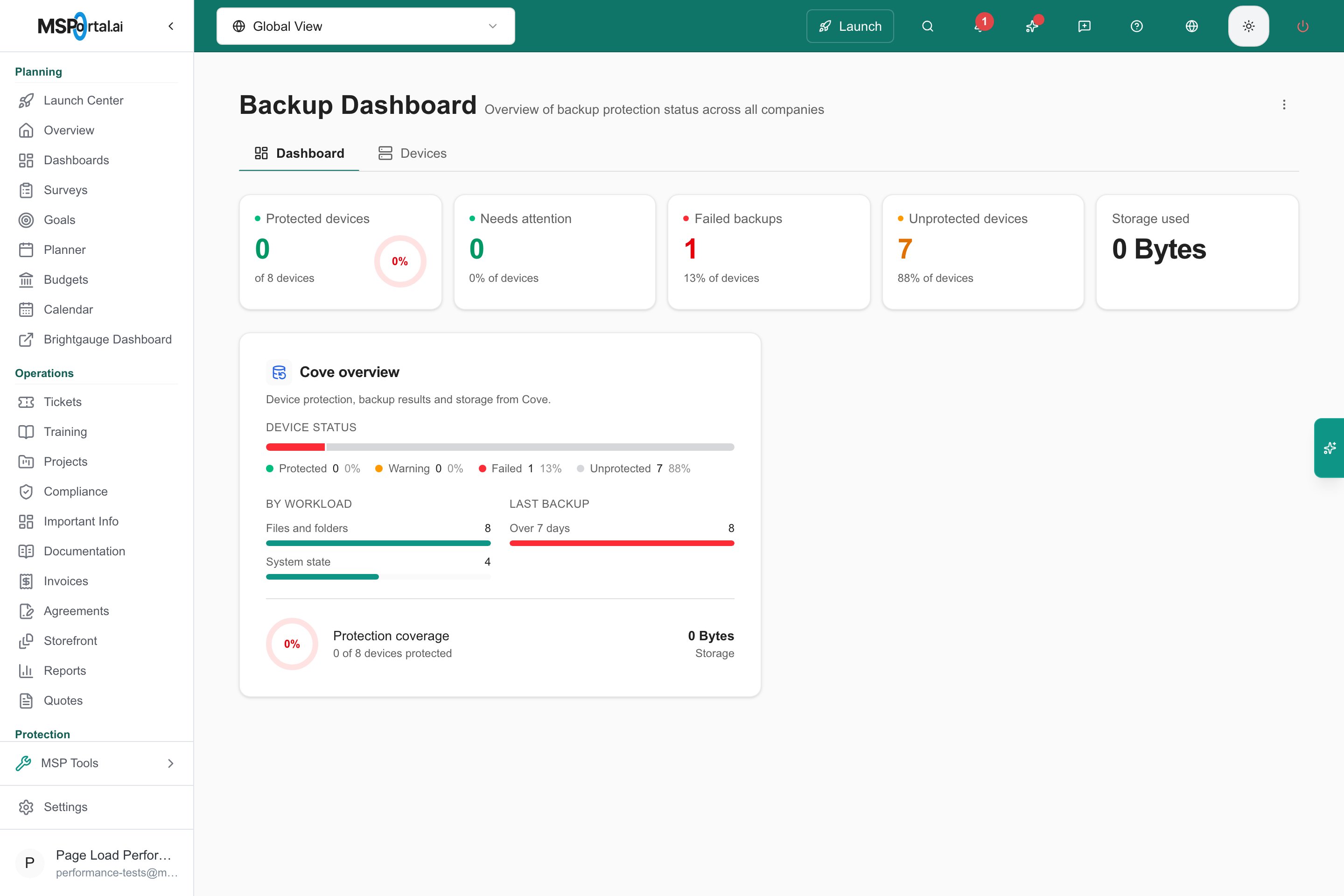
The Backup Dashboard. A provider card shows only the sections that provider supplied data for.
Summary tiles
When Cove or Acronis has recent session history, Needs attention and Failed backups add a 7-day trend line and count sessions instead of devices, for example “3 failed sessions in 7 days”. Without session history, they show a percentage of devices.
A session count and a device count answer different questions. One device can fail several sessions in a week, and a device that failed yesterday can succeed today. Backups that an MSP paused on purpose count as neither a warning nor a failure.
Provider cards
MSP staff see one card per connected provider, titled Cove overview, Acronis overview, NinjaOne overview, Datto Backup overview or Slide Backup overview. Company users see one Managed Device Backup card that combines every provider.
Selecting a By workload or Last backup bar opens Devices filtered to that provider only. It does not filter by workload type or age, so check the Type and Last Backup columns yourself.
A card shows only the sections its provider supplied data for. Device status and Protection coverage always appear. A missing section does not mean backups succeeded or failed. Datto Backup and Slide Backup cards show no workload, age or session sections.
Acronis counts can include resources that are not single endpoints. See Find device backups.
Cove device counts and storage on the tiles and the Cove overview card cover device backups. Cove Microsoft 365 accounts, including OneDrive, count in the Cove Microsoft 365 figures.
Microsoft 365 cards
These share the grid with the provider cards when Microsoft 365 data exists.- Cove Microsoft 365 shows a Backup status bar and a Workloads breakdown for Exchange, OneDrive, SharePoint and Teams. Select a segment or bar to open the Cove Microsoft 365 report. Cove Microsoft 365 accounts are counted here, not in the device tiles.
- Acronis Microsoft 365 shows the last backup result for items backed up in the last 90 days.
- Kaseya SaaS Protection and Spanning Backup show their backup health widgets.
- A provider without a summary card shows a link card named for it with View Microsoft 365 backups.
Check freshness
A protected status describes the imported result. It does not prove a backup ran recently or that a restore works. Use the Last backup groups on Cove and Acronis cards to spot stale devices, then open a device to see its dates. Other providers’ cards do not show backup age. If the dashboard shows No Backup Data Yet, zero totals or missing cards, check the company selector, then ask your MSP to check mapping and sync. If a note says some backup data could not be loaded, a provider failed to read and its zeros are unknown. Do not treat zero failed backups as proof that everything is protected.Troubleshooting
Frequently asked questions
Can I change the trend period?
Can I change the trend period?
No. Trend lines and session counts always cover the last 7 days.
Does Protected mean I can restore successfully?
Does Protected mean I can restore successfully?
No. It reports a provider status. Freshness, coverage, retention and restore testing need separate confirmation from your MSP.
Why does a company user see no vendor names?
Why does a company user see no vendor names?
Company users buy a managed backup service from their MSP, so MSPortal shows the service name instead of the vendor.
How do I report an old or failed backup?
How do I report an old or failed backup?
Start with the Home AI Assistant, as described in Open a ticket. Include the device, status and date, then confirm the request.