

Before you start
- You need Security Awareness read access for the companies you select.
- Your MSP must connect each provider and map its customers to companies. See Security awareness training.
- This table is read-only. It does not enroll learners, send reminders, play courses, or export CSV.
Open the learner table
You can open the table from two places.1
Option A: Security Training (all providers)
Open Training > Training Menu > Security Training. This table includes every connected provider, including CyberHoot. When Huntress assignments are available, this page has two tabs and Training Status is the one that shows learners.
2
Option B: Security Awareness (one provider at a time)
Open Security > Security Awareness. When more than one provider is connected, provider tabs appear at the top. Click the tab for BSN, Phin, or Huntress to see that provider’s learners. For Phished.io, click Phished.io, then Learners. The CyberHoot tab shows CyberHoot company and challenge sections instead of this table.
Find a learner
1
Check the company selection
The table follows the company selector. The Company column is hidden when you select exactly one company.
2
Search by user
Use the filter on the User column. It matches the learner’s name and email.
3
Filter or sort
Use the column filters and sort controls. Filtering and sorting apply to the whole result set, not only the page on screen. Browse the results 25 rows at a time.
4
Open a Breach Secure Now learner
Click a Breach Secure Now row to see risk details. Rows from other providers do not open a panel.
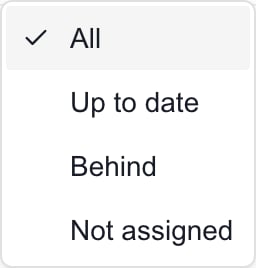
Filter the table
CyberHoot adds Overdue, HootScore, and columns you can turn on for HootRank, individual scores, Outstanding, Attempts, Late submissions, and AttackPhish failures. Only CyberHoot fills these in.
Read the figures
- Not assigned means the learner has zero assigned trainings.
- Up to date and Behind come from each provider’s own compliance value. For Breach Secure Now, Up to date means completion is 100%.
- Not provided means the provider did not send that value. It does not mean zero risk or finished training.
Do not add up Active Campaigns across learners, because Phin and Huntress repeat the same company count on each row.
Phished.io
The Phished.io integration adds learner rows based on the current training snapshot. In Security > Security Awareness, select Phished.io > Learners; the combined Security Training view can also include Phished. Assigned and completed counts use Phished’s recipient summary. Missing statistics remain Not provided; they are not treated as completed training. The generic phishing sent, clicked and click-rate columns are unavailable for Phished. Use its Insights view for simulation event counts from the last 30 days. These event counts are distinct from a calculated click rate or a unique learner count.Troubleshooting
Earlier results can remain visible while a new request loads. An empty or missing table does not prove a successful refresh.
Frequently asked questions
Why does clicking a Phin, Huntress, or CyberHoot learner do nothing?
Why does clicking a Phin, Huntress, or CyberHoot learner do nothing?
Only Breach Secure Now rows open the risk panel in this table.
Does Not assigned mean the learner passed?
Does Not assigned mean the learner passed?
No. It means no trainings are assigned. Check the provider’s assignments with your MSP.
Why do I see different providers on Security Training and Security Awareness?
Why do I see different providers on Security Training and Security Awareness?
Security Training lists all providers in one table. Security Awareness shows one provider per tab.
Does the Account column prove someone can sign in?
Does the Account column prove someone can sign in?
No. It shows Active unless the provider reports the account as inactive or locked.