

Before you start
- You need access to the assigned item. Your provider handles provider-owned approvals.
- These steps cover onboarding requests. They are not the same as the Notifications approval queue.
- A Blocked item needs its prerequisites finished first.
Approve or reject a request
1
Open the approval item
Find the pending item in your onboarding workspace and read its summary and description. Already decided items display their status instead of decision buttons.
2
Review the supporting document
If the request includes a document, review it in the document area. If it reports Unable to load document, ask your provider to resolve that before you make a decision that depends on it.
3
Add any explanation
Select Add notes (optional) and enter the context you want to submit with your decision. Typing notes alone does not send them.
4
Submit your decision
Select Approve or Reject. This submits the decision directly; there is no second confirmation. Wait for Approved or Rejected and the decision date.
Sign a document
1
Read the document
Open the signature task and read the document and any Additional notes. Some tasks show text to sign instead of an attached PDF.
2
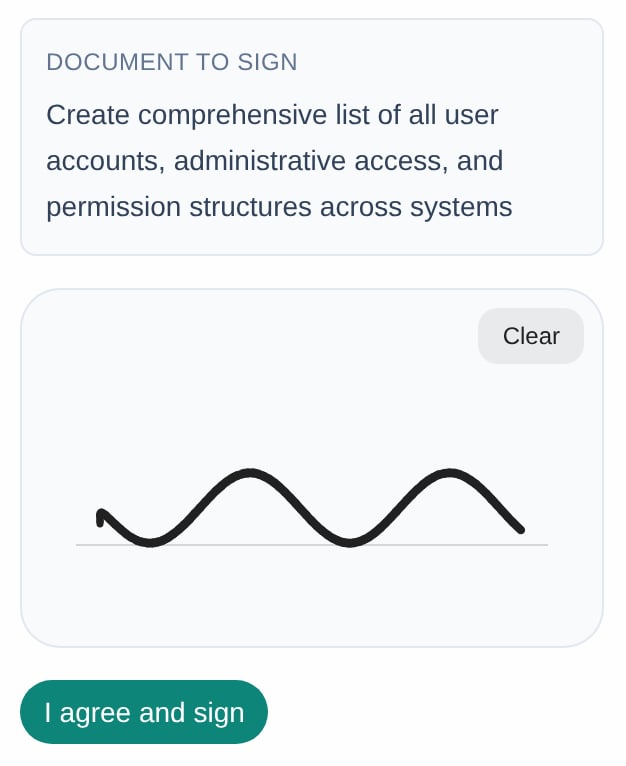
Sign on the line
Draw your signature on the line marked Sign here. To start again, select Clear: the ink is taken back stroke by stroke until the pad is empty.
3
Check the Signed pill
Pause after your last stroke and the pad folds into a Signed pill. To add to or change your signature, select the pill. The pad opens again with your signature still on it.
4
Submit
Select I agree and sign. The button needs a drawn signature. Drawing alone does not submit it.
5
Confirm
Wait for Signature submitted. The task then shows your signature and the signer details.
- Desktop
- Phone
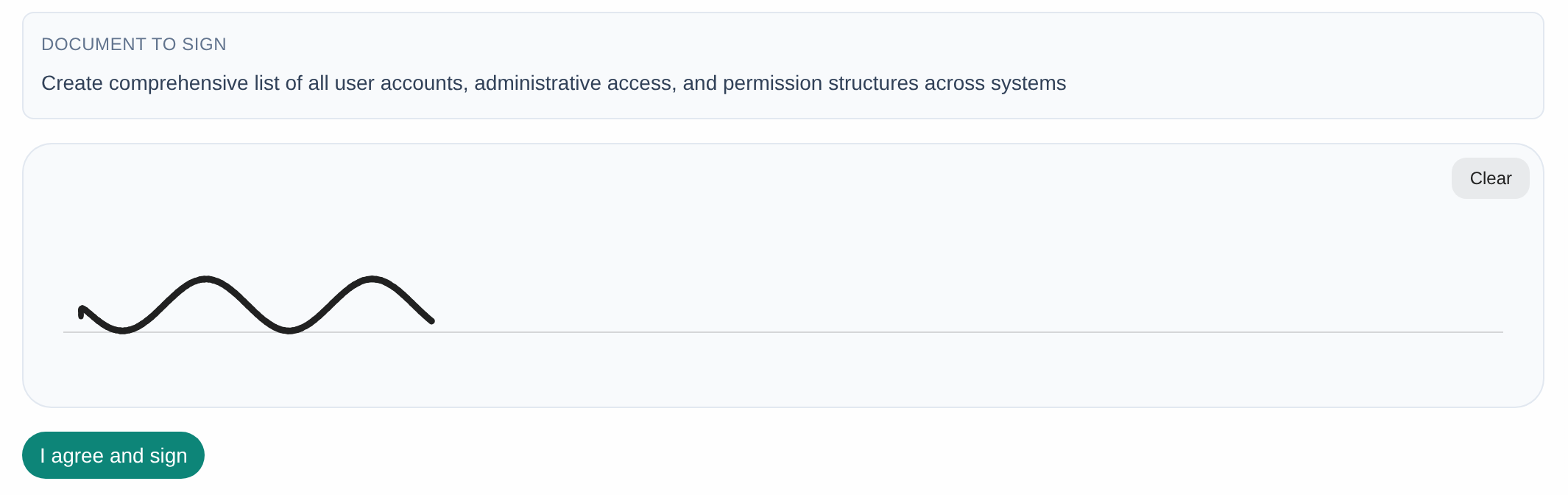
A signature on the line, with Clear in the corner of the pad.

After a pause the pad folds into the Signed pill. Select the pill to reopen the pad with the signature kept.
Troubleshooting
Frequently asked questions
Can I approve an onboarding request without signing it?
Can I approve an onboarding request without signing it?
An approval and a signature are separate item types. Use the action requested on the item; approving one item does not sign a separate document task.
Does Approve open a confirmation first?
Does Approve open a confirmation first?
No. In an onboarding approval item, Approve and Reject submit directly, including any optional notes you entered.
Are approval notes saved automatically?
Are approval notes saved automatically?
No. They are included when you submit the decision. Leaving the item before deciding does not submit those notes.
Can I change my decision or signature?
Can I change my decision or signature?
The Company view has no undo decision or edit submitted signature control. Ask your provider to arrange a corrected request.
What if the supporting document will not load?
What if the supporting document will not load?
Reopen the item and check your access. If it still fails, contact your provider with the item name and displayed error. Do not infer the document’s content from its filename.
Does approval finish the entire onboarding?
Does approval finish the entire onboarding?
No. It completes that decision. Other tasks, documents, approvals, and provider work can still be outstanding.