

Before you start
- Your role needs permission to write ticket settings (Settings > Tickets). With read access only, you can open a translation to read it, but not change it.
- AI must be available for your account. If it is not, MSPortal shows “AI isn’t available for this account, so forms can’t be translated right now.”
- Save the form first. The Languages section appears once a form has been saved, on main forms and on branches. Translations use the saved form, so Translate is unavailable while you have unsaved changes.
Translate a form
1
Open the form
Go to Settings > Tickets > Templates and open the form.
2
Open Languages
Expand Languages. The section shows the language the form is written in, such as Written in English, and any versions it already has.
3
Click Translate
The Translate dialog opens with the form’s name in its title.
4
Check the form's language
Form is written in shows the form’s current language. A new form is written in your tenant’s Default Language, and a branch follows its main form. Change it only if the form’s text is in another language.
5
Pick languages
Under Translate into, select each language you want. Languages the form already has are selected when the dialog opens.
6
Choose branches and status
If the form has company branches, keep Also translate N company branches selected to translate them too. Select Turn each language on when it’s ready to show each finished version to requesters right away. Leave it off to review each version first.
7
Click Translate into N languages
A progress bar tracks each form. When the run finishes, the dialog reports how many language versions are ready. Click Done.
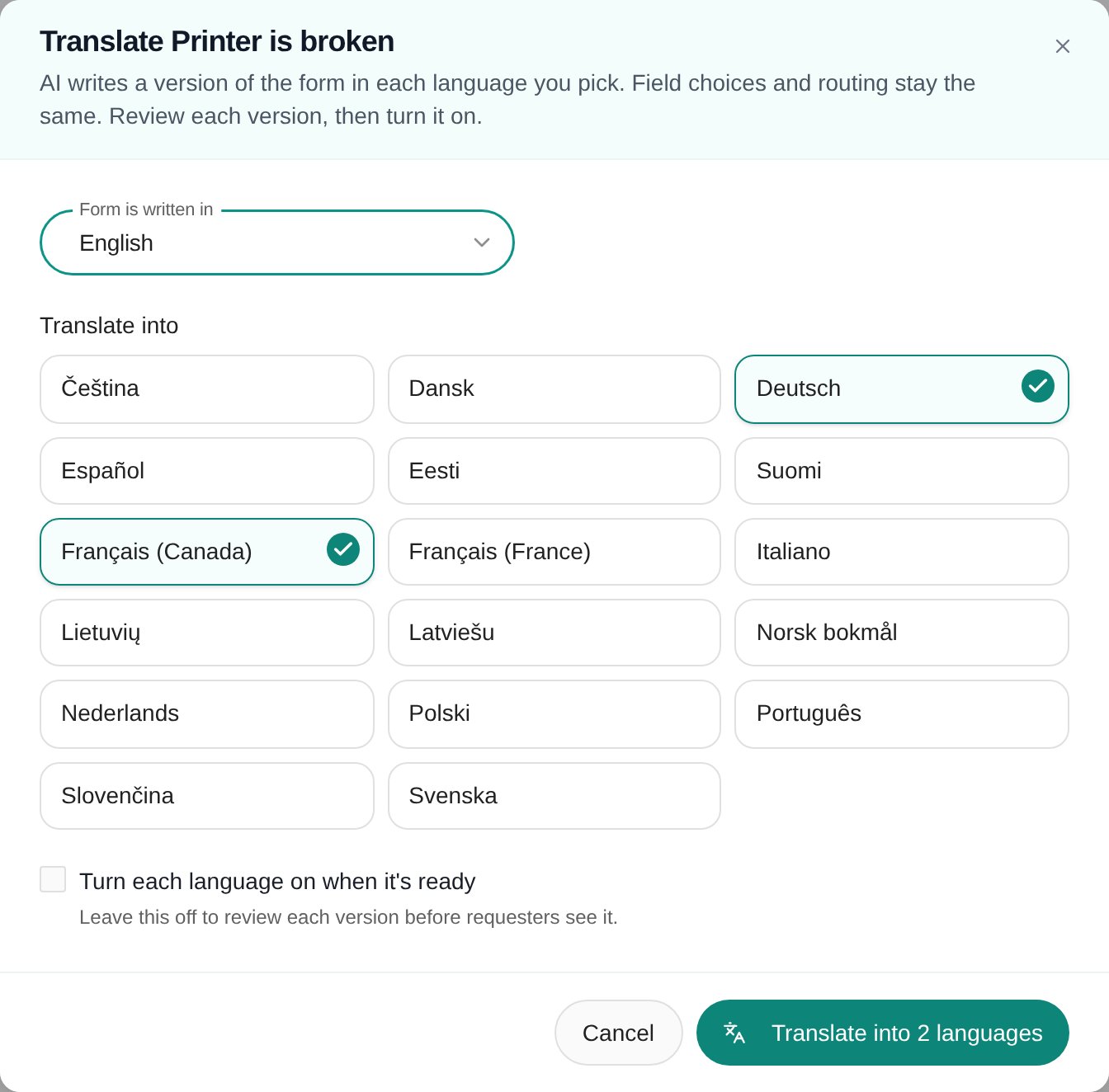
The Translate dialog for one form.
Check a form’s languages
Each language in the Languages section shows:
The Languages heading also shows how many languages are on, such as 1 on, or Needs update when the form has changed since it was translated.
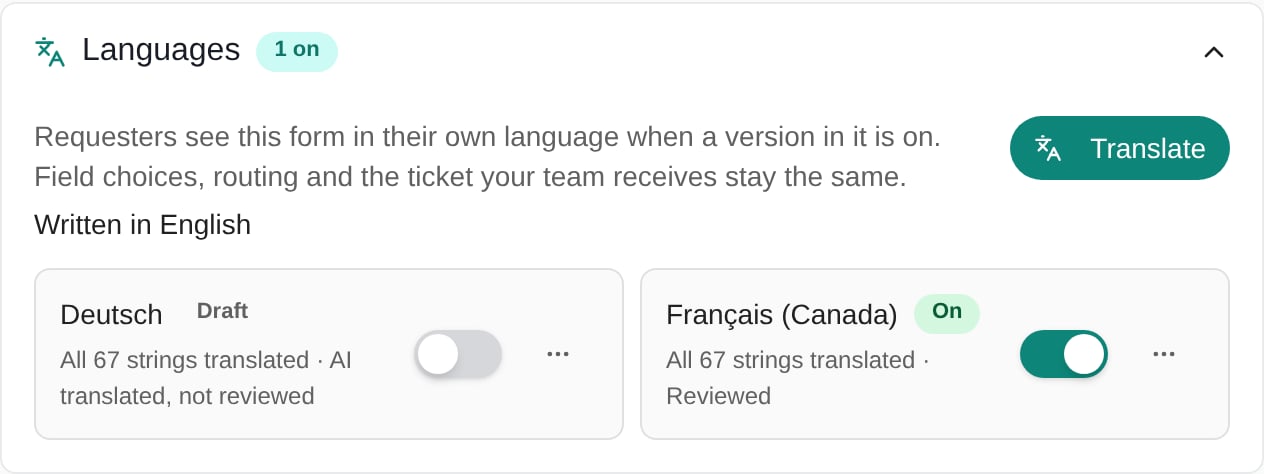
The Languages section of a form with one language on and one draft.
Review a translation
1
Open Review
In the language’s menu (…), click Review.
2
Read each string beside its source
The Text view lists the form’s text in form order, grouped by section. Each row names the kind of text, such as Field label, Help text, or Choice, and shows the source on the left and the translation on the right. AI marks a translation nobody has changed yet. Needs translating marks text with no translation.
3
Edit what needs changing
Type over any translation. Text you leave empty shows in the form’s own language.
4
Preview the form
Click Preview to see the form in that language, including your unsaved edits. Click Text to return to the list.
5
Save
For a draft, click Save as draft to keep it hidden, or Save and turn on to show it to requesters. For a version that is already on, click Save. Saving marks the translation as reviewed.
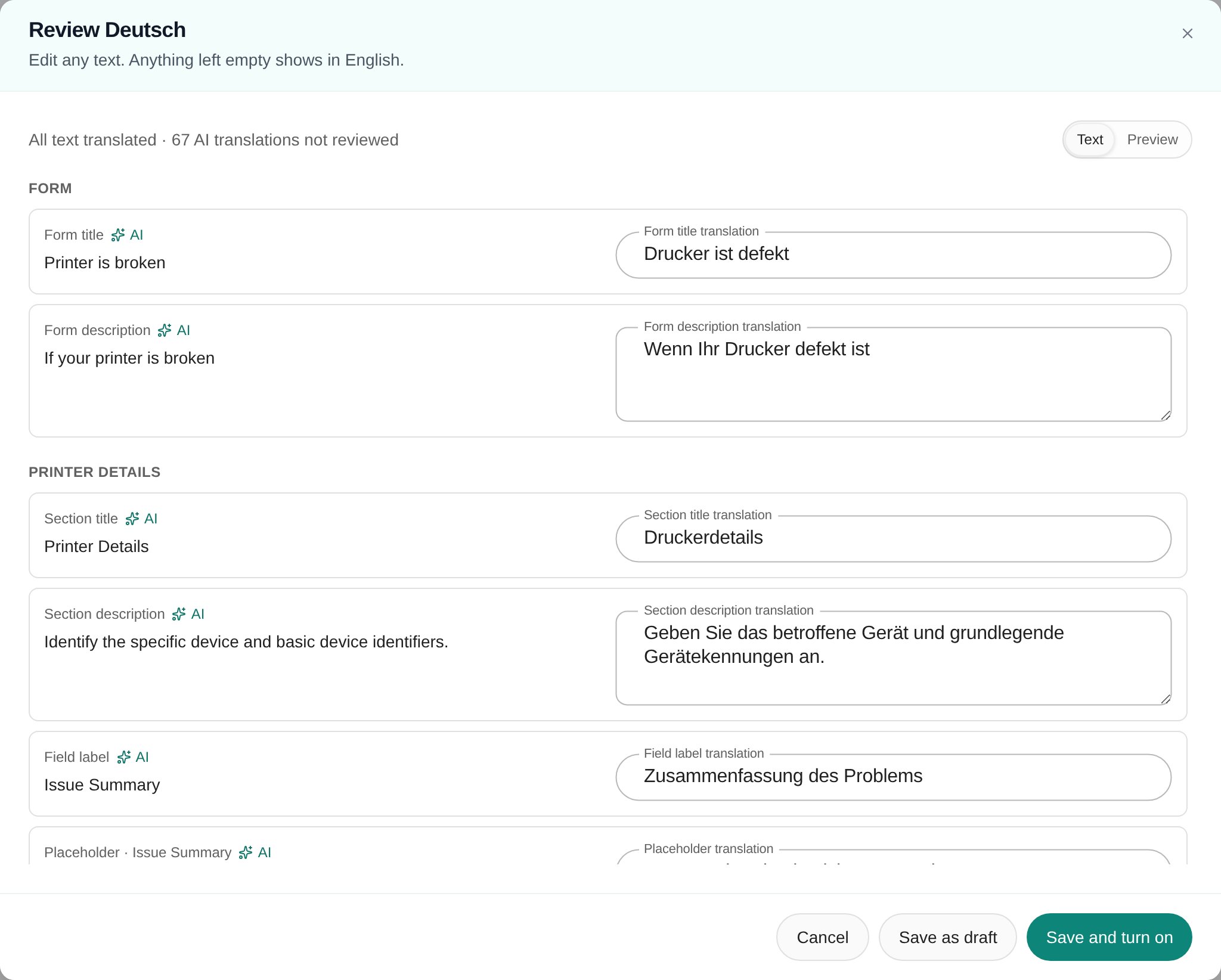
Reviewing a draft translation beside the form's own text.
Turn a language on or off
Use the switch on the language. When it is on, requesters who use that language see this version. When you turn it off, the version is kept as a draft, and you can turn it on again later.Update translations after the form changes
When you add or change text on a translated form, its versions are missing that text. The Languages heading shows Needs update, and the section says the form changed after it was translated.- Click Update N languages to translate the missing text in every language that needs it.
- To update one language, open its menu (…) and click Translate missing text.
Translate company branches
A branch without its own versions uses its main form’s languages. In the branch’s Languages section, those versions show From main form. Text that only the branch has shows in the form’s own language. To give a branch its own versions, use one of these:- On the main form, keep Also translate N company branches selected when you translate.
- On the branch, click Translate in its Languages section.
- On the branch, open a language’s menu and click Review and give this branch its own copy, then save.
Translate many forms at once
1
Select forms
In Settings > Tickets > Templates, select the forms you want.
2
Open Translate
Click Bulk Actions and choose Translate. The dialog’s title shows how many forms you selected.
3
Pick languages and options
Form is written in starts at Each form’s own language, so each form keeps its language. Pick languages, then choose the branch and status options as for a single form.
4
Run and review
Click Translate into N languages. MSPortal translates one form at a time, each main form before its branches. New versions are drafts unless you turned them on. Open each form’s Languages section to review and turn them on.
Remove a language
Open the language’s menu (…), click Remove, then confirm with Delete. Requesters who use that language then see the form in its own language.What requesters see
- Their language: a requester sees the form in the language they use MSPortal in. That is the language they pick in the language menu (globe icon). If they have not picked one, it is their company’s language, then your tenant’s Default Language.
- Closest match: MSPortal shows the version in the requester’s exact language first. If there is none, it shows a version in another region of the same language. For example, a requester using Français (Canada) sees the Français (France) version when the form has no Français (Canada) version.
- Only versions that are on: drafts never reach requesters. Without a matching version that is on, the form shows in its own language.
- Where: on New Ticket, and in the ticket form the AI assistant opens.
- The ticket stays the same: field choices, routing, rules, and the ticket your team receives keep the form’s own language, including the ticket created in your PSA.
Languages you can translate into
English, Čeština, Dansk, Deutsch, Español, Eesti, Suomi, Français (Canada), Français (France), Italiano, Lietuvių, Latviešu, Norsk bokmål, Nederlands, Polski, Português, Slovenčina, and Svenska. The form’s own language is not offered as a target.Troubleshooting
Frequently asked questions
Does translating change the ticket my team receives?
Does translating change the ticket my team receives?
No. Field choices, routing, and the ticket body stay in the form’s own language, whichever version the requester filled in.
Can requesters see a translation before I review it?
Can requesters see a translation before I review it?
Only if it is on. New versions are drafts unless you selected Turn each language on when it’s ready.
Will updating a language overwrite my edits?
Will updating a language overwrite my edits?
No. Update and Translate missing text only fill in text that has no translation yet.
Can I translate the form myself instead of using AI?
Can I translate the form myself instead of using AI?
Yes. Open Review and type or replace any translation, then save.
Related guides
How to create a ticket template
Build forms, branches, and access settings.
Create and preview a ticket template
Draft a form and preview it before you save.
Manage your profile
Choose the language you use MSPortal in.
Companies
Set a company’s default language.